Artifact drawers
Artifact drawers replace modals and provide a more streamlined user experience.
General artifact drawer enhancements
The new artifact drawers introduced in this 25.1 release replace legacy modals for Documents, Contracts, Submissions, and IP Release Packages. The General enhancements described below apply to all drawers, including Document drawers. Please review the Contract drawer, Submission drawer, and IP Release package drawer sections in these release notes to learn about unique drawer functionality for those artifact types.
Drawer header
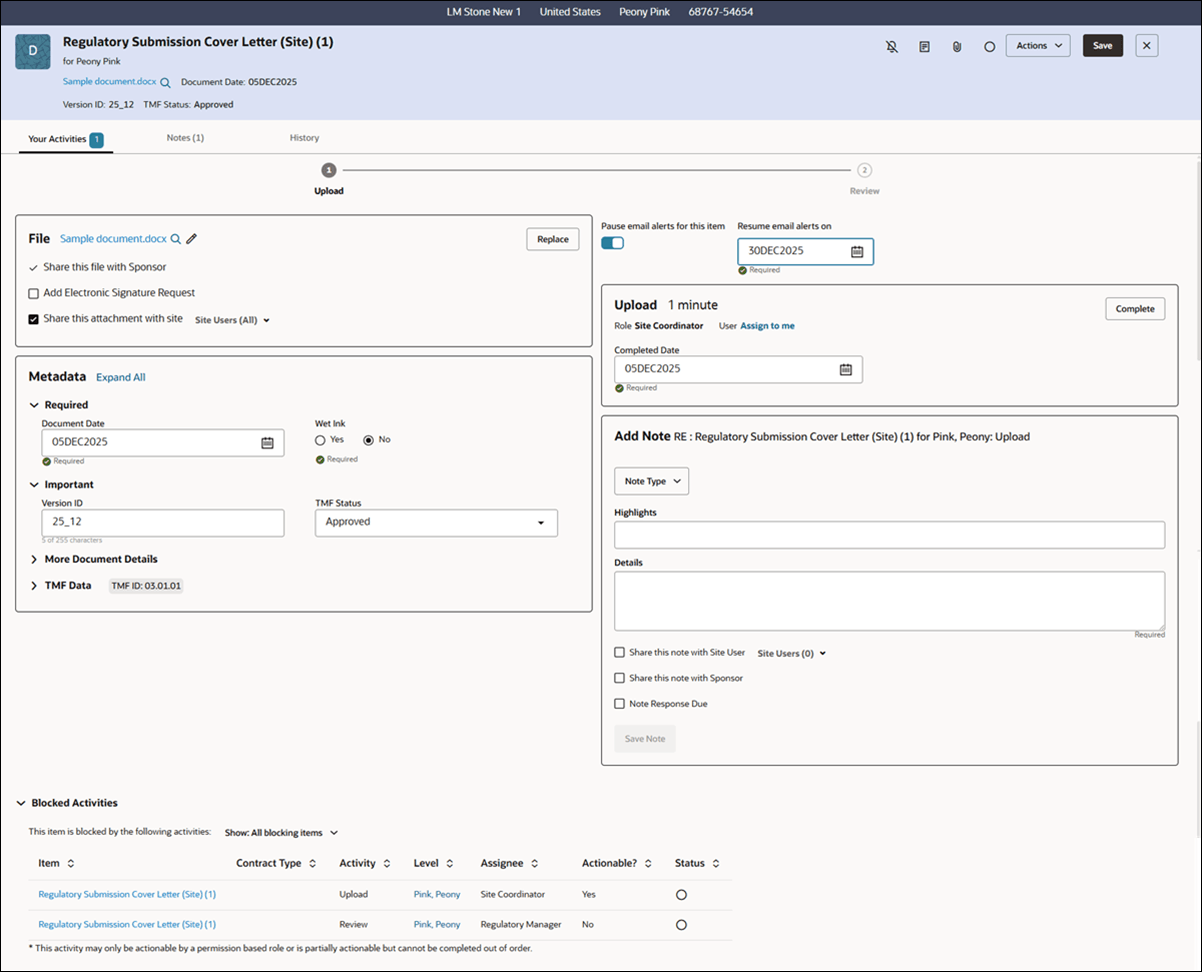
The drawer’s header shows a square avatar next to the artifact name to indicate the type (e.g., document “D,” submission “S,” contract “C”, amendment "A," etc.). The header also includes the artifact’s name, file name (if present), study, country, and site names when applicable. For site-level artifacts, the PI, site, or staff name displays just below the artifact name. When key metadata fields are set (e.g., version ID, protocol, category, type, reason, and TMF status), they also display in the header.
Lineage documents display the master document’s version ID and a blue flag with the artifact name. The metadata for these documents appears in the same format as for standard artifacts.
Artifact icons display at the upper right and have descriptive tool tips. Icon order follows previous standards. Hover over the icons to view the descriptions. You'll also see Save and Edit buttons, as applicable, at the header's upper right.

Tabbed and accordion organization
Artifact drawer tabs always show in this order: Your Activities, Notes, and History. The Your Activities and Notes tab labels are dynamic and show the count of available activities and the number of notes saved for the artifact.
The new drawer design separates Metadata (panel to the left) and activity-related actions (panel to the right). The Metadata panel includes collapsible accordion sections (e.g., Required, Important, More Document Detail, etc.). The accordions include the fields configured for that artifact (e.g., Version ID, Wet Ink, Expiration Date, TMF Status, etc.). When applicable to the artifact, additional accordion sections for “Documents Included In” and/or “Blocked Activities” display at the bottom of the drawer on the Your Activities tab.
Your Activities tab
Activity train and navigation
At the top of the tab, an activity train shows all activities for the artifact.
- Completed activities have a green check mark and a completion date.
- Open activities are interactive, with the first open activity loading by default.
- Blocked activities are grayed out for you and aren’t clickable, but you can view the train and completed activities/dates.
For completed artifacts, you still see the activity train, but the activity panel is not available in the drawer.
File handling and sharing
The File panel on the left lets you upload attachments via drag-and-drop or by using the attach button. If a file is attached, you’ll see its name, a preview icon (if applicable; not all types can be previewed), and options to share with site users or sponsors, add electronic signature requests, and use a Replace button when relevant.
Activity panel and controls
On the right, you see the activity name, assigned user role, “Show Users” or “Assign to me” links, and the Complete button, which activates when all required fields are set. If you don't have the required user role to work on this activity, you'll see the message, "This item is blocked because you do not have the [RoleName] role." In this case, you can edit the artifact's metadata if you have write permissions (i.e., your user role is not a read-only role).
Just above the Activity panel, you’ll also see a toggle control to pause email alerts. When you enable the optional control, it will pause alerts for that specific activity, and you can schedule a preferred date when you want alerts to resume.
Saving and alerts
You can save changes only after you make edits. Some fields, such as Completed Date and the artifact Decision Options (if configured), save only when the activity is completed. If you attempt to navigate away from the drawer and you have unsaved changes, you’ll be prompted to save or discard them.
Package detail and Blocked activities
At the bottom of the drawer, “Documents Included In” and “Blocked Activities” accordion sections provide quick access to package details, actionable dependencies, a display filter, and role-based guidance. These accordions are included only when applicable to the artifact.
Special states: Completed, Discontinued, and Read-Only
For completed artifacts, you can view all metadata, files, activities, and notes; however, editing is possible only if you have correction permission. If you can correct, an Edit button replaces Save, letting you enter correction mode to update fields and save or cancel as needed. If your organization allows, you may add missing attachments to completed artifacts that are not in a completed or approved package.
When an artifact is discontinued, the drawer appears in read-only mode, shows a discontinued icon, and disables all activity actions. The Notes tab is still accessible, but it will prevent new entries.
Read-only users can view all content but cannot make any changes (e.g., add, edit, or save any metadata) or add notes.
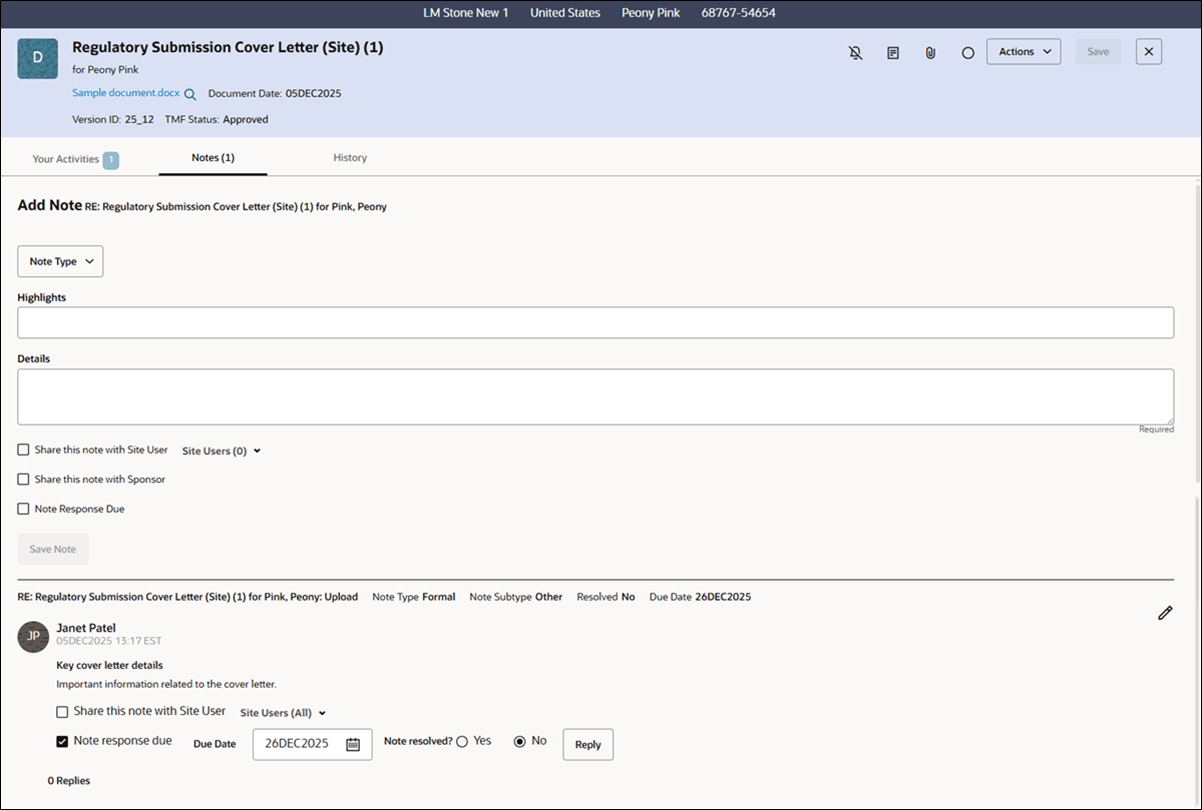
Notes tab
At the top of the Notes tab, you can add a new note that specifies note type, a note subtype (new in this release), highlight, content, optional response due date, and sharing options with sponsors. The note count in the tab label updates automatically as you or your team add additional notes for this artifact. Existing notes are listed at the bottom of the Notes tab. You can view existing notes and edit them if you have the required permission (e.g., adjust the note response due date, mark notes as resolved, and reply with comments or file attachments).
If an artifact is discontinued or you have read-only access, you may view notes but not add new ones.
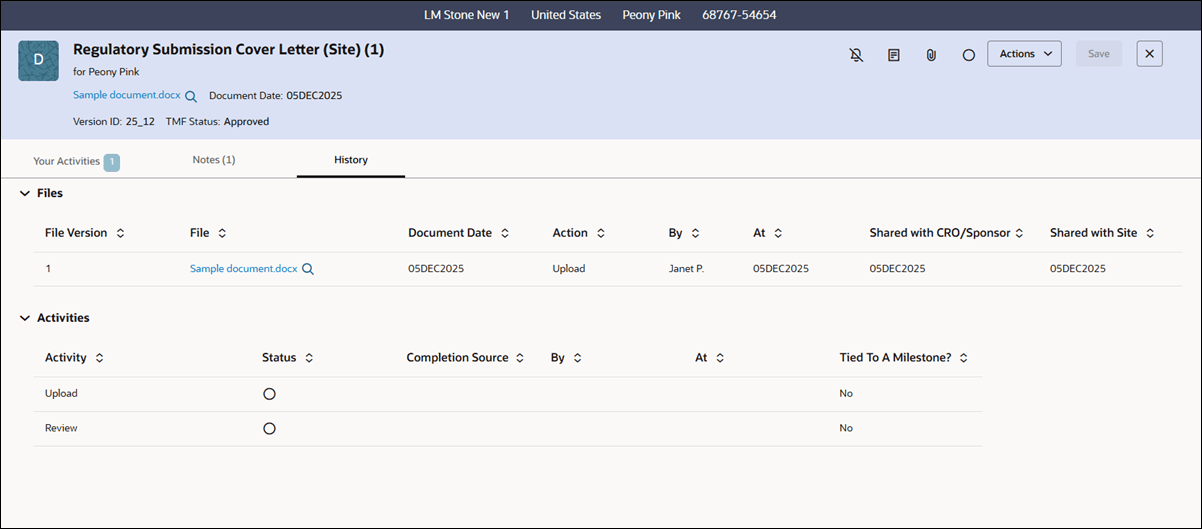
History tab
The History tab can display the following three sections:
Lineage: If applicable, a Lineage section appears at the top of the tab, displaying lineage details such as the master document, master file, document date, version ID, status, and description.
Files: All file versions related to the artifact are shown. Details include file name, preview link, document date, action taken, user who performed the action, time of action, and sharing information for CRO, sponsors, or sites.
Activities: The Activities section records the complete activity history, including the activity name, status, completion source, user, time, and relationship to milestones. With the appropriate user role permission, you can edit the completion date for any activity not tied to a milestone by using a correction dialog to update the date and record the reason.