3 Planning Administration
The Planning Administration task is used to map last year weeks to current year weeks, set up product and location attributes, assign strategy weights for location clustering, define size profiles, map stores to warehouse, set Dashboard parameters, and export setup.
Create the Planning Administration Segment
To create the Planning Administration segment:
-
Click Assortment Services in the Task menu. Then, click the Planning Administration activity and then the Planning Administration task.
-
The dialog to create New Plan opens. Click Create New Plan.
-
Enter a descriptive Plan Label in the text field. Click Ok.
-
In Select Product, select one or multiple departments and click Finish.
The Planning Administration segment is built.
Step 1: Week Mapping
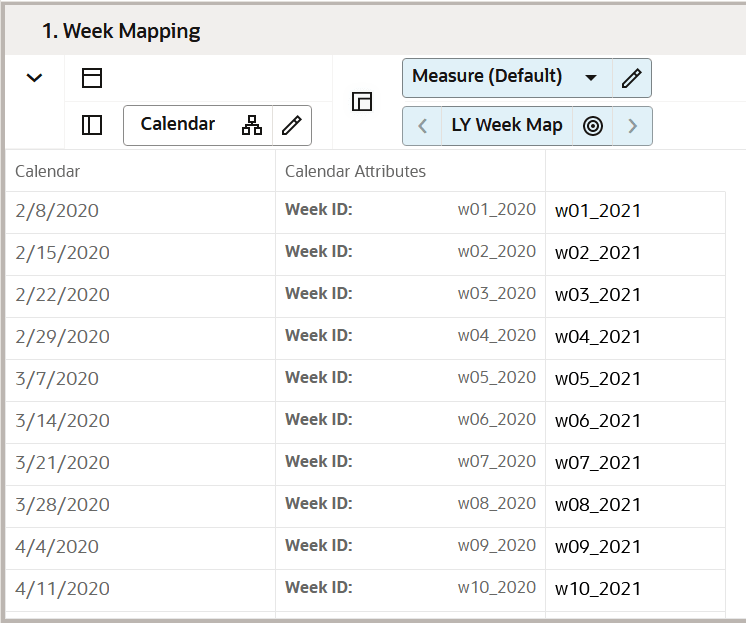
The Week Mapping step is used to assign and validate last year's weekly mapping. By default, a loaded file maps last year's weeks on a one-to-one basis. Situations that may require a weekly mapping shift are 53 week years and major holidays that change by weeks and/or months every year. Shifting a holiday week using mapping allows the business to compare last year’s holiday sales that may have happened in a different fiscal week to the week that they will occur in this year.
The step to complete this process:
-
Confirm and modify if necessary, the week mapping.
Tab and View in this Step:
Week Mapping Tab
This tab is used to review and update the week mapping of this year to last year’s weeks.
Week Mapping View
The Week Mapping view facilitates the alignment of weeks from the current year with corresponding weeks from the previous year. By default, weeks are mapped congruently—for instance, Week 1 of last year is paired with Week 1 of this year, and so on. However, users can manually adjust this mapping to address specific scenarios, such as years with 53-weeks or shifting holiday periods, ensuring accurate year-over-year comparisons and trend analysis. This flexibility allows businesses to maintain consistency in their planning and forecasting processes, even when fiscal calendars vary.
Figure 3-1 Week Mapping View
Step 2: Product Setup
The Product Setup step is used to view and define attribute values, assign the attributes to each category, and assign the attribute value for each item. The Administrator can map the product attributes, set the Dashboard parameters, set the card view attribute and images, and set the base unit price/cost of the placeholder products.
Tab and Views in this Step:
Product Setup Tab
This tab is used to select and set up attributes of a product.
Define Product Attributes View
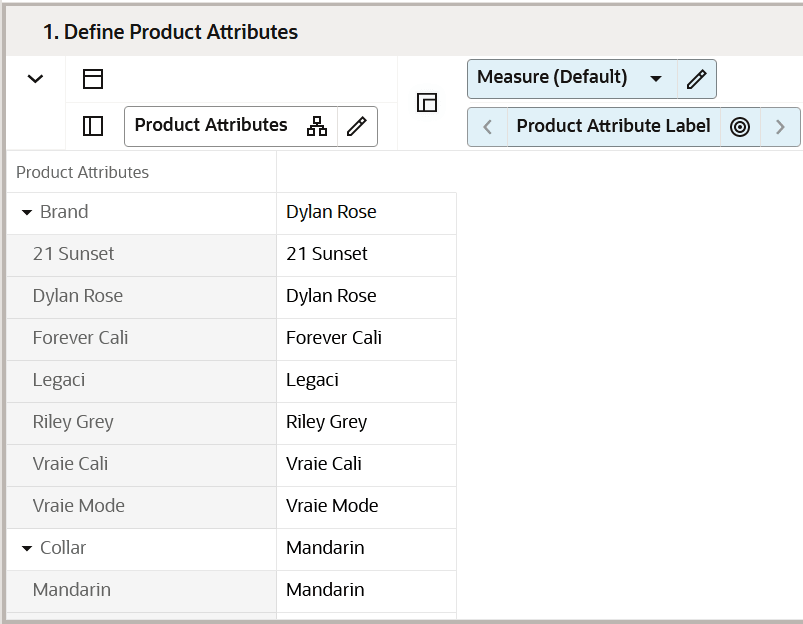
The Define Product Attributes view is used to view attributes and attribute values that can be used to distinguish items in an assortment based on the features. Example attributes are brand, size, product type, and color which can be used to facilitate planning, measuring, and efficiently managing a category's business. It also allows the creation of new attribute values.
To add a new attribute value, right-click a Product Attribute Value position and use the Add Positions option (Placeholder Maintenance functionality) to maintain new product attribute values (attribute value) mapping to a product attribute name (attribute name).
If attributes need to be updated for an existing item, the best practice is to update them in the source system.
For information on what is exported using the OAT process, see the Oracle Retail Assortment Planning Cloud Service Implementation Guide.
Figure 3-2 Define Product Attributes View
Select Product Attributes View
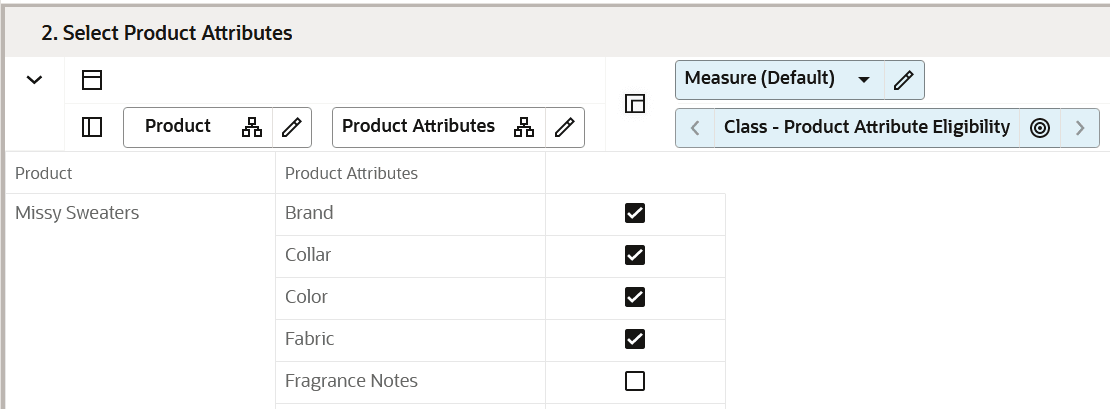
The Select Product Attributes view is used to maintain the mapping of attribute names to a product category. Depending on the settings selected, different attributes and their respective attribute values are made available for different product categories for display. For example, an attribute Sleeve length may apply to the Sweaters product category but may not apply to the Trousers product category.
Figure 3-3 Select Product Attributes View
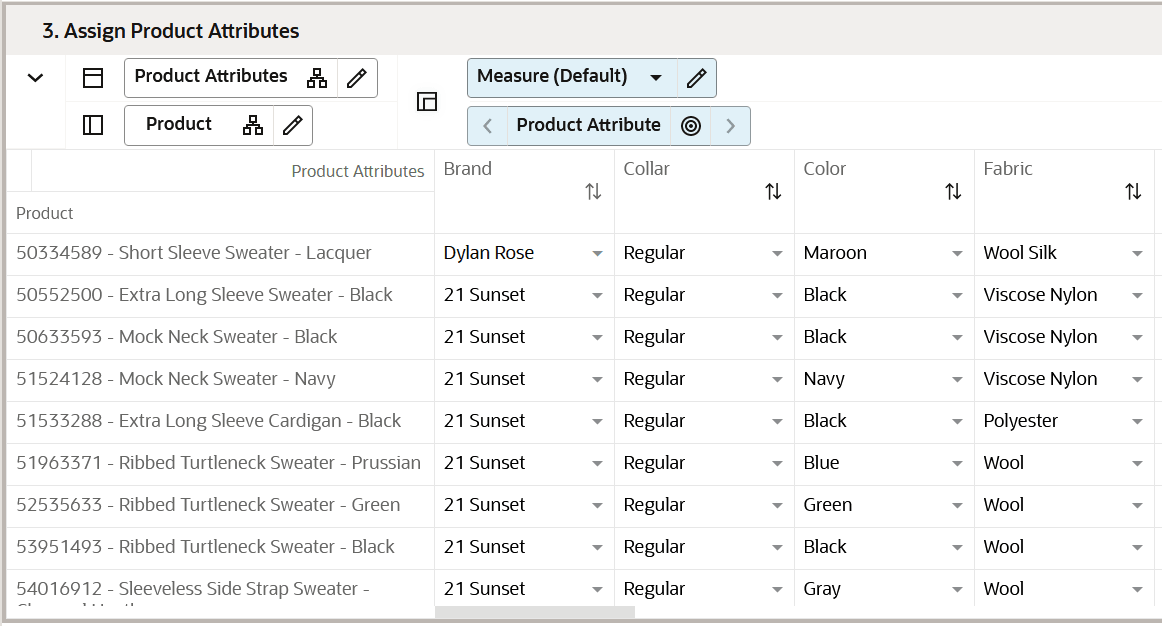
Assign Product Attribute View
The Assign Product Attributes view is used to update the attribute values mapping to a placeholder item. While the Administrator is allowed to make changes to an existing item's attributes in this view, those changes will not be sent back to a master data management (MDM) system such as the Oracle Retail Merchandising System (RMS), which is the system of record for product attribute information.
If a change is made to an existing item here, it will need to be communicated back to the source system. A new Product attribute of Product Type is added to the current list of attributes that will mark an item as a basic/continuous item or a seasonal item to enable you to follow a simplified workflow for basic items and focus more on seasonal items every assortment period.
Figure 3-4 Assign Product Attributes View
Color Attribute Identifier View
The Color Attribute Identifier view is used to validate the mapping of Color Attributes to the respective measures.
Figure 3-5 Color Attribute Identifier View

Define Card View Attribute View
The Define Card View Attribute view is used to define the specific attribute that needs to be used in the Assorted Card view that displays in the Plan Assortment - Visual view of the Recommend Assortment step of the Recommend Assortment Workspace. Also, the Planning Administrator can specify the attribute to be used in the Available Options view that displays in the Assorted Options- Visual view of the Plan Assortment step of the Assortment Planning workspace.
Figure 3-6 Define Card View Attribute View
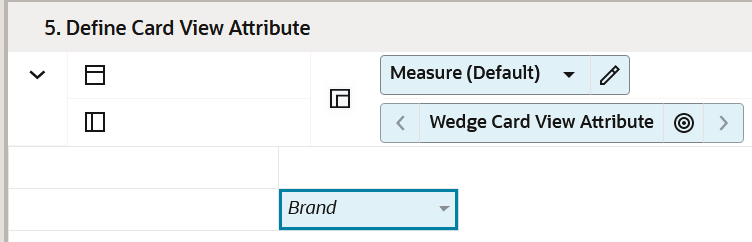
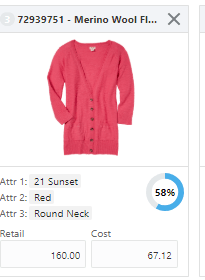
Figure 3-7 Example of Shopping List Card View Attribute
Define Attribute Image View
The Define Attributes Image view is used to assign the image for Product Attributes.
For additional information on managing images, see the View and Manage Images section in the Oracle Retail Predictive Application Server Cloud Edition User Guide.
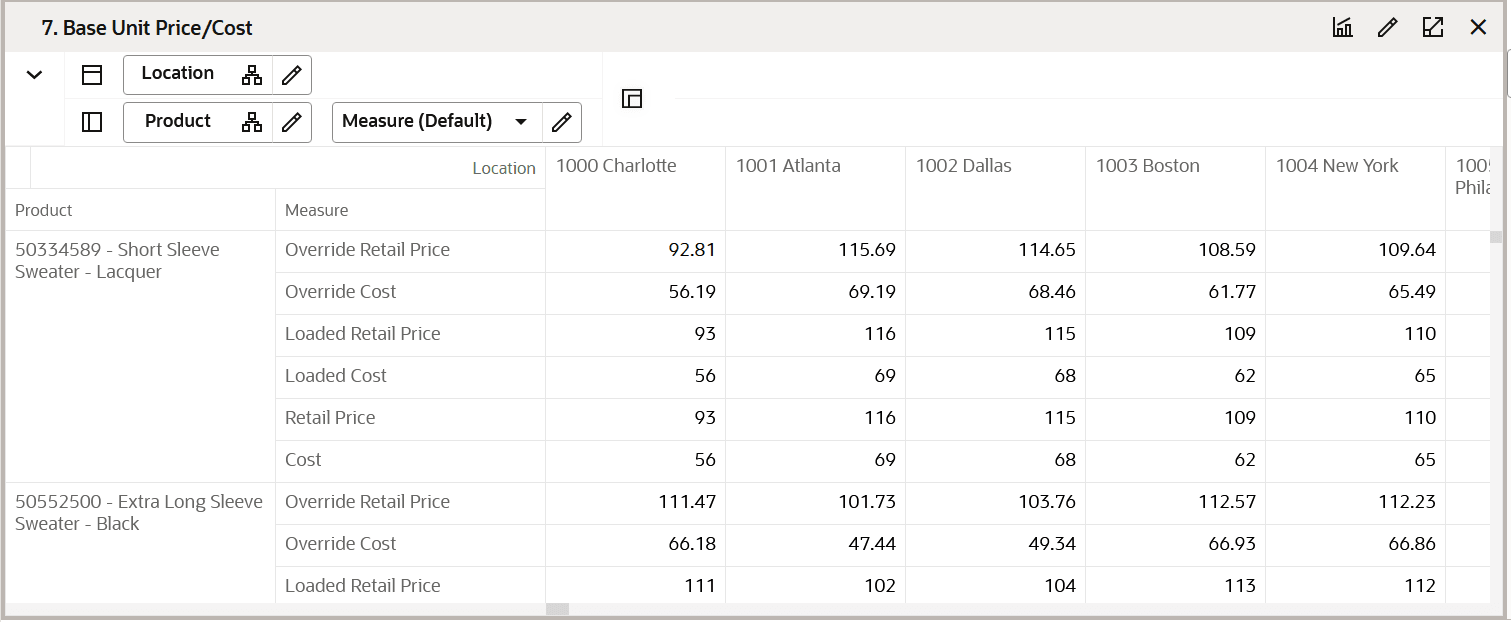
Base Unit/Price Cost View
The Base Unit Price/Cost view is used to set the price and cost of placeholder items.
If all locations have the same retail and cost for the placeholder item, rollup the location hierarchy to All Locations.
While the Planning Administrator is allowed to make changes to an existing item's unit retail price or cost in this view, those changes will not be sent back to a Master Data Management (MDM) system such as the Oracle Retail Merchandise Financial Planning Cloud Service (RMFCS), which is the system of record for product pricing information. If a change is made to an existing item here, it will need to be communicated back to the source system.
Figure 3-8 Base Unit/Price Cost View
Step 3: Location Setup
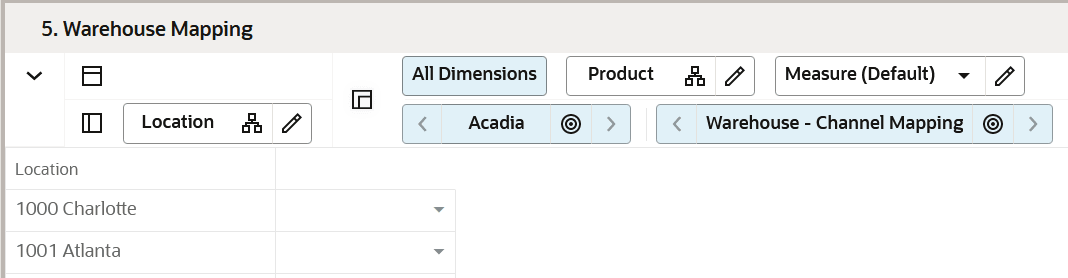
Use the Location Setup step to view and define location attribute values, assign the values to each location, enable active locations for use in segments, assign Like Locations, enter space information for each location, define fixture capacity, assign fixtures to location, define size profiles, set location cluster strategies, and map warehouses to stores.
The Location Setup step centralizes the configuration of location-specific data, enabling users to define and assign attribute values to each location, activate them for segment use, and group similar locations (Like Locations). It also facilitates setting location cluster strategies, and mapping warehouses to stores. This comprehensive setup ensures accurate localization of assortments and aligns inventory with store-specific needs, supporting precise and tailored planning across all locations.
Tabs and Views in this Step:
Attribute Setup Tab
This tab is used to view and assign the location attributes and their values.
Define Location Attributes View
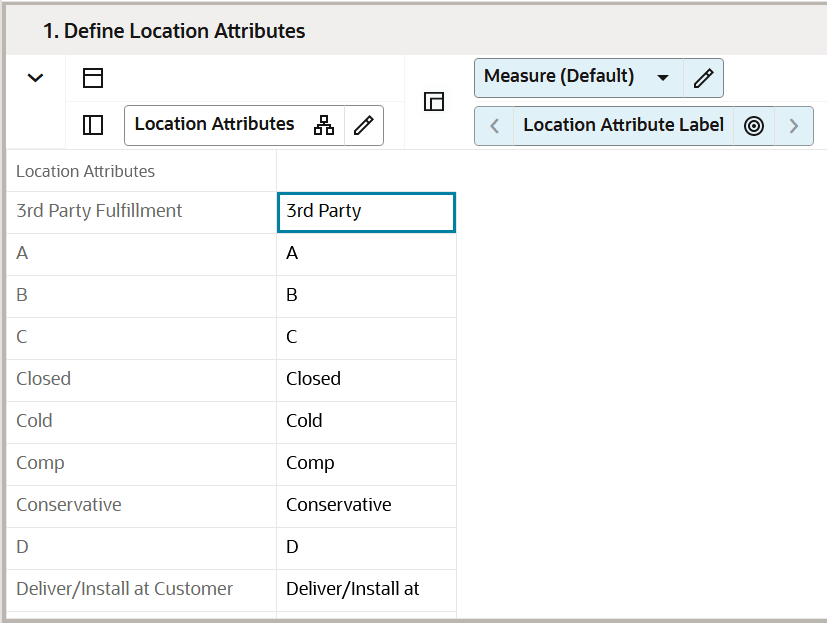
The Define Location Attributes view is used to view location attributes and their values that can be used to distinguish and group locations for clustering purposes.
Figure 3-9 Define Location Attributes View
Assign Location Attributes View
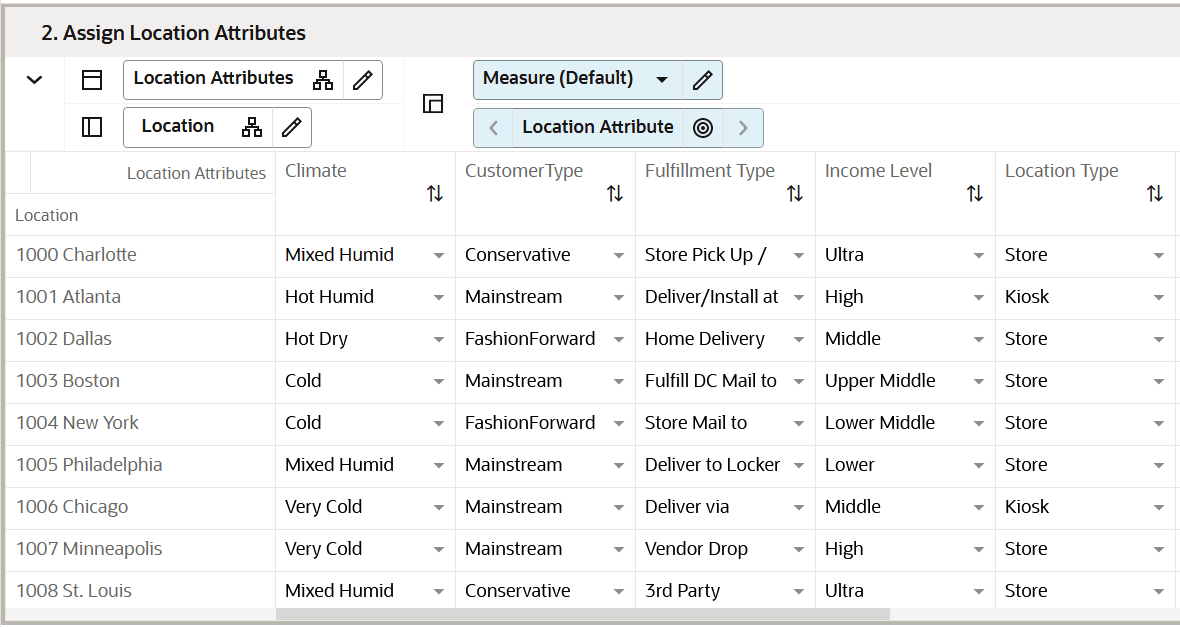
The Assign Location Attributes view is used to maintain the mapping of attribute values to a store. The location attributes are available to you in the Location Clustering segment.
While the Administrator is allowed to make changes to an existing attribute in this view, those changes will not be sent back to a master data management (MDM) system such as Oracle Retail Merchandising System (RMS), which is the system of record for location attribute information. If a change is made to an existing location here, it needs to be communicated back to the source system.
Figure 3-10 Assign Location Attributes View
Location Strategy Tab
This tab is used to enter location information, define size profiles, cluster strategy weight setup, and warehouse mappings to locations.
Define Location Info View
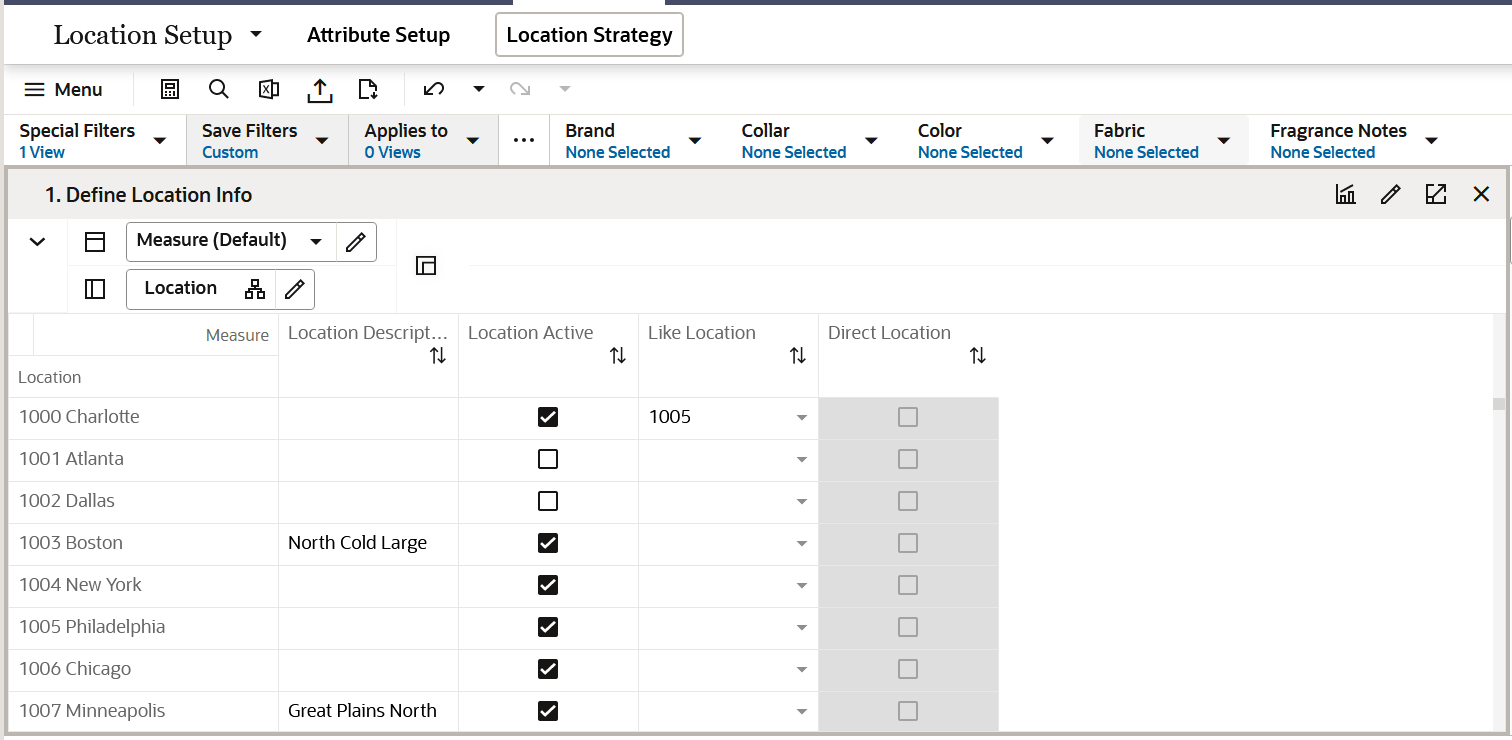
The Define Location Info view is used to enter location descriptions, enable active locations, disable inactive locations, assign like locations, or indicate direct locations (online versus physical stores).
Figure 3-11 Define Location Info View
Department Location Exclusion View
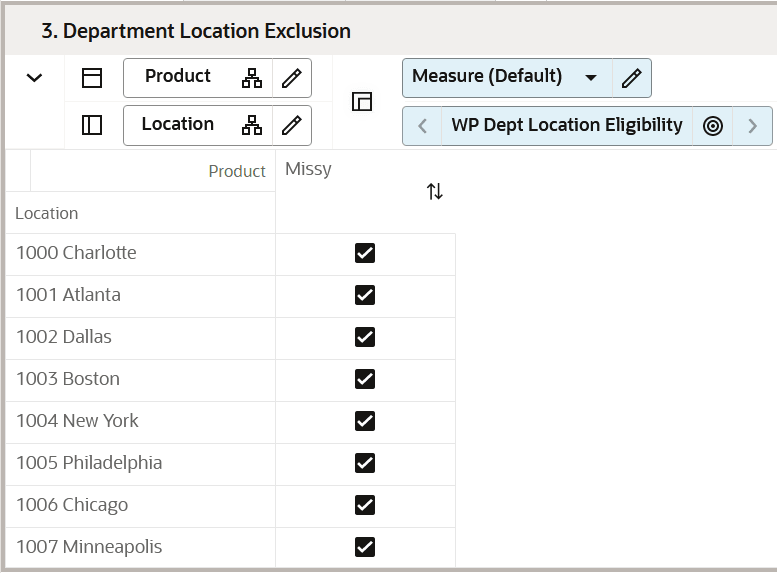
The Department Location Exclusion view uses a check mark for the selected stores of each department which should be excluded from the clustering process. Exclusions occur for various business reasons such as, not all merchandise is sold for all stores of a cluster.
Figure 3-12 Department Location Exclusion View
Cluster Strategy Weight Setup View
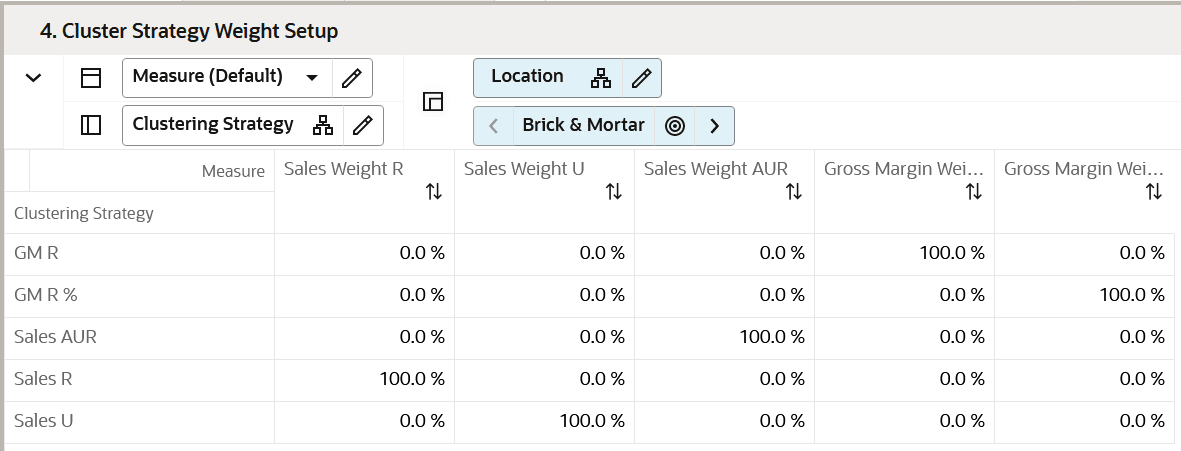
The Cluster Strategy Weight Setup view is used to enter the corporate-defined weights that correspond to each clustering strategy. The analysis and determination of strategy weights is expected to occur outside of the Assortment Planning solution, with the results available and visible within Assortment Planning to drive assortments that meet corporate objectives for each category. If desired, the Administrator may set up more clustering strategies using the Placeholder Maintenance functionality.
Figure 3-13 Cluster Strategy Weight Setup View
Step 4: Batch Setup
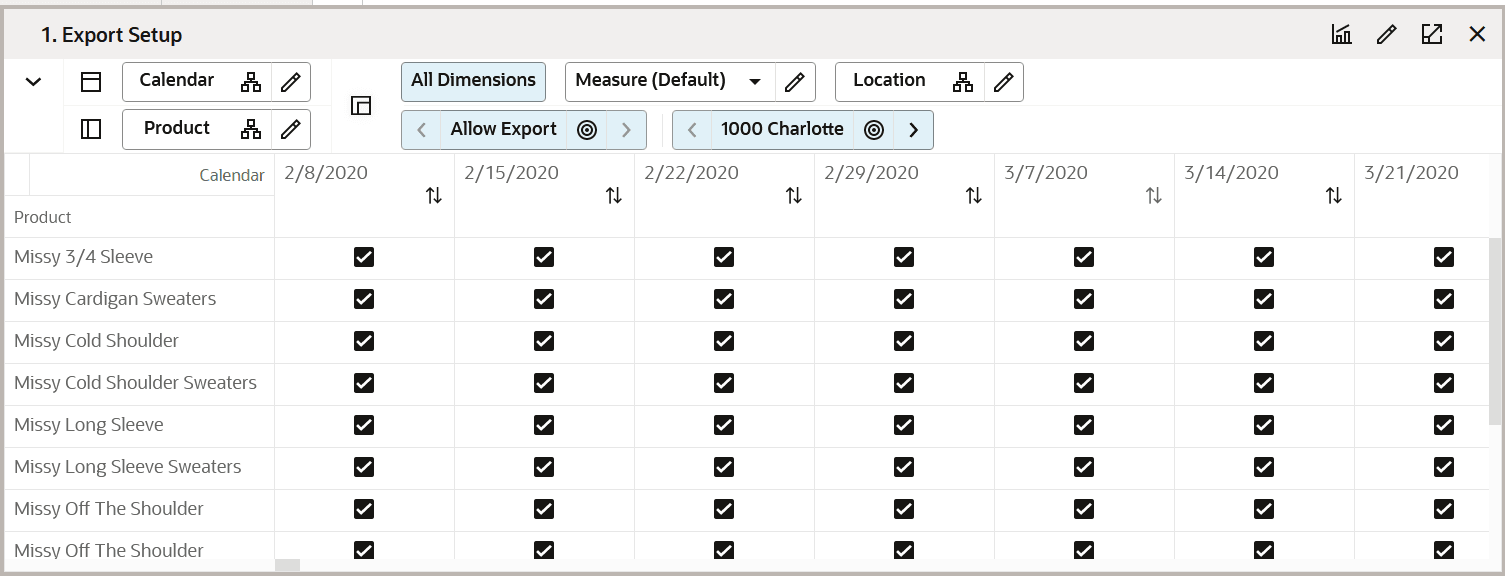
The Batch Setup allows the Administrator to control which periods and positions will be exported using the standard exports within OAT. If particular positions are needed or not needed for export, the Administrator can choose that information in this step.
Tabs and Views in this Step:
Batch Setup Tab
This tab is used to select the positions that should be included when exporting plan data and designate whether elapsed periods should be included when exporting data.