8 Assortment Planning Task
The Assortment Planning task is the core decisioning workspace of the application, where planners translate data, financial targets, and system recommendations into actionable assortment decisions.
The Assortment Planning task brings together Assortment Strategy and Assortment Fit into a single workflow that defines how much to buy, what to buy, and how assortments vary across locations and time. It leverages the foundational setup of store clusters (locations) and assortment periods (time) to guide decision-making. Within this workspace, planners curate assortments by combining data-driven recommendations with their own business knowledge and intent, applying both science and art to create assortments that meet customer and business needs.
AI-driven recommendations are embedded throughout the assortment planning process to support decision-making. These recommendations assist planners in defining assortment breadth, evaluating attribute contribution, estimating sales potential, and generating assortment recommendations while still allowing planners to apply business judgment and refine results.
As a result, Assortment Planning enables planners to move from insight to decision by aligning assortments to customer demand, financial targets, and localized store needs, ultimately driving more effective and consistent assortment outcomes.
Create the Assortment Planning Segment
When working in a segment, it is a common practice to keep the wizard selections for the segment size limited to what will be worked on, to facilitate navigation and increase UI responsiveness.
To create the Assortment Planning segment:
- From the Oracle Home page, navigate to the Oracle Retail icon to open the task selection panel.
- Locate the Assortment Planning task using the available navigation options or by entering Assortment Planning in the search field.
- Select the Assortment Planning task. The wizard dialog opens.
- Click Create New Plan.
- Enter a plan label and click OK.
- In Select Product, choose one department and click Next.
-
In Select Assortment Period, choose an assortment period and click Next:
- Assortment Periods displayed are aligned to the selected product.
- Assortment Labels can vary by Sub-class. If multiple subcategories are selected, then the label shown is based on the first Sub-class.
- To view the user-defined assortment period label, select the Dimension tile and choose Assortment Label.
- The workspace can be launched directly after selecting product and assortment period.
- Click Finish.
Step: Assortment Strategy
The Assortment Planning process begins with Hindsight, where the Hindsight – Item and Hindsight - Attribute views analyze historical sales and product attributes to identify trends and define attribute thresholds. Building on this foundation, the Assortment Strategy step defines how much to buy by establishing attribute mix, option counts, and sales targets. Option counts represent the number of items (style-colors) to be carried within the defined time frame.
The Determine Attribute Mix view defines the optimal combination of attributes aligned to customer demand. Assortment Strategy parameters establish option counts and sales targets, which are applied in the Create Assortment Strategy view to balance assortment breadth across product, location, and time. The Reconcile to MFP view ensures alignment with financial targets by comparing strategy outputs to MFP and prior year performance.
The output of this step is an approved set of assortment strategy targets, which serve as the input for the Assortment Fit step.
Tabs and Views in this Step:
Application Actions
Rec Attribute Mix
Recommends the optimal attribute mix by populating Rec Attribute Type Rank and Ly Optz Option Count contrib Prod %, which serve as the foundation for defining assortment strategy attribute targets. These outputs translate customer behavior by attribute, highlighting which attributes drive demand and should be prioritized in the assortment.
Rec Option Count
Generates option count recommendations based on optimized history and user-defined seeding parameters.
Approve Targets
Moves Working Plan (Wp) version of assortment targets to the Target (Tgt) version for use in Assortment Fit.
Refresh Rollup
Creates alternate hierarchies based on selected (product and/or location) attributes for aggregated analysis.
Hindsight Tab
The Hindsight tab analyzes historical performance to establish a baseline for assortment planning. It provides visibility into item-level and attribute-level performance, enabling planners to identify trends, evaluate contribution, and prepare inputs for Assortment Strategy.
Hindsight - Item View
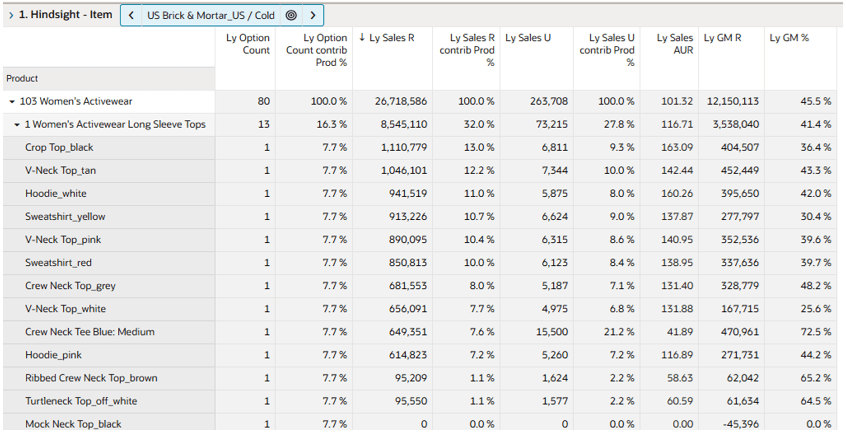
The Hindsight - Item view displays historical sales, inventory, and performance metrics at the style-color level and higher aggregations, enabling planners to evaluate past performance, identify key contributors, and understand item-level demand patterns that will inform assortment decisions.
The Filter by LY Options special filter displays only items with Ly Option Count > 0. This filter is enabled by default but can be disabled as needed.
Measure Profiles
-
Default Profile
Enables review of last year option count, sales and sales contribution by item or aggregated levels.
-
Gross Margin Profile
Enables focus on sales and gross margin by item or aggregated levels.
Hindsight - Attribute View
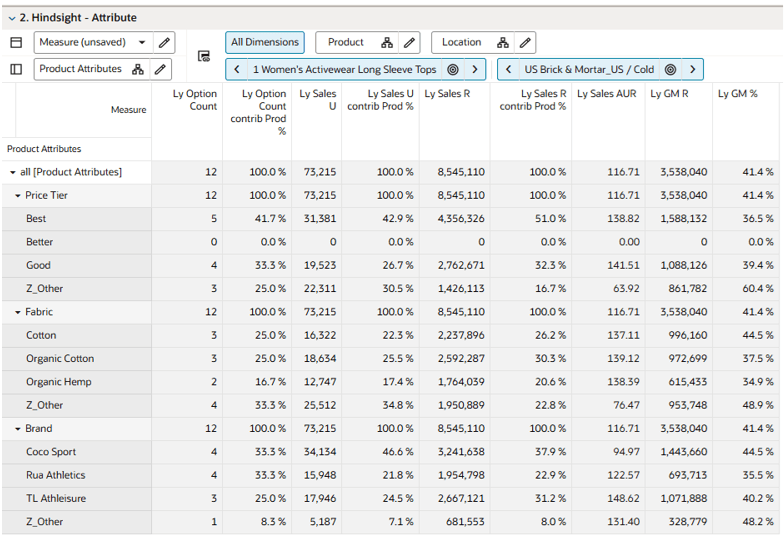
The Hindsight – Attribute view displays historical performance aggregated by attribute values (for example, blue, black, or red for color), providing insight into which specific attribute values drive sales, units, and margin.
The Filter by Key Item special filter displays only product attribute values with Ly Sales U > 0. This is enabled by default but can be disabled as needed.
Thresholds View
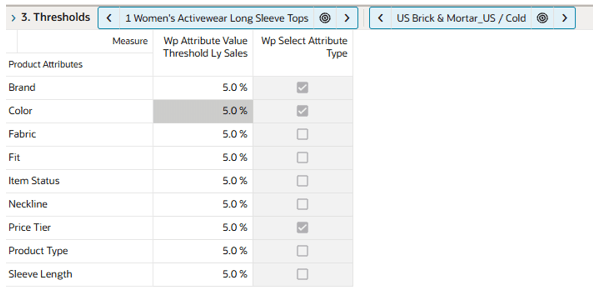
The Thresholds view defines attribute thresholds that control how attribute values are grouped for planning, allowing planners to isolate high-impact attributes while consolidating lower-contributing values into grouped categories for more efficient analysis and decision-making.
The steps to complete this process:
- Review attribute value performance in the Hindsight – Attribute View and determine appropriate threshold values based on contribution and business relevance.
- Enter a value in Wp Attribute Value Threshold Ly Sales to define the minimum contribution level for attribute values.
- Execute calculation to apply the threshold and update attribute groupings.
- Review the results in the Hindsight – Attribute View, where attribute values below the threshold are grouped into a consolidated category (for example, z_others).
-
The Wp Select Attribute Type Boolean flag displays for attribute types to be include in Assortment Strategy, emphasizing the most important drivers of customer demand. This is selected in the later process steps in the Determine Attribute Type View.
Refresh Product Rollup View
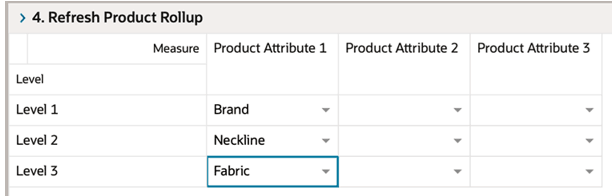
The Refresh Product Rollup view creates dynamic, attribute-based hierarchies for analyzing assortments, enabling planners to evaluate performance across multiple attribute combinations and view aggregated results at different levels of detail.
The steps to complete this process:
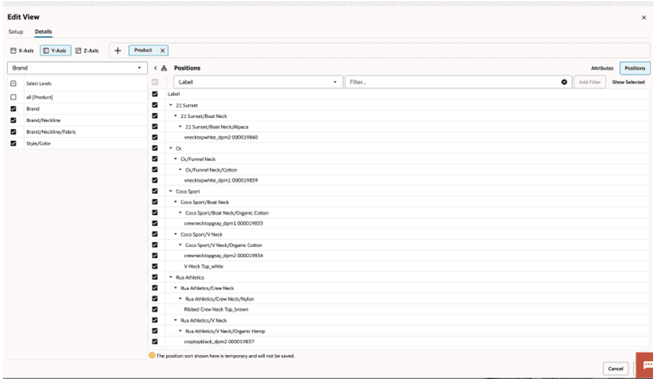
- Select up to three dynamic product attributes from the drop-down list.
- Execute the Refresh Rollup application action. This generates dynamic location hierarchies based on selected attributes, enabling alternative rollup views for analysis.
- To view the product attribute aggregations:
- In a view that displays style-color level, click the Product Hierarchy tile.
- Select the attribute (Attribute 1 or 2 or 3) that you would like to view in the nested dynamic rollup.
- Click OK.
Assortment Strategy Tab
The assortment strategy tab enables the user to define the target number of options (the assortment strategy) for each subclass and location cluster combinations by product attribute. AI-driven recommendations from Options Forecast enhance decision-making by providing data-informed guidance on attribute mix, option counts, and sales potential.
Determine Attribute Type View
The Determine Attribute Type view enables planners to identify and prioritize the top attribute types, providing a comprehensive tool to analyze, refine, and optimize product attributes using historical data and market insights. Planners execute the Rec Attribute Mix application action for the selected subclasses and review the resulting attribute rankings. The user interface supports this process with filters and user-defined thresholds that help focus on the most critical attribute types driving performance.
Wp Attribute Type Max (hidden measure) defaults to 5 and defines the maximum number of attribute types available for use in Assortment Strategy and downstream option count recommendations. Planners can reduce this limit as needed. Combined with Wp Select Attribute Type, this determines which attributes are included in special filters and used in assortment planning.
For effective decision-making, it is recommended to select an optimal set of the top three attribute types, with a maximum of five (including any manually created attribute types). Selecting too many attributes may introduce noise and reduce the effectiveness of the assortment strategy.
This is where the art of planning becomes critical. Planners should review AI recommendations, adjust selections by checking or unchecking attribute types, and incorporate market insights by creating placeholder attribute types where needed.
The steps to complete this process:
- Select the Recommend Attribute Mix Boolean.
- Execute the Rec Attribute Mix application action to populate Rec Attribute Rank measure.
- Review attribute rankings and identify the key attribute types to be used in assortment strategy.
- (Optional) Create placeholder attribute types using the right-click Add Position Dynamic Position Maintenance (DPM) functionality.
- Set Wp Select Attribute Type to True for selected attribute types (maximum of five; recommended best practice is three).
- The Filter by Top Attributes special filter is enabled by default to hide ineligible attribute types for a cleaner display. This may be disabled as needed.

Determine Attribute Values View
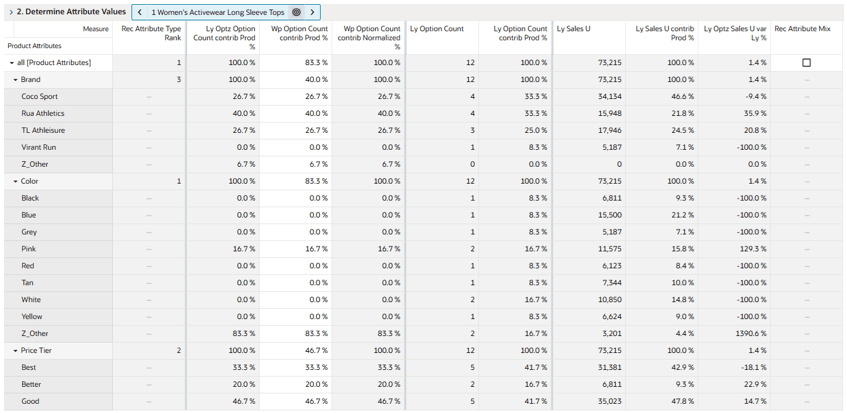
The Determine Attribute Values view defines the attribute mix by allocating option count contribution across attribute values for the selected attribute types. This view enables planners to analyze and refine attribute value contribution using historical performance, AI-driven recommendations, and market insights. Planners can adjust the mix to reflect customer preferences, competitive trends, and merchandising strategy.
Planners can also create new attribute values for selected attribute types, allowing incorporation of emerging trends or planned assortment concepts. These user-defined values can be assigned contribution percentages to ensure alignment with overall assortment strategy.
By combining optimized history, system recommendations, and planner input, this view establishes a balanced and actionable attribute mix that drives downstream assortment strategy decisions.
The steps to complete this process:
- Review Rec Option Count contrib Prod % based on optimized history.
- Modify Wp Option Count contrib Prod % to reflect market knowledge and trend analysis.
- (Optional) Create attribute value placeholders using Add Position Dynamic Position Maintenance (DPM). functionality.
- Validate that all Wp Option Count contrib Prod % values align with the intended assortment strategy, as these values drive downstream recommendations.
- The Filter by Key Values and Filter by Top Attributes special filters are enabled by default to hide ineligible attribute types and attribute values for a cleaner display. These may be disabled as needed.
Measure Profiles
-
Default Profile
Enables review of last year option count, sales and sales contribution by item or aggregated levels.
-
Attribute Parameters Profile
Enables review of defined thresholds and attribute rankings, allowing planners to make updates without returning to prior steps.
Assortment Strategy Parameters View
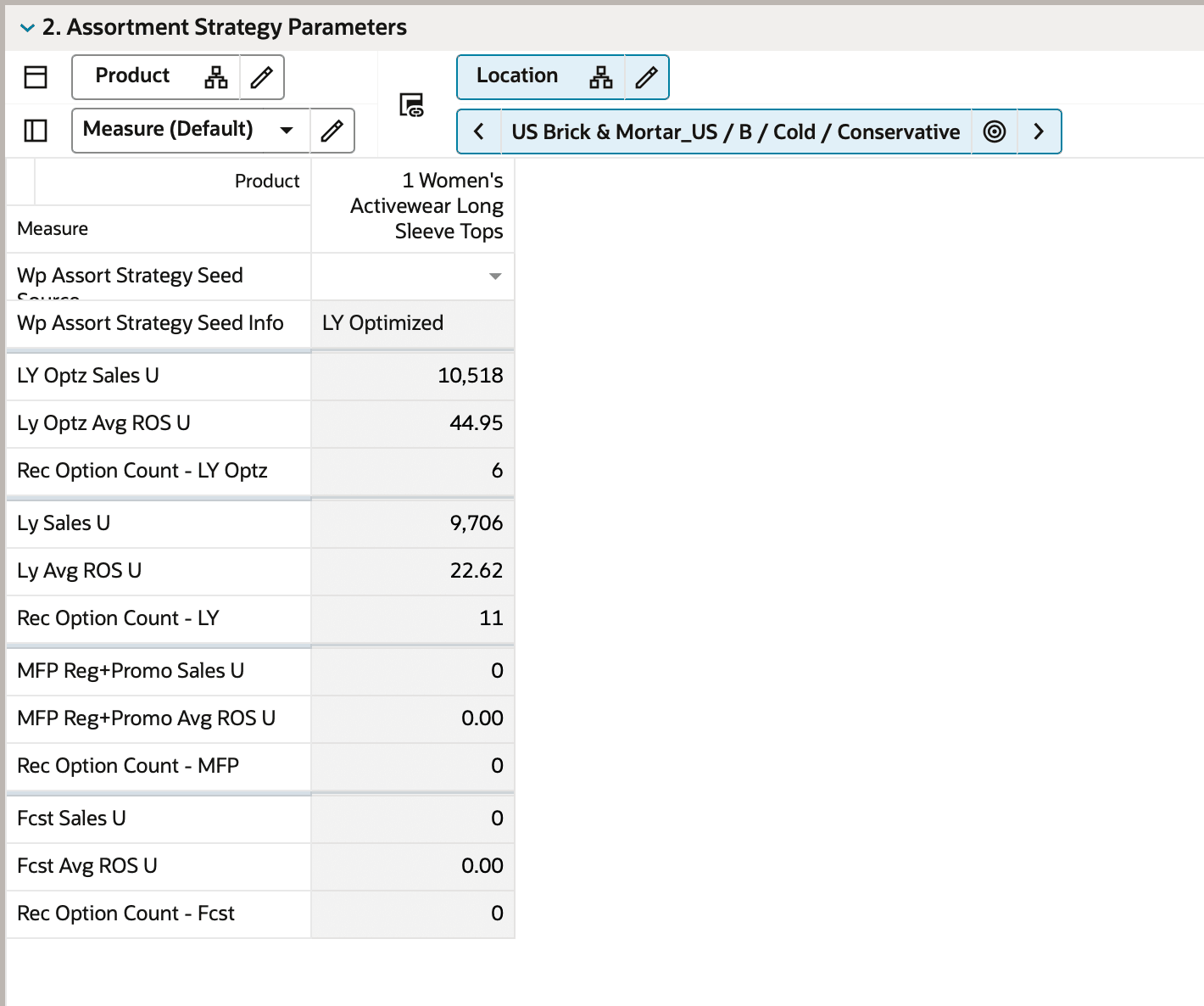
The Assortment Strategy Parameters view defines the seed source used to generate assortment strategy recommendations. Planners select the Wp Assort Strategy Seed Source to determine the basis for total option count recommendations and downstream sales projections.
The selected seed source establishes the basis for total option count recommendation generation, while Wp Option Count contrib Prod % drives the distribution of recommended option counts at the product attribute value level. This attribute-level option count contribution is supported by Ly Optz Option Count; both are detailed in earlier process steps.
Wp Assort Strategy Seed Source picklist options include Last Year, Last Year Optimized History, Forecast, and MFP Current Plan. Forecast may not be available as this is an option dependent on individual retailer process needs and integration to external sources.
Based on the selected seed source, the system generates recommended option counts, sales units, and rate of sale at both the subclass and attribute value level. These recommendations provide a data-driven starting point for defining assortment strategy and ensure alignment with historical performance, future projections, or financial objectives.
The steps to complete this process:
- Review Rec Option Count – Ly Optz and other baseline metrics derived from optimized history.
- Select a value in Wp Assort Strategy Seed Source. Seed Source options provide the guardrail for the total option count recommendation and include:
- Last Year – last year sales at subclass level
- Optimized History – last year optimized history sales at subclass level
- Forecast – externally defined demand forecast if available at subclass level.
- MFP – current plan financial targets from Merchandise Financial Planning at the subclass level
- Execute the Rec Option Count application action to generate recommendations displayed in the following views to include Rec Option Count, Rec Sales U, Rec Avg ROS U, Rec Option Count contrib Prod %.
Assortment Strategy - Subclass View
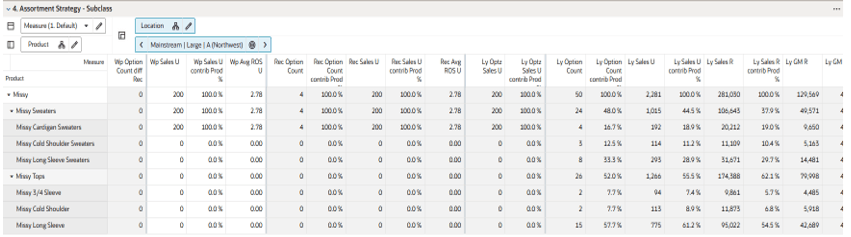
The Assortment Strategy - Subclass view enables planners to review and refine assortment strategy targets at the subclass level using AI-driven recommendations.
This view focuses on option count, sales, and rate of sale, combining AI recommendations, historical performance, and planner adjustments to define a balanced and executable assortment strategy. The approved targets serve as the foundation for downstream assortment planning, including Assortment Fit.
The steps to complete this process:
- Review AI recommendations, including suggested option count, sales units, and rate of sale.
- Modify Wp Option Count, Wp Sales U, and Wp Avg ROS U to align with business goals, market trends, and strategy.
- Validate option count alignment:
- Changes to Wp Option Count at the subclass level automatically spread to attribute values.
- Changes to Wp Option Count (Override) attribute level in the next view may require manual reconciliation at the subclass level.
- Execute the Approve Targets application action to finalize assortment strategy targets and copy Wp values into Tgt version. This may also occur at Assortment Strategy - Attribute view.
Measure Profiles
-
Default Profile
Enables review of option count, sales, and rate of sale against recommendations and last year performance.
-
Wp to Tgt Profile
Enables review of option count, sales, and rate of sale against recommendations and prior targets, supporting iterative planning.
Assortment Strategy - Attribute View
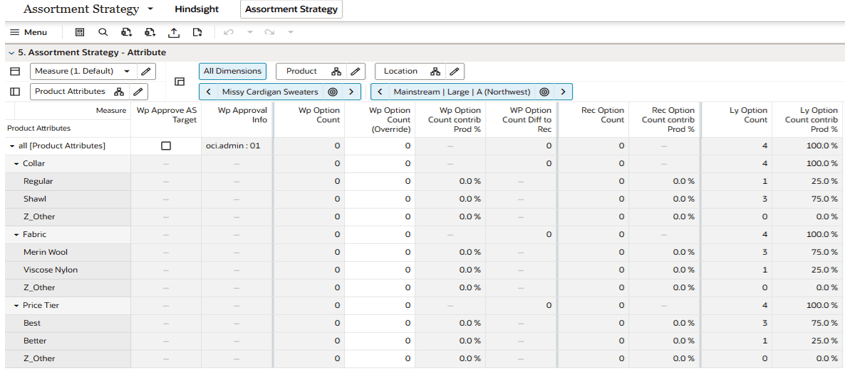
The Assortment Strategy - Attribute view defines the distribution of option count across attribute values. This view complements the Subclass view by enabling planners to refine option count allocation at a more granular level.
It is recommended to review the Assortment Strategy – Subclass and Assortment Strategy- Attribute views together to ensure alignment between total option count and attribute-level distribution.
The steps to complete this process:
- Review AI recommendations, including attribute mix, option count distribution, and supporting metrics.
-
Modify Wp Option Count (Override) at the attribute value level to align with business goals, market trends, and merchandising strategy.
Changes to (Wp Option Count Override) attribute level may require manual reconciliation to (Wp Option Count) at the subclass level.
- Review the Option Count Diff to Total alert, which highlights differences between attribute-level and subclass-level option counts. Variances are allowed but will carry forward to approved assortment strategy targets used in Assortment Fit.
- The Filter by Key Values and Filter by Top Attributes special filters are enabled by default to hide ineligible attribute types and attribute values for a cleaner display. These may be disabled as needed.
- Execute the Approve Targets application action to finalize assortment strategy targets and copy Wp values into Tgt version. This may also occur at Assortment Strategy - Subclass view.
Measure Profiles
-
Default Profile
Enables review of option count, sales, and rate of sale against recommendations and last year performance.
-
Wp to Tgt Profile
Enables review of option count, sales, and rate of sale against recommendations and prior targets, supporting iterative planning.
Reconcile to MFP View
The Reconcile to MFP view compares Assortment Strategy targets to Merchandise Financial Planning (MFP) current plan targets and last year performance at the subclass level. This view enables planners to validate financial alignment, identify variances, and refine assortment strategy to ensure consistency with sales, margin, and rate of sale expectations.
Step: Assortment Fit
Once Assortment Strategy targets are defined, the Assortment Fit step defines what items to buy by selecting style-colors that meet the approved strategy. Planners evaluate existing items, create placeholders for new products, and refine the shopping list to ensure the assortment meets target option counts, attribute mix, and performance expectations. The system-generated Assortment Fit is then reviewed by the planner or buyer, including evaluation of store exceptions. Visual line reviews support this process by enabling clear assessment of the assortment across clusters and attributes.
The output of this step is an approved assortment that aligns with strategy and is ready for downstream processes such as Assortment Range for external systems or Item Flow to define weekly sales and receipts. This step translates assortment strategy targets into a finalized assortment through a combination of system recommendations and planner judgment.
Tabs and Views in this Step:
Application Actions
Generate Sales Potential
Calculates predicted sales potential for style-color combinations based on attribute values, historical data, and selling patterns. Excludes stores marked as exceptions. Results drive Wp Item Ranking used in generating the Assortment Fit.
Generate Assortment Fit
Assigns style-colors, including placeholders, to clusters based on assortment strategy targets, attribute values, and item ranking.
Approve Exceptions
Applies store-level inclusions and exclusions and reconciles updates to cluster-level metrics, including sales units and store counts for each style-color.
Approve Assortment
Moves Working Plan (Wp) assortment to the Current Plan (Cp) version for use in downstream process steps.
Item Eligibility Tab
The Item Eligibility tab defines which items are eligible for inclusion in the assortment and enables review of store exceptions defined at the product attribute level. Planners review item status and update eligibility as needed, ensuring that only appropriate items are considered for Assortment Fit.
Define Item Eligibility View
The Define Item Eligibility view enables planners to review and update item eligibility at the style-color level using the Wp Item Status measure.
Items with the replenishment flag set to True (from external systems such as Merchandise Foundation Cloud Service) are classified as Long Life Cycle (LLC) items. These are continuous, evergreen styles managed through external replenishment systems. The required output for these items is an assortment range that defines product eligibility by style-color, store, and start/end date. All other items default to NGF (Non-Go-Forward) status. Planners can review and update item status to LLC or SLC (Short Life Cycle) based on business needs.
Key metrics such as on order units, first receipt date, and last year sales are displayed to support decisions on whether styles should be continued. Item status persists across assortment periods unless modified.
The steps to complete this process:
- Review default item status (LLC, SLC, NGF).
- Modify Wp Item Status as needed.
- The Filter NGF Items special filter is enabled by default to hide the Non-Go Forward Items for a cleaner display. This may be disabled as needed.
-
Review Alert:
-
Color Assignment Alert
Triggers when more than one style-color within a style is assigned the same color attribute. This prevents execution of the Export Placeholders application action on the Assortment Maintenance Tab, Review Attribute view.
-
Review Attribute Store Exception View
The Review Attribute Store Exception View enables planners to review and manage store-level exclusions based on product attribute values.
This view displays global exception rules defined by the administrator in the Planning Administration task, Exception Rules Tab, and allows planners to apply additional attribute-level exceptions within the assortment planning workflow. A value of True in the exception measures indicates that the store will not receive items with the specified attribute value.
The steps to complete this process:
- Review Admin Prod Attribute Store Exception Boolean measure to understand administrator-defined attribute-level store exclusions.
- Modify Wp Prod Attribute Store Exception Boolean measure as needed to apply additional attribute-level exceptions for the current assortment.
-
Group and analyze locations using location rollups:
-
Navigate to the Assortment Maintenance tab.
-
Select desired location attributes in Refresh Location Rollup.
-
Execute the Refresh Rollup application action.
-
Select the Location Dimension tile and choose the desired attribute hierarchy.
-
Review Item Store Exception View
The Review Item Store Exception View displays item-store level exceptions derived from attribute-based exception rules.
The Admin Item Store Exception measure identifies all style-color and store combinations excluded based on attribute-level rules defined in Planning Administration. These exclusions are applied automatically and used throughout the workflow to prevent items from being assorted to specific stores. Planners can override these defaults using Wp Item Store Exception for the current assortment period, enabling flexibility to include or exclude items based on specific business needs.
The steps to complete this process:
- Review Admin Item Store Exception Boolean measure to understand system-generated item-store exclusions based on administration attribute rules.
- Modify Wp Item Store Exception Boolean measure as needed to override exclusions or apply additional item-store level exceptions.
-
Group and analyze locations using location rollups:
-
Navigate to the Assortment Maintenance tab.
-
Select desired location attributes in Refresh Location Rollup.
-
Execute the Refresh Rollup application action.
-
Select the Location Dimension tile and choose the desired attribute hierarchy.
-
Generate Placeholders Tab
The Generate Placeholders tab enables planners to create new style-color placeholders required to meet Assortment Strategy targets. Unlike traditional planning processes, Assortment Planning often requires defining new products 6–9 months ahead of the selling season. This allows planners to align assortment strategy with sourcing, vendor commitments, and product development timelines.
APCS identifies gaps between required option counts (from Assortment Strategy) and available eligible items (from Item Eligibility) and generates placeholder recommendations to fill those gaps. This ensures that assortment breadth and attribute mix targets are achieved even when sufficient existing items are not available.
The Generate Placeholder functionality automates this process using a system-driven algorithm, enabling planners to efficiently create placeholders in bulk while maintaining alignment with the approved strategy.
In addition to system-generated placeholders, planners can create placeholders through bulk integration, Excel upload, or manual creation using Add Position (DPM - Dynamic Position Maintenance) functionality.
This process ensures that assortments are fully defined in advance, supporting a seamless transition from planning to execution.
Generate Placeholder View
The Generate Placeholder View identifies and creates new style-color placeholders required to meet Assortment Strategy targets. The system compares required option counts with available eligible items and determines gaps at the attribute level. Based on this analysis, it generates placeholder combinations that fulfill the required assortment mix.
The placeholder generation logic prioritizes attribute diversity and balances attribute value representation to align with strategy targets. This reduces manual effort while ensuring a well-distributed assortment across key attributes.
Planners can review and modify generated placeholders during or after the process to incorporate business knowledge, refine attribute combinations, and ensure alignment with market needs.
The steps to complete this process:
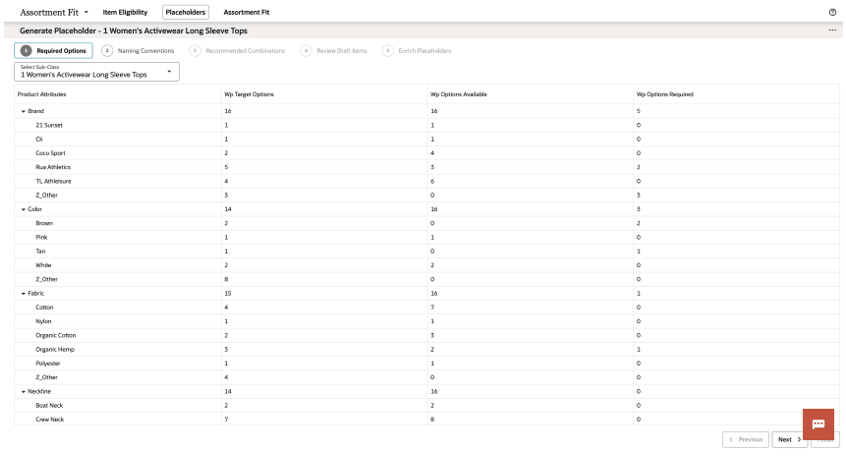
- Calculate Required Options. Calculate required option counts by comparing approved Assortment Strategy targets (required options) with eligible items (available options) at the product attribute level. The system identifies gaps between required and available options, which drive placeholder generation. After placeholders are created, available and required option counts are recalculated and displayed for subsequent iterations.
- Total Option Count: Sum of required option counts across all clusters.
- Available Option Count (All Clusters): Total number of eligible items across all clusters.
- Available Option Count (By Attribute): Number of eligible items by attribute value.
- Required Option Count (By Attribute): Gap between required and available options for each attribute value.
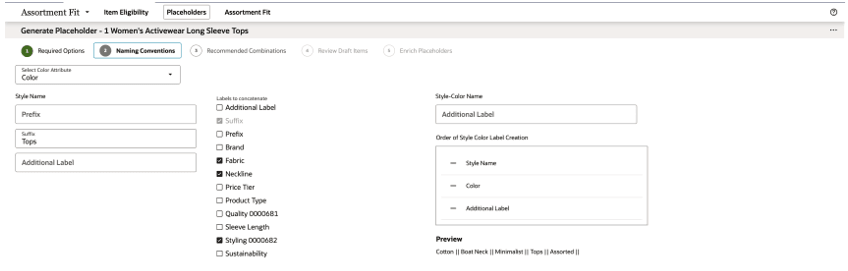
- Define Naming Convention - Define how placeholders are named by selecting from multiple configurable options.
- Prefix & Suffix: Add custom text before (prefix) or after (suffix) the style name.
- Additional Labels: Apply extra labels to both the style name and style color.
- Concatenation Options: Select which labels to combine.
- Ordering: Arrange style name, color, and additional labels in any sequence.
-
Preview: View a live preview of the placeholder’s name based on selections.
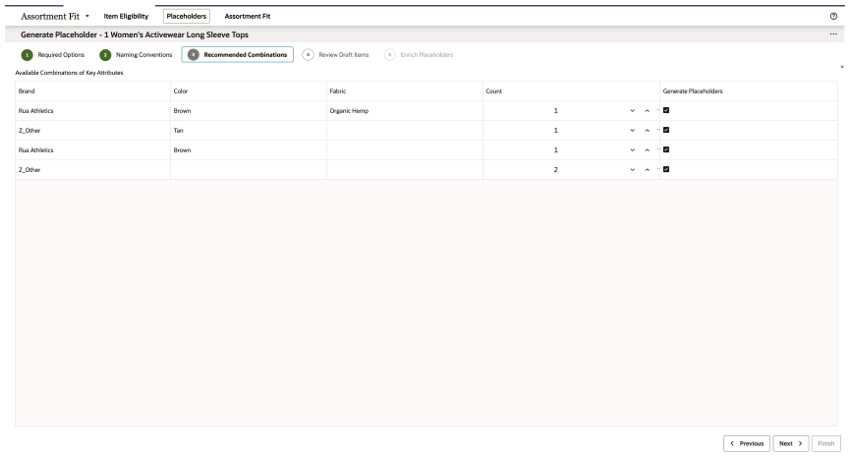
- Review Recommended Combinations - Review system-generated attribute combinations required to meet the assortment strategy. Adjust the number of combinations as needed.
- Review combinations of attributes.
- Increase or decrease the count of combinations as desired.
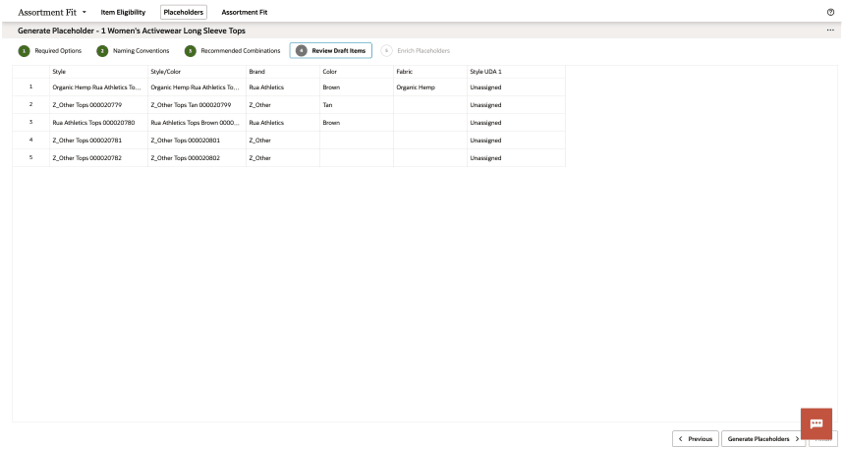
- Review Draft Items - Review draft placeholder items before creation.
- Review generated placeholder items and assigned attributes.
- Update any missing or required attributes.
- Click the Generate Placeholders application action to convert draft placeholders into actual placeholders (displayed in bold blue font).
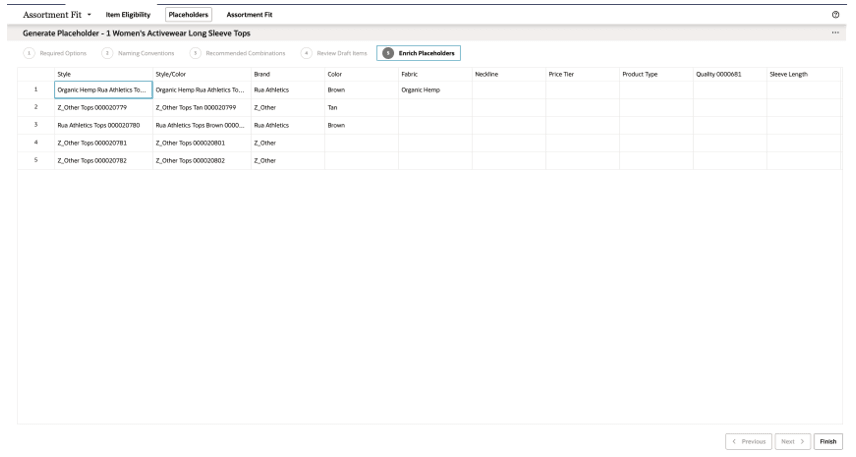
- Enrich Placeholders - Complete placeholder definitions by updated additional product attributes.
- Update additional product attributes as needed.
- Click Finish to exit view.
Assortment Fit Tab
The Assortment Fit tab completes the Assortment Planning process by translating strategy targets into a finalized assortment. In this step, planners refine the shopping list, assign item intent, generate the Assortment Fit, and review item-store exceptions. The system generates an assortment that meets defined option counts, attribute mix, and performance expectations, which is then reviewed and adjusted by the planner.
Item–store exceptions are applied during assortment generation. Products associated with exception attributes are automatically excluded from specific stores, even if they are assorted at the cluster level. This ensures that the resulting assortment contains only valid product–store combinations and complies with both global rules and planner-defined exceptions. Planners can further refine these decisions in the Assortment Fit @ Store view by including or excluding items for specific stores. This supports localized adjustments, such as providing additional assortment for new stores or reducing assortment where needed.
Finally, the assortment is reconciled to the Merchandise Financial Plan (MFP) and approved, ensuring that the final assortment is financially aligned, strategically sound, and ready for execution.
Refine Shopping List View
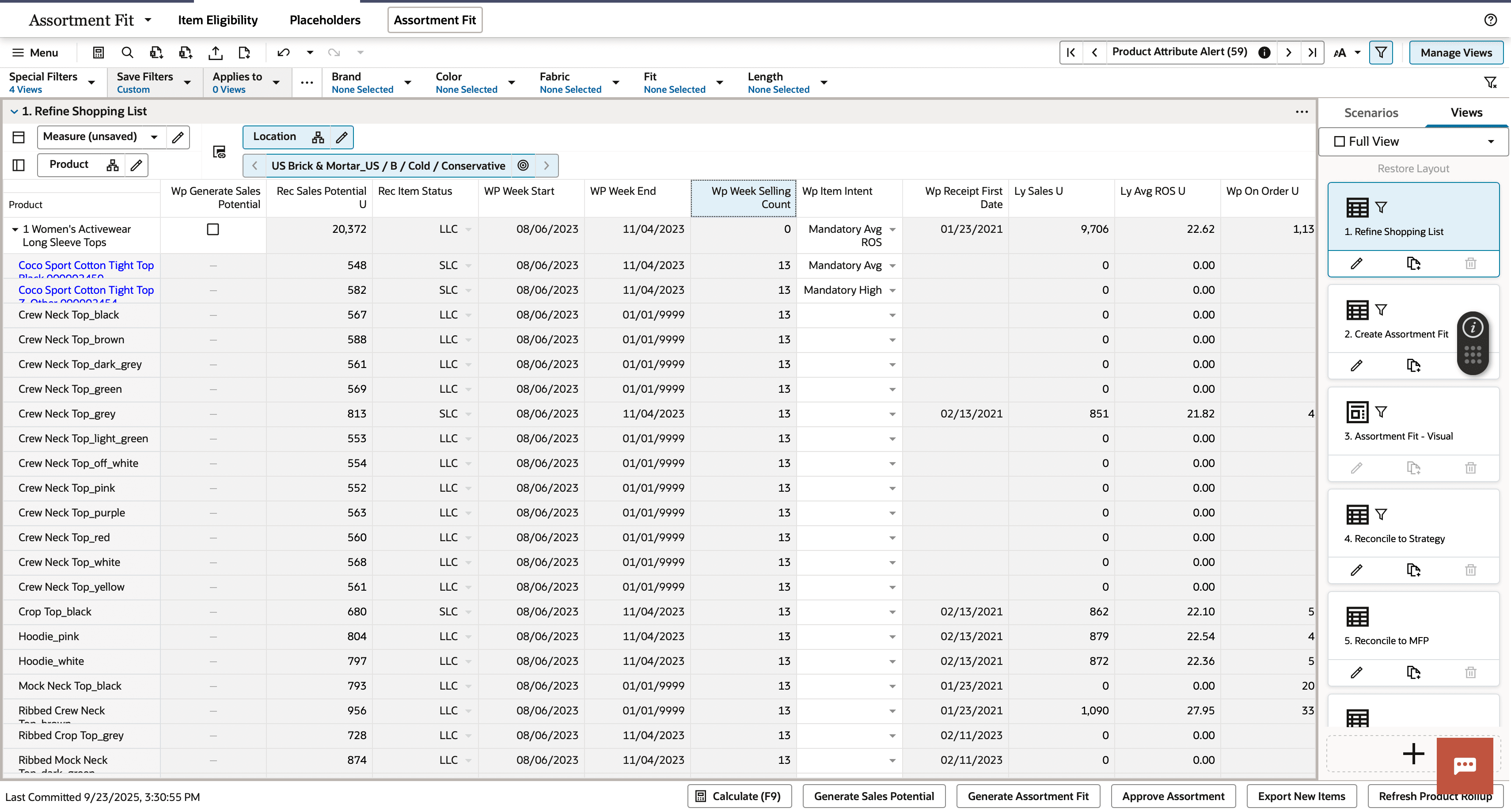
The Refine Shopping List view enables planners to review, update, and finalize the set of items considered for Assortment Fit. This includes existing items, new items, and placeholders created during the planning process.
In this view, planners define item-level intent and key attributes that guide assortment decisions. Item Intent identifies core assortment items, best sellers, and mandatory items, as well as defining selling start and end weeks. These inputs ensure that the assortment aligns with both strategic objectives and customer demand.
The Generate Sales Potential application action evaluates and predicts the sales potential of each style-color based on attribute values, historical performance, and planned selling periods. Item Intent plays a critical role in Sales Potential calculations, influencing how the item’s performance is forecasted. Store-level exceptions are incorporated in this calculation, ensuring excluded locations are not considered. The resulting sales potential supports item ranking and drives assortment selection.
Note:
The hidden measure Wp Store Count defines the number of stores considered in sales potential calculations. Store-level exceptions adjust this value, impacting recommended sales potential and item ranking.By refining the shopping list, planners create a detailed and actionable assortment plan that bridges strategy and execution.
The steps to complete this process:
- Assign Wp Item Intent to define item role (such as, mandatory-high ROS, mandatory-average ROS).
- Execute the Generate Sales Potential application action to populate Rec Sales Potential U and item ranking.
- Review and adjust item intent, selling weeks, and item attributes as needed.
- The Filter NGF Items special filter is enabled by default to hide Non-Go Forward Items for a cleaner display. This may be disabled as needed.
- Review alerts:
-
Item Status Alert
Triggers when Wp Rec Status is NGF and Wp Item Intent is set to Mandatory Avg/High ROS.
-
Color Assignment Alert
Triggers when multiple style-colors within a style share the same color attribute.
-
Note:
The hidden measure Wp Store Count defines the number of stores considered in sales potential calculations. Store-level exceptions adjust this value, impacting recommended sales potential and item ranking.Create Assortment Fit View
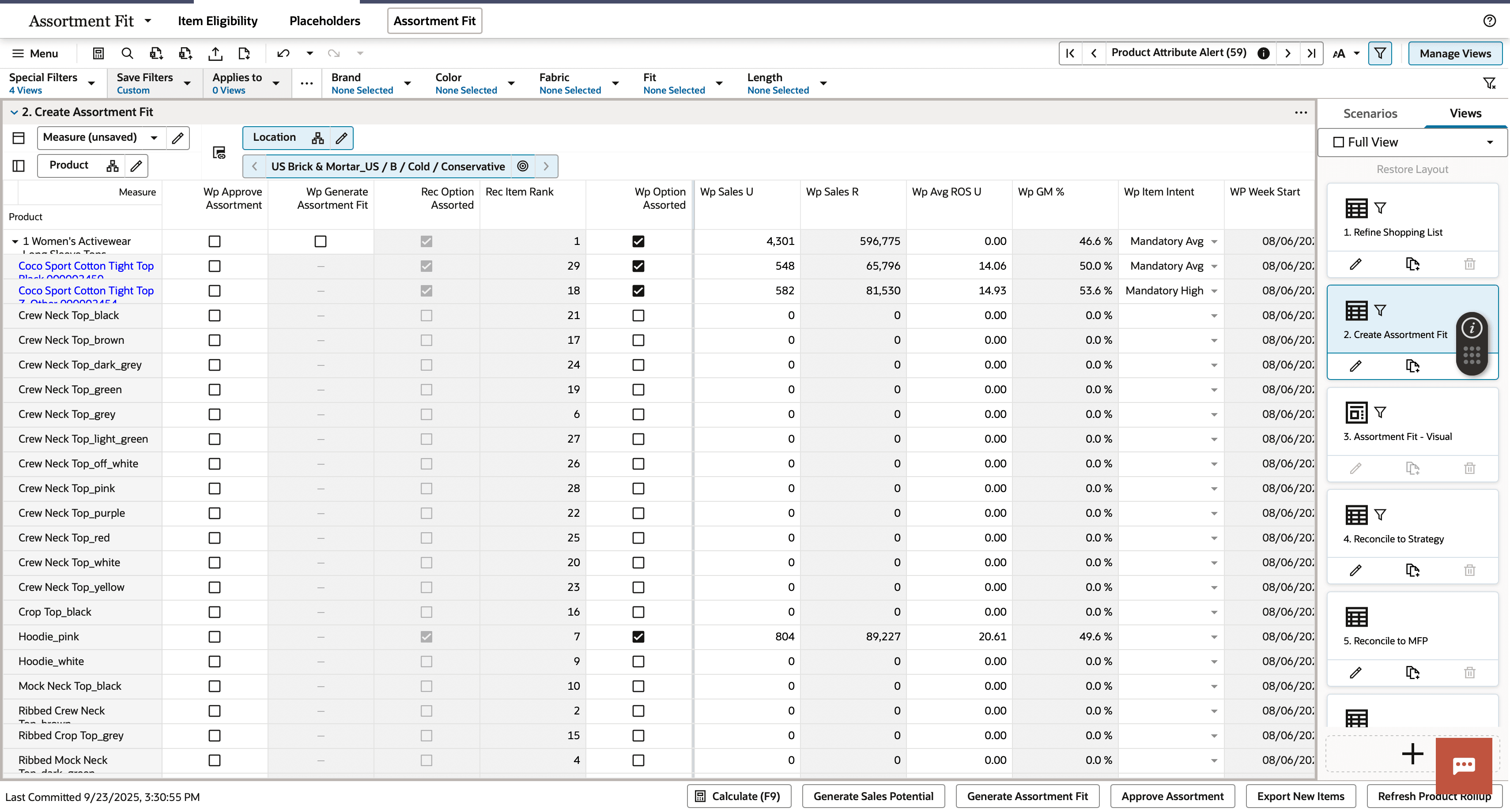
The Create Assortment Fit view generates the final assortment based on approved strategy targets.
Planners execute the Generate Assortment Fit application action to assign items to clusters, ensuring alignment with option counts, attribute mix, and sales potential. This represents the culmination of prior steps, producing an optimized assortment that aligns with strategic goals.
The resulting assortment defines the final product mix by product, location, and time.
The steps to complete this process:
- Execute the Generate Assortment Fit application action to populate Rec Option Assorted.
- Review the system-recommended assortment, including sales, and planned week start and end dates.
- Modify Wp Option Assorted as needed to refine the assortment.
- The Filter NGF Items special filter is enabled by default to hide Non-Go Forward Items for a cleaner display. This may be disabled as needed.
-
Review alerts:
-
Missed Mandatory Option Alert
Triggers when Wp Item Intent is set to Mandatory Avg ROS or Mandatory High ROS and Wp Option Assorted is False.
-
-
Execute the Approve Assortment application action to copy Working Plan (Wp) values to Current Plan (Cp) at style-color, cluster, and aggregated levels.
Store-level values populate in the Store Assortment Exceptions view after approval.
Measure Profiles
-
Default Profile
Enables review of option counts against assortment targets and last year performance.
-
Wp to Tgt Profile
Enables review of option counts against targets with a focus on sales contribution.
-
Wp to Prior Cp Profile
Enables review of option counts against prior Current Plan (Cp) with a focus on sales contribution to support iterative planning.
Assortment Fit-Visual View
The Assortment Fit – Visual View provides an interactive interface to review and refine assortment selections. Planners can evaluate available and selected options, compare performance metrics, and adjust assortments using filtering, sorting, and visual tools. A summary section enables toggling between Total and To Target views to compare selections against assortment goals.
The Filter NGF Items special filter is enabled by default to hide Non-Go Forward Items for a cleaner display. This may be disabled as needed.
Interactive cards and drag-and-drop functionality support efficient, data-driven decision-making, allowing planners to refine assortments while maintaining alignment with strategy targets. This view provides a visual, intuitive way to finalize assortment decisions at the item level.
Line Review View
The Line Review View enables planners to review the selected assortment visually by style-color and store cluster. Items with Wp Option Assorted set to True are displayed, allowing planners to validate assortment selections using product images and ensure alignment with strategy and merchandising intent.
Measure Profiles
-
Default Profile
Enables review of option accounts against assortment targets and last year.
-
Wp to Tgt Profile
Enables review of option counts against target with focus on sales contributions.
-
Wp to Prior Cp Profile
Enables review of option counts against prior Cp with focus on sales contributions for iterative planning.
Reconcile to Strategy View
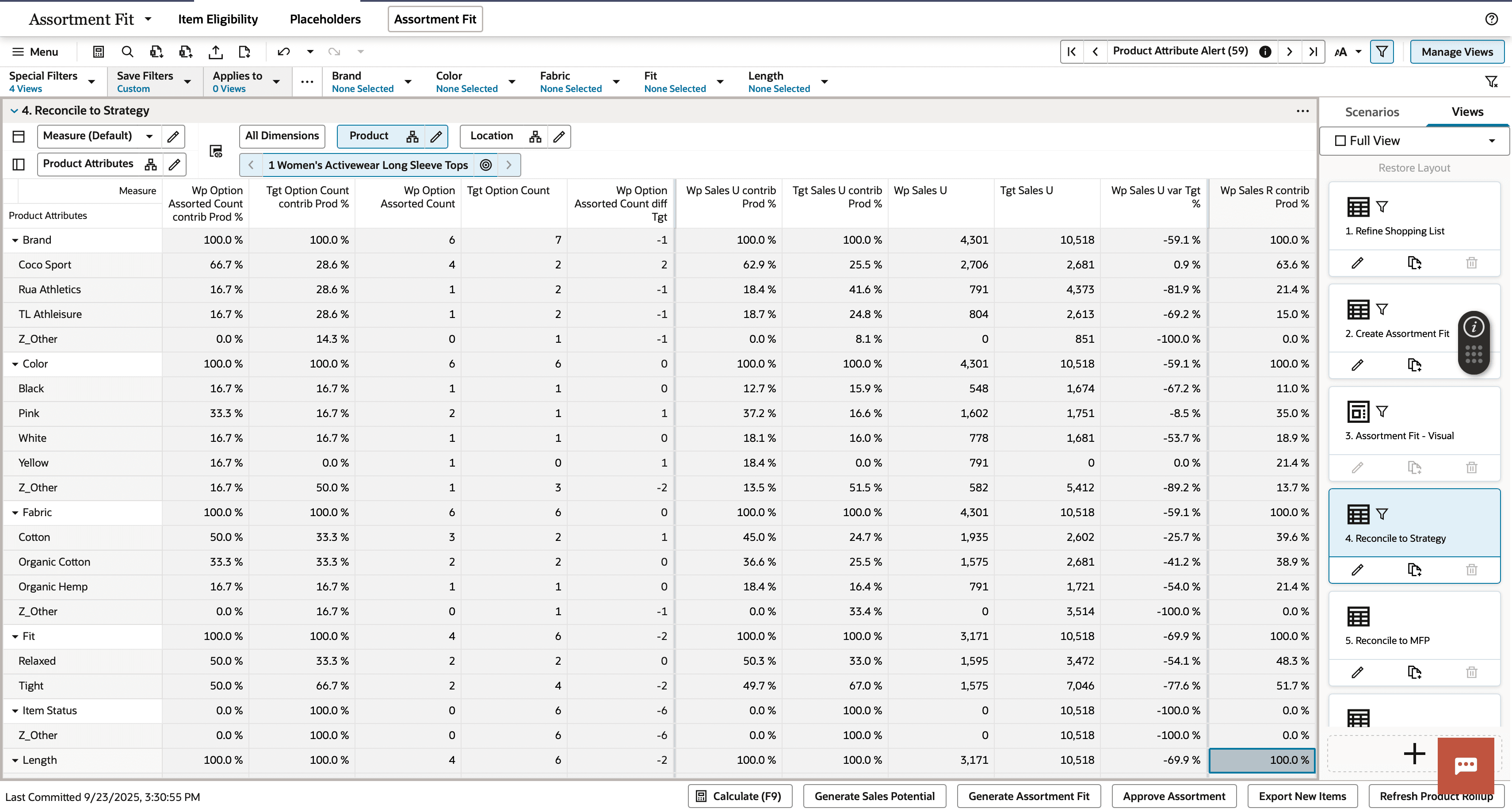
The Reconcile to Strategy View enables planners to compare Assortment Fit results against approved Assortment Strategy targets, ensuring alignment at the attribute level. This view supports gap analysis by comparing option counts and contribution percentages across attributes (such as color, size, and brand), helping identify differences between the planned assortment and strategy targets.
Planners can use this analysis to refine assortment selections and ensure the final assortment meets defined objectives. This view ensures that the final assortment maintains alignment with attribute mix targets defined in Assortment Strategy.
Reconcile to MFP View
The Reconcile to MFP view enables planners to compare the Assortment Fit against MFP (Merchandise Financial Planning) Current Plan targets and last year performance at the subclass level.
This view supports financial validation by highlighting variances in sales, margin, and rate of sale, allowing planners to identify gaps and refine the assortment to ensure alignment with financial goals and overall strategy.
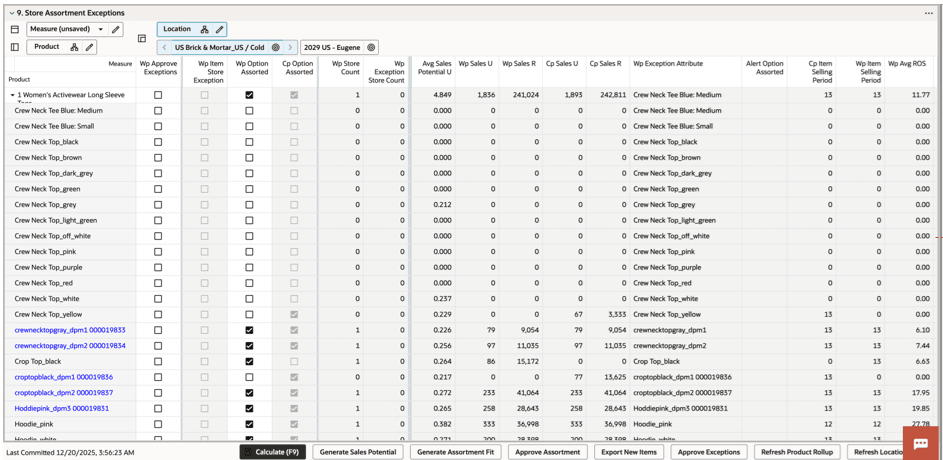
Store Assortment Exceptions View
This view supports localized adjustments to meet specific business needs, such as new store openings or targeted merchandising strategies. The Store Assortment Exceptions view enables planners to review and adjust assortments at the store level.
Store-level values populate only after the Approve Assortment application action is executed at the cluster level. Store exceptions defined in Item Eligibility tab are reflected in the Wp Item Store Exception measure.
Planners can override cluster-level assortment decisions by modifying Wp Option Assorted at the store level. When exceptions are approved, the system reconciles these changes to the cluster level, updating sales units and store count metrics accordingly. These store-level overrides are reflected in working plan metrics after execution of the Approve Exceptions application action. Location alternate hierarchies enable groupings of locations by cluster to easily evaluate differences.
This view supports localized adjustments to meet specific business needs, such as new store openings or targeted merchandising strategies.
The steps to complete this process:
- Review Wp Item Store Exception to identify store-level exclusions derived from attribute or item exception rules.
- Modify Wp Option Assorted at the store level to include or exclude items as needed.
- Changes to Wp Option Assorted update Wp Item Store Exception.
- If Wp Option Assorted is False, associated sales metrics are set to zero.
- Update Wp Week Start and Wp Week End as needed for store-specific timing.
- Execute the Approve Exceptions application action to reconcile store-level changes with cluster-level assortments, updating sales units and store counts.
-
(Optional) Group and analyze locations using location rollups:
- Navigate to the Assortment Maintenance tab.
- Select attributes in Refresh Location Rollup.
- Execute the Refresh Rollup application action.
- Select the Location Dimension tile and choose the desired hierarchy.
Measure Profile
-
Default Profile
Enables review of store exceptions and the assortment plan at the style-color and store level.
-
Assortment Count Profile
Enables review of Wp Option Count by store to evaluate differences across stores within a cluster.
Step: Assortment Maintenance
The Assortment Maintenance tab provides access to parameter settings and administrative capabilities that support final assortment refinement and data management. This tab enables planners to review and update placeholder attributes, manage export readiness, and create alternate hierarchies for analysis.
Tab and Views in this Step:
Application Actions
Export Placeholders
Exports placeholder items for downstream processing, such as item creation or integration with external merchandising systems.
Refresh Rollup
Creates alternate hierarchies based on selected product and/or location attributes for aggregated analysis.
Assortment Maintenance Tab
The Assortment Maintenance tab enables planners to review and update attributes assigned to placeholders and prepare placeholders for export to downstream systems. It also provides the ability to create alternate product and location hierarchies for aggregated analysis and display.
Review Attributes View
The Refresh Attribute View enables planners to review and update product attribute values assigned to placeholders and prepare them for export to downstream systems. After the initial export, any further attribute updates should be maintained in the item source system.
The steps to complete this process:
- Review and update product attribute values for placeholders using the Product Attribute picklist.
- The Filter by Placeholders special filter is available to change display to show only placeholder items.
- Review alerts related to placeholder completeness or validity:
-
Wp Export Placeholders Alert
Triggers when Wp Export Placeholders is set to True for a style-color that is not a placeholder. This prevents execution of the Export Placeholders application action.
-
Color Assignment Alert
Triggers when more than one style-color within a style is assigned the same color attribute in the Define Item Eligibility view.
-
- Select placeholder style-colors for export by setting Wp Export Placeholders to True.
- Execute the Export Placeholders application action to send placeholder positions to external systems.
Refresh Product Rollup View
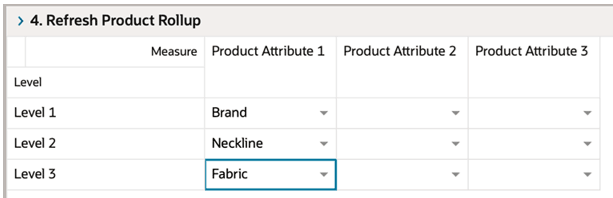
The Refresh Product Rollup view creates dynamic, attribute-based hierarchies for analyzing assortments, enabling planners to evaluate performance across multiple attribute combinations and view aggregated results at different levels of detail.
The steps to complete this process:
- Select up to three dynamic product attributes from the drop-down list.
- Execute the Refresh Rollup application action. This generates dynamic location hierarchies based on selected attributes, enabling alternative rollup views for analysis.
-
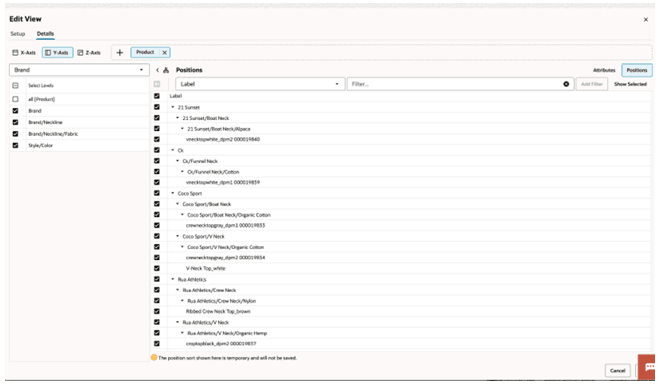
To view the product attribute aggregations:
- In a view that displays style-color level, click the Product Hierarchy tile.
- Select the attribute (Attribute 1 or 2 or 3) that you would like to view in the nested dynamic rollup.
- Click OK.
Refresh Location Rollup View
The Refresh Location Rollup view creates dynamic, attribute-based hierarchies for analyzing assortments, enabling planners to evaluate performance across multiple attribute combinations and view aggregated results at different levels of detail.
The steps to complete this process:
- Select up to three dynamic location attributes from the drop-down list.
- Execute the Refresh Rollup application action. This generates dynamic location hierarchies based on selected attributes, enabling alternative rollup views for analysis.
-
To view the location attribute aggregations:
- In a view that displays store level, click the Location Hierarchy tile.
- Select the attribute (Attribute 1 or 2 or 3) that you would like to view in the nested dynamic rollup.
- Click OK.