9 Item Flow Task
The Item Flow task manages weekly sales and receipt planning for Short Life Cycle (SLC) products. Unlike Long Life Cycle (LLC) items, which are managed through replenishment systems, SLC items require detailed time-phased planning due to their limited selling window. This workflow supports both Single Drop (one-time delivery) and Multiple Drop (phased deliveries) strategies, providing flexibility to align with business needs.
Planners define key parameters including planning method, sales curve, sell-through, and timing. Sales curves shape demand distribution across weeks and may include predefined curves, such as Bell, Trending, or Slow Introduction, plan-based or historical curves, such as MFP or Last Year, and Smart Start, which provides an AI-recommended sales curve from AI Foundation. Default receipt parameters—such as lead time, order frequency, and safety stock—are pre-populated from administrative settings and can be adjusted as needed.
The system generates weekly sales and receipt plans using the Create Sales and Receipt Plan application action. When Smart Start is selected as the sales curve source, weekly sales are initialized using the Smart Start recommendation from AI Foundation. For Single Drop items, buy quantity is driven by total demand and sell-through. For Multiple Drop items, sales are distributed using the selected curve and receipts are calculated based on delivery parameters.
This workflow enables accurate and efficient planning of SLC items, ensuring alignment to demand patterns, minimizing risk, and optimizing inventory flow. This step translates assortment decisions into executable receipt plans.
Create the Item Flow Segment
When working in a segment, limit wizard selections to the specific scope being planned to improve navigation and performance.
To create the Item Flow segment:
- From the Oracle Home page, navigate to the Oracle Retail icon to open the task selection panel.
- Locate the Item Flow task using the available navigation options or by entering Item Flow in the search field.
- Select the Item Flow task. The wizard dialog opens.
- Click Create New Plan.
- Enter a plan label and click OK.
- In Select Assortment Period, choose an assortment period and click Next.
-
In Select Product, choose one style-color or more and click Next.
The wizard automatically filters to approved Short Life Cycle items.
- Click Finish.
Step: Item Flow
The Item Flow workflow begins with defining parameters for Short Life Cycle (SLC) items, including the delivery strategy and sales curve. Planners select a planning method (Single Drop or Multiple Drop), choose a sales curve, and review default receipt parameters such as lead time, order frequency, and safety stock.
Weekly sales may be initialized using predefined, seeded, manually defined, or AI-recommended Smart Start sales curves by using the Rec Smart Curve application action. Smart Start provides AI Foundation weekly demand contribution recommendations by style-color and cluster, giving planners a predictive starting point for weekly sales planning while retaining the flexibility to review and adjust the working plan before generating receipts.
Planners then execute the Create Sales and Receipt Plan application action to generate weekly sales and receipt projections. For Single Drop items, planners review and adjust buy quantity. For Multiple Drop items, planners review and refine weekly sales and receipt distributions.
Once the plan is validated, planners reconcile results against MFP targets and execute approval of the Item Flow. Additional views support review of sales curves and administrative parameters to ensure alignment with planning objectives.
Tab and Views in this Step:
Application Actions
Rec Smart Curve
Populates the AI Foundation Smart Curve weekly demand contribution recommendation by week, style-color, and cluster for the selected subclass. The recommended weekly contribution percentages are available in the Review Sales Curves view and can be selected as the Smart Curve sales curve source when generating the sales and receipt plan. If a recommendation is not available for a selected style-color, the Smart Curve Alert is activated, and the Bell Curve is used to generate the sales and receipt plan unless another sales curve source is selected.
Create Sales & Receipt Plan
Generates weekly sales and receipt unit recommendations based on defined Item Flow parameters.
Copy Like Item
Copies values from Like Item into Wp for AF Cp Sales U, AF Cp Week Start/End date, Wp Retail Price, Wp Cost.
Approve Item Flow
Moves Working Plan (Wp) assortment to the Original Plan (Op) and Current Plan (Cp) version for use in downstream process steps. As a Pre-Season process this creates both Op and Cp versions.
Export Placeholders
Exports placeholder items for downstream processing, such as item creation or integration with external merchandising systems.
Refresh Rollup
Creates alternate hierarchies based on selected product attributes for aggregated analysis.
Define Item Flow Tab
The Define Item Flow tab enables planners to define delivery strategy, select sales curves, review receipt parameters, and generate weekly sales and receipt plans for Short Life Cycle (SLC) items.
Define Item Flow View
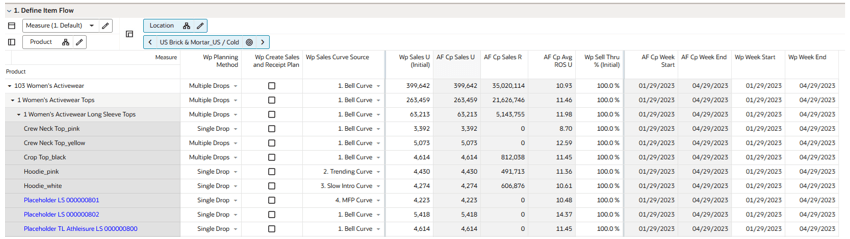
The Define Item Flow view supports planning of SLC items by defining key parameters such as Planning Method (Single Drop or Multiple Drop), sales curve selection, and selling start and end weeks.
Receipt parameters—including lead time, order frequency, and safety stock—are auto-populated from administrative settings and can be adjusted as needed.
The Rec Smart Curve application action populates the AI Foundation Smart Start weekly demand contribution recommendation by week, style-color, and cluster for the selected subclass. The recommended weekly contribution percentages are available in the Review Sales Curves view and can be selected as the Smart Start sales curve source when generating the sales and receipt plan. If a recommendation is not available for a selected stylecolor, the Smart Start Alert is activated, and the Bell Curve is used to generate the sales and receipt plan unless another sales curve source is selected.
The Create Sales and Receipt Plan application action generates weekly sales and receipt projections. Weekly sales for both Single Drop and Multiple Drop items are based on the selected curve and date range. Cp Sales U from Assortment Fit serves as the default assortment period sales plan unless modified with Wp Sales U Initial.
For Single Drop items, buy quantity is calculated using sell-through, sales units, lead time, and minimum order quantity. For Multiple Drop items, receipts are calculated using sell-through, order frequency, safety stock, and related parameters.
Filters enable aggregation and analysis across Single Drop and Multiple Drop products.
If new placeholders are created and recommended sales potential values are desired, return to the Assortment Fit step to generate sales potential before proceeding. Otherwise, Like Item can be assigned for seeding sales.
The steps to complete this process:
- (Optional) Assign Like Items to seed Item Flow parameters.
-
Unhide Wp Copy Like Item and Wp Like Item measures.
Wp Like Item is a picklist measure available at the All Location level.
-
Select a Wp Like Item from an existing style-color in the workspace.
-
Set Wp Copy Like Item to True.
-
Execute the Copy Like Item application action to copy the following values into the selected style-color: AF Cp Sales U, AF Cp Week Start/End, Wp Retail Price, Wp Cost.
-
Once Wp Sales U is populated, default receipt parameters populate automatically.
-
- (Optional) Select Wp Rec Smart Curve Boolean Measure for the selected subclass.
- (Optional) Execute the Rec Smart Curve application action to retrieve the weekly demand contribution recommendation by style-color and cluster.
-
Review alert:
-
Smart Start Alert
Triggers when the selected style-color does not have a recommended Smart Curve. The real-time alert identifies the affected style-color, and the Bell Curve is used to generate the sales and receipt plan unless another Wp Sales Curve Source is selected.
-
- Define item flow parameters, including Wp Planning Method, Wp Sales Curve Source, Wp Sales U (Initial), and Wp Week Start/End.
- Switch measure profiles as needed to support different planning methods and delivery strategies.
- The Filter by Assorted Options, Filter by Single Drop Items, and Filter by Multiple Drop Items special filters are available to change display to show only desired items. Filter by Assort Options is enabled by default but may be adjusted as needed.
- Review and adjust receipt parameters such as lead time, order frequency, presentation minimum, and safety stock.
- Select Wp Create Sales and Receipt Plan Boolean measure for the desired style-colors.
- Execute the Create Sales and Receipt Plan application action to generate sales and receipt flows.
- Navigate to subsequent views to review and refine results.
Measure Profiles
-
Default Profile
Defines the core item flow parameters, including Wp Planning Method, Wp Sales U (Initial), Wp Sales Curve Source, Wp Sell Thru % (Initial), and Wp Week Start/End.
-
Multiple Drop Profile
Extends the Default Profile with additional parameters required for multiple delivery planning, including Wp Lead Time (Weeks), Wp Order Frequency (Weeks), Wp Pres Min U, Wp Safety Stock (Weeks), and Wp Min Order Qty U.
-
BOS Override Profile
Enables override of Beginning of Season (BOS) inventory values for carryover items.
Adjust Buy Quantity View
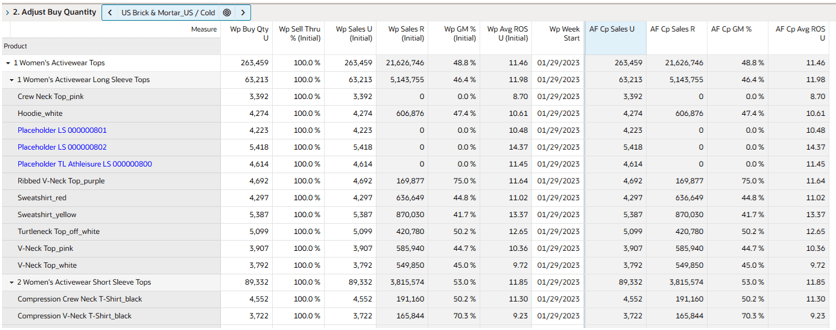
The Adjust Buy Quantity view enables planners to define buy quantity for Single Drop (only one delivery) items by adjusting sell-through percentage.
This view focuses on items with a single receipt. Weekly sales are derived from the selected sales curve, ensuring alignment with expected demand patterns. Buy quantity is defined at the assortment period level and distributed to weeks in downstream steps.
The steps to complete this process:
- Review result for single drop items.
- The Filter by Single Drop Items special filter is available to change display to show only items with Wp Planning Method of Single Drop items.
- Review the system recommended Wp Buy Qty U and adjust as needed based on sell-through and business expectations.
Adjust Weekly Flow View
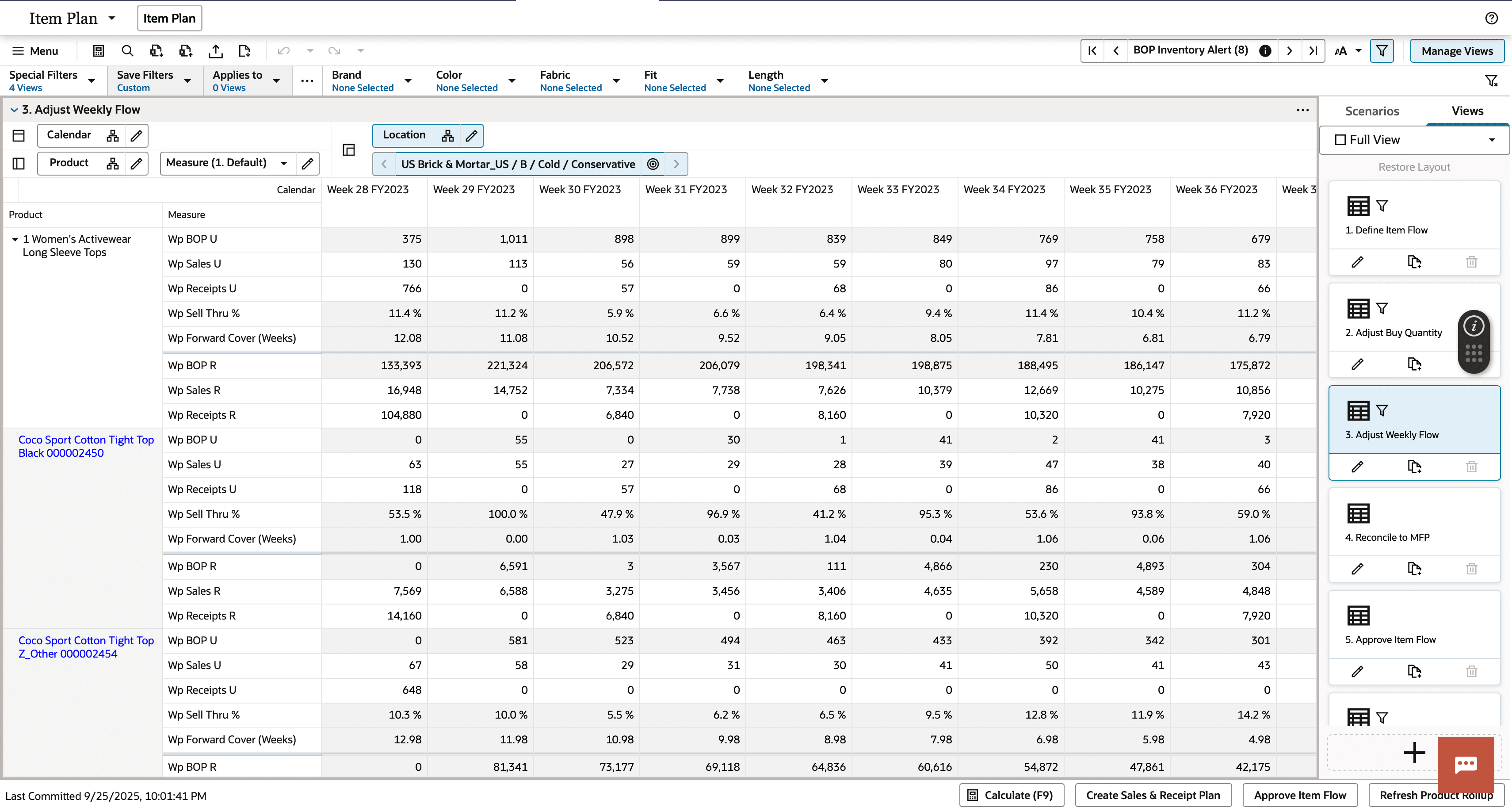
The Adjust Weekly Flow View enables planners to review and refine weekly sales and receipt plans for both Single Drop and Multiple Drop items. This view provides a detailed, week-level breakdown of sales, receipts, and inventory.
For Single Drop items, a single receipt is scheduled based on Start Week + Lead Time, and sales are distributed using the selected sales curve. For Multiple Drop items, receipts are phased across weeks based on order frequency and other receipt parameters, with sales aligned to the selected curve.
The view displays Beginning of Period (BOP) and End of Period (EOP) inventory, supporting inventory management and validation of stock levels. Receipt flow is driven by parameters defined in the Define Item Flow View, including lead time, order frequency, presentation minimum, and safety stock.
Measure profiles and filters support analysis across sales, margin, receipts, and inventory, allowing planners to evaluate performance and refine plans.
The steps to complete this process:
- Review weekly results for Single Drop and Multiple Drop items.
- Switch measure profiles as needed to analyze sales, margin, receipts, or inventory.
- The Filter by Assorted Options, Filter by Single Drop Items, and Filter by Multiple Drop Items special filters are available to change display to show only desired items. Filter by Assort Options is enabled by default but may be adjusted as needed.
- Review alerts:
-
Missing Receipt Alert
Triggers when a style-color is assorted, and Wp Sales U is greater than 0 but Wp Receipts U is 0 for the assortment period.
-
BOP Inventory Alert
Triggers when a style-color is assorted and Wp BOP U is less than the required presentation minimum and safety stock units.
-
- Review system recommended Wp Sales U and Wp Receipts U and adjust as needed.
Measure Profiles
-
Default Profile
Provides a concise view of key KPIs across sales, receipts, and inventory.
-
Weekly Sales & Margin Profile
Focuses on sales and margin metrics, including comparison to last year.
-
Weekly Receipt & Inventory Profile
Focuses on receipts and inventory KPIs such as sell-through and forward cover, including comparison to last year.
Reconcile to MFP View
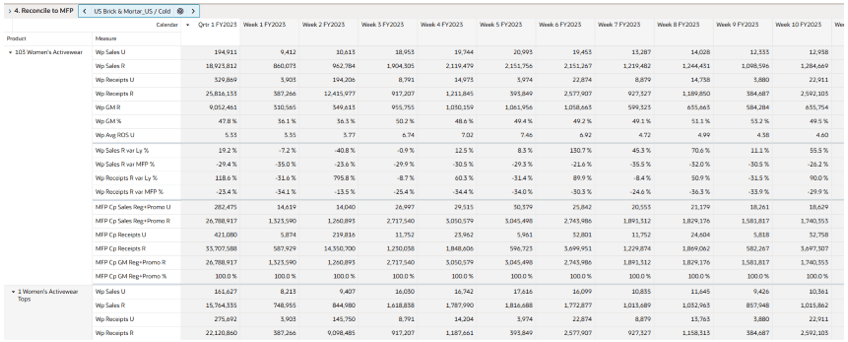
The Reconcile to MFP view enables planners to compare Item Flow results against Merchandise Financial Planning (MFP) targets and last year performance at the subclass level.
This view supports financial validation by highlighting variances in sales, receipts, margin, and rate of sale, allowing planners to identify gaps and refine plans to ensure alignment with financial goals and operational targets.
Approve Item Flow View
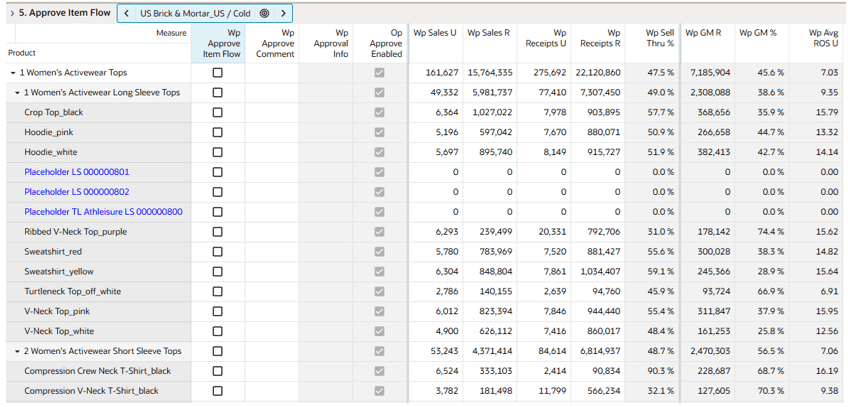
The Approve Item Flow view serves as the final step to review and approve the Item Flow plan. Planners review weekly sales, receipt flows, and inventory projections to ensure alignment with strategy and financial targets. Once validated, the Approve Item Flow application action finalizes the plan.
As a pre-season process, approval creates both an Original Plan (Op) and a Current Plan (Cp) version. The Original Plan remains a static snapshot, while the Current Plan is used for in-season tracking, where actuals replace plan values for elapsed periods to create a combined actual + plan view.
If store-level Item Flow exceptions are required, Item Flow must first be approved at the Assortment Period and Cluster level before planning exceptions in the Item Flow Exception workspace.
The steps to complete this process:
- Review the finalized Item Flow plan, including weekly sales, receipts, and inventory projections.
- Select Wp Approve Item Flow Boolean measure for the style-color or aggregated level to be approved.
- Execute the Approve Item Flow application action to copy Working Plan (Wp) values to Original Plan (Op) and Current Plan (Cp).
Measure Profiles
-
Default Profile
Provides a concise view of key KPIs across sales, receipts, and inventory.
-
Wp to Prior Cp
Enables comparison between the current working plan and previously approved plans to support iterative planning.
Review Sales Curve View
The Review Sales Curve view enables planners to review the sales curves available in the system and evaluate how each curve shapes weekly sales projections by style-color. The system provides predefined curves to support a range of planning needs, and planners can review them in graphical form or in pivot table format by percent distribution.
The Filter Lead Time special filter hides the lead time weeks which fall outside the Assortment Period. This filter is enabled by default and may be modified as needed.
Planners can use these predefined curves, or custom curves where available, or AI-recommended Smart Start curves, to support weekly sales planning and align sales projections with product behavior, market conditions, and strategic goals.
Review Admin Parameters View
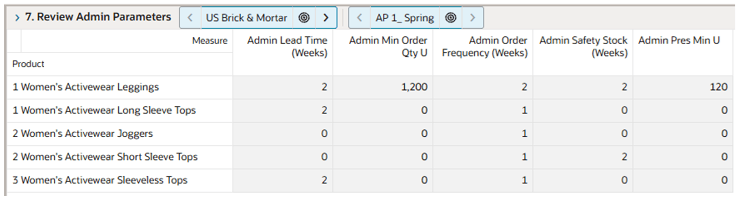
The Review Admin Parameters view enables planners to review default receipt parameters defined in Planning Administration.
These parameters—such as Lead Time, Order Frequency, Safety Stock, and Minimum Order Quantity—serve as the foundation for receipt planning and are automatically populated into the Item Flow process.
After review, planners can return to the Define Item Flow view to adjust parameters as needed to reflect specific business requirements or product characteristics. Adjustments can be made at the style-color level or higher product aggregations. For example, subclasses with longer supplier lead times or higher safety stock requirements can be modified to reflect these conditions.
By reviewing and refining these parameters, planners can optimize receipt timing, reduce stockouts, and improve overall inventory efficiency.
Define Product Rollup View
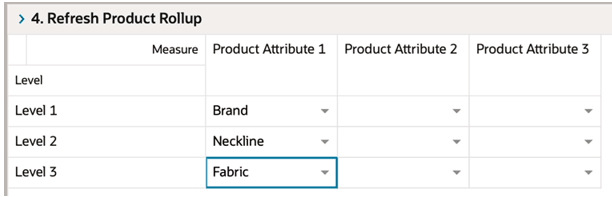
The Refresh Product Rollup view creates dynamic, attribute-based hierarchies for analyzing assortments, enabling planners to evaluate performance across multiple attribute combinations and view aggregated results at different levels of detail.
The steps to complete this process:
- Select up to three dynamic product attributes from the drop-down list.
- Execute the Refresh Rollup application action. This generates dynamic location hierarchies based on selected attributes, enabling alternative rollup views for analysis.
-
To view the product attribute aggregations:
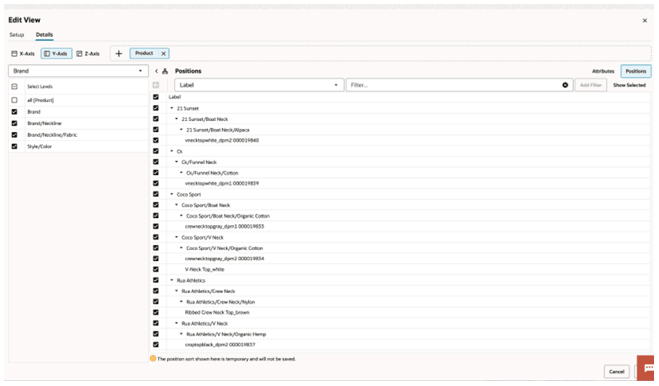
- In a view that displays style-color level, click the Product Hierarchy tile.
- Select the attribute (Attribute 1 or 2 or 3) that you would like to view in the nested dynamic rollup.
- Click OK.