5 Location Clustering Task
Location Clustering groups stores into clusters based on similar performance, attributes, or space characteristics. These clusters allow planners to create localized assortments at scale by applying a single assortment to groups of similar locations. All locations within a cluster receive an identical assortment unless modified through store-level exceptions. Clustering may also be referred to as store groups or store tiers.
Clusters are defined using a combination of location attributes and performance metrics. Planners can select up to three attributes to drive clustering, although fewer may be used depending on the business need. Selecting more attributes increases the number of clusters, improving localization but also increasing planning complexity.
Cluster versions can be created and reused across assortment periods, also referred to as buying periods or seasons. This allows planners to apply different clustering strategies by season while maintaining consistency where needed. When creating an assortment period, the planner selects the cluster version to be used for that season, which impacts the assortments planned.
Create the Location Clustering Segment
To create the Location Clustering segment:
- From the Oracle Home page, navigate to the Oracle Retail icon to open the task selection panel.
- Locate the Location Clustering task using the available navigation options or by entering Location Clustering in the search field.
- Select the Location Clustering task. The wizard dialog opens.
- Click Create New Plan.
- Enter a plan label and click OK.
- In Select Product, choose one or more categories and click Next.
- In Select Sales Source, choose the data source and click Next.
-
Actuals uses historical performance data.
Selecting Actuals for future periods will result in no data.
- Forecast uses forecast data from external integrated systems.
-
Plan uses MFP Location Plan values (if available).
For elapsed periods, MFP data may include both actuals and plan.
-
- In Select Calendar, choose the time periods (recommended: at least six months of data) and click Finish.
Step: Setup
The Setup step defines the inputs and parameters used to generate location clusters. These inputs determine how locations are grouped and directly impact assortment localization.
Tab and Views in this Step:
Application Actions
Seed Strategy Weights
Populates performance metric weights using the strategy weights defined in Planning Administration.
Optimize Clusters
Runs the BaNG algorithm to generate optimized clusters using a science-based methodology. This is an optional application action.
Create Cluster
Generates clusters based on selected attributes, weights, performance groups, and algorithm. This action must be rerun whenever inputs are updated.
Setup Tab
This tab supports attribute analysis and configuration of clustering inputs.
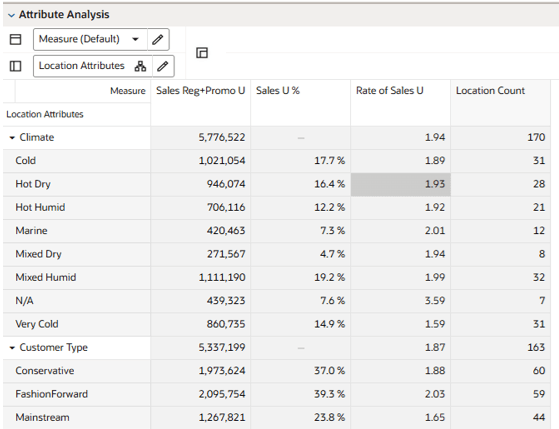
Attribute Analysis View
The Attribute Analysis view displays location attributes alongside performance metrics based on the selected sales source (Actual, Forecast, or Plan) and calendar periods. This view enables planners to evaluate how attributes differentiate store performance and supports selecting the most meaningful attributes for clustering.
Clustering Setup View
The Clustering Setup view is used to define the primary clustering inputs, including attribute selection and performance weighting. Planners select up to three location attributes to drive clustering. If performance-based clustering is used, strategy weights must be seeded or manually assigned.
Note:
The total sum of the weights assigned to all the metrics should be 100%; if the weights do not sum up to 100%, they are re-normalized upon the next commit and refresh.
The steps to complete this process:
- Select up to three location attributes.
- If using performance-based clustering (Sales Perf Group), performance weights must be seeded or manually assigned.
- Perform one of the following:
- Select Strategy Weight from the picklist.
- Manually assign weights for Sales U, R, AUR, Gross Margin R, R %.
- Execute the Seed Strategy Weights application action. This populates performance metric weights using the strategy weights defined in Planning Administration.
- Modify weights as needed.
- Perform one of the following:
- If desiring Performance Groups, user navigates to Sales Perf Group Setup View to complete parameter settings.
- If desiring Space Groups, user navigates to Space Group Setup View to complete parameter settings.
- If Performance or Space Groups are not desired, execute the Create Cluster application. This generates clusters based on selected attributes and configuration.
Note:
Selecting more attributes increases cluster granularity but also increases planning complexity.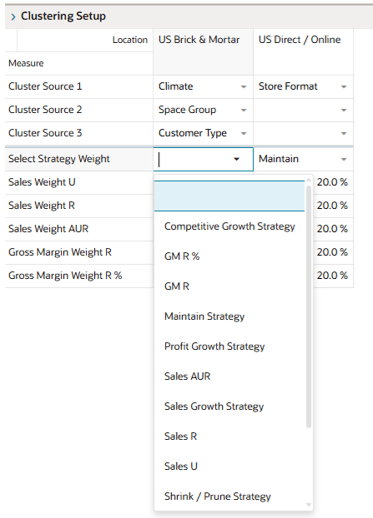
Sales Perf Group Setup View
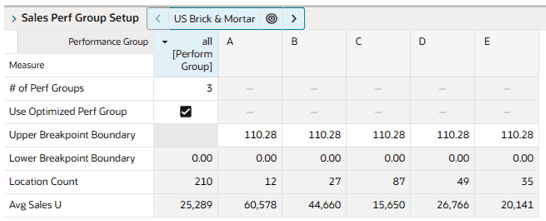
If performance-based clustering is desired, the Sales Perf Group Setup view defines how locations are grouped and selects the clustering algorithm. Frequently, this is executed in combination with location attribute defined in the Clustering Setup View. In this view, planners complete the process by defining the number of performance groups and choosing between Breakpoint or Optimized clustering. Then they create clusters here.
If using the Breakpoint algorithm, the steps to complete this process:
- Enter the number of performance groups (maximum of five).
- Review and adjust upper breakpoint boundaries if needed.
- If you adjust the upper boundary, it will only be valid for the current session and will not be committed to the segment. When you create a new segment, the system will revert to the recommended values.
- Review location count and average sales.
- Execute Create Cluster application action to generate cluster assignments.
Note:
If you make changes to any settings, you must rerun the Create Cluster Application Action in order to see updated results.
If using the Optimized algorithm, the steps to complete this process:
- Enter the number of performance groups (maximum of five).
- Enable the Use Optimized Perf Group Boolean flag.
- Review the Location Count and Avg Sales U for each performance group.
- Execute Optimize Clusters application action to generate optimized clusters using a science-based methodology.
- Execute Create Cluster application action to generate cluster assignments.
Note:
If you make changes to settings, you must rerun the Optimize Clusters and Create Cluster Application Actions in order to see updated results.
Space Group Setup View
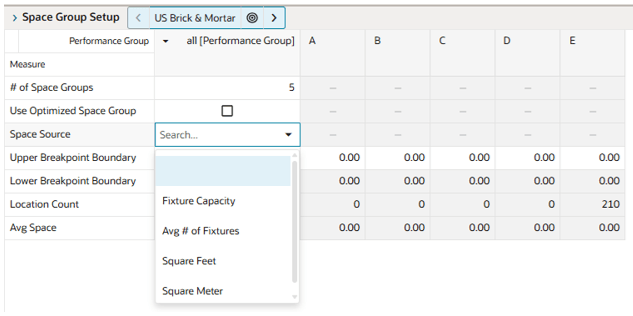
If space-based clustering is desired, the Space Group Setup view defines how locations are grouped and selects the clustering algorithm. Frequently, this is executed in combination with location attribute defined in the Clustering Setup View. In this view, planners complete the process by defining the number of space groups and choosing between Breakpoint or Optimized clustering. Then they create clusters here.
If using the Breakpoint algorithm, the steps to complete this process:
- Enter the number of performance groups (maximum of five).
- Define the Space Source from integrate files (such as, Fixture capacity, Square Feet, Square Meter).
- Review and adjust upper breakpoint boundaries if needed.
- If you adjust the upper boundary, it will only be valid for the current session and will not be committed to the segment. When you create a new segment, the system will revert to the recommended values.
- Review location count and average sales.
- Execute Create Cluster application action to generate cluster assignments.
Note:
If you make changes to any settings, you must rerun the Create Cluster Application Action in order to see updated results.
If using the Optimized algorithm, the steps to complete this process:
- Enter the number of performance groups (maximum of five).
- Define the Space Source from integrate files (such as, Fixture capacity, Square Feet, Square Meter).
- Enable the Use Optimized Perf Group Boolean flag.
- Review the Location Count and Avg Sales U for each performance group.
- Execute Optimize Clusters application action to generate optimized clusters using a science-based methodology.
- Execute Create Cluster application action to generate cluster assignments.
Note:
If you make changes to settings, you must rerun the Optimize Clusters and Create Cluster Application Actions in order to see updated results.
Review Location Space View
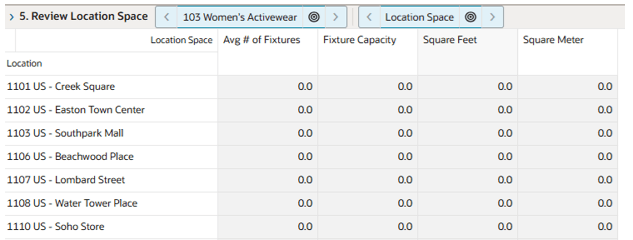
The Review Location Space view enables planners to review location space metrics by department and store that have been integrated from external systems. These metrics represent store capacity and are used to support space-based planning decisions, such as clustering, assortment allocation, and item flow planning.
Step: Analysis
The Analysis step enables planners to evaluate and validate the clustering results. In this step, planners review location performance, Scaled Scoring, performance group assignments, and final cluster assignments.
Planners can apply business judgment to refine results by overriding performance group assignments or returning to the Setup step to adjust clustering inputs. Any changes to inputs require rerunning the clustering process to reflect updated results.
The output of this step is a validated set of clusters ready for approval.
Tab and Views in this Step:
Application Actions
Create Cluster
Recalculates cluster assignments based on updated inputs. This action must be rerun after any changes to attributes, weights, performance groups, or clustering method.
Refresh Location Rollup
Generates dynamic location hierarchies based on selected attributes, enabling alternative rollup views for analysis.
Analysis Tab
This tab provides tools to analyze clustering results, including performance metrics, scoring, group assignments, and cluster outputs.
Location Analysis View
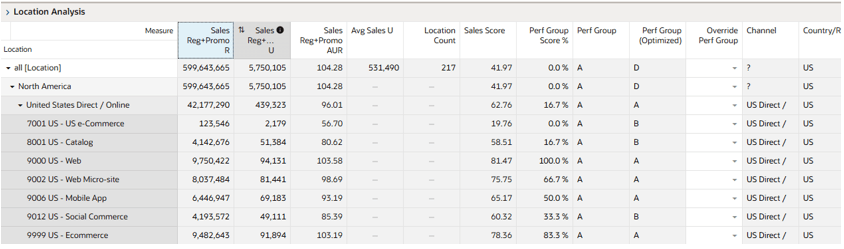
The Location Analysis view provides detailed visibility into cluster assignments, performance scoring, and grouping logic at the location level. This view enables planners to validate cluster results and apply overrides based on business knowledge.
The steps to complete this process:
- Review cluster assignments and performance group classifications.
- If adjustments are required:
- Override performance group assignments for specific locations.
- Or return to the Setup step to adjust clustering inputs.
- Rerun clustering application actions to update results.
Note:
If you make changes to settings, you must rerun the Optimize Clusters (if using the Optimize algorithm) and Create Cluster Application Actions in order to see updated results.
Measure Profiles
-
Default Profile
The Default profile is used to analyze, review, and adjust cluster assignments.
-
Sales Performance Analysis Profile
Provides visibility into sales and margin performance by cluster, supporting evaluation of financial alignment across clusters.
-
Space Group Analysis Profile
Displays space-based metrics and groupings, enabling evaluation of clustering decisions when space attributes are used.
-
Standard Deviation Profile
Highlights variability in store performance relative to cluster averages, helping identify outliers and assess cluster consistency.
Location Attributes View
The Location Attributes view provides a read-only display of all attributes assigned to each store. This view supports validation of attribute inputs and helps planners understand how location characteristics influence clustering results.
Note:
The location attributes, as well as the like-location assignments for new locations were assigned in the Planning Administration segment.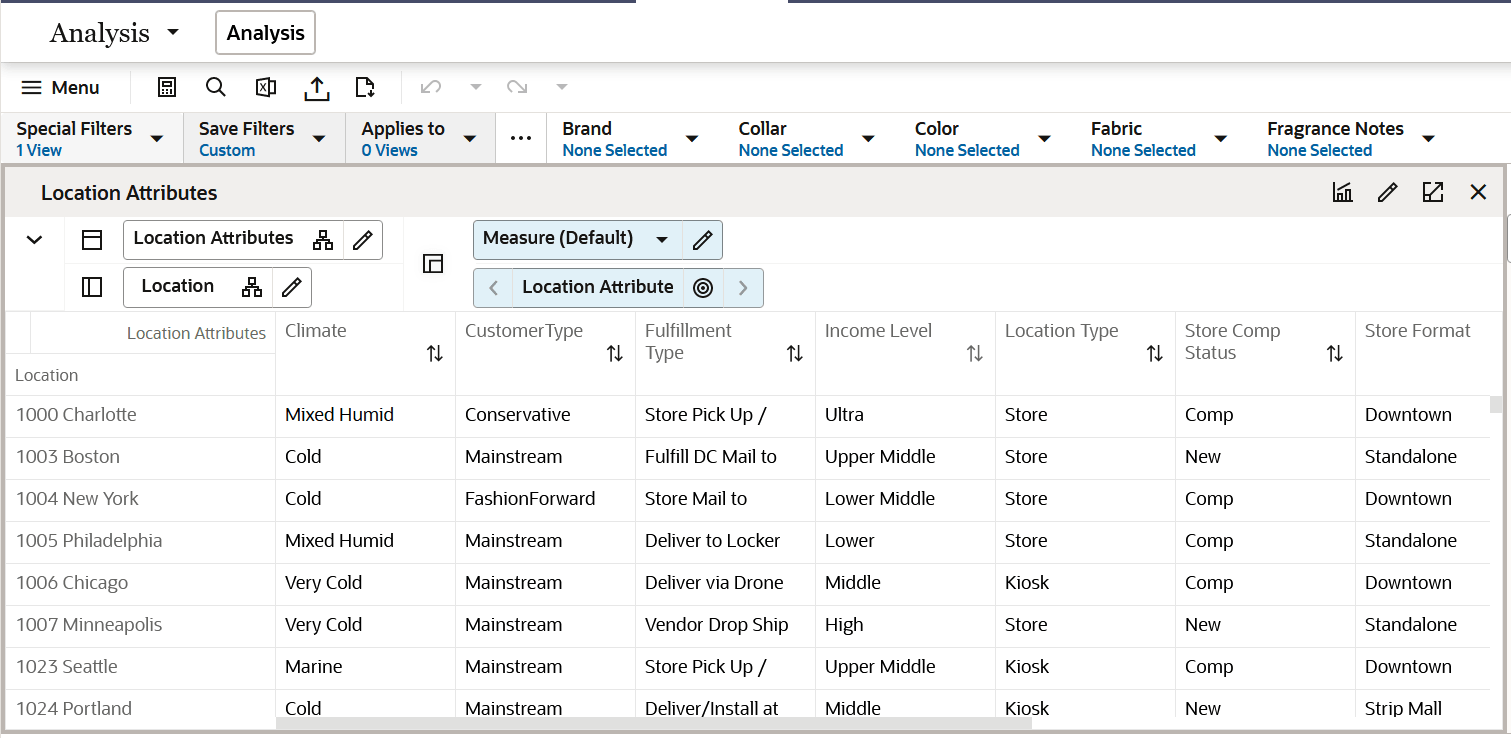
Define Location Rollup View
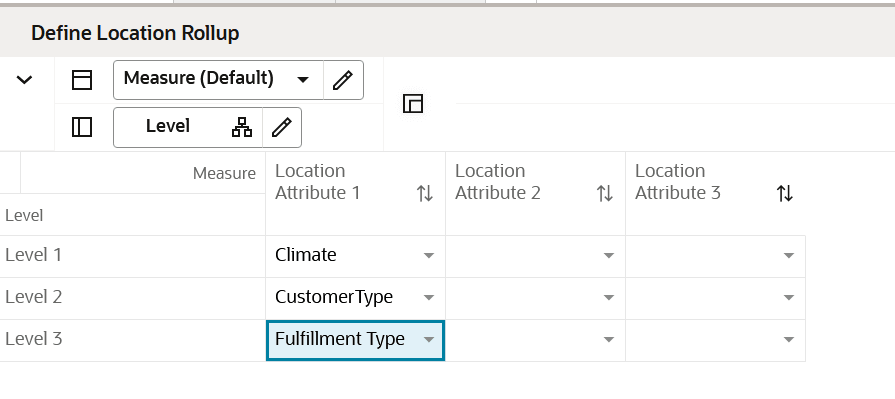
The Define Location Rollup view allows planners to create dynamic, attribute-based hierarchies for analyzing cluster results in aggregated store groupings. Planners can select up to three location attributes to define a nested rollup hierarchy. This enables analysis of cluster performance across different attribute combinations, such as region, format, or store type.
After selecting attributes, the Refresh Location Rollup application action generates the alternate hierarchy, which can then be selected in views that support location hierarchy selection.
The steps to complete this process:
- Select up to three dynamic location attributes from the drop-down list.
- Execute the Refresh Location Rollup application action. This generates dynamic location hierarchies based on selected attributes, enabling alternative rollup views for analysis.
-
To view the location attribute aggregations:
- In a view that displays store level, click the Location Hierarchy tile.
- Select the attribute (Attribute 1 or 2 or 3) that you would like to view in the nested dynamic rollup.
- Click OK.
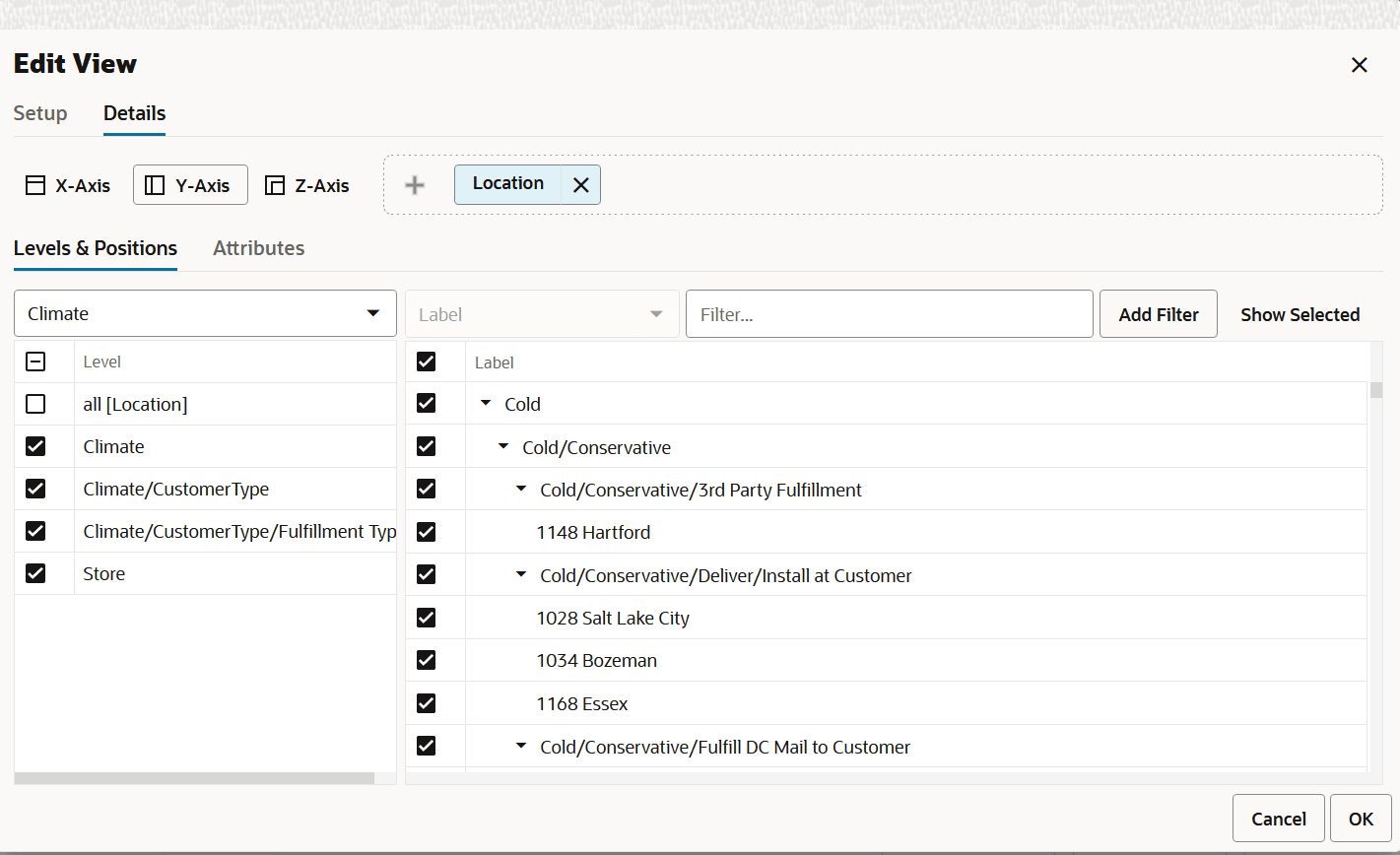
On selecting the alternate dynamic hierarchy defined in the Define Location Rollup View, you can see the subtotals at each nested level. You can edit these subtotals with editable measures to spread the values to all the associated positions.
Step: Approval
The Approval step finalizes the clustering process by creating approved cluster versions for use in assortment planning. In this step, planners review the final cluster results, assign version labels, and approve clusters for use in Assortment Maintenance. Approved cluster versions can be reused across assortment periods, enabling consistent and repeatable clustering strategies.
The output of this step is an approved cluster version that can be assigned to an assortment period.
Tab and Views in this Step:
Application Actions
Approve
Creates an approved cluster version that can be assigned to an assortment period. Multiple versions can be created and reused across different planning cycles. Approving to an existing version will overwrite its contents.
Refresh Cluster Version
The Refresh Cluster Version application action updates the workspace to display the cluster assignments for the selected cluster version. This action allows planners to switch between approved cluster versions and compare how locations are grouped across different versions.
Approve Tab
This tab is used to review clustering results, define version details, and approve cluster versions.
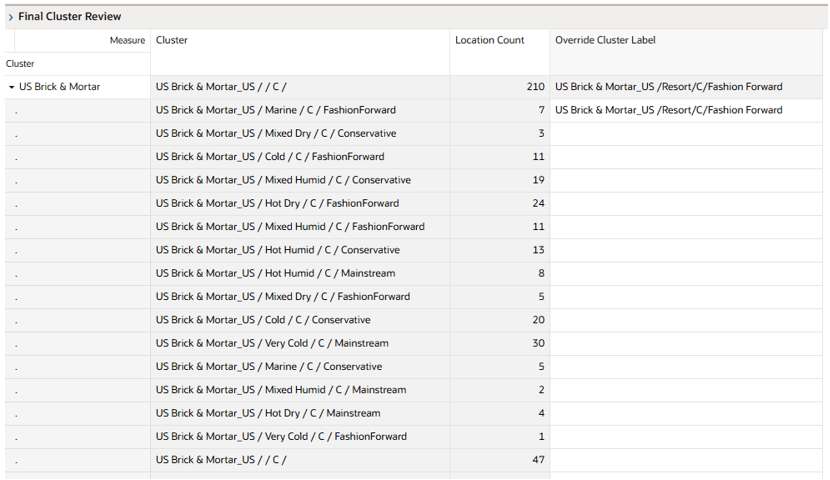
Final Cluster Review View
The steps to complete this process:
- Review location count by cluster.
- Update Override Cluster Label if needed.
-
Execute Approve application action to apply label changes.
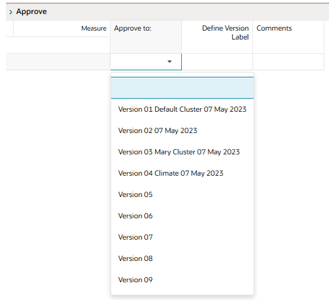
Approve View
The Approve View finalizes cluster results by creating a labeled cluster version that is stored in the cluster library and made available for assignment in Assortment Period Maintenance.
The steps to complete this process:
- Select a version in the Approve To drop-down list.
- Unused versions appear as Version01, Version02, and so on.
- If a cluster version has already been used, you may override its contents by selecting and running the Approve Application Action.
- The ability to have multiple versions of clusters allows the planner to have a library of versions that can be assigned to different Assortment Periods.
-
Enter a value in Define Version Label (optional).
Use descriptive naming to reflect clustering logic (such as, time frame, product source, attributes or strategy).
-
Enter comments (optional).
Comments are available as reference in downstream processes.
- Execute the Approve application action to create the updated/new clusters.
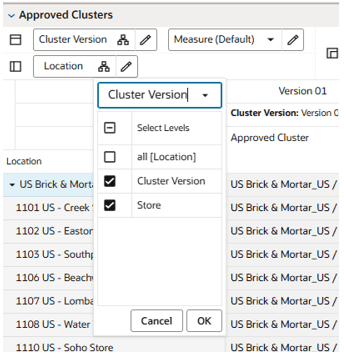
Approved Cluster View
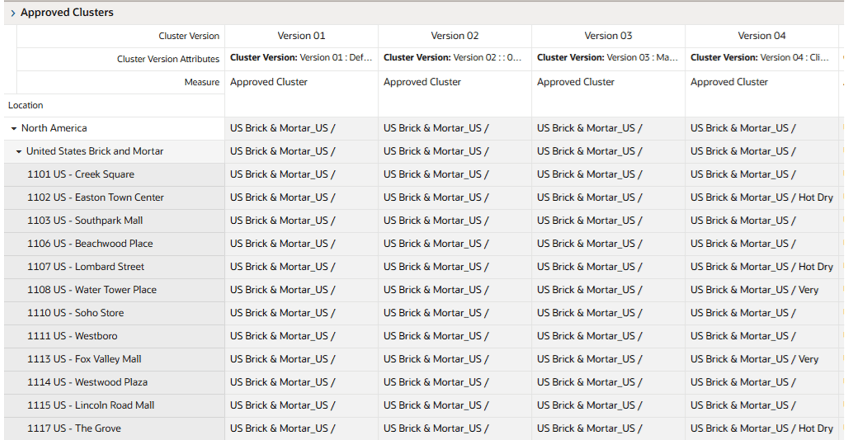
The Approved Cluster View provides visibility into all approved cluster versions for the selected category. This view allows planners to compare how locations are grouped across different cluster versions.
The steps to complete this process:
- Review cluster versions.
- Compare cluster assignments across versions.
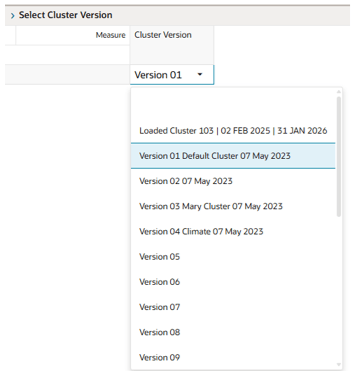
Select Cluster Version View
The Select Cluster Version View enables planners to select and review previously approved cluster versions. This view allows planners to switch between cluster versions and compare differences in cluster assignments before selecting a version for use in assortment planning.
To review results, select a cluster version and change the location hierarchy to the cluster version alternate hierarchy in any store-level view.