4 Validate Loaded Data Task
The Validate Loaded Data task provides visibility into loaded historical and plan data to ensure accuracy before planning begins. It allows users to review actuals, Merchandise Financial Planning (MFP) data, and optional location plans as a reference point for validation.
This step is typically used during implementation, data validation cycles, or when investigating discrepancies in planning results. This step does not modify data; it is a read-only validation workspace.
Create the Validate Loaded Data Segment
To create the Validate Loaded Data segment:
- From the Oracle Home page, navigate to the Oracle Retail icon to open the task selection panel.
- Locate the Validate Loaded Data task using the available navigation options or by entering Validate Loaded Data in the search field.
- Select the Validate Loaded Data task. The wizard dialog opens.
- Click Create New Plan.
- Enter a descriptive plan label and click OK.
- In Select Calendar, choose the time periods and click Next.
- In Select Location, choose the channels and click Next.
- In Select Product, select one or more departments and click Finish.
Step: Actuals
The Actuals step is used to review loaded historical performance data across items, locations, and time.
The step to complete this process:
- Review actual data to validate sales, inventory, and receipt values as necessary.
Tab and View in this Step:
Actuals Tab
The Actuals tab enables planners to review historical performance across item, location, and time, providing a baseline for validating plans and supporting in-season analysis.
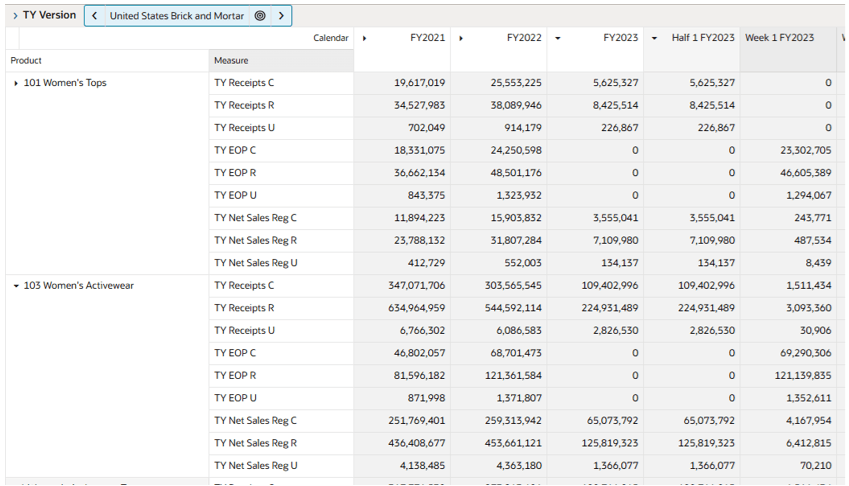
TY Version View
The TY Version View displays historical actuals at the item, location, and time level, enabling validation of sales and inventory performance. It provides a reference point for comparing planned values against actual results to support performance analysis and decision-making. Additional measures can be accessed through the Measure Show/Hide menu.
Step: MFP and Location Plan
This step is used to review financial plan data at both location and aggregated levels.
The steps to complete this process:
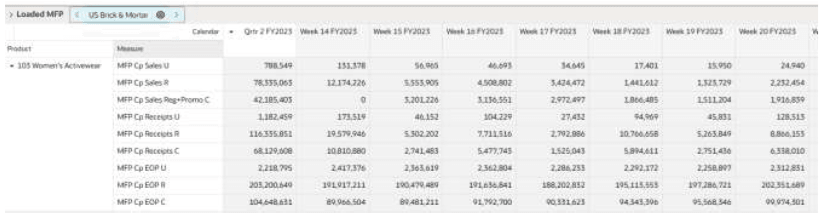
- Review location plan and MFP data to ensure financial targets are correctly loaded and distributed.
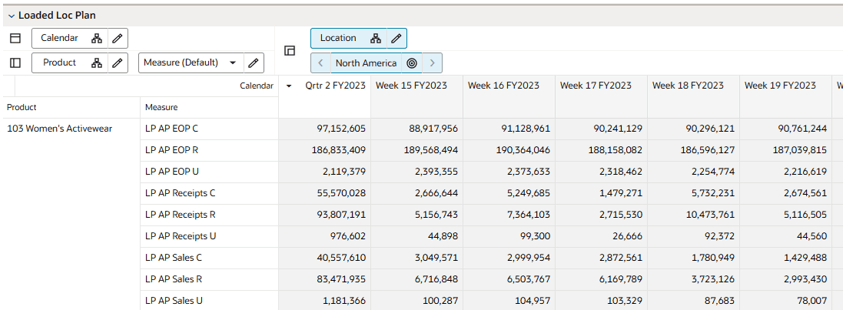
- If a Location Plan is available, the MFP Cp view displays the MFP Current Plan by Department spread to Location using the Location Plan Cp sales' proportionality.
- If a Location Plan is not available, the Loaded Loc Plan view displays the LP AP by department. These proportions are used to create MFP Reg+Promo plans by cluster in AP MFP reconciliations views.
Tab and Views in this Step: