Plan View
The retailer's most significant investment is the retailer’s inventory. Inventory Planning Optimization Cloud Service (IPO) offers the retailer the ability to best predict how much demand there will be and to deploy the inventory to optimize the demand throughout the course of an item's life cycle. Throughout an item’s life cycle, the application reacts to changes in consumer behavior in order to right size inventory deployment and demand methodologies.
The end result allows the retailer to manage the current and future inventory at scale to ensure the right products and quantiles are in the right place for the right customers at the right time, in an automated and intelligent way, through the user interface.
The Inventory Plan View allows you to view a projection of inventory and order recommendations during a specific time frame.
Use the main plan view to perform the major part of your analysis. This view helps to break down the components of the inventory and provides insights into the calculated target stock levels (Order Point (OP) and Order Up to Level) that drive ordering. In this view you see receipts increasing inventory but also see the order recommendations on the order date. These order recommendations create demand on the source that can be viewed in the warehouse demand or supplier order forecast, depending on the location's source.
To view the time-phased plan, complete the following steps:
-
Enter your time frame (see Time Frame).
-
Define the products and locations using the filter (see Main Filter).
-
Click Apply on the Main Filter to update the Plan View based on your choices.
-
Use the Cycle area arrows in the top right to navigate through the pages (see Cycle Area).
-
The pivot tables always display information about the product that is in focus.
Main Filter
Use the Main filter to restrict the scope of the Plan View to a subset of products and locations.
To access the Main Filter, click the Filterbutton in the top left of the Plan View.
Figure 1-9 Filter Button

The Main Filter provides a launching area providing access to the Product and Locations filters and the sub-filter Purchase Orders.
Figure 1-10 Filter Panel Card

Click a card to open the corresponding filter panel.
When making filter selections you can enter text in the filter search field at the top of the filter to reduce the list to those that contain that text.
Use the Purchase Orders sub-filter to select purchase orders whose products and locations will be included on the Main filter.
- If a purchase order has been selected, and then additional products or locations are selected, then a Resync message will be displayed on the Main Filter.
- ClickingResync to Filters will reset both products and locations to those matching the purchase order selections.
Saving Your Filters
The entire set of filter selections can be stored for later retrieval. This is useful for creating watch lists of top items, bottom items, new locations, new product introductions, and so on.
To save a filter, enter a name into the Saved Filters field, then click the Save button.
Previously saved filter sets can be selected from the drop-down list. This will reload those saved filter selections in the Main Filter.
Use the Delete button to permanently remove the filter set that is currently selected in the drop-down list.
Figure 1-11 Saved Filters

Time Frame
The time frame of the Plan View can be set using the From and To date fields at the top.
Pivot Table
The pivot table displays the time-phased plan for the item/locations that fall within the selected filters. You view those filtered results aggregated to a chosen level of product and location hierarchies.
You also set and modify how the product, location, time, and values are pivoted in your view so you can analyze your inventory multiple ways.
Pivoting:
-
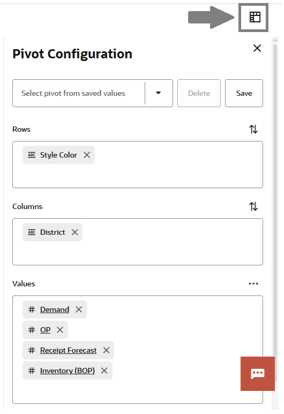
Click the pivot configuration toggle above the table to open the configuration drawer.
Figure 1-12 Pivot Configuration
-
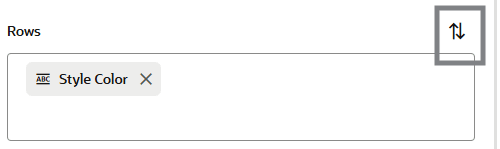
Click the bidirectional arrows to swap columns and rows.
Figure 1-13 Pivot Configuration Bidirectional Arrows
- Click in the columns or rows box to show a list of available hierarchy levels.
- Select a level to add it to the table.
Cycle Area
The cycle set is part of the pivot table definition. It contains the dimension values selected for the Page. You use the Cycle Area to change the pivot table to a chosen page that is included in the filter selection.
The Previous and Next buttons can be used to move sequentially through the list of included dimension values.
Figure 1-14 Cycle Area
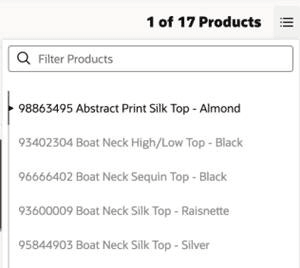
Click the Page Selection control (to the left of the arrow buttons) to display a list of values to select from. Use the search filter at the top to reduce the list to those that contain the search term.
Figure 1-15 Product Selection
Edit Metrics
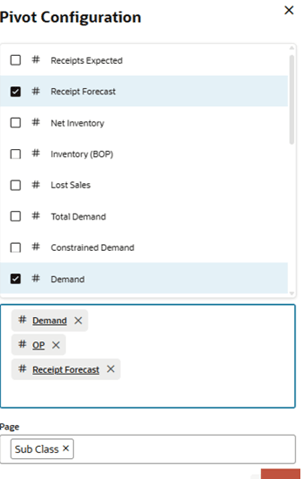
To select which metrics appear in the Plan View tables, open the Pivot Configuration.
Click the Values box to display the list of available metrics.
Figure 1-16 Metrics Selection
Aggregation Method
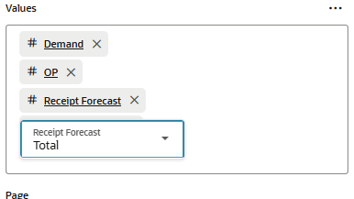
A powerful analysis tool is choosing how you want to view aggregated data. Each metric can be viewed as total, minimum, maximum, or average.
To change aggregations:
- In the Values list, click the metric label.
-
Expand the dropdown list to select a different aggregation method.
Figure 1-17 Aggregation Method
Metrics
Many different metrics can be displayed in the Plan View.
- The Promotions metric shows the number of promotions for that time period.
- The Override metric shows a disc at the start of any period indicating that an override has been specified by any user in Inventory Planning.
- Definitions of the other standard metrics are described below.
Replenishment Metrics
Replenishment metrics help you understand what order quantity is being recommended and the various inventory targets.
- Order Point (OP)
Order Point is the inventory level that determines at what point an order needs to be placed for an item/location. It contains the minimum number of units you want on hand for the item. When the net available inventory falls below the order point, the item is replenished.
Order Point (OP) is calculated from the Replenishment Engine
It has no aggregation method on non-Calendar hierarchy.
The aggregation method is Average from day to week.
- Order Up To Level (OUTL)
Order Up To Level (OUTL) determines the level to which inventory needs to be ordered – often the maximum quantity for the item/location. It contains the maximum number of units you want on hand for the item/location.
Order Up To Level (OUTL) is calculated from the Replenishment Engine
It has no aggregation method on non-Calendar hierarchy.
The aggregation method is Average from day to week.
- Safety Stock
Based on the identified need and the volatility in future demand, this is the additional units that are needed to meet the desired service level and prevent stock-outs
It has no aggregation method on non-Calendar hierarchy.
The aggregation method is Max from day to week.
- Safety Stock % of Demand??
This metric is calculated as the % of Safety Stock units in terms of Total Demand over review time.
It has no aggregation method on non-Calendar hierarchy.
The aggregation method is Max from day to week.
- Promotions
The Promotions metric shows the number of promotions for that time period. The Promotions are interfaced from RAP.
The aggregation method is Count.
- Presentation Stock
Presentation Stock is the minimum amount of stock required to fill a facing in the store. This can be an input from business strategies or interfaced from MFCS.
It has no aggregation method on non-Calendar hierarchy.
The aggregation method is Max from day to week.
- Demo Stock
Demo Stock is an extra quantity of an item desired at a location. It is considered sellable.
Commonly, this is used for a particular product that is made available to customers to demo in the store, but it could be used for other purposes as well. This can be an input from business strategies or interfaced from MFCS.
It has no aggregation method on non-Calendar hierarchy.
The aggregation method is Max from day to week.
Demand Metrics
The demand metrics help you understand what inventory quantity is expected to be consumed from a location—either from forecasted sale, back orders, or planned transfers to other locations.
- Demand
This is the forecasted demand calculated from IPO Demand Forecasting or aggregated from destination’s unconstrained order forecast.
For Stores, this is the approved IPO demand forecast.
For Warehouses, it is the aggregated order forecast from destinations.
The aggregation method is Sum.
- Total Demand
Total of all unconstrained demand used to calculate safetystock and forecast based replenishment boundaries.
For Stores, this is the forecast demand (the same as in Demand)
For warehouses, this is the aggregation of unconstrainted order forecasts from all destinations plus Additional Demand where flagged for inclusion.
The aggregation method is Sum.
- Constrained Demand
Constrained demand represents the demand that is met by the projected inventory. It is used to calculate inventory positions (and order boundaries within lead time).
For Stores this is the forecast demand met by the projected inventory.
For warehouses, this is the destination demand met from the warehouse. It is also the total order qty to destinations in the displayed time period.
The aggregation method is Sum.
- Backorder
This is the inventory that was already sold but could not be fulfilled due to there being no physical inventory at the time of sale. This is interfaced from MFCS.
This is expected to be a point-in-time value, so it is not repeated every day. It can be placed on the first day of the time period displayed.
It has no aggregation method.
-
Pack Unconstrained Demand
This is the demand on the warehouse rounded to ideal packs. This is used to calculate replenishment pack need at the warehouse.
-
Pack Constrained Demand
This is the actual units given from the warehouse according to the available packs. The difference between Pack Constrained Demand and Constrained demand tells you the Eaches fulfillment from the warehouse.
Inventory Metrics
Inventory metrics show what inventory is expected to arrive from open orders; what IPO recommends receiving; finally, based on forecasts, what the overall inventory levels are projected to be when following the order recommendations.
- Receipts Expected
On-Order Inventory at the destination location shown on the day that it should arrive.
The aggregation method is Sum.
- Receipt Forecast
Inventory receipt that is that is recommended by IPO and constrained by source availability. The visibility of this inventory movement is limited to IPO until the order day is reached and the order is approved. The Receipt Forecast shows inventory on the day that it should arrive at the destination location.
The aggregation method is Sum.
- Order Forecast
Shows the constrained order recommendation on the day the order should be approved within IPO and sent to MFCS for execution. It is identical to Receipt Forecast but shown on the order date rather than receipt date.
Location order forecasts are also aggregated to Supplier so you can review total recommended supplier purchase order quantities by order date.
- Inventory (BOP)
Beginning of day inventory at a location. It is Stock on Hand, or previous day's Inventory (BOP) + all inbound inventory previous day – outbound inventory previous day.
Inbound inventory is Receipts Expected and Receipts Forecast.
Outbound inventory is Constrained Demand and open order quantity waiting for shipment (that is, allocations)
Inventory is never negative.
The aggregation method is Sum on non-Calendar hierarchy.
The aggregation method from Day to Week is First.
- Net Inventory
This is a calculation of the inventory projected to be available to meet the target stock level for a review period. This is an order-day value. It is the inventory compared to OP/OUTL during replenishment.
There is no aggregation method on non-Calendar hierarchy.
The aggregation method from day to week is Min.
-
Pack Total Avail. Units
This provides the sum of units belonging to a pack. These units cannot be transferred as Eaches.
- Lost Sales
This is today'sInventory (BOP) + inbound (Receipt Forecast, Receipt Forecast), minus outbound (Total Demand).
The aggregation method is Sum.
- Lost Sales % of Demand
This is calculated as % of: Lost Sales divided by Total Demand.
The aggregation method is Recalc.
- Pack Unconstrained Demand
For a warehouse, this represents the ideal demand from its destination stores, calculated and rounded to the optimal pack quantities, without considering warehouse inventory availability. This is used to calculate the replenishment need for packs at the warehouse.
- Pack Constrained Demand
For a warehouse, this is the actual quantity that can be fulfilled from the warehouse based on the packs that are currently available. The difference between this and the Constrained Demand for the components indicates how many units are being fulfilled as individual eaches.
- Pack Total Avail. Units
For a pack SKU at a warehouse, this is the total number of component units available within that pack. These units are only available for transfer as part of the pack.
- Total Order from Packs
For a component SKU at a destination, this shows the total units of that component being received from all assigned packs. This value is included as part of the future inbound inventory.
-
Holdback Stock
This metric displays the Holdback Stock quantity for a specific SKU, location, and calendar period. It represents the inventory that has been logically ring-fenced and is not available for general planning.
Data for the selected metrics will be shown in the table for the selected timeframe. In the Inventory Plan, you will review the warehouse inventory comparing forecast demand and store need to the warehouse's availability. Alerts and replenishment needs are also calculated on the sellable SKU.
When a single SKU is displayed, click the Advanced Option icon next to the Page cycle controls to open the Advanced Options Panel.
Figure 1-18 Advanced Options Panel