11 Stock Counts
This chapter covers stock counts. The following topics are covered:
-
Overview: Introduction to stock counts
-
Functionality: Description of screens
Overview
The desktop application provides the ability to schedule and authorize stock counts whereas the mobile application provides the ability to execute the stock counts.
Portions of the stock count functionality, such as the setup of product groups, schedules, and authorizations, are performed on the desktop application only. Users can configure and execute different types of stock counts such as cycle or annual counts, ad hoc counts, or counts that are based on inventory position or problems like negative stock on hand. Merchandising and individual level counting require setup and scheduling utilizing product groups, with the exception of Ad Hoc counts. The Ad Hoc count will allow you to decide which items you want to count by scanning from the shelf immediately.
Most of these counts can be scheduled to be executed repetitively on certain dates reducing the need for daily or weekly count management.
Because a variance percentage can be set, items within tolerance can, but do not have to be authorized individually.
Business Case
-
Ad Hoc Stock Count
A customer is looking for a blue tooth speaker in the color black. The customer finds the location on the shelf, but there are only bright pink speakers and asks a sales associate if there are any black speakers in the storage room. The sales associate looks up the inventory and the system shows there are three on hand. The sales associate looks in the backroom and cannot locate any in the store and informs the customer and reports to the store manager. The store manager instructs the sales associate to perform an ad hoc stock count to immediately correct the inventory.
-
Unit Stock Count
The dairy department of a grocery retailer orders milk on Tuesdays and Fridays. Before they get the order in, they are always running out of stock. The department manager decides to perform a unit count each day to determine when they are running short or if there might be some pilferage occurring.
-
Problem Line Stock Count
Due to ineffective receiving processes or supply chain issues, items regularly have negative stock on hand. Inventory control schedules a stock count that tracks this behavior automatically to correct such problems without having to generate manual stock count lists for each store.
-
Unit and Amount Stock Count
The Store Manager is informed when it is time to financially report their store's current value of inventory. The corporate user will schedule the Unit and Amount stock count to be executed by Department and the store manager will schedule additional staff to count all items in the store. Each Department manager will be required to complete and approve their section of the stock count. When complete, the financial value will be associated with each item counted in the store and sent to the merchandising system to have it in a similar way corrected.
Types of Stock Counts
Each type of stock count can be useful for a retailer and all play an important part in the management of inventory.
Ad Hoc Stock Counts
Unlike the other stock count types, Ad Hoc stock counts are not scheduled, but rather performed at random times when a user decides to correct inventory.
Since this count type is performed randomly, there are no predefined lists and you can scan any item in any order. The scanned items can also be removed from the stock count, if needed.
You can count any inventory item even if the item has been discontinued.
The inventory snapshot is taken as each item is added to the stock count. Snapshot is a process in which the system will capture the current stock on hand quantity. For Ad Hoc counts, discrepancy thresholds are set up differently from other count types by accessing the Ad Hoc Stock Count screen.
Inventory Adjustments will be created and sent to the merchandising system when an inventory change is made in the system.
Unit Stock Counts
The unit stock count must be scheduled. They can be scheduled and executed the same day if you desire. This count type can be setup on a recurring basis: daily, weekly, monthly or yearly.
The items to include in the stock count are identified by setting up a product group. The product groups are a one-time setup and can be reused for future stock counts. Product groups are used for creating the list of items as well as identifying how the stock count is processed. When setting up the stock count, you can define which items to include by selecting by All department, item, supplier, style, item basket, or merchandise hierarchy level. There are various settings used to determine how an item will be identified as being discrepant.
Unit counts are the only stock count type that allows you to select any item status to include in the count. You can also select whether to include items that do not have any stock on hand.
Inventory Adjustments are created and sent to the Merchandising System for any inventory adjustments made.
Problem Line Stock Counts
The problem line stock count is setup once and scheduled to run daily for a period of time. If there are no problem items, a stock count will not be created. Setup of the stock count can be done at the all department, item, supplier, style, item basket, or merchandise hierarchy level. Each day, the system will run the problem batch and find any problem items and populates those items on a stock count. Discrepancy Thresholds are defined the same as the Unit count, but there are additional criteria defined during Product Group Setup. The additional information you can select for the problem line counts includes, Actual Pick Amount less than Suggested Pick Amount and negative available inventory and UIN Discrepancies (Unique Identification Numbers).
Problem line stock counts follow exactly the same workflow as unit counts. The only exception is the product group setup.
Unit and Amount Stock Counts
The Unit and Amount stock counts must be scheduled for a specific date. These stock counts, need to be scheduled at least 1 day ahead of time. When the count is scheduled it is sent to the merchandising system so that it can also create a corresponding stock count.
Item lists are created by merchandise hierarchy or can include all departments. Unit and Amount counts cannot select by item, supplier, style, or item basket, because the merchandising system holds the valuation at the merchandise hierarchy level. Unexpected items can be added during the counting process so long as they are for the same merchandise hierarchy that the stock count was set up for.
The item status and SOH Quantity cannot be selected and are defined by the system. Inventory is updated in the system and a flat file is created with the new SOH quantity, rather than the delta. The file will be sent out externally for other systems such as merchandising.
Summary
The following figure shows a summary of the similarities and differences between the various types of stock counts.
Figure 11-1 Summary of Types of Stock Counts

Unit, Problem Line, Unit and Amount stock counts all use predefined item lists and must be scheduled. Ad Hoc stock counts do not use a predefined item list, and are not scheduled. The snapshot for Unit, Problem Line and Unit & Amount stock counts is taken for all items on the count at the same time, while the Ad Hoc stock count takes the snapshot as each item is counted. The snapshot for Unit and Problem Line should be taken before counting the first item and can be done through the UI. However, for Unit and Amount, the snapshot should be taken via a batch and can be taken any time until the stock count is completed. Only the Unit and Problem Line allow the snapshot to be retaken during the recount.
Ad Hoc stock counts never use guided counting and as a result files cannot be imported from a Third Party service. Only the Unit stock count can be scheduled on a recurring basis. The Problem Line can only be scheduled daily and Unit and Amount scheduled for a specific date.
Since the Ad Hoc stock count is not defined using product groups, it is the only type of count that does not have a recounting stage.
Counting Methods
The counting process is identical among Unit, Unit and Amount, and Problem Line stock count types. What differs among these three stock count types is either the setup or the items being counted.
SIOCS includes the following types of counting methods for stock counts:
-
Un-guided
The Unguided count method allows the user to scan any item in any order. When the system parameter 'Unguided Stock Count Allow Multiple Users' is set to 'Yes', an unguided stock count will allow more than one user to scan simultaneously against the same stock count.
-
Guided
In Guided count method, the items are counted based on locations
-
Third Party
Here, the stock count will be done by a third party service provider and the result file will be uploaded into the system for further processing
-
Flexible
- Applicable only for Unit and Unit and Amount stock counts
- Enables the retailers to create adhoc locations on the go based on the physical distribution of items at the store and start counting
Serialization
Retailers who sell items such as electronics, cell phones, firearms, medications and fresh items, often have to track unique numbers or attributes for a single item or group of items. These identifiers might be serial numbers, unique identification numbers, FCC IDs, International Mobile Equipment Identity (IMEI) numbers, or other kinds of identifiers. Unique identification numbers aid the retailer in tracking expensive or controlled items, or items that may be subject to manufacturer recalls or investigations by legal authorities.
The system provides the capability to track items by unique identification numbers (UIN). If the system is not configured to use UINs, this does not apply. If the UINs are not used, fields and functions related to UINs are not available in the mobile application UI.
If UINs are required for an item, the UINs must be scanned, entered or automatically generated when stock is received. When UINs are generated for tracking items, users can print labels with the generated UINs.
If the store uses UINs, the snapshot captures the status of those items in the store as part of the store's stock on hand, as well as those UINs in missing status.
Functionality
This section explains the functionality of the stock count module screens available in the SOCS Mobile application.
Features
The following is a list of features for Stock Counts in the mobile application:
-
Search for stock count
-
Create a new Ad Hoc stock count
-
View or edit an existing stock count
-
Count items for stock count
-
UIN
Figure 11-2 Stock Count Mobile Screen Flow
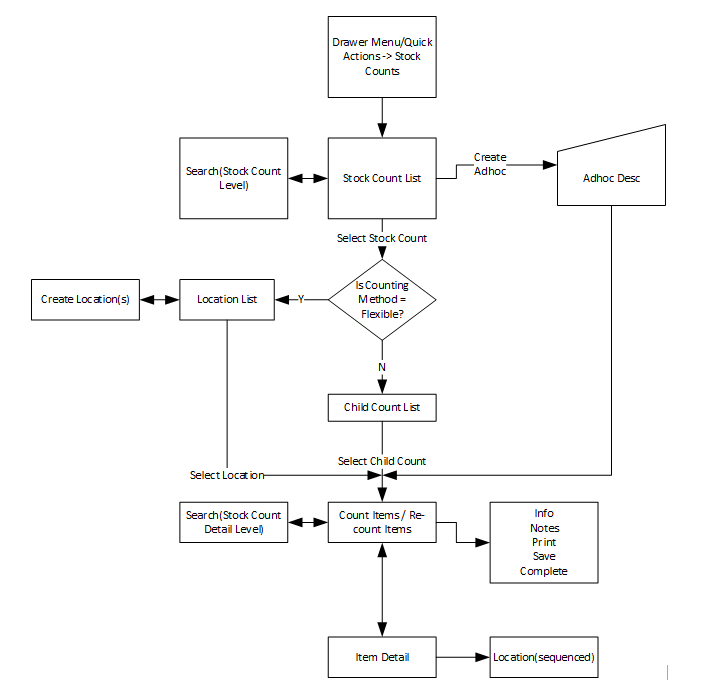
After logging into the mobile application, the main menu drawer is displayed. You can select Stock Counts in the following ways:
- From the Inventory Management menu
- From Quick Actions
- Select an active stock count from the open transactions.
- Select a stock count from Recently Edited.
The Stock Counts module in the mobile application contains Stock Count List, Creating a new Ad hoc Stock count, Child Stock Count List and viewing the item details.
Stock Count (Stock Count List)
Figure 11-3 Stock Count List Screen
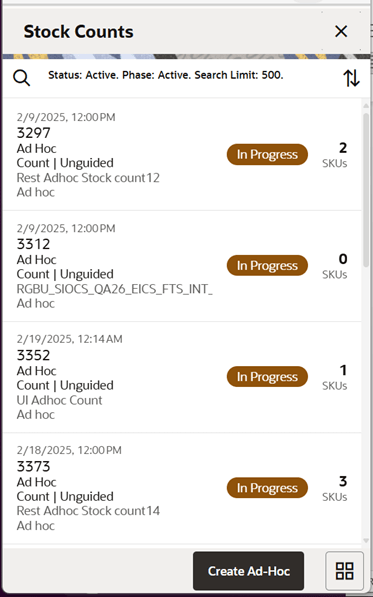
You can select Stock Count from the Main Menu Drawer and be directed to the Stock Count screen. You will need permissions to access this screen. This is a list screen, and when you enter the screen the system will default to display records with a status of "Active" and Phase of "Active."
Active Status includes ‘New’ and ‘In Progress’ counts. Active Phase includes Stock Count and Re-Count phases.
On this screen, you can select to Create a new Ad Hoc Stock count if you have proper permissions. Upon selecting the option, you are directed to the Add Stock Count popup.
The transactions may include Ad hoc stock count, Unit count, Problem Line count, and Unit and Amount count:
-
You are required to have the Edit Adhoc Stock Count permission to edit an Adhoc stock count.
-
You are required to have the Edit Unit Stock Count permission to edit a Unit stock count and Problem Line.
-
You are required to have the Edit Unit Amount Stock Count permission to edit a Unit and Amount stock count.
Ad Hoc Stock Count
Figure 11-4 Add Stock Count Popup
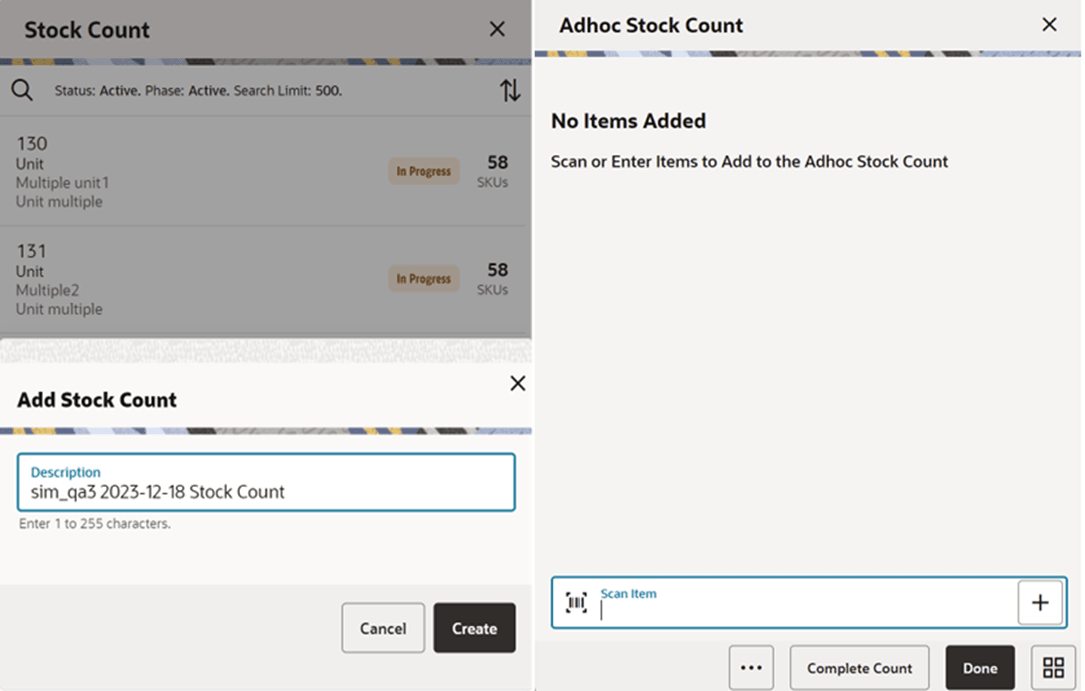
You can select Create Ad Hoc from Stock Count and be directed to the Add Stock Count popup to add a description for an adhoc stock count. You will need permissions to access this screen. When you enter the screen, the text box for entering description for Ad Hoc stock count is defaulted to <user ID> <date> Stock count and can be modified. After entering the description and select to create, the user can add items to the stock count, delete items from the count and complete the count.
The system will navigate to Item List with empty list directly when the user creates ad hoc stock count.
Stock Count - Search Criteria
Figure 11-5 Search Criteria Screen
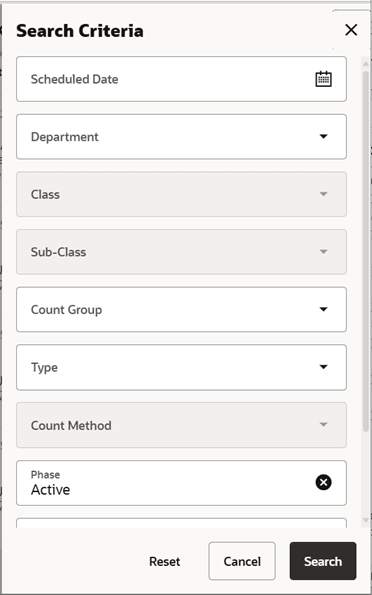
You can select the magnifying glass from the Stock Count screen and be directed to the Search Criteria screen. On this screen, you can set the search criteria to filter the stock count list on the Stock Count screen.
Fields
Scheduled Date: The date for which the scheduled stock count is scheduled. Defaults to blank.
Department: List of values containing all of the departments. The value will be defaulted to All. Since a Product Group can consist of more than one merchandise hierarchy, the filter will return all stock counts that are affiliated with the department or where the counting groups contains that hierarchy. When a department is cleared out, the class and sub-class will also be cleared out.
Class: List of values containing all of the classes for the selected department. You must select a department first for the class to be editable. The value will be defaulted to All. Since a Product Group can consist of more than one merchandise hierarchy, the filter will return all stock counts that are affiliated with the class and counting groups that contain that hierarchy. When a class is cleared out, the subclass will also be cleared out.
Sub-Class: List of values containing all of the sub-classes for the selected class. You must select a class first for the class to be editable. The value will be defaulted to All. Since a Product Group can consist of more than one merchandise hierarchy, the filter will return all stock counts affiliated with that subclass and counting groups that contain that hierarchy.
Count Group: List of all product groups that exists in the system. Defaults to All.
Type: Valid values are Unit, Unit and Amount, Adhoc and Problem Line. Defaults to All.
Count Method: Valid values are Unguided, Guided, Third Party and Flexible. The list of values displayed is dependent on the Type selected. Defaults to All. This dropdown is disabled for Type = Adhoc.
Phase: Valid values are Active, Authorize, Re-Count and Stock Count. Active will include Stock Counts that are in Stock Count and Re-Count phase.
Status: Valid values are All, New, In Progress, Processing, Active, Canceled and Completed. Default value is Active. Active will include New and In Progress stock counts.
Note:
Confirmed is the status of a guided Unit and Amount stock count for all items that are in Authorise Phase and have not yet moved to completed due to not having the results exported. Once exported, the stock count will move to Completed status. If the user selects a stock count in Confirmed or Completed status, it will be in view only mode.Search Limit: This is an entry field. You can define a search limit for the number of transactions being displayed. It is a Required Field. The value will default through a system admin setting, Search Limit Default for stock count list - Mobile.
Stock Count - Child Count List
Stock Count (Child Count List) Screen
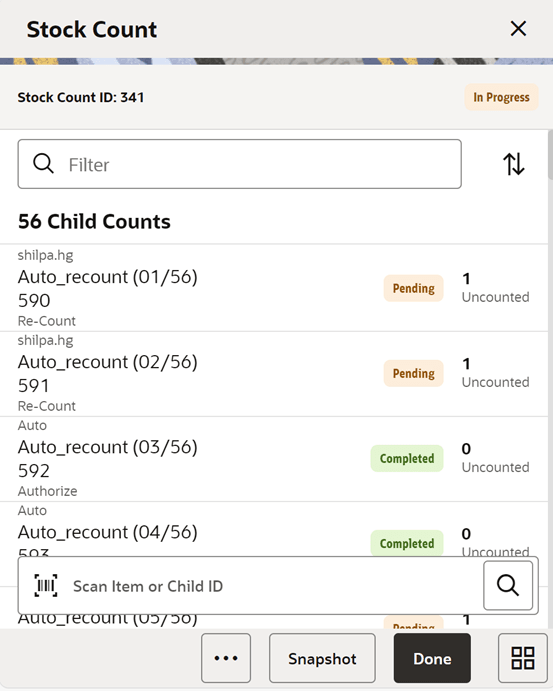
You are directed to this screen when you select a Stock Count from the Stock Count (Stock Count List) or from the Open Transactions screen. When you enter the screen, the system will sort the child count by ID. Closed child count should be at the bottom and Active child counts should be at the top and then this ID sorting should be applied.
This screen is skipped in case of Ad-Hoc Stock Counts. You will be directed to the Item Detail directly when you create an Ad-Hoc Stock count or select an existing ad hoc type of stock count.
Selecting a child count will take you to the Item Detail screen and from there you can select to go to the item list.
If you scan an item to search child count by item and if the system finds more than one result, the system prompts you to select the item from the Select Scanned Item screen.
If the system finds one or more child counts for the scanned item, the system prompts to select the child count from the Select Child Count screen.
You can scan the child ID on the scan bar and if found you are directed to the Item Detail (Stock Count) screen.
Snapshot: Selecting this footer button will take snapshot for all the child counts on the stock count. This will take a snapshot for Problem line, Unit and Amount and Unit type of stock counts only. If any other type of stock count, this button will not be visible.
The snapshot of a stock count will happen as follows:
-
Unit or Problem Line: Can be taken from the Stock Count screen for the whole stock count or from the Child Count/Item Detail screen if not in re-count mode. For Re-Count, it will be taken automatically.
-
Ad hoc: Takes snapshot as items are added.
-
Unit and Amount: Snapshot for this type can be taken via the Snapshot batch within the desktop application and also from Child count screen for the whole stock count or from the Child Count screen if not in re-count mode. For unexpected items that get added during counting:
-
If the snapshot has already been taken for the count, it will take the snapshot of the unexpected item as it gets added to the count.
-
If the snapshot has not been taken for the count yet, then the snapshot for the unexpected item will not get taken as the item is added, rather when the snapshot is taken for the stock count.
-
Like a unit count, you must have the Edit Unit Stock Count permission to open the screen in edit mode when displaying a Unit count; otherwise, the screen will open as view only.
You must have the Edit Unit and Amount Stock Count permission to open the screen in edit mode when displaying a Unit and Amount count; otherwise, the screen will open as view only.
Footer Menu on Stock Count (Child Count List) Screen
Figure 11-6 Child Count List Footer Menu
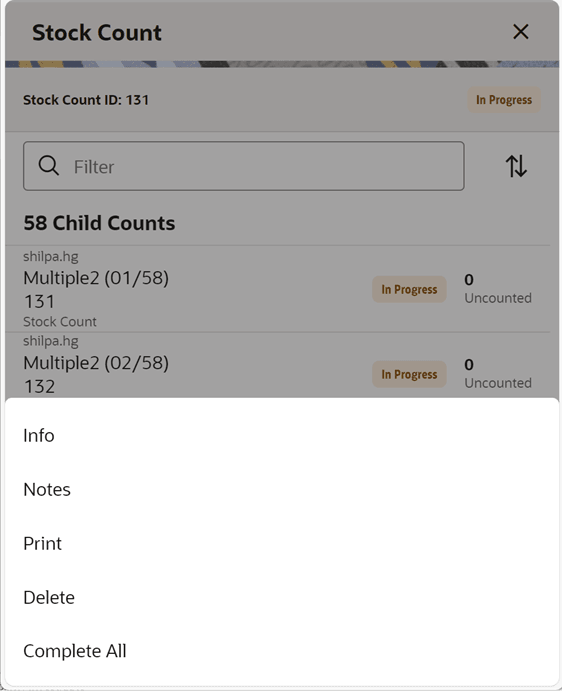
This opens up a footer menu with following options:
Info: Information (Stock Count Information) popup will be displayed. This is a master stock count level information screen.
Notes: Notes dialog will be displayed.
Print: This will open the print dialogue.
Delete: This will delete the Stock Count that is under consideration and have not yet been authorized.
Complete All: This option allows the user to complete all the child stock counts. This option is allowed if the user is having permission. Upon selecting this option, the system will process all the child stock counts and will complete the count. The system will send the authorized quantities to the upstream system if it is set to auto processing. If the system is able to process all the child stock counts, it will mark the child counts and the master stock count as complete. The system will show the status bar to indicate the progress when the process is running. Any failed children can be resubmitted.
Item List
Figure 11-7 Item List Screens
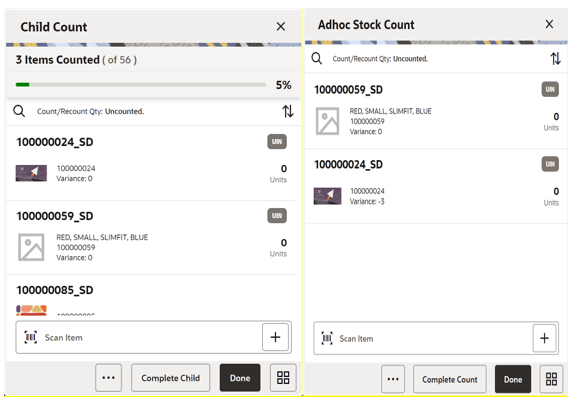
This is an Item List screen, and you can reach this screen by selecting the view full item list icon or select from the footer menu on the Item Detail screen.
This screen shows the full list of items in the child count or the Ad Hoc stock count.
You can filter the items using the search criteria. You can refine the search by Counted/Un Counted or by the hierarchy.
If the item has a UIN captured, it will have the UIN icon on the line item.
Selecting an item will go to the Item Detail for that item. If the item scanned/selected is an UIN item, the user will navigate to the Serial Number popup screen to capture the Serial Numbers (UINs).
For the stock count types other than Ad Hoc, you can see the progress bar indicating how many are counted out of the total items.
When you enter the screen, the system will sort the items left to count as below:
-
If guided and if items are sequenced, then order by sequence order.
-
If it is un-sequenced, "no location" items falling at the end by item description order.
-
If unguided, items are always sorted by item description.
Variance: User will be able to view the difference between the 'snapshot' quantity and the 'Total quantity' counted, provided the user has 'View variance' security permission.
-
If the snapshot quantity < Total quantity, display '+' symbol before the variance value.
-
If the snapshot quantity > Total quantity, display '-' symbol before the variance value.
-
If the snapshot quantity = Total quantity, display '0' symbol before the variance value.
-
This field will be displayed only when the user has 'View Variance' security permission.
-
This value should be calculated dynamically after each scan (count) happens.
-
This value will be displayed only for 'counted' items.
Complete Child : Complete Child is a footer button option to complete the child stock count. You need permission to select this button.
Complete Count : This footer button is available for the Ad Hoc type of stock counts and upon selecting this option, the system will process the stock count and mark the adhoc stock count as completed.
Additional options are available on the footer menu.
Footer Menu on the Item List
Figure 11-8 Footer Menu
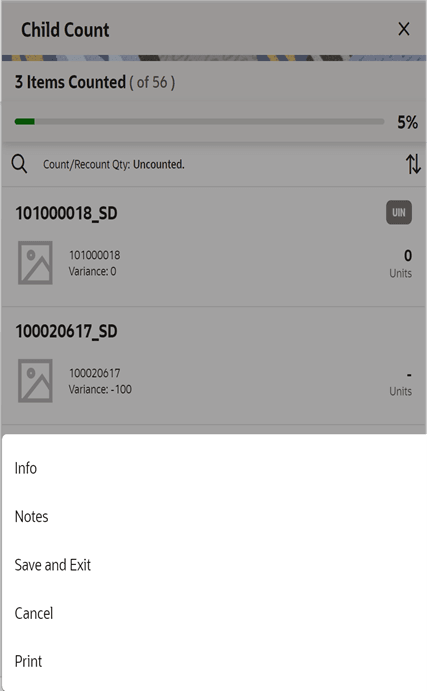
Info: Selecting Info from the Item List footer menu will take you to the Child Count Information popup. Notes: Notes dialog will be displayed.
Notes: Notes dialog will be displayed.
Save and Exit: This will save the child count and navigate you to Stock Count List.
Cancel: This will discard changes to stock count / re-count and navigate you to Stock Count List in case of Ad Hoc and Child Count List in case of other types.
Print: This will open the print dialogue.
Snapshot: This option is visible for Problem Line, Unit and Amount and Unit type stock count types. Upon selecting this option, the system will take the snapshot for the child count. The option will not appear if the snapshot is already taken. This option is permission based.
Information (Stock Count)
Figure 11-9 Stock Count Information Screen
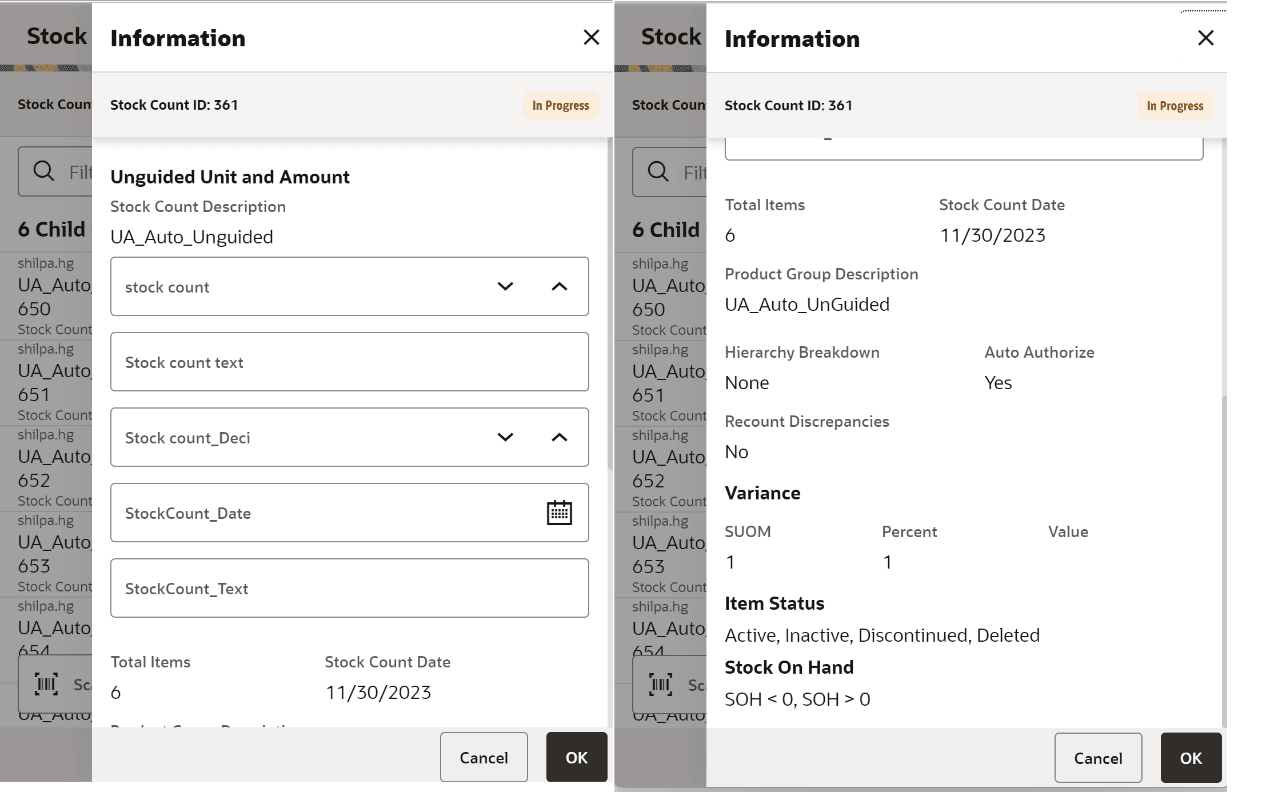
This Information popup screen is accessed from the Stock Count (Child Stock Count List) footer menu. This screen provides the header information which includes CFAs and Product Group Information at the master stock count level and allows the user to edit the CFAs. The system displays the list of CFAs (flexible attributes) that have been set up for the Stock Count and Stock Recount in the system and that allows you to enter values for them.
The system displays the CFA fields based on the setup. The CFAs that are set up as Required must have a value entered. The value can be one of the following: Date, Text, Decimal, Long depending on the 'data type' set up for the CFAs, while creating them in the desktop application. Appropriate security permissions are needed, and the count must be in editable status for entering CFA values. The CFA's captured will be displayed read only when it is not in the status to edit.
Details on this screen include:
-
Stock Count ID
-
Status
-
Counting Method and Product Group Type
-
Count Description
-
Stock count date
-
Total Items
-
CFAs and the corresponding value
-
Product Group Description
-
Hierarchy Breakdown
-
Auto Authorize
-
Re-Count Discrepancies
-
Variance (SUOM, Percent, and Value)
-
Item Status (Active, Inactive, Discontinued, and Deleted)
-
Stock On Hand
SOH = 0 - Items that have stock as 0 are in product group.
SOH > 0 - Items that have stock less than 0 are in product group.
SOH < 0 - Items that have stock more than 0 are in product group.
-
Problem Line
Actual Pick Amount less than Suggested Pick Amt - Actual pick amount is less than suggested or not is displayed. This field will only be visible if product group is a problem line product group.
Actual Shelf Repl Amount less than Suggested Shelf Repl Amount - Actual Shelf replenishment amount is less than suggested or not is displayed. This field will only be visible if product group is a problem line product group.
Available Negative Inventory - This will display if Negative inventory is available. This field will only be visible if product group is a problem line product group.
UIN Discrepancy - If any UIN discrepancy is there is displayed. This field will only be visible if product group is a problem line product group.
Child Count Information
Figure 11-10 Child Count Information Screen
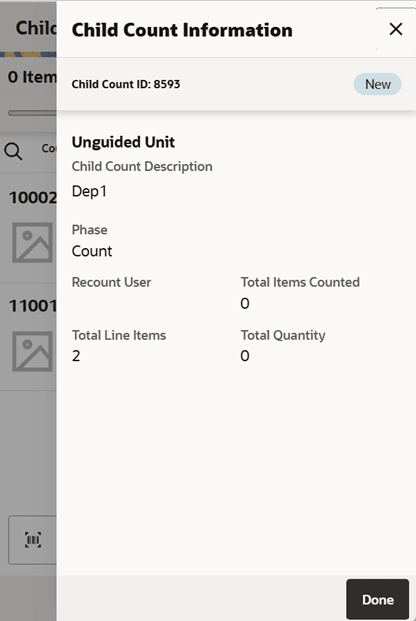
The Child Count Information screen is an informational popup that contains read-only information about the child count. It is accessed by selecting Info from the Item List screen.
Details include:
-
Child Count ID
-
Status
-
Counting Method and Product Group Type
-
Child Count Description
-
Phase
-
Count User
-
Re-Count User
-
Total Items Counted
-
Total Line Items
-
Total Quantity
Search Criteria - Item List and Item Detail
Figure 11-11 Search Criteria Screens
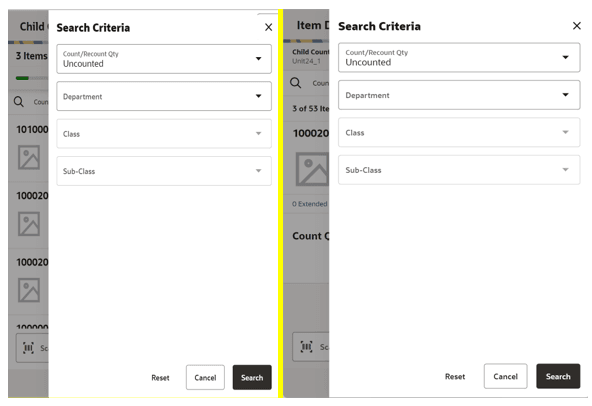
This search criteria popup screen is displayed when you select the magnifying glass from the Item List or Item Detail screen.
On the item list screen, this helps you to filter the items based on the search criteria applied and on the item detail this will help you to navigate through the items based on the search.
The defaults will be:
-
Stock Count: Count / Re-Count Qty = 'uncounted'
-
Re-Count: Count / Re-Count Qty = 'uncounted', Filter = 'Discrepant'
-
The Count / Re-Count Qty will default as the filter on the top of the Stock Count / Stock Re-Count screen.
Fields
Count / Re-Count Qty: Valid values are All, Counted and Uncounted. Filter: Valid values are All Items and Discrepant Items. Displays only when it is a Re-Count.
Filter: Valid values are All Items and Discrepant Items. Displays only when it is a Re-Count.
Department: List of values containing all of the departments pertaining to that stock count. The value will be defaulted to All. Since a Product Group can consist of more than one merchandise hierarchy, the filter will return all stock counts that are affiliated with the dept or where the counting groups contains that hierarchy. When a department is cleared out, the class and sub-class will also be cleared out.
Class: List of values containing all of the classes for the selected Department. User must select a department first for the class to be editable. The value will be defaulted to All.
Since a Product Group can consist of more than one merchandise hierarchy, the filter will return all stock counts that are affiliated with the class and counting groups that contain that hierarchy. When a class is cleared out, the subclass will also be cleared out.
Sub-Class: List of values containing all of the sub-classes for the selected Class. You must select a Class first for the sub-class to be editable; the value will be defaulted to All. Since a Product Group can consist of more than one merchandise hierarchy, the filter will return all stock counts affiliated with that subclass and counting groups that contain that hierarchy.
Search: Upon selecting this button, the system will filter the records based on the criteria provided.
Reset: Button will clear the screen of any previous search criteria that was entered by you and set back to the default values. The screen will remain open for you to enter in new search criteria.
Cancel- This will discard the selection and go back to the previous screen.
Item Detail
Figure 11-12 Item Detail Screen 1
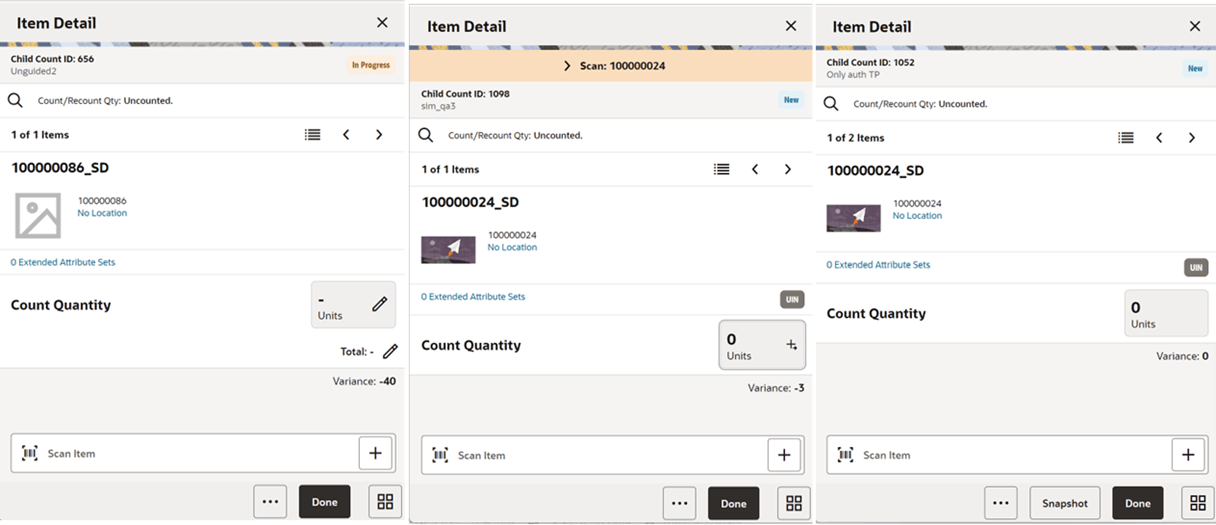
Figure 11-13 Item detail Screen 2
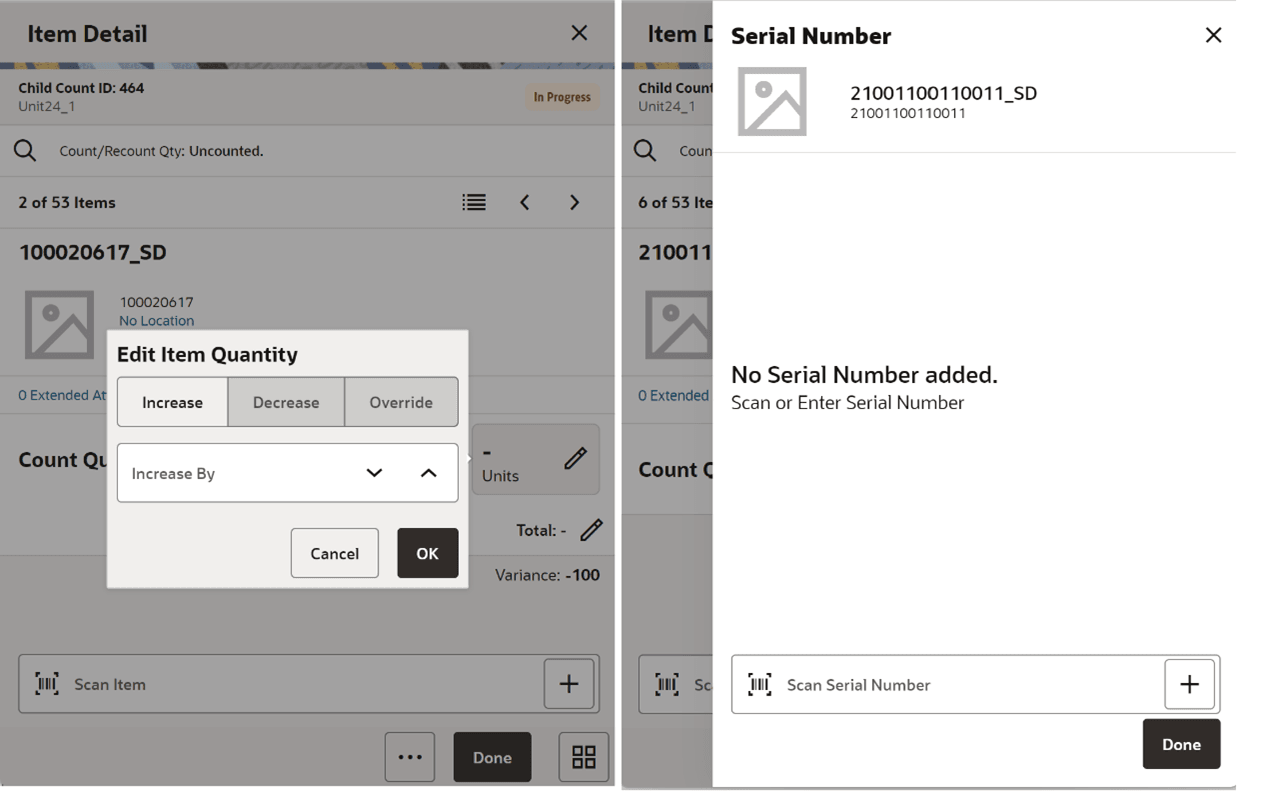
You are directed to the Item Detail screen in multiple ways:
-
When selecting a child count or when scanning a valid child id on the Stock Count (Child Stock Count List).
-
After selecting the child stock count from the Select Child Count screen when there are more child count results for the search.
-
After selecting or scanning a valid item on the Count Items(Item List).
You can go to the item list by selecting the Item List icon or selecting the option from the footer menu.
This screen will help you to enter count quantity or the total quantity for an item in the stock count. If stock count is not completed, the quantity fields will be editable, and you can enter value for the item counted. Upon selecting the quantity fields, the system displays the Edit Quantity popup to enter the total quantity or the counted quantity depending on what you select. On this screen you will be able to take the snapshot for the child count.
Below is a detailed explanation on how Count Quantity and Total Quantity work:
Count Quantity – Displays the current scan quantity of the item until another item is scanned. Enter the quantity using the Edit Quantity Popup that is triggered when you select the field.
-
It will show 1 when the item is scanned in + scan mode
-
It will bottom out to 0 when using – scan mode
-
Each time the item is saved, or the item is changed to another item, this quantity is set to 0
-
This quantity can be edited only if you have permission.
-
The entered quantity in this field is added to the total quantity.
-
Value has to be 0 or positive, it cannot be negative.
-
For UIN Serial Numbers (AGSN and non AGSN), the quantity field is disabled and the selecting the edit quantity will take the user to the Serial Number popup screen
-
The Edit Quantity icon will be a <pen>+, + to show that UINs are needed.
-
Quantity would get updated per UINs being added / removed on the UIN panel
-
The system does not look for the Edit Quantity permission for the UIN items.
-
Total Quantity - This value represents the total child quantity field when the item is added. Can enter the total quantity using the Edit Quantity Popup that is triggered when you select the field.
-
This is the user quantity increased by the current scan quantity or entered quantity
-
It will bottom out to 0 when using – scan mode
-
This quantity can be edited only if you have permission to do so
-
Value must be 0 or positive, it cannot be negative.
-
This field will be updated real time to display the current total quantity as items are scanned in user's session
This will be a view only screen if the stock count is completed and no further edits can be made, or the user has no edit permissions. Items are sorted based on different criteria:
-
If guided and items are sequenced, the order will be based on the sequence with non-sequenced (no location items) falling at the end
-
If unguided, items are always sorted by item description
Note:
Removal of an item after it has been added is not allowed in Stock Count unless it is an Ad-hoc stock count.Unit Field: The sum of the quantity of the items scanned until a new item is scanned. It indicates the number of items a user has in front of them they have scanned.
Variance: The user will be able to view the difference between the 'snapshot' quantity and the 'Total quantity' counted, provided the user has 'View variance' security permission.
-
If the snapshot quantity < Total quantity, display '+' symbol before the variance value.
-
If the snapshot quantity > Total quantity, display '-' symbol before the variance value.
-
If the snapshot quantity = Total quantity, display '0' symbol before the variance value. This field will be displayed only when the user has 'View Variance' security permission.
It will be calculated dynamically after each scan (count) happens and it will only be displayed for 'counted' items.
Note:
If the system is configured to auto save the items for the unguided stock counts depending on the system parameter ‘ Unguided stock counts Automatic Save’, the system will look for the threshold value set in the Auto Save number of items threshold and save the items automatically when it reaches the threshold. The system resets the count and automatically saves the items every time it reaches the threshold. If the user exits before the threshold is met, the system still automatically saves the items and exits.Last Scan: Shows the details of the last scanned barcode.
Count Quantity: View only field which displays the count quantity in Re-count phase and Authorization phase. Displayed in Re-count phase provided the user has the 'View Count Quantity' security permission.
Re-count Quantity: View only field which displays the re-count quantity. Displayed only in Authorization phase and only if the stock count went through re-count.
Extended Attributes Sets: The extended attributes option is available only if it is configured in the store parameter and the user has proper permission.
-
If the proper permissions do not exist, the screen will be read only.
-
It is a link that will take the user to the Extended Attributes screen.
-
<x >represents the number of attribute sets assigned; initially it will be zero.
Examples of how the scan quantities interact
Scan item A
User quantity 1
Session quantity 1
Total quantity 1
Scan item A again
User quantity 2
Session quantity 2
Total quantity 2
Scan item B
User quantity 1
Session quantity 1
Total quantity 1
Scan item A
User quantity 1
Session quantity 3
Total quantity 3
Save count and scan item A
User quantity 1
Session quantity 1
Total quantity 4
Scan Item B
User quantity 1
Session quantity 1
Total quantity 2
Footer Menu
Figure 11-14 Item Detail Footer Menu
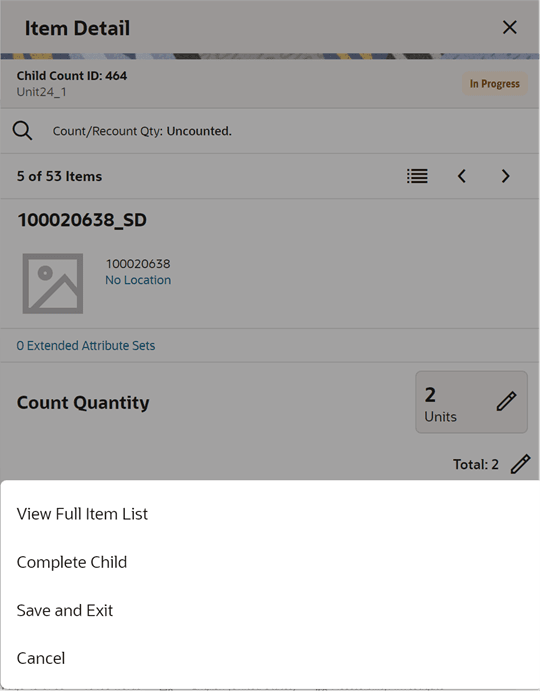
View Full Item List - Upon selecting this menu, you are navigated to the Item List.
Complete Child - This will complete the child count and go to the Stock Count (Child Stock Count List).
Complete Count - This is applicable for Adhoc stock count. Upon selecting this the system will complete the adhoc stock count.
Save and Exit -This will save the child stock count and exit to the child stock count list screen.
Cancel - This will discard changes to stock count / re-count and navigate you to Stock Count (Child Stock Count List).
Flexible Stock Count
Figure 11-15 Flexible Stock Count (Location List) Screen
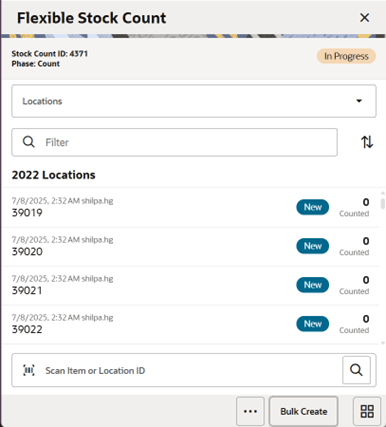
You are directed to this screen when you select a Stock Count (having Counting Method = Flexible) from the Stock Count (Stock Count List) or from the Open Transactions screen or from the Recently Edited screen. The user must have the Access Flexible Stock Counts permission for the flexible stock counts to open in edit mode.
This screen will list the locations created so far. It will be empty if the stock count is new. When you enter the screen, the system will sort the locations by Location ID. Closed locations should be at the bottom and Active ones should be at the top, and within the group, the sort is based on Location ID.
You can filter the locations based on status (Active or Closed).
Selecting a location will take you to the Item Detail screen and from there you can select to go to the Item List.
You can search a location by scanning a location ID or by item. If you scan an item to search for a location and if the system finds more than one result, the system prompts you to select the item from the Select Scanned Item screen.
If the system finds one or more locations for the scanned item, the system prompts to select the location from the Select Location screen.
While you scan an item or a location and if only one location is found, you are directed to the Item Detail screen of the first item.
You must have the Edit Flexible Stock Count permission to open this screen in edit mode; otherwise, the screen will open as view only.
Footer Buttons:
Quick Create: This button, displayed only in Count phase, enables the user to create location(s). The store parameter 'Flexible Stock Count Location Creation' must be set to 'Manual' and you must have the 'Create Flexible Stock Count Location' security permission for this button to be available. When clicked, it takes you to the ‘Create Location‘ screen.
Bulk Create: This button, displayed only in Count phase, enables you to create location(s) in bulk. The store parameter 'Flexible Stock Count Location Creation' must be set to ‘Bulk‘ and you must have the 'Create Flexible Stock Count Location' security permission for this button to be available. When clicked, the ‘Create Location‘ popup is displayed where the user can enter the number of locations to create.
Footer Menu:
The footer menu has the following options:
Notes: This will open the Notes dialog.
Print: This will open the print dialogue.
Info: This will open the Information (Stock Count Information) popup. This is a master stock count level information screen.
Snapshot: Selecting this option will take the snapshot for the whole stock count. This option is available only for Unit type of stock counts. If it is a ‘Unit and Amount‘ type of stock count, the snapshot should be taken by running a batch available in EICS.
Delete: This will delete the Stock Count that is under consideration and has not yet been authorized.
Complete All: This option allows you to complete all the location counts. This option is allowed if you have the ‘Complete All Stock Count Children‘ security permission. Upon selecting this option, you will be notified that the count will be moved to the next phase. This is a warning so that you complete the count only after all the locations are created and counted. The system will process all the locations and will complete the count. If the system is able to process all the location counts, it will mark the locations and the master stock count as complete. The system will show the status bar to indicate the progress when the process is running. The count will be moved to the re-count phase if discrepancies are found and the count is set for a re-count. If not, the count will move to the ‘Authorize‘ phase. The system will send the authorized quantities to the upstream system if it is set to auto processing.
All processes that would normally be used for regular unit and amount or unit counts will be executed when updating the child count. For example, in a Unit and Amount count, for an item that was extracted in the stock count but had not been counted, the system will default ‘0’ for count quantity. For unit counts, depending on the parameter 'Stock Count Null Count Quantity = 0', the count quantity for an uncounted item will be set to either '0' or 'null(uncounted)'. If the count qty gets set to '0', the item may become discrepant (considering variance) and they will be listed in the recount. Since the uncounted items do not have a location associated with them, such items will be added to a system generated location(s) and get listed in the recount. The number of items added to a location depends on the system parameter Unit Count UI Limit/Unit and Amount Count UI Limit.
To improve speed of scanning, no validation on whether the item is meant to be on the count or not is done on scanning. Items that are not meant to be on the count and that don’t qualify to be added to the count, will be seen in the Rejected Items screen in EICS.
Note:
When all locations are completed, it is still required to press the ‘Complete All‘ button to prevent a user from completing a count, and not all locations have been tagged yet.If the snapshot has not been taken yet for a Unit and Amount count an error message is displayed that the snapshot has to be taken. If the location is in count phase the system will run a discrepancy algorithm and if needed it will move the location to re-count, otherwise the count will be ready to Authorize.
Done: This will open the Stock Counts (List) screen
Create Location (Bulk)
Figure 11-16 Create Location (Bulk)
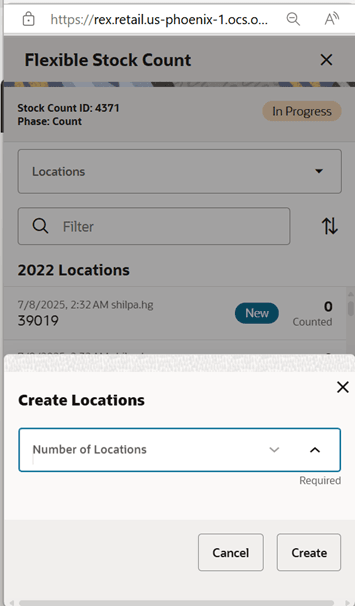
This screen is displayed when the user clicks on the Bulk Create Footer button. The user can specify the number of locations that need to be created. As part of this process, the retailer will usually print tickets to hang on fixture and shelves based on the locations generated here.
Create Location (Quick)
Figure 11-17 Create Location (Quick)
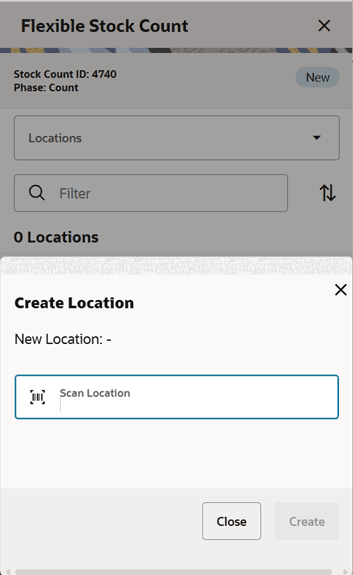
This screen is displayed when the user clicks on the Quick Create Footer button. The user can enter or scan a location ID/barcode to create a location. The user will have to mention the pre-count value for the location if configured (Set Pre-count Value for Flexible Locations - system parameter).
In this process, shelves and fixtures are tagged with pre-created tags. This dialogue records that tag number.
As part of this process, the user can also enter the ‘Pre-count‘ quantity. This quantity indicates how many items are located on the fixture or shelf the tag is adhered to.
Flexible Stock Count Location
Figure 11-18 Flexible Stock Count Location Screen
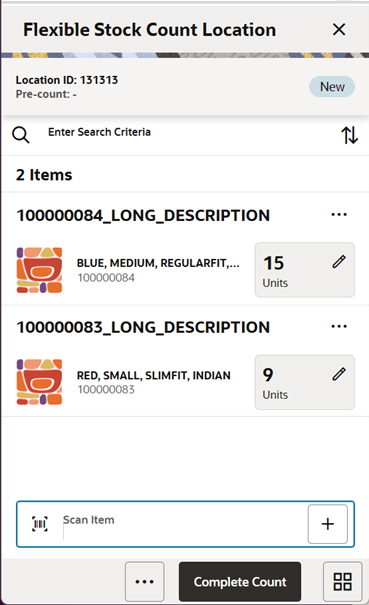
This is an Item List screen and you can reach it by selecting the View Full Item List icon or select View Full Item List option from the footer menu on the Item Detail screen. The screen will open in edit mode only when the user has the ‘Edit Flexible Stock Count‘ permission and the location is not completed.
The screen shows the full list of items in the location along with the quantity counted. The default sort order would be by Item ID, ascending.
In the Count phase, the screen will be empty until the user starts counting items. The user can scan items to add them to the count. For unit counts, if the snapshot was not taken yet, while scanning the first item, a message is displayed to the user.
In case the system is configured with the pre-count quantity validation check, and a pre-count quantity has not been filled out (this can be due to bulk generation), you can enter the pre-count number at this time.
In the re-count phase, the retailer can choose to count all items or only discrepant items using the store parameter 'Flexible Re-count discrepant items only'. If this parameter is set to ‘Yes‘, discrepant items are pre-populated and allowed to count. If this parameter is set to ‘No‘, all items in the location will be listed, and the user can count all items. The user with ‘View Count Quantity‘ permission can view the quantity counted from the Count phase. Locations with no discrepant items will not be re-generated for the re-count.
You can filter the items using the search criteria. You can refine the search by the hierarchy or by Counted/Uncounted (in re-count phase only).
If the item has a UIN captured, it will have the UIN icon on the line item.
Selecting an item will go to the Item Detail for that item. If the item scanned/selected is an UIN item, the user will navigate to the Serial Number popup screen to capture the Serial Numbers (UINs).
Footer Button:
Complete Count: This option is available only when the counting is in progress status. Upon selecting this option, the system will process the stock count. The validation on whether the total count quantity of the location matches the pre-count quantity happens here (only in count phase). For the items that have not been extracted as part of the count, if they don’t qualify to be added to the count, they will be seen in the Rejected Items screen in EICS. If the snapshot was not taken yet for a Unit and Amount count and if this is the last location to be completed, the status of the count will move to ‘Pending‘ instead of completing and move to the next phase. If the location is in count phase, the system will run discrepancy algorithm and if needed, it will move the location to re-count, otherwise the count will be set up for Authorization. All processes that would normally be used for regular unit and amount or unit counts will be executed when updating the child count. For example, in a Unit and Amount count, for an item that was extracted in the stock count but had not been counted, the system will default ‘0’ for count quantity. For unit counts, depending on the parameter 'Stock Count Null Count Quantity = 0', the count quantity for an uncounted item will be set to either '0' or 'null(uncounted)'. If the count qty gets set to '0', the item may become discrepant (considering variance) and they will be listed in the recount. Since the uncounted items do not have a location associated with them, such items will be added to a system generated location(s) and get listed in the recount. The number of items added to a location depends on the system parameter Unit Count UI Limit/Unit and Amount Count UI Limit.
Additional options are available on the footer menu.
Footer Menu:
Notes: The Notes dialog will be displayed.
Print: This will open the print dialogue.
Cancel: This will discard changes to stock count / re-count and navigate you to the Flexible Stock Count screen.
Save and Exit: This will save the changes made to the location count and navigate you to the Flexible Stock Count screen.
Delete: This will allow the user to delete the location. This is possible only in count phase. The user must have the Delete Flexible Stock Count Location permission for this option to be available.
Snapshot: This option is visible only for Unit type stock count types. Upon selecting this option, the system will take the snapshot. The option will not appear if the snapshot is already taken. This option is permission based.
Item Detail (Flexible Stock Count)
Figure 11-19 Item Detail Screen
e
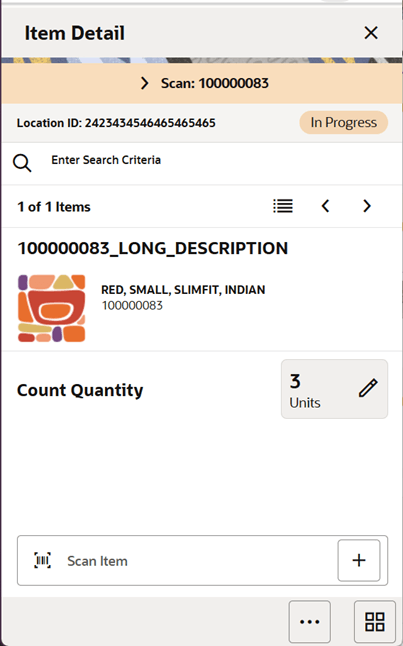
You are directed to the Item Detail screen in multiple ways:
- When selecting a location or when scanning a valid location ID on the Flexible Stock Count screen.
- After selecting a location from the Select Location screen when there are more location results for the search.
- After selecting or scanning a valid item on the Flexible Stock Count Location screen.
You can go to the item list by selecting the Item List icon or by selecting the option from the footer menu.
This screen will help you to enter count quantity for an item in the stock count. If the stock count is not completed, the quantity field will be editable, and you can enter a value for the item counted. Upon selecting the Quantity field, the system displays the Edit Quantity popup to enter the counted quantity. On this screen you will be able to take the snapshot for the count.
Detailed explanation of how Count Quantity works:
Count Quantity: Displays the count quantity of the item scanned. Enter the quantity using the Edit Quantity Popup that is triggered when you click on the field. The count quantity also increases when you scan the item.
- The system will increment the quantity by 1 when the item is scanned in + scan mode.
- The system will bottom out the quantity to 0 when using – scan mode.
The value has to be 0 or positive, it cannot be negative.
Note:
- For UIN Serial Numbers (AGSN and non AGSN), the quantity field is disabled and
selecting Edit Quantity will take the user to the Serial Number popup screen. The
Edit Quantity icon will be a <pen>+ to show that UINs are needed. The quantity
will get updated by UINs being added or removed on the UIN panel.
Note:
The system does not check the Edit Quantity permission for the UIN items.
The screen will be view only if the stock count is completed and no further edits can be made, or if the user has no edit permissions.
Last Scan: Shows the details of the last scanned barcode.
Footer Menu
View Full Item List: Upon selecting this menu, you are navigated to the Item List.
Complete Count: This option is available only when the counting is in progress status. Upon selecting this option, the system will process the stock count. The validation on whether the total count quantity of the location matches the pre-count quantity happens here (only in count phase).
If a pre-count is set up, the system will prompt the user for the pre-count value validation. If this is different from the original pre-count entered, a warning message will appear. The user will have the option to continue with completing the location or go back and do some additional validation. All processes that would normally be used for regular unit and amount or unit counts will be executed when updating the child count. For example, in a Unit and Amount count, for an item that was extracted in the stock count but had not been counted, the system will default ‘0’ for count quantity. For unit counts, depending on the parameter 'Stock Count Null Count Quantity = 0', the count quantity for an uncounted item will be set to either '0' or 'null(uncounted)'. If the count qty gets set to '0', the item may become discrepant (considering variance) and they will be listed in the recount. Since the uncounted items do not have a location associated with them, such items will be added to a system generated location(s) and get listed in the recount. The number of items added to a location depends on the system parameter Unit Count UI Limit/Unit and Amount Count UI Limit.
Save and Exit: This will save the child stock count and exit to the child stock count list screen.
Cancel: This will discard changes to stock count / re-count and navigate the user to the Flexible Stock Count screen.
Quick Count
The Quick Count dialog can be accessed from the drawer/menu on the mobile application. This dialog enables the store users to do a quick count of inventory in the store across multiple locations on the fly without scheduling a stock count, taking a snapshot or authorizing the count results.
This feature helps the retailer to keep an eye on the inventory and do a quick stock count of any random item(s) like high priced, fast moving, etc and match the inventory with the physical count in the store.
Features:
-
Update inventory of Shop Floor, Backroom and Delivery Bay of an item or just the available inventory based on configuration.
-
Adjust the quantity of all inventory buckets of an item to zero.
-
Add the selected item to the item basket.
-
Print Ticket.
Figure 11-20 Quick Count Screen (when the user enters the screen for the first time)
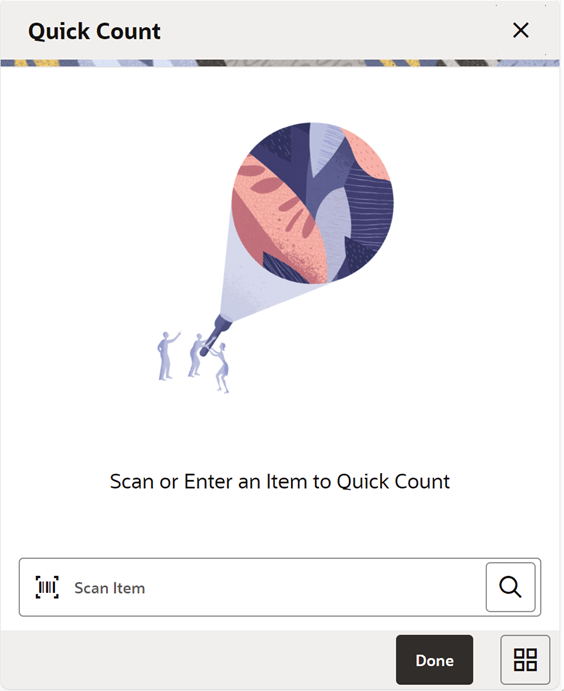
Figure 11-21 Quick Count Item Screen (after scanning an item)
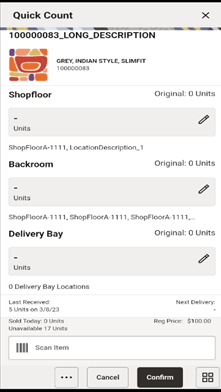
The Quick Count screen can be accessed from the menu drawer and Quick Actions. On this screen, the user can enter or scan an item to update the inventory. The title of the screen changes to ‘Quick Count Item‘ once a valid item has been scanned.
This feature works only for simple items and the following are not supported:
-
UIN Items
-
Non Inventory
-
Complex Packs
Simple packs that are held at the component level will be substituted at the component item level for tracking inventory
The user can access this only when the proper permission is assigned.
User can scan or enter an item on the scan bar and the system will display the item if it is valid. On this screen, the user can see the current values of the inventory buckets and enter the actual quantity to be updated on the individual buckets. Scanning the next item is not a confirmation on this screen. User must enter the values using the Edit quantity widget and confirm for the system to update.
Non inventory items are not allowed on this screen.
The shopfloor, backroom and delivery bay are only displayed when they are leveraged in the system. If they are turned off, then only available inventory will be shown to the user.
Confirm Quick Count
Upon selecting the Confirm button, the system updates the inventory based on the values entered in Shop floor, Back room and Delivery bay quantities or available bucket if shopfloor/backroom are not managed in SIOCS.
Depending on the inventory buckets tracked in SIOCS, the following rules will apply when the system updates available inventory. Note that this type of stock count does not set SOH to 0 when nothing is counted, so there is no impact on driving the inventory negative when unavailable inventory exists.
-
The available bucket = Shop Floor+Backroom+Delivery bay. If not configured for these buckets, available will be update with the counted quantities.
-
In case a bucket is not counted, the original value will be applied. With other words a blank value does not equate to a 0 count.
-
Update process will create an inventory adjustment in the system using the inventory adjustment reason with appropriate disposition.
Use Cases
-
Assume current inventory bucket values in the system are SOH =100, Available=80, Unavailable=20, Shop floor=20, Backroom=40 and Delivery bay=20.
-
User starts counting an item and scans the item, e.g. 1234.
-
Assume counted quantity in Shop floor=30, Backroom=20 and Delivery bay=10 and user enters the quantity on the respective buckets on this dialog.
-
The system will update the SOH=80, Unavailable=20(not altered), Shop floor=30, Backroom=20 and Delivery bay=10.
The system displays the Shop Floor and Backroom fields only when ‘Display Shop floor/Backroom quantity’ system setting is enabled.
The delivery bay is only displayed when the Replenishment - Delivery Bay Inventory parameter is turned on.
Additional informational fields on this screen include:
-
Last Received - how many were last received on allocation, DSD, transfer.
-
Next Delivery - the quantity on the next delivery. It is the in transit (In bound qty) for the ASN (Transfer,DSD, allocation)
-
Sold Today - number of units sold today for item and store in the SUOM.
-
Unavailable - This field holds the total unavailable stock on hand. Unavailable = Total Stock on Hand – Available SOH
-
Regular Price - shown if the item is on regular price. Also shown if the item is on Promo. Will not display if item is on clearance.
-
Promo Price - will display if there is a promo for the item. May also display if the item is on clearance.
-
Clearance Price - will display if the item is on clearance.
Footer Menu
From the footer menu, the user can access the Adjust to Zero, Add to Item Basket and Print Ticket functions.
Add to Item Basket — User can select this option to add the item to the Investigate Item Basket. Item is added to the latest active investigate type item basket.
Remove from Item Basket — Selecting this option will remove the item from the item basket.
Print Ticket — If the user is having permission to print the tickets, this option can be used to print the tickets.
Printer — This will show the list of printers configured including the blue tooth printers. During the session, the ‘default’ printer is the one the user selected first.