2 Creating an Application By Using the SAP Concur Connector
Learn about onboarding applications using the connector and the prerequisites for doing so.
2.1 Prerequisites for Creating an Application By Using the Connector
You must satisfy the following prerequisites to create a connection with the SAP Concur.
2.1.1 Identify the SAP Concur Application Edition
Identify which SAP Concur application edition you are using.
2.1.2 Obtain the Client ID and Client Secret
You must obtain the client ID and client secret in order to create the new app.
2.2 Process Flow for Creating an Application By Using the Connector
From Oracle Identity Governance release 12.2.1.3.0 onwards, connector deployment is handled using the application onboarding capability of Identity Self Service.
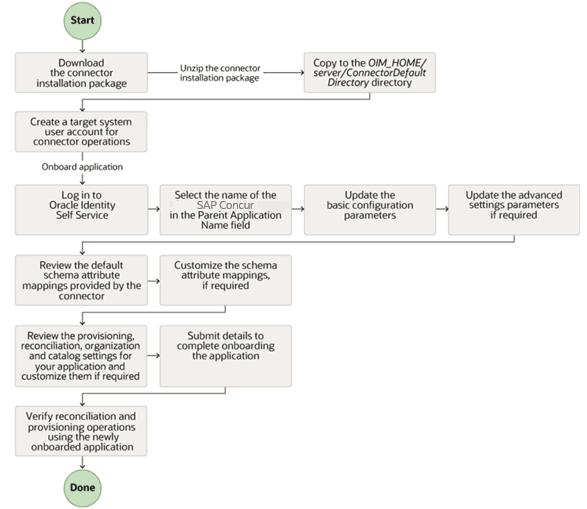
The following flow depicts the high-level steps for creating an application in Oracle Identity Governance by using the connector installation package.
Figure 2-1 Overall Flow of the Process for Creating an Application By Using the Connector
2.3 Creating an Application by Using the SAP Concur Connector
You can onboard an application into Oracle Identity Governance from the connector package by creating a Target application. To do so, you must log in to Identity Self Service and then choose the Applications box on the Manage tab.
Note:
For detailed information on each of the steps in this procedure, see Creating Applications of Oracle Fusion Middleware Performing Self Service Tasks with Oracle Identity Governance.
- Create an application in Identity Self Service. The high-level steps are as follows:
- Verify reconciliation and provisioning operations on the newly created application.
See Also:
-
Configure the SAP Concur Connector for details on basic configuration and advanced settings parameters, default user account attribute mappings, default correlation rules, and reconciliation jobs that are predefined for this connector
-
Configuring Oracle Identity Governance for details on creating a new form and associating it with your application, if you chose not to create the default form
2.4 Performing the Post Configuration Tasks for the SAP Concur Connector
These are the tasks that you must perform after creating an application in Oracle Identity Governance.
The plugin must be registered in Oracle Identity Governance using the Plugin Registration utility. Upload the UpdateAccountStatus.zip file through the plugin registration interface to deploy the plugin. After successful registration, the plugin components are loaded into the system and the related functionality becomes available.
The plugin Zip is located in below location and it contains logical component that extends the functionality of features provided by Oracle Identity Governance. The zip file contains all the files related to the Status Reconciliation Job of a Request. It contains plugin xml, lib – directory, META-INF – directory.
Concur-12.2.1.3.0\plugin\UpdateAccountStatus.zipSee Registering Plug-ins in Oracle Fusion Middleware Developing and Customizing Applications for Oracle Identity Governance for more information about Registering Plug-ins.