2 Creating an Application by Using the Connector
Learn about onboarding applications using the connector and the prerequisites for doing so.
2.1 Prerequisites to be done in Siebel Target to Use the Enable/Disable Feature in the Connector
You can add the User Status attribute in target by following either of the following steps:
2.1.1 Manually Making Configuration Changes
Perform the followings tasks to manually make the configuration changes:
- Login to Siebel Web Tools..
- Create Workspace.
- Click Workspace dashboard button next to the option Main.
- Click Create button on top.
- Enter the name for your Workspace and provide comments and create the workspace.
The workspace is now available under Main.
- Close the window.
- Open the newly created workspace and locate the Employee BusComp as follows.
- Under Type, select Expand Business Component, and clickField.
- In the Business Component drop-down, select Name and search for the employee.
- In the Fields option, add a new field with the following attributes:
Attribute Value Name User Status Join S_USER Column STATUS_CD Picklist User Status Picklist Text Length 30 Type DTYPE_TEXT
- Create a child Pick Map for this field as follows:
- Expand the option Field under Business component and select Pick Map
- Add the following attributes under Pick Map.
Attribute Value Field User Status Picklist Field Value
- Navigate to the Employee List Applet as follows.
- Expand Applet, and select List.
- Under Applet drop-down list, select Name and search for Employee List.
- Go to List Column under List and add a new list column with the following attributes:
Attribute Value Name User Status Field User Status Available TRUE Display Name – String Reference SBL_USER_STATUS-1004233658-7EI Display Name User Status HTML Display Mode EncodeData HTML List Edit TRUE HTML Row Sensitive TRUE HTML Type Field Runtime TRUE Text Alignment Left Show in List TRUE Text Alignment-Label Left - For the same applet, choose the Edit List Applet Web Template to add the newly created list column to any empty placeholder in the list as follows:
- Expand Applet and select Applet Web Template.
- Under Applet Web Template, choose an empty place holder in Edit List and select Edit.
- Click Controls/Columns, and deselect the option show unmapped controls only and select User Status
- Unit test the changes:
- Open the Siebel Call Center to Open and Inspect the workspace for ensuring that the newly added column User Status appears in the user interface to change from Active to Inactiveand oppositely.
- Change the status to Inactive for different known users.
- Log out.
- Try to log in as other user.
Note:
This test should fail.
- Deliver the workspace.
- Login to Siebel Web Tools.
- Click Workspace dashboard button and select your workspace and then click Open.
- Click Version to provide the comments and create the version.
- Click Submit and submit the delivery in the pop-up window. e.
- Click Deliver to provide the comments and deliver the workspace.
2.1.2 Importing SIF File
This approach allows a customer developer to make the changes (without the manual modifications described above) through the import of an archive file (SIF) containing the repository changes.
Perform the following steps:
- In Siebel Web Tools, create a Developer Workspace under a upcoming release branch (Integration Workspace).
- Click Workspace dashboard option next to Main.
b. Click Create.
- Enter the name of your Workspace and provide comments to create the workspace.
The workspace is now visible under Main.
- Open the newly created workspace.
- Click Workspace dashboard option next to Main.
- Select Archive > Import from Archive menu item.
- Follow the wizard to import the file.
- Checkpoint and submit the workspace for delivery, rebasing if necessary.
- Deliver the workspace as follows:
- Click the Workspace dashboard option and select your workspace then click Open.
- Click Version to provide your comments and create the version.
- Click Submit and submit for delivery in the pop-up window.
- Click Deliver to provide the comments and deliver the workspace.
b.
- Test the changes as follows:
- Open the Siebel Call Center and click Open to inspect the workspace for ensuring that the newly added column is visible under User Status in the user interface and can be changed from Active to Inactive and the opposite.
- Change the status to Inactive for different known users.
- Log out.
- Try to log in as other user.
Note:
This test should fail.
2.2 Prerequisites for Creating an Application By Using the Connector
Learn about the tasks that you must complete before you create the application.
2.2.1 Configuring the Target System
Note:
Perform this procedure only if you want to use RSA encryption on the target system.
You can configure encryption to secure communication between the target system server and Oracle Identity Manager. This section discusses the following topics related to configuring encryption:
2.2.1.1 Enabling RSA Encryption on Siebel
This section describes how to configure the target system to use RSA encryption for Siebel Internet Session API (SISNAPI) communication between the target system server and Oracle Identity Manager.
To enable RSA encryption on Siebel:
2.2.1.2 Configuring the Siebel Web Server Extension for RSA Encryption
After you configure the target system for RSA encryption, perform the same procedure to configure the Siebel Web Server Extension for RSA encryption.
2.2.1.3 Enabling RSA Encryption for the Siebel Call Center Application
To enable RSA encryption for the Siebel Call Center Application:
- Start the Siebel Call Center Application.
- Navigate to Sitemap, Server Administration, Components, and Component Parameters.
- Query for Call Center Object Manager (ENU) in the Server Component-Parameter List applet.
- In the applet, select the Encryption Type parameter and select RSA. If RSA encryption is not required, then select None instead of RSA.
2.2.1.4 Starting the Siebel Software Configuration Wizard
This section provides information about starting the Siebel Software Configuration Wizard.
The Siebel Software Configuration Wizard opens automatically after the installation of most server components. If required, you can use one of the following methods to manually start the wizard on a Microsoft Windows computer:
From the Microsoft Windows desktop:
-
Click Start.
-
Select Programs, Siebel Servers 7.0, and Configure SERVER_TYPE, where SERVER_TYPE is the server you want to configure. For example, SERVER_TYPE can be Siebel Gateway.
From a command window:
2.2.2 Using External Code Files
Depending on the target system version that you are using, copy these external code files.
- For Siebel 7.5 through 7.7
Copy the following files from the SIEBEL_INSTALLATION_DIRECTORY/siebsrvr/CLASSES directory into the OIM_HOME/ConnectorDefaultDirectory/targetsystems-lib/siebel-RELEASE_NUMBER directory:
- SiebelJI.jar
- SiebelJI_Common.jar
- SiebelJI_enu.jar
- For Siebel 7.8 through 8.2.2 and Siebel
Innovation Pack 2015, 2016, 2017, 2018, Siebel
19.x, Siebel 20.x21.x, 22.x,
23.x, 24.x, 25.x, or
26.x:
Copy the following files from the SIEBEL_INSTALLATION_DIRECTORY/siebsrvr/CLASSES directory into the OIM_HOME/ConnectorDefaultDirectory/targetsystems-lib/siebel-RELEASE_NUMBER directory:
- Siebel.jar
- SiebelJI_enu.jar
2.2.2.1 Understanding the JDK Requirement for Siebel IP 2017, Siebel IP 2018, Siebel 19.x, or Siebel 20.x later
If you are using Siebel IP 2017, Siebel IP 2018, Siebel 19.x,or 20.x later then the following is the JDK requirement:
- If you are already using a Connector Server, then it is mandatory to use JDK 1.8 as the minimum version in the Connector Server.
- If you are not using a Connector Server and Oracle Identity Manager is
not using JDK 1.8, then follow one of the following steps:
- Refer the Oracle Identity Manager certification matrix and upgrade the JDK version used by Oracle Identity Manager to JDK 1.8 if it is supported.
- If JDK 1.8 is not supported for Oracle Identity Manager, then it is mandatory to use a Connector Server with JDK 1.8 as a minimum. In addition, enter the name of this Connector Server as the value of the Connector Server name parameter of the IT resource.
2.2.2.2 Understanding the JDK Requirement for Siebel 26.x later
- If you are using OIG 12c server with JDK 1.8 or OIG 14c server with JDK 17, then it is mandatory to use Java Connector Server (12.2.1.3.1) with JDK 21 version.
- If you are not using a Connector Server with Oracle Identity Governance 14c (14.1.2.1.0), then JDK 21 is mandatory in OIG 14c server.
- If you are already using a Connector Server, then use Java Connector Server (12.2.1.3.1) with JDK 21 version.
2.2.3 Creating the Target System User Account for Connector Operations
Oracle Identity Manager uses a target system user account to provision to and reconcile data from the target system. To create this target system user account with the permissions required for performing connector operations:
Note:
The target system user account that you create for connector operations must also be created in the LDAP repository. As a security precaution, you must ensure that this account does not have access to areas protected by Oracle Access Manager.
-
Create the user account on Siebel as follows:
-
Log in to Siebel.
-
Click the Site Map icon.
-
Click Administration – User.
-
Click Employees.
-
Click New.
-
Enter the following details for the account that you are creating:
Last Name
First Name
Job Title
User ID
Responsibility: Select Siebel Administrator.
Position: Select Siebel Administrator.
Organization: Select Default Organization.
Employee Type
-
-
Create the user account on the Siebel database as follows:
-
Open the Siebel home directory.
-
Open the dbsrvr directory.
-
Open one of the following directories:
For IBM DB2 UDB: DB2
For Microsoft SQL Server: MSSQL
For Oracle Database: Oracle
-
Open one of the following files in a text editor:
For IBM DB2 UDB: grantusrdb2.sql
For Microsoft SQL Server: addusrmsql.sql
For Oracle Database: grantusroracle.sql
-
In the file that you open:
Specify the user ID of the user that you create in Step 1.
Set a password for the user.
Provide other required details.
-
Run the script.
-
2.3 Process Flow for Creating an Application By Using the Connector
From Oracle Identity Governance release 12.2.1.3.0 onward, connector deployment is handled using the application onboarding capability of Identity Self Service.
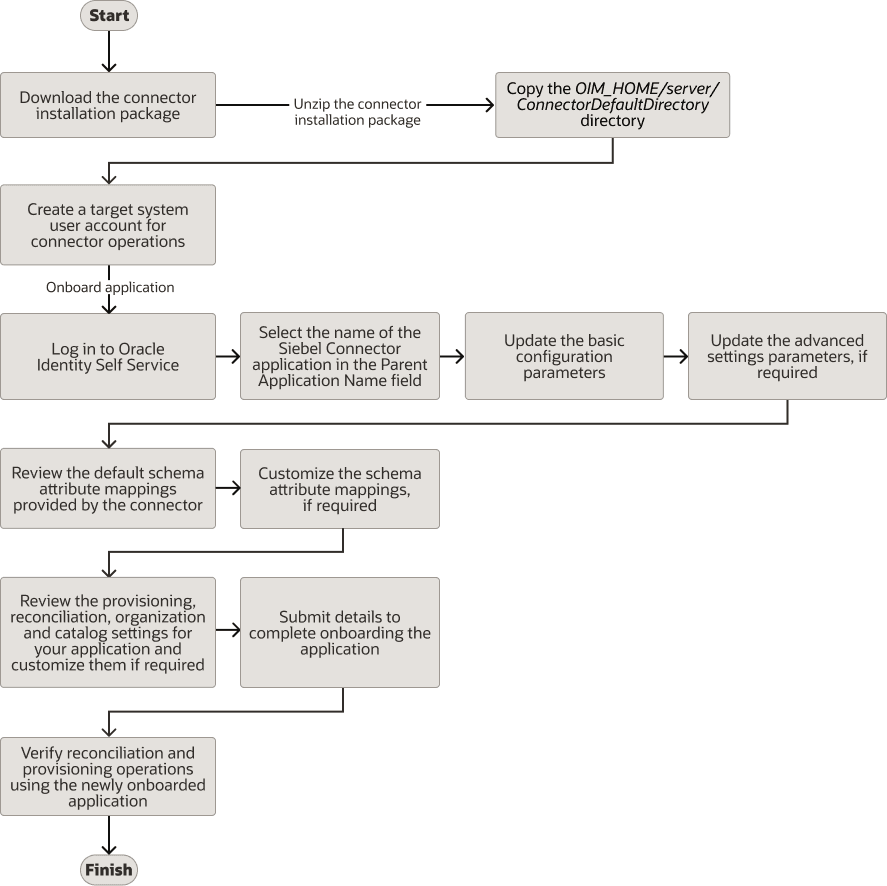
Figure 2-1 is a flowchart depicting high-level steps for creating an application in Oracle Identity Governance by using the connector installation package.
Figure 2-1 Overall Flow of the Prcoess for Creating an Application By Using the Connector
2.4 Creating an Application By Using the Siebel Connector
You can onboard an application into Oracle Identity Governance from the connector package by creating a Target application. To do so, you must log in to Identity Self Service and then choose the Applications box on the Manage tab.
The following is the high-level procedure to create an application by using the connector:
Note:
For detailed information regarding each step in this procedure, see Creating Applications of Oracle Fusion Middleware Performing Self Service Tasks with Oracle Identity Governance.- Create an application in Identity Self Service. The high-level steps are as follows:
- Log in to Identity Self Service either by using the System Administration account or an account with the ApplicationInstanceAdministrator admin role.
- Ensure that the Connector Package option is selected when creating an application.
- Update the basic configuration parameters to include connectivity-related information.
- If required, update the advanced setting parameters to update configuration entries related to connector operations.
- Review the default user account attribute mappings. If required, add new attributes or you can edit or delete existing attributes.
- Review the provisioning, reconciliation, organization, and catalog settings for your application and customize them if required. For example, you can customize the default correlation rules for your application if required.
- Review the details of the application and click Finish to submit the application details.
The application is created in Oracle Identity Governance.
- When you are prompted whether you want to create a default request form, click Yes or No.
If you click Yes, then the default form is automatically created and is attached with the newly created application. The default form is created with the same name as the application. The default form cannot be modified later. Therefore, if you want to customize it, click No to manually create a new form and attach it with your application.
- Verify reconciliation and provisioning operations on the newly created application.
Note:
- Configuring the Connector of for details on basic configuration and advanced settings parameters, default user account attribute mappings, default correlation rules, and reconciliation jobs that are predefined for this connector.
- Configuring Oracle Identity Governance for details on creating a new form and associating it with your application, if you chose not to create the default form