Adding Connections to a Portal
Add Connections to a portal to allow portal members to establish a collaboration network of work friends and associates.
Permissions: To perform the tasks in this chapter, you must be a portal manager or a portal member with the portal-level permissions
Basic Services: Edit Page Access and Structure(standard permissions) orPages: Edit Pages(advanced permissions).
For more information about permissions, see About Roles and Permissions for a Portal.
Topics
About Connections
Connections provides a means of collecting your business friends and contacts into a social network. It furnishes tools for managing your own connections and viewing the connections of others. Using People Connections Preferences, you can grant differing levels of access to those who are and are not your connections. For example, you can limit view privileges on your Profile to just your connections or enable your connections to view certain sections of your Profile, while hiding those sections from users who are not your connections. For more information, see Setting Connections Preferences in Using Portals in Oracle WebCenter Portal.
When you connect with other users, you give them access to your People Connections views, and gain access to theirs.
Note: People Connections encompasses Connections, Activity Stream, Message Board, Feedback, and Profile. For more information, see:
Before you begin to build your social network, your application administrator can set global application defaults that affect what all users may see and do with their own and other users’ connections. For more information, see Configuring Connections in Administering Oracle WebCenter Portal.
WebCenter Portal provides the following Connections task flows:
-
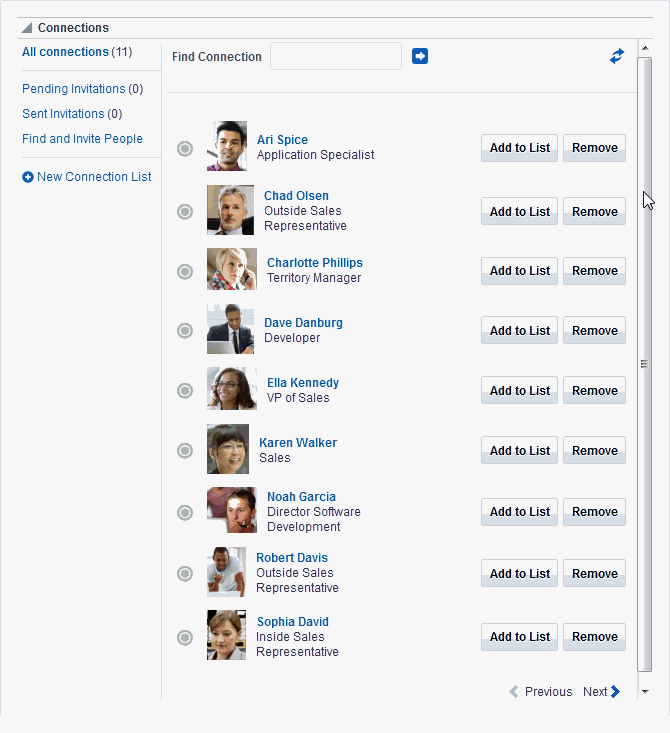
Connections for viewing and managing your connections, creating connections lists, and sending and responding to invitations to connect (Figure 42-1)
Figure: Connections Task Flow
-
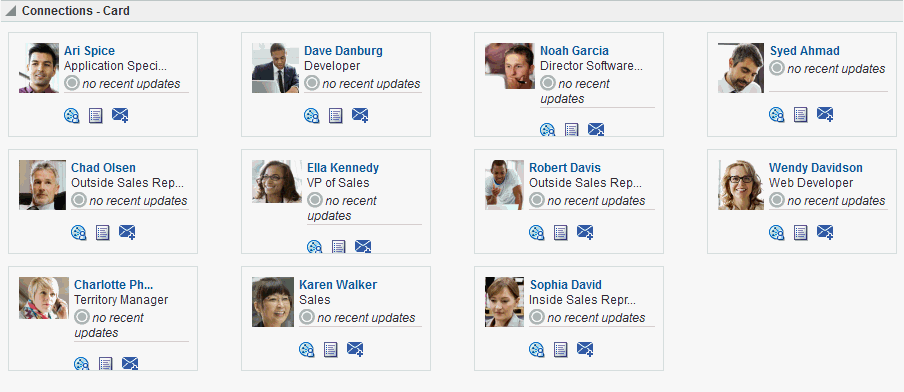
Connections - Card for photos, status messages, and instant contact options to your connections (Figure 42-2)
Figure: Connections - Card Task Flow
Description of the illustration wcsug_con_connectionscard.gif
-
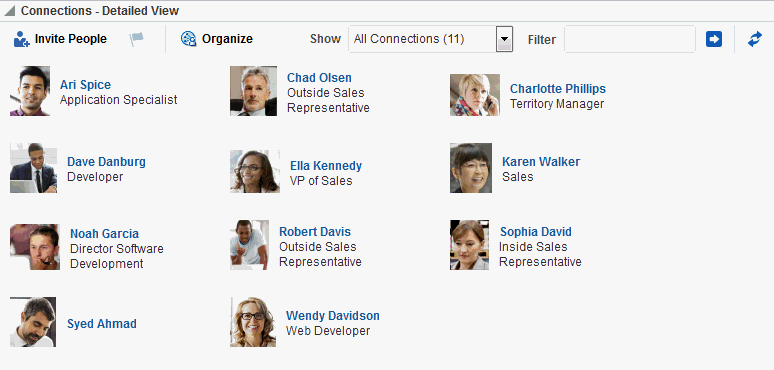
Connections - Detailed View for photos and quick access to your connections and to features for inviting new connections, managing existing connections, and organizing your connections into lists (Figure 42-3)
Figure: Connections - Detailed View Task Flow
Description of the illustration wcsug_con_condetailed.gif
-
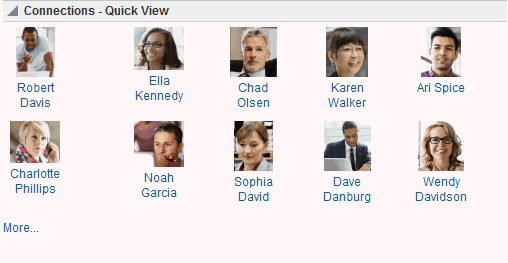
Connections - Quick View for photos and quick access to your connections (Figure 42-4)
Figure: Connections - Quick View Task Flow
Description of the illustration wcsug_con_conqv.gif
Connections task flows have associated properties that you can use to control the appearance and behavior of a task flow instance. For example, you can use Connections properties to specify the number of connections to show or the number of rows to show in Connections - Card and Connections - Quick View task flows.
See Also: Working with Connections Task Flow Properties
For information about using Connections features, see Managing Your Contacts in Using Portals in Oracle WebCenter Portal.
Adding a Connections Task Flow to a Page
For the steps to add a Connections task flow to a page, see Adding a Component to a Page.
Tip: The presence or location of Connections task flows in the resource catalog depends on how the resource catalog is configured. For example, in the default resource catalog, the Connections task flows are included under the Social and Communication folder.
For information about the Connections task flows, see About Connections.
Working with Connections Task Flow Properties
Connections task flows have associated properties, which users with sufficient privileges can access through the task flow’s View Actions menu. For example, in page edit mode, click the component to show the View Actions menu. Select Parameters to open the Parameters dialog (Figure 42-5).
Figure: Connections Task Flow Component Properties
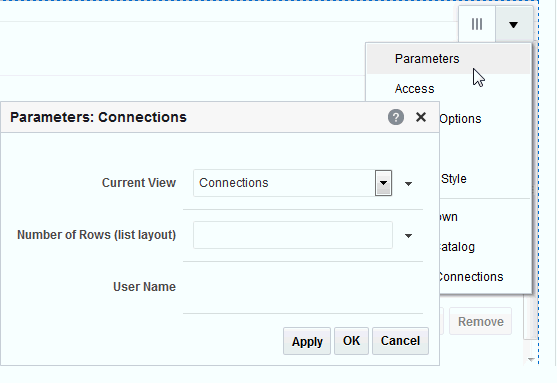
Description of the illustration wcsug_con_conprops.gif
See Also: Setting Properties on a Component
The following sections provide information about properties associated with Connections task flows and describe task flow parameters:
Setting Connections Task Flow Properties
In the page editor, selecting any component exposes a View Actions menu (About Connections), which provides access to the component’s properties: Parameters, Access, Display Options, Style, and Content Style.
Figure: View Actions Menu on a Connections Task Flow
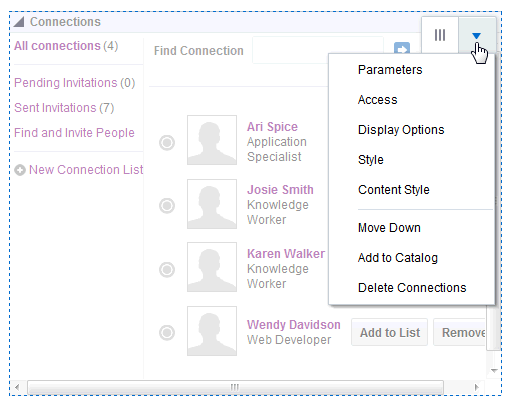
Description of the illustration wcpaa_view_act.gif
To set Connections task flow properties:
-
Open the page that contains the task flow in the page editor (see Opening a Page in the Page Editor).
-
Select the task flow, then click the View Actions menu and select the properties you want to set:
-
Parameters control the default task flow content. For descriptions of each parameter, see Connections Task Flow Parameters. Parameters can be wired to events, and can be used facilitate the wiring of the task flow to page parameters and page definition variables. For more information, see Wiring Pages and Components.
-
Access settings show or hide the component to specific roles, users, or groups. For more information, see Setting Component Access.
-
The Display Options, Style, and Content Style properties affect the appearance and behavior of the task flow for all users. These properties are common to all task flows. For more information, see Modifying Component Properties.
The Parameters and Display Options dialogs provide access to an Expression Language (EL) editor, which you can use to select or specify a variable value instead of a constant value. Click the Expression Editor icon icon next to a property, then select Expression Builder to open the editor.
Note: When you enter EL in the Display Options dialog, the parser reports an error only if it detects invalid syntax, such as a missing closing bracket. Validation is performed only on syntax, not on the expression value. Generic Display Options are those cataloged in Table 10-1.
EL validation is not performed on non-generic display options.
If you need EL assistance, an application developer can provide an EL expression; see Expression Language Expressions in Developing for Oracle WebCenter Portal.
-
-
Save your changes.
Connections Task Flow Parameters
Table 42-1 describes the parameters that are unique to Connections task flows.
Table 42-1 Connections Task Flow Parameters
| Parameter | Description |
|---|---|
|
|
A Boolean value representing whether a control is available on the task flow for removing a connection Enter either This value is honored only when the task flow instance is rendered in list format. For more information, see This parameter is associated with the Connections - Card task flow. |
|
|
The name of a grouped list of connections Use this parameter to limit the display of connections to those on the specified Connections list. Enter the name of a Connections list. This parameter is associated with the Connections - Card task flow. |
|
|
The view to display by default Valid values include:
When users access the task flow instance, the view specified here is the first one they see. All selections, except This parameter is associated with the Connections task flow. |
|
|
A value to act as a filter against task flow content For example, to show only those connections with a user name that includes the term pat (including patrick or sripathy), enter This parameter is associated with the Connections - Card task flow. |
|
|
A Boolean value representing whether to hide the task flow footer Use this parameter to show or hide a link at the bottom of the task flow that enables users (when shown) to navigate to a detailed view of Connections when the number of available connections exceeds the number of connections that are shown.
This parameter is associated with the following task flows:
|
|
|
A Boolean value representing whether to hide the task flow header Use this parameter to show or hide a link at the bottom of the task flow that enables users (when shown) to navigate to a detailed view of Connections when the number of available connections exceeds the number of connections that are shown.
This parameter is associated with the Connections - Quick View task flow. |
|
|
Determines whether the connection's name appears under the connection's picture when the Profile Format is set to iconic.
This parameter is associated with the Connections - Card task flow. |
|
|
Has 2 options for now snapshot and profile. By default the value will be snapshot. This task flow parameter will be honored only if the Profile Launched on Selection is checked. Select one of the following formats:
This parameter is considered only if Profile Launched on Selection is selected. This parameter is associated with the Connections - Card task flow. |
|
|
The number of columns to show in the task flow For example, with six connections to show, a value of When a user's number of connections exceeds the number of connections allowed after column and row restrictions are applied, Previous and Next links are shown, enabling the user to page through his connections. (See also This parameter is associated with the following task flows:
|
|
|
The number of connections to show in the given task flow instance Enter a numeric value, such as The number you enter here limits the number of connections that are shown in the task flow instance. If a user's number of connections exceeds the specified value, a More link is shown, enabling the user to navigate to a full view of the Profile page's Connections subpage. This parameter is ignored if both the number of rows and the number of columns have been specified together as parameters. This parameter is associated with the following task flows:
|
|
|
The number of rows to show in the task flow For example, with six connections to show and a value of When a user's number of connections exceeds the number of connections allowed after column and row restrictions are applied, Previous and Next links are shown, enabling the user to page through his connections. (See also Number of Columns.) This parameter is associated with the following task flows:
|
|
|
The number of rows to show in a list layout of the Connections task flow This value is honored only when the view of the Connections task flow is set to When a user's number of connections exceeds the number of connections allowed after row restrictions are applied, Previous and Next links are shown, enabling the user to page through his connections. This parameter is associated with the Connections task flow. |
|
|
The layout style for the task flow Select one of the following formats:
This parameter is associated with the Connections - Card task flow. |
|
|
A Boolean value representing whether a Profile popup should open when a user clicks a connection listed in the task flow
This parameter is associated with the Connections - Card task flow. |
|
|
Determines whether the footer with a See all your connections link should always be displayed.
This parameter is associated with the Connections - Card task flow. |
|
|
The connections sort order Enter This parameter is associated with the following task flows:
|
|
|
The ID of the user to show in the task flow This value is set automatically ( This parameter is associated with the following task flows:
|
|
|
The ID of the user to show in the task flow This value is set automatically ( This parameter is associated with the following task flows:
|
Using Properties to Configure a Connections Task Flow Instance
This section provides examples of how you use property values to affect the behavior of a given task flow instance. Because you make these changes in the page editor, they affect all users’ views of the affected task flow instance.
This section includes the following subsections:
-
Specifying an Initial View for a Connections Task Flow Instance
-
Applying a Filter to a Connections - Card Task Flow Instance
-
Selecting a Display Format for a Connections - Card Task Flow Instance
-
Invoking a Profile Popup from a Connections - Card Task Flow Instance
Adding a Remove Button to Connections - Card
By default, the Connections - Card task flow does not provide a control for permanently removing a connection. You can use the Allow Remove property on a Connections - Card task flow instance to render a Remove button next to each listed connection. Allow Remove is honored when the task flow’s Profile Format property is set to List or Virtual Business Card.
To enable the removal of a connection in a Connections - Card task flow:
-
In the Connections - Card task flow instance toolbar, click the View Actions menu, and select Parameters.
See Also: Modifying Component Properties
-
In the Parameters dialog, set
Profile Formattolist. - Provide a value for
Allow Remove:- Select the check box (
#{true}) to enable the display of a Remove button next to a listed connection (Figure 42-7).
Figure: Remove Icon on a Connections - Card Task Flow
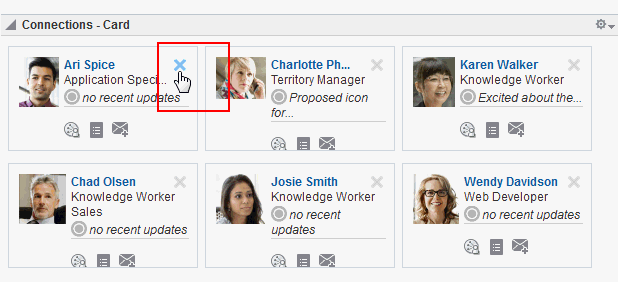
Description of the illustration wcsug_con_allowremove.gif
- Deselect the check box (
#{false}) to disable this feature.
- Select the check box (
- Click OK.
Restricting Connections Displayed to Those on a Named List
In an instance of the Connections - Card task flow, you can use the Connection List Name property to restrict the display of connections to only those users included on a named Connections list.
See Also: For information about Connections lists, see Creating and Managing Groups of Contacts inUsing Portals in Oracle WebCenter Portal.
To restrict a Connections - Card task flow to a particular Connections list:
-
In the Connections - Card task flow instance toolbar, click the View Actions menu, and select Parameters.
See Also: Modifying Component Properties
-
In the Parameters dialog, in the Connection List Name field, enter the name of the Connections list to use to limit the display of connections.
-
Click OK.
Specifying an Initial View for a Connections Task Flow Instance
Use the Current View property to specify the initial view of a Connections task flow instance. For most views, users can change the default you specify here. The exception is the people view, in which there are no controls for switching to a different view.
To specify an initial view for a Connections task flow instance:
-
In the Connections task flow instance toolbar, click the View Actions menu, and select Parameters.
-
In the Parameters dialog, for Current View, select one of the following:
-
connections—(the default value) a list of connections
-
receivedInvitations—a list of connections invitations you received
-
sentInvitations—a list of connections invitations you sent
-
people—a search field for finding people with whom to connect
-
-
Click OK.
Limiting the Number of Displayed Connections
The Connections - Card, Connections - Detailed View, and Connections - Quick View task flows provide the property Number of Connections per page for limiting the number of connections to show at a time. If a user’s number of connections exceeds the specified value, a link is shown at the bottom of the task flow to enable the user to navigate to a full view of the Profile page’s Connections subpage.
To limit the number of displayed connections in a Connections - Card, Connections - Detailed View, or Connections - Quick View task flow instance:
-
In the Connections - Card, Connections - Detailed View, or Connections - Quick View task flow instance toolbar, click the View Actions menu, and select Parameters.
-
In the Parameters dialog, provide a value for Number of Connections per page.
-
Click OK.
Specifying Numbers of Rows and Columns
The Connections, Connections - Card, and Connections - Quick View task flows provide properties for controlling the number of columns and rows to show at a time. When column and row values are both specified, and a user’s number of connections exceeds the specified values, Previous and Next links are shown, enabling the user to page through his connections.
To specify the number of rows and columns of connections to show:
-
In the Connections, Connections - Card, or Connections - Quick View task flow instance toolbar, click the View Actions menu, and select Parameters.
-
In the Parameters dialog, enter a numeric value to control the number of rows to show:
-
For Connections, enter a number for Number of Rows (list layout).
-
For Connections - Card and Connections - Quick View, enter a number for Number of Rows.
-
-
For Connections - Card and Connections - Quick View, enter a numeric value in the Number of Columns field to control the number of columns to show
-
Click OK.
Applying a Filter to a Connections - Card Task Flow Instance
The Filter Pattern property enables you to apply a filtering term that limits the display of connections in a Connections - Card task flow instance to only those who meet the filtering criteria. For example, to show only those connections with a user name that includes the term pat (including patrick or sripathy), enter pat for the Filter Pattern property.
The filter is applied to all of the information in a given card, so you can filter against things like the user’s job title or name. For example, entering the term manager, ensures that only those connections whose job title includes manager are displayed in the task flow instance.
To apply a filter to a Connections - Card task flow instance:
-
In the Connections - Card task flow instance toolbar, click the View Actions menu, and select Parameters.
-
In the Parameters dialog, enter a filtering term for Filter Pattern.
Tip
For example, enter a job title, a user name, or partial values, such as man.
-
Click OK.
Selecting a Display Format for a Connections - Card Task Flow Instance
The Profile Format property provides options for controlling the arrangement of connections within a Connections - Card task flow instance. Both the placement of information and the amount of information shown are affected by your selection.
To select a display format for a Connections - Card task flow instance:
-
In the Connections - Card task flow instance toolbar, click the View Actions menu, and select Parameters.
-
In the Parameters dialog, select a format from the Profile Format drop-down list:
- Virtual Business Card — Renders each connection in a virtual business card and includes the connection’s user name and status message and quick-access buttons for interacting with your connections (Figure 42-8).
Figure 42-8 Connections - Card in Virtual Business Card Format
Description of the illustration wcsug_con_connectionscard.gif
- Iconic — Renders the connection’s personal profile photo and shows the user name below the photo (Figure 42-9).
Figure 42-9 Connections - Card in Iconic Format
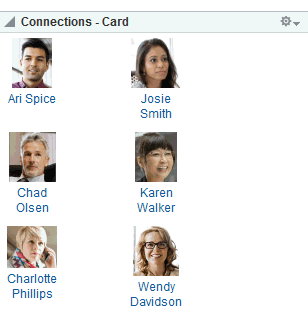
Description of the illustration wcsug_con_iconic.gif
- List — Renders connections in a list, showing the personal profile photo, user name, information about recent profile updates, and quick-access buttons for interacting with your connections (Figure 42-10).
Figure 42-10 Connections - Card in List Format
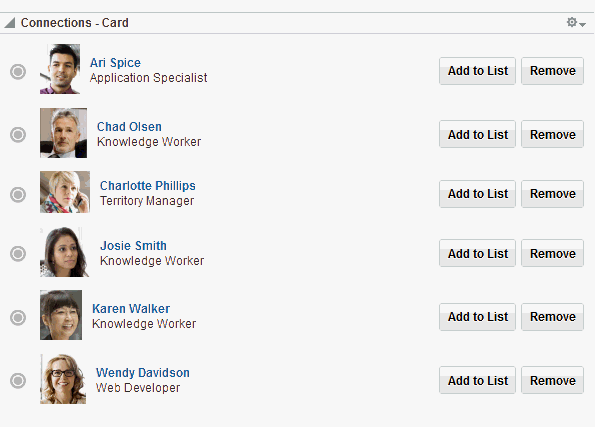
Description of the illustration wcsug_con_list.gif
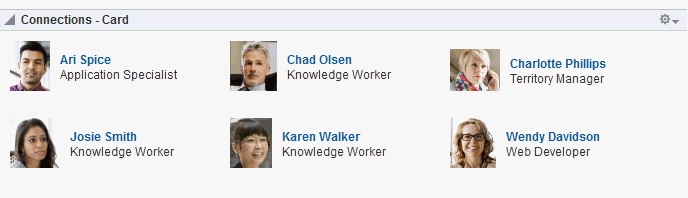
- Tiled — Renders the connection’s personal Profile photo and shows the user name and job title beside the photo (Figure 42-11).
Figure 42-11 Connections - Card in Tiled Format
-
Click OK.
Invoking a Profile Popup from a Connections - Card Task Flow Instance
The Profile Launched on Selection property provides a means of launching a Profile popup when users click a connection name in a Connections - Card task flow instance (Figure 42-12).
Figure: Invoking a Profile Popup from the Connections - Card Task Flow
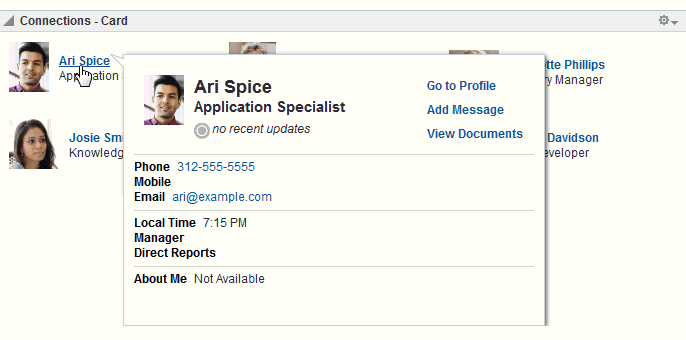
Description of the illustration wcsug_con_popup.gif
When this option is not selected, clicking a connection name in the task flow simply selects the connection.
To enable the launch of a Profile popup from a Connections - Card task flow instance:
-
In the Connections - Card task flow instance toolbar, click the View Actions menu, and select Parameters.
-
In the Parameters dialog, select an option for Profile Launched on Selection:
-
Select the check box
(#{true})to enable a Profile popup to launch when a user clicks a connection. . -
Deselect the check box
(#{false})to suppress this option.
-
-
Click OK.
Working with Connections Task Flows
For information about how users work with Connections task flows, see Managing Your Contacts in Using Portals in Oracle WebCenter Portal.