Adding Events to a Portal
Add Events to a portal to allow portal members to view and manage calendar events, including portal calendars.
Permissions: To perform the tasks in this chapter, you must be a portal manager or a portal member with the portal-level permissions
Manage Security and ConfigurationorManage Configuration.
At a minimum, you must have the following permissions:
-
Edit Pages(to add the Events task flows to a page) -
Edit Task Flows(to enable calendar overlays)
See About Roles and Permissions for a Portal.
Topics
Prerequisites for Events
See Also: Troubleshooting Issues with Events in Administering Oracle WebCenter Portal
To make events available in a portal, the portal manager or anyone with Manage Security and Configuration or Manage Configuration permission must perform the following tasks:
-
For portal events, if not already enabled during portal creation, enable the Events tool, as described in Enabling and Disabling Tools and Services Available to a Portal.
-
Optionally, configure the event categories, as described in Creating and Managing Portal Event Categories.
-
Provide access for users to events in any of the following ways:
-
Provide users with the pretty URL to the Events page (see Pretty URLs for Pages in a Specified Portal).
-
Add a page link to the Events page in the portal navigation (see Adding an Events Page to a Portal).
-
Add the Events task flow to a page in the portal (see Adding an Events Task Flow to a Page).
-
Note: For information about the events feature and how to use calendaring and events, including subscribing to events, see Working with Calendars and Events in Using Portals in Oracle WebCenter Portal.
About Calendars and Events
Events include appointments, meetings, presentations, and so on. WebCenter Portal provides two kinds of events:
Note: For events to display, events must be enabled and the Events task flow must be added to a page or the Events page (or console) must be accessible. See the following sections:
-
Portal events are related to a specific portal. They could include weekly meetings, presentations, or a customer visit.
Portal events display to all members of the portal on the portal's dedicated Events page (which can be exposed by the portal manager) or in any Events task flow that is located on a page in the portal.
See Also: Where to View Events in Using Portals in Oracle WebCenter Portal
There are two task flows for displaying both personal and portal events:
-
The Events task flow provides a fully featured calendar where, as well as viewing events in a variety of layouts, you can also create and manage events and display events from multiple calendars.
-
The Events - Mini View task flow provides a more compact view of events as a list. You can view upcoming events and edit existing events. You cannot create new events in this task flow. This is useful if you want to provide information about events but do not have enough space on the page for a full calendar.
-
Creating and Managing Portal Event Categories
Note: Enable Events, as described in Enabling and Disabling Tools and Services Available to a Portal.
Portal event categories let users group certain events together (for example, team meetings, personal appointments, customer meetings, and so on).
Categories can have any name and an optional color associated with it. If a color is selected, events belonging to the category are displayed in that color on the Events page or in an Events task flow.
To create and manage event categories in a portal:
-
In the portal administration (see Accessing Tools and Services Administration for a Portal), click Tools and Services in the left navigation pane.
You can also enter the following URL in your browser to navigate directly to the Tools and Services page:
http://host:port/webcenter/portal/portalName/admin/servicesSee Also: WebCenter Portal Pretty URLs
Tip: The way you access this page depends on the page template in use. For example, in a side navigation template, you can access it through a Manage menu.
-
On the Tools and Services page, select Events. Figure: Working with Portal Event Categories
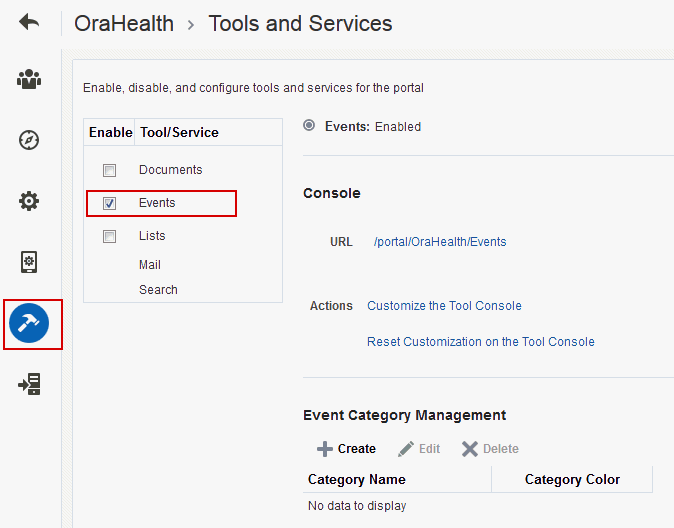
Description of the illustration events_categs.gif
-
Click OK to dismiss the message about giving portal users permissions.
-
To create a new portal event category, click Create **. **Figure: Creating an Event Category
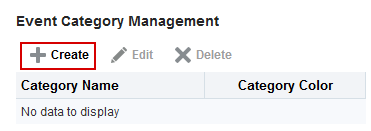
Description of the illustration events_categ_create.gif
-
In the Create Category dialog, enter a Category Name, and select a color for the event category, then click Yes.
Figure: Create Category Dialog
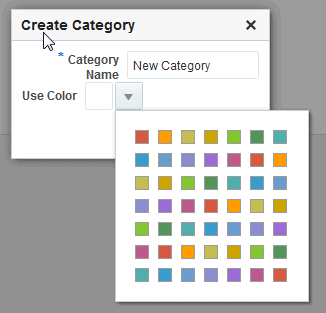
Description of the illustration events_categ_create2.gif
For information about assigning a category to an event, see [Working with Calendars and Events](/pls/topic/lookup?ctx=en/middleware/webcenter/portal/14.1.2/build&id=WCSUG11573) (specifically [Scheduling Events](/pls/topic/lookup?ctx=en/middleware/webcenter/portal/14.1.2/build&id=WCSUG11604) ) in *Using Portals in Oracle WebCenter Portal*.

The category to which an event belongs also displays when a user hovers the mouse pointer over the event on the Events page or in an Events task flow. Users can also filter the Events page or an Events task flow to display events belonging to one or more specific categories.

For more information, see [Filtering Events by Category](/pls/topic/lookup?ctx=en/middleware/webcenter/portal/14.1.2/build&id=WCSUG11595) in *Using Portals in Oracle WebCenter Portal*.
-
To edit or delete a portal event category, select the category, then click either Edit or Delete.
Figure: Editing or Deleting a Portal Event Category
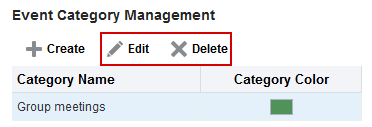
Description of the illustration events_categ_edit.gif
For more information see [Revising Scheduled Events](/pls/topic/lookup?ctx=en/middleware/webcenter/portal/14.1.2/build&id=WCSUG11608) and [Cancelling Scheduled Events](/pls/topic/lookup?ctx=en/middleware/webcenter/portal/14.1.2/build&id=WCSUG11610) in *Using Portals in Oracle WebCenter Portal*
Showing Events on the Events Page in a Portal
This section describes viewing events on the Events page or console. In every portal where events is enabled, portal events display on the Events page. However, the Events page (or console) will not display by default. You will need to provide navigation by giving users access to the page through a pretty URL or by adding an Events page to the portal. See Adding an Events Page to a Portal.
Note: The Home portal does not show the Events page by default, but users can expose it in their view using the Show Page option on the Personalize Pages page. See Showing or Hiding Pages in Your View of the Home Portal in Using Portals in Oracle WebCenter Portal.
Figure 43-5 shows the Events task flow on the Events page (or console).
Figure: Events Task Flow on the Events Page
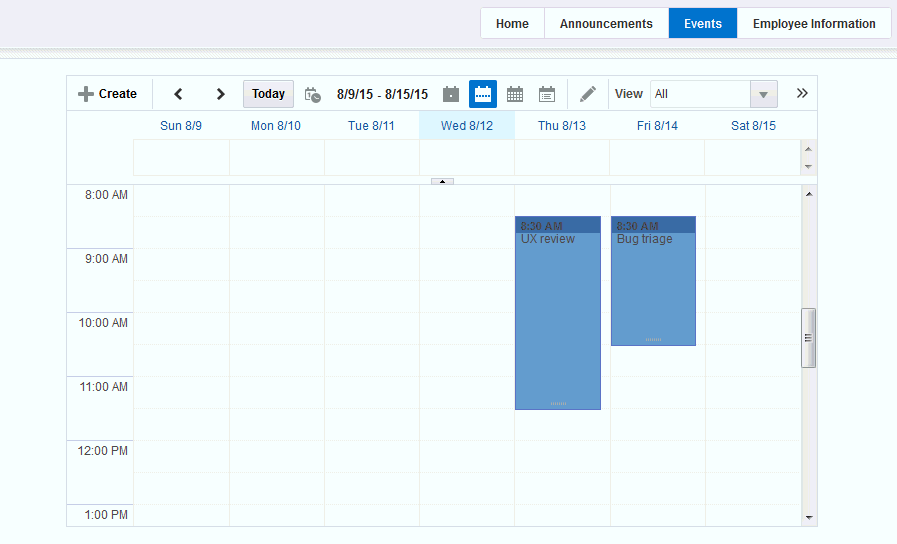
Description of the illustration events_eventpage.gif
You can also add the Events task flow to another page in your portal, as described in Adding an Events Task Flow to a Page.
Displaying Multiple Calendars in an Events Task Flow
In addition to displaying your personal events in the Home portal, you can also display events from multiple portals in an Events task flow. This is referred to as calendar overlaying. In this way, you can have all your important events available in one location, the Home portal, rather than having to go to multiple portals to manage your daily schedule.
The events from each calendar are displayed in a different color to help identify the source of the event, if you created categories at the time you enabled events (see Creating and Managing Portal Event Categories). If you are overlaying calendars on a page in the Home portal or on a portal page, category colors are used only for events from the current portal. All events from overlaid calendars are displayed in the color defined for that portal if the events do not have categories. But if the overlaid calendars have event categories, then the events with category will be shown for the calendars from other portals, provided the portal in which overlay is enabled has that same category.
Note: Calendar overlaying is available only in Events task flows. A portal’s Events page or console displays events from the current portal only. For the Events task flow to display, the Events task flow must be added to a page in the Home portal. See Adding an Events Task Flow to a Page.
This section includes the following subsections:
Enabling Calendar Overlaying
To enable calendar overlaying on a page:
-
Open the page containing the Events task flow in the page editor (see Opening a Page in the Page Editor).
-
In the task flow toolbar, click the View Actions menu and select Parameters.
-
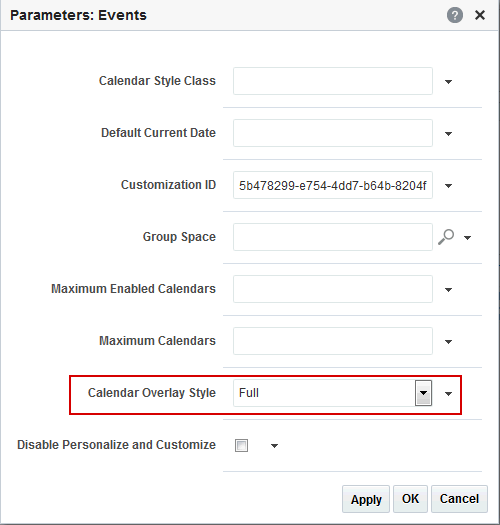
In the Parameters dialog, from the Calendar Overlay Style drop-down, select:
-
None if you do not want to use calendar overlays.
-
Mini to use a compact view of the calendar overlay. This takes up less space on the page, but it might not be immediately obvious how to work with the overlays. Use this option if space is very limited on the page, or when your users have become familiar with calendar overlays and how to use them. Mini style is available only with Day and List view, not Week or Month.
-
Full to use a detailed calendar overlay. Use this option if space is not an issue on the page and to provide a richer user interface.
Figure: Calendar Overlay Style Events Property
-
Description of the illustration events_comp_props.gif
-
Click OK to save your changes and exit the Parameters dialog.
-
Click Save at the top left of the page editor toolbar to save your changes.
The Events task flow now includes an area to the left of the calendar where you can choose other calendars to display in the task flow.
If you selected the Full option for the Calendar Overlay Style, the calendar overlay area includes text as well as icons and also includes a date picker to help you easily move around your calendar.
Figure 43-7 shows the Events task flow on a page in the Home portal, with full calendar overlay.
Figure: Events Task Flow with Full Calendar Overlay Area
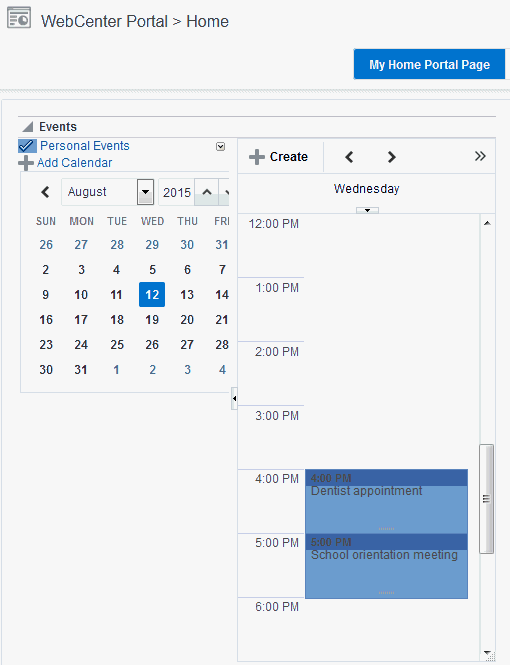
Description of the illustration events_personalcal.gif
If you selected the **Mini** option for the **Calendar Overlay Style**, the calendar overlay area is much smaller, displaying the day view only ([Figure 43-8](adding-events-portal.html#GUID-6D15B7BB-5423-4FB1-A5E3-F6F1EC494288__BABFJBIB)).
**Figure: Events Task Flow with Mini Calendar Overlay Area**
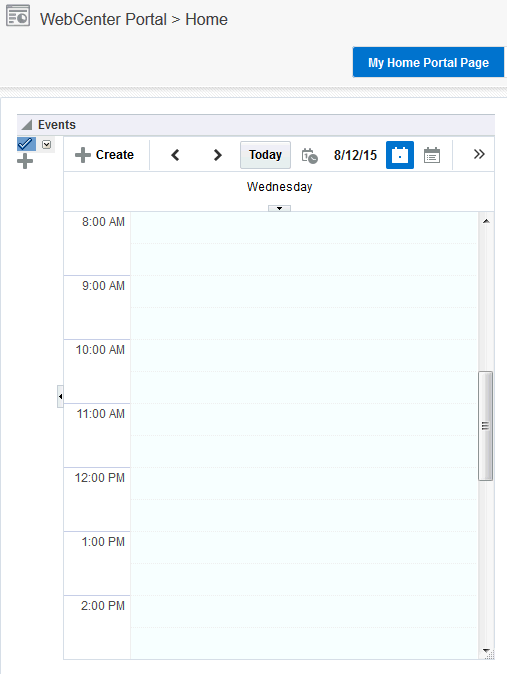
Description of the illustration events_homeportal_mini.gif
Displaying Additional Calendars
When the calendar overlaying feature is enabled (see Enabling Calendar Overlaying), users can display as many calendars as they want in the Events task flow. Each calendar’s events are displayed in a different color to make it easier to distinguish which calendar it belongs to.
To display additional calendars:
Adding an Events Page to aPortal
To provide navigation to the Events page in a portal, you can add a page link to the portal navigation, as described in Adding an Existing Page to the Portal Navigation.
Note: The Events page (or console) is not automatically exposed when the tool is enabled or when the portal is created. However, if the portal template exposes the Events page, the portal that is created from the template will also automatically expose this page.
Adding an Events Task Flow to a Page
For the steps to add an events task flow to a page, see Adding a Component to a Page.
Tip: The presence or location of the Events task flows in the resource catalog depends on how the resource catalog is configured. For example, in the default resource catalog, the Tags task flows are included under the Social and Communication folder.
For more information about the Events task flows, see About Calendars and Events.
Figure 43-12 shows the Events task flow on a page in the Home portal.
Figure: Events Task Flow with Full Calendar Overlay Area
Description of the illustration events_personalcal.gif
Users with Edit privileges can access the task flow’s Component Properties dialog in the page editor (see Working with Events Task Flow Properties).
Working with Events Task Flow Properties
The Events task flows have associated properties, which users with sufficient privileges can access through the task flow’s View Actions menu. For example, select Parameters to display the Parameters dialog (Figure 43-13).
Figure: Events Task Flow Component Properties
Description of the illustration events_comp_props.gif
See Also: Setting Properties on a Component
The following sections provide information about properties of the Events task flows and describe the task flow parameter:
Setting Events Task Flow Properties
In the page editor, selecting any component exposes a View Actions menu (Figure 43-14), which provides access to the component’s properties: Parameters, Access, Display Options, Style, and Content Style.
Figure: View Actions Menu on an Events Task Flow
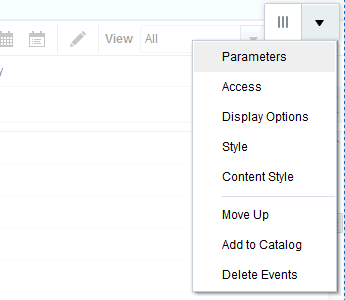
To set Events task flow properties:
Events Task Flow Parameters
Table 43-1 describes the parameters that are unique to the Events task flow.
Table 43-1 Events Task Flow Parameters
| Parameter | Description |
|---|---|
|
|
Whether calendar overlay is enabled. Valid values are:
|
|
|
The name of the custom style class you want to apply to the calendar component. |
|
|
A unique identifier for event view customization. Customization ID assists with maintaining the association of this task flow instance with its customization and personalization settings. This value is set automatically. Do not edit this value. |
|
|
The default current date on the calendar. Valid values are:
|
|
|
A check box to determine whether users can personalize or customize the task flow. If not selected, users can personalize and customize the task flow. |
|
|
The name of the portal that is the source of listed events. Valid values are:
The portal display name is available on the General page in the portal administration settings. |
|
|
The maximum number of calendars that a user can add to the task flow. When the maximum is reached, the Add Calendar icon no longer appears in the task flow. Default value: |
|
|
The maximum number of calendars that a user can display simultaneously. This value must not be greater than the value specified for Maximum Calendars. Default value: The same value as that specified for Maximum Calendars |
Events - Mini View Task Flow Parameters
Table 43-2 describes the parameters that are unique to the Events - Mini View task flow.
Table 43-2 Events - Mini View Task Flow Parameters
| Property | Description |
|---|---|
|
|
Custom calendar toolbox layout. The value is passed to the ADF calendar component as a |
|
|
A unique identifier for event view customization. Customization ID assists with maintaining the association of this task flow instance with its customization and personalization settings. This value is set automatically. Do not edit this value. |
|
|
The maximum number of characters of the event title to display in Mini view. Leave blank or enter Default value: |
|
|
The number of days for which to list upcoming events. Default value: |
|
|
The number of events to display at one time. Default value: |
|
|
A check box to select determine whether to use the ADF Calendar UI Component or a simple list with page flow. |