Introduction to Portal Tools and Services
Learn about the tools and services available in WebCenter Portal, and how to enable or disable tools in a portal.
Permissions: To perform the tasks in this chapter, you must have one of the following roles or permissions: -
Portal Manageror be a portal member withPortals: Manage Security and Configurationpermission
Delegated Manageror a member withPortals: Manage Configurationpermission in the portal
For more information about permissions, see About Roles and Permissions for a Portal.
Topics
About Tools and Services
WebCenter Portal offers tools and services that allow portal members to collaborate and communicate. If WebCenter Portal is installed and configured correctly and your system administrator has set up valid connections to the required external back-end servers, tools and services are available for use in a portal.
The following table shows which tools and services are provided out-of-the-box and those that require additional configuration:
Table 39-1 Availability of Tools and Services in WebCenter Portal
| WebCenter Portal (All Portals) | Tools and Services |
|---|---|
|
Automatically available out-of-the-box |
Discussions, Announcements, Portal events, links, lists, search, people connections, tags |
|
Only available when a valid connection exists to a back-end server or database |
Analytics, documents, mail, search (using Elasticsearch), worklists (using Oracle BPM Worklist) The back-end configurations are done by the system administrator through Fusion Middleware Control or using the WLST command-line tool, as described in Managing Tools and Services in Administering Oracle WebCenter Portal. |
If the necessary connections exist to make them available, the following table shows which tools and services are always available in a portal and those that need to be enabled by the portal manager:
Table 39-2 Enabling Tools and Services in a Portal
| Individual Portals | Tools and Services |
|---|---|
|
Always enabled (if available) |
Analytics, links, people connections, tags |
|
Portal manager can enable/disable (if available) |
Events, lists, documents, discussions, announcements |
When a back-end server is not configured, a portal cannot consume the features or functionality related to the tool or service:
-
Associated task flows are not available in the resource catalog.
-
Existing task flows display a message indicating that the tool or service is unavailable.
-
Tool or service is listed as unavailable on the Tools and Services page in the portal's administration settings.
The following tools and services require a connection to a database schema where relevant information (such as relationship mapping) is stored:
-
Analytics
-
Documents (for documents, wikis, and blogs that want to include the comments and Activity Stream)
-
Links
-
Lists
-
People Connections
-
Tags
It is the portal template that is used to create a portal that defines whether tools are initially enabled or disabled in the portal:
Note: Mail is enabled upon portal creation, and, if it is configured by the system administrator, then it cannot be disabled for individual portals.
-
If a tool is disabled in the portal template, portal managers can manually enable the tool from the portal's administration settings to make it available for use in the portal.
-
If a tool is enabled in the portal template, portal managers can manually disable tools that are not required from the portal's administration settings.
See Enabling and Disabling Tools and Services Available to a Portal.
After enabling tools and services for a portal, the portal manager also must make sure that the portal members have the required permissions to work with some of these tools, such as lists, and so on. For more information about portal-level permissions, see About Roles and Permissions for a Portal.
The portal manager must also make sure that portal members can access tools and services in the following ways:
-
By providing users with a pretty URL to access the tool page. See Pretty URLs for Pages in a Specified Portal.
-
By adding the associated tool or service task flows to a portal page. See Adding a Component to a Page.
-
By adding a page link to the tool page in the portal navigation, as described in Adding an Existing Page to the Portal Navigation.
Note:
For more information about the tools and services available in a portal, see Table 39-3.
Tools and Services Available in a Portal
Table 39-3 lists the tools and services available in a portal.
Table 39-3 Portal Tools and Services
| Tools and Services | Description | For More Information |
|---|---|---|
|
Activity Stream |
Provides a streaming view of the activities of your connections, actions taken in portals, and business activities |
|
|
Analytics |
Enables you to display usage and performance metrics for your portal application |
|
|
Announcements |
Enables you to provide portal members with a quick, convenient way to create and broadcast messages instantly or at a specified future time. |
|
|
Documents |
Provides content management and storage capabilities, including file upload, file and folder creation and management, file check out, versioning, and so on. Exposes these capabilities through the Content Manager task flow. The documents tool also supports the wiki and blog functionality. |
|
|
Discussions |
Enables you to allow portal members to create and participate in text-based discussions with other members, post questions, and search for answers. |
|
|
Events |
Provides the ability to create and maintain a schedule of events relevant to a wider group of authenticated users. Also provides access to your personal events from your Outlook calendar if the Exchange server is configured. |
|
|
Links |
Provides the ability to view, access, and associate related information; for example, you can link a document to a Note. |
Linking Information in WebCenter Portal in Using Portals in Oracle WebCenter Portal |
|
Lists |
Provides the ability to create, publish, and manage lists |
|
|
|
Provides easy integration with IMAP and SMTP mail servers to enable users to perform mail functions, such as reading messages, creating messages with attachments, replying to or forwarding messages, and deleting messages |
|
|
Messages and Feedback |
Provides the ability to post messages, attachments, and feedback for your connections and to the Activity Stream |
|
|
Notes |
Provides the ability to "jot down" and retain bits of personally relevant information. |
|
|
Notifications |
Provides a means of subscribing to services and application objects and, when those objects change, receiving notification across one or more messaging channels. |
|
|
People Connections |
Provides the ability to establish a social network with business colleagues, allowing you to see their portal activity and contributions and them to see yours. |
|
|
Polls |
Enables you to survey your audience (such as their opinions and their experience level), check whether they can recall important information, and gather feedback. |
|
|
Profiles |
Provides views of users' contact information (such as email address, business address, phone number), department, manager, photo, portal activities, public documents, and connections. |
|
|
RSS |
Provides the ability to access the content of many different web sites from a single location—a news reader. |
|
|
Search |
Provides search functionality. |
Configuring Elasticsearch in a Portal Beginning with Release 12c (12.2.1.4.0), Oracle WebCenter Portal has deprecated the support for Oracle SES. If you have upgraded from a prior release, your upgraded instance might be configured to use Oracle SES. In this case, you must configure WebCenter Portal to use Elasticsearch to index and search objects. |
|
Tags |
Provides the ability to assign one or more personally-relevant keywords to a given page or document. |
Enabling and Disabling Tools and Services Available to a Portal
For an understanding of how tools and services are made available for use in a portal, see About Tools and Services.
To enable or disable a tool or service in your portal:
-
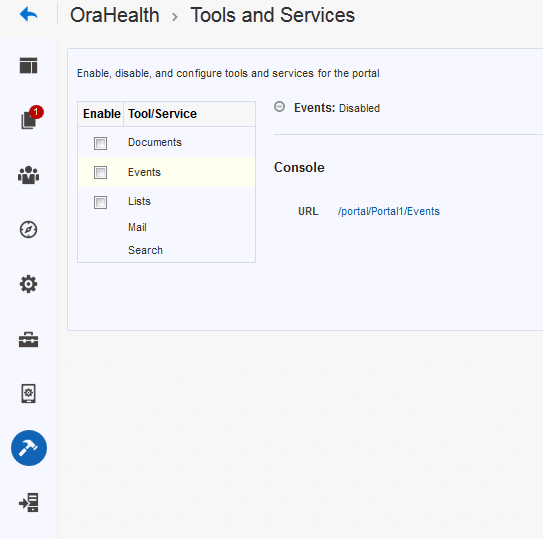
In the portal administration, click Tools and Services in the left navigation pane.
You can also enter the following URL in your browser to navigate directly to the Tools and Services page:
http://host:port/webcenter/portal/PortalName/admin/servicesFigure: Tools and Services Page for a Portal
-
To enable a tool you want to use in the portal, select the check box next to it.
Note: If the back-end server is not configured by your system administrator and an active connection is not present between the application and WebCenter Portal, the tool or service will not be available in the portal.
See Managing Tools and Services in Administering Oracle WebCenter Portal.
-
Click OK to dismiss the warning about giving users the appropriate permissions to work with a tool.
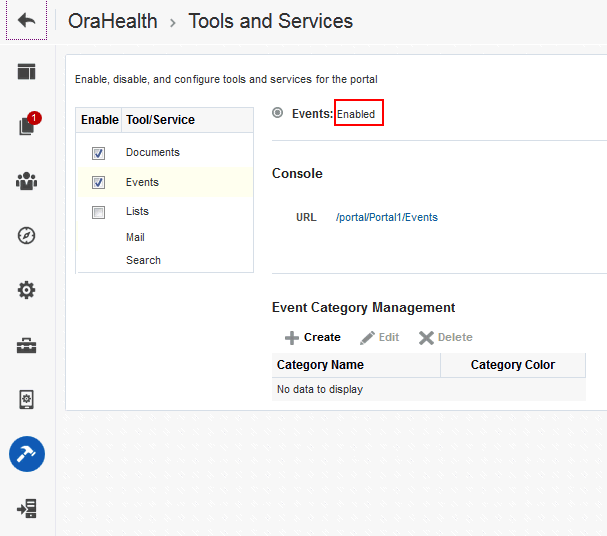
Notice that Disabled updates to Enabled next to the tool and the configuration fields for that tool or service appear.
For example, the following figure shows the Documents tool as Enabled when the check box is selected.
Figure: Events Tools and Services Page
- Optionally, configure selected tools and services as required.
-
Documents— see Working with Content in a Portal
-
Events—create event categories, for grouping events, as described in Creating and Managing Portal Event Categories.
-
Lists—For more information about working with lists, see Adding Lists to a Portal.
-
Mail—although the default distribution list is created during portal creation, you can update the distribution list for the portal (see Configuring the Mail Distribution List for a Portal) and specify a shared distribution list for a portal (see Configuring the Send Mail Feature).
-
Search—shows the search option that has been configured for WebCenter Portal.
-
-
To disable a tool, deselect the check box next to the appropriate tool.
Notice that Enabled reverts to Disabled.
Note: Unlike the other tools and services, if Mail is configured by the system administrator, the Mail service cannot be disabled by the portal manager.
-
Grant appropriate permissions for each member role on the Roles page to allow portal members to access the enabled services.
- Make sure that portal members have access to the tools and services in any of the following ways:
-
Provide users with a pretty URL to access the tool page. See Pretty URLs for Pages in a Specified Portal.
-
Add the associated tool or service task flows to a portal page.See Adding a Component to a Page.
-
Add a page link to the tool page in the portal navigation, as described in Adding an Existing Page to the Portal Navigation.
-