Adding Discussion Forums to a Portal
Add Discussion Forums to a portal to allow portal members to create and participate in text-based discussions with other members, post questions, and search for answers.
Note:
Oracle WebCenter Portal has deprecated the support for Jive features in 14c (Announcements and Discussions/Discussion Forums). In Oracle WebCenter Portal 14.1.2.0.0, support for Announcements and Discussions has been reintroduced as native product features, eliminating the dependency on Jive. Customers are therefore recommended to upgrade to Oracle WebCenter Portal 14.1.2.0.0.
Permissions:
To perform the tasks in this chapter, you must be a portal manager or a portal member with the portal-level permissions
Manage Security and ConfigurationorManage Configuration.At a minimum, you must have the following permissions:
Edit Pages(to add the Discussions task flows to a page)
Edit Task Flows(to modify the task flow, if necessary)One or more of the following advanced permissions:
Create, Edit, and Delete DiscussionsorCreate and Edit Discussions
Topics:
Prerequisites for Discussions {#WCPAA-GUID-E48C5B2D-83BC-4882-B73E-EE94C229DB08 .sect3}
To make discussions available in a portal, the portal manager or anyone with Manage Security and Configuration or Manage Configuration permission must perform the following tasks:
-
If not already enabled, enable the Discussions tool, as described in Enabling and Disabling Tools and Services Available to a Portal.
-
Provide access for users to discussions in any of the following ways:
-
Provide users with the pretty URL to the Discussions page (see Pretty URLs for Pages in a Specified Portal).
-
Add a page link to the Discussions page in the portal navigation (see Adding a Discussions Page to a Portal).
-
Add a discussions task flow to a page in the portal (see Adding a Discussions Task Flow to a Page).
-
Note:
For information about the discussions feature and how to use discussions, see Working with Discussions Task Flows.
About Discussions
You can use discussions to post, respond to, and preserve topical information in discussion forums limited to the current portal or to multiple portals. Users post topics to a discussion forum, and other users post information relevant to those topics. All of this information is preserved within the forum.
Discussions manages content in a hierarchy. At the top of the hierarchy are categories, below that are forums, and then topics.
A new portal is assigned a single discussion forum by default.Portal managers can allocate multiple forums to a portal if required, as described in Modifying Discussion Forum Settings for a Portal.
Discussions are scoped to portals. That is, you can create forums and topics only within the context of a portal. You can view and participate in discussions in both portals and the Home portal, depending on your application permissions.
Access to discussions is influenced by application security. Users can access discussions according to the permissions they are granted by their specific user roles within a given portal.
Scoping additionally limits the users who can view and participate in discussions. For example, only members of the Finance portal can view discussions that transpire in Finance portal forums.
To expose a discussion forum to a specific set of users, you must add just those users as members of the portal where you hold the forum (for more information, see Granting Users Access to a Portal).
To open a discussion to all users, you must create a publicly-accessible portal (for more information, see Granting Public Access to a Portal).
Most Discussions task flows provide configuration settings for specifying which forum content to show. This is of particular use in the Home portal, which exists outside a specific portal (for more information, see Working with Discussions Task Flow Properties).
There are a wide variety of task flows for viewing and participating in discussions:
-
Discussion Forums provides controls for creating discussion forums; creating, replying to, and managing discussion forum topics; and selecting watched forums and watched topics (Figure 45-1).
Only portal managers can create, edit, and delete discussion forums, as described in Creating a Discussion Forum.
For more information about creating and managing forum topics and replies, watching forums and topics, showing and hiding forum information, see Working with Discussions in Using Portals in Oracle WebCenter Portal.
Figure 45-1 Discussion Forums Task Flow
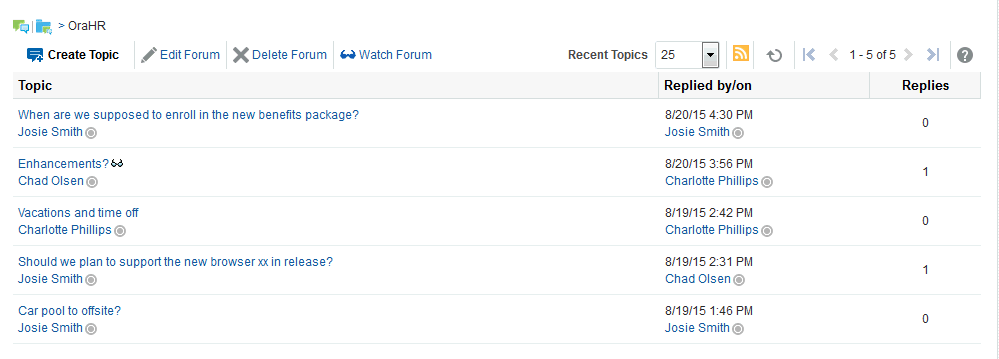
The Discussion Forums task flow is exposed by default on the Discussions page of a portal (see Adding a Discussions Page to a Portal). You cannot add this task flow to a Home portal.
-
Forums provides a means of accessing all possible views of a particular portal's discussions: Recent Topics, Popular Topics, Watched Topics, and Watched Forums (Figure 45-2).
Figure 45-2 Forums

The Forums task flow also provides controls for selecting the data to show in addition to the forum or topic title. The Personalize icon (pencil) in the task flow toolbar opens the Display Settings dialog (Figure 45-3).
For example, when Recent Topics is selected on the menu, the Display Settings dialog offers the options Author, Date, and Replies (Figure 45-3). When the task flow displays Watched Forums, the Display Settings dialog offers the options Date and Topics.
For more information, see Showing or Hiding Information in Forums View in Using Portals in Oracle WebCenter Portal.
Figure 45-3 Display Settings Dialog
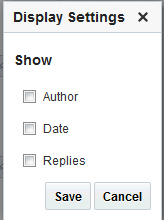
The available display settings vary according to the option currently selected on the Forums task flow Display Options menu (Figure 45-4).
Figure 45-4 Display Options Menu (Forums)
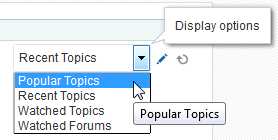
The Forums task flow can be placed on any page, regardless of whether the page is scoped to the Home portal or portal. It is available under the Social and Communication folder in the default resource catalog.
-
Popular Topics (Figure 45-5) provides a look at the most frequently viewed discussion topics in all the discussion forums in a given portal.
Figure 45-5 Popular Topics Task Flow

The Popular Topics task flow also provides controls for determining the data to show in addition to the topic title. Click the Personalize (pencil) icon in the task flow header to open a panel with controls for selecting the type of additional data to show (Figure 45-6).
Figure 45-6 Show Panel in a Popular Topics Task Flow
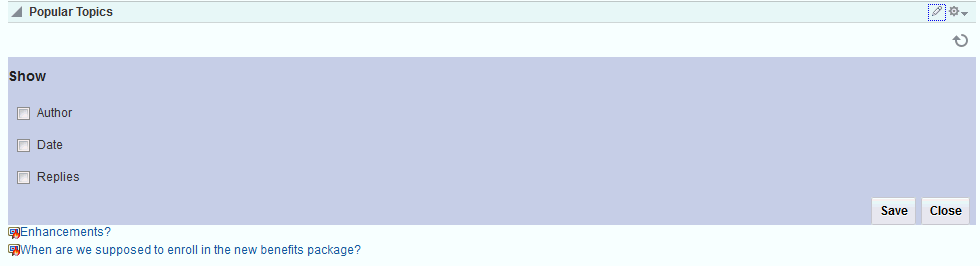
The Popular Topics task flow can be placed on any page, regardless of whether the page is scoped to the Home portal or a portal. It is available under the Alerts and Updates folder in the default resource catalog.
For more information, see Showing or Hiding Information in Popular Topics in Using Portals in Oracle WebCenter Portal.
-
Recent Topics (Figure 45-7) provides a look at the discussion topics accessed in the last two days in all the discussion forums in a given portal.
Figure 45-7 Recent Topics Task Flow

Access to portal discussion topics is restricted to only those portals of which you are a member.
The Recent Topics task flow also provides controls for determining the data to show in addition to the topic title. Click the Personalize icon (pencil) in the task flow header to open a panel with controls for selecting the type of additional data to show (Figure 45-8).
Figure 45-8 Show Panel in a Recent Topics Task Flow
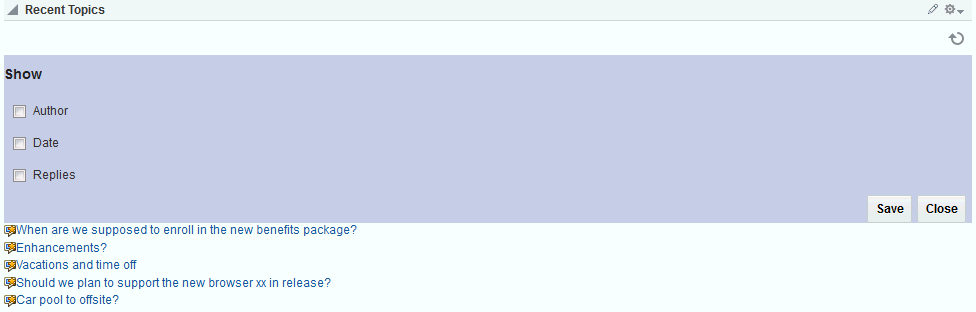
The Recent Topics task flow can be placed on any page, regardless of whether the page is scoped to the Home portal or portal. It is available under the Alerts and Updates folder in the default resource catalog.
For more information, see Showing or Hiding Information in Recent Topics in Using Portals in Oracle WebCenter Portal.
-
Watched Forums (Figure 45-9) provides a means of viewing all discussion forums you have selected to watch from a particular portal or from all portals.
Figure 45-9 Watched Forums Task Flow

The Watched Forums task flow also provides controls for determining the data to show with the topic title. Click the Personalize icon (pencil) in the task flow header to open a panel with controls for specifying the type of additional data to show (Figure 45-10).
Figure 45-10 Show Panel in a Watched Forums Task Flow
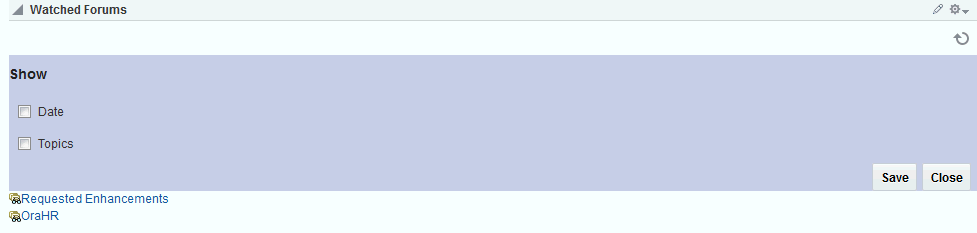
The Watched Forums task flow can be placed on any page, regardless of whether the page is scoped to the Home portal or portal. It is available under the Social and Communication folder in the default resource catalog.
For more information, see Showing or Hiding Information in Watched Forums in Using Portals in Oracle WebCenter Portal.
-
Watched Topics (Figure 45-11) provides a cohesive view of all the topics you have selected to watch from a particular portal or from all portals.
Figure 45-11 Watched Topics Task Flow

The Watched Topics task flow also provides controls for determining the data to show with the topic title. Click the Personalize (pencil) icon in the task flow header to open a panel with controls for specifying the type of additional data to show (Figure 45-12).
Figure 45-12 Show Panel in a Watched Topics Task Flow
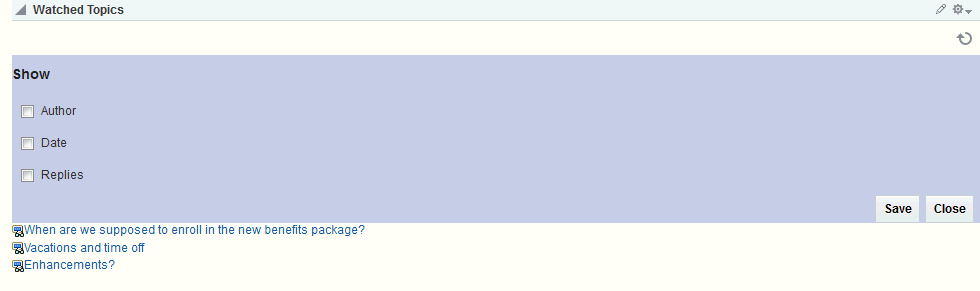
The Watched Topics task flow can be placed on any page, regardless of whether the page is scoped to the Home portal or portal. It is available under the Social and Communication folder in the default resource catalog.
For more information, see Showing or Hiding Information in Watched Topics in Using Portals in Oracle WebCenter Portal.
Discussions is tightly integrated with other features, such as links. Every discussion topic provides the opportunity to link from the topic to another portal asset, such as a document or an announcement.
Modifying Discussion Forum Settings for a Portal
By default, WebCenter Portal creates a single discussion forum for a new portal after discussions is enabled. For more information, see Enabling and Disabling Tools and Services Available to a Portal. After enabling Discussions, you can optionally modify the default setting to allocate multiple discussion forums to the portal (described in this section).
To modify the discussion forum settings for a portal:
-
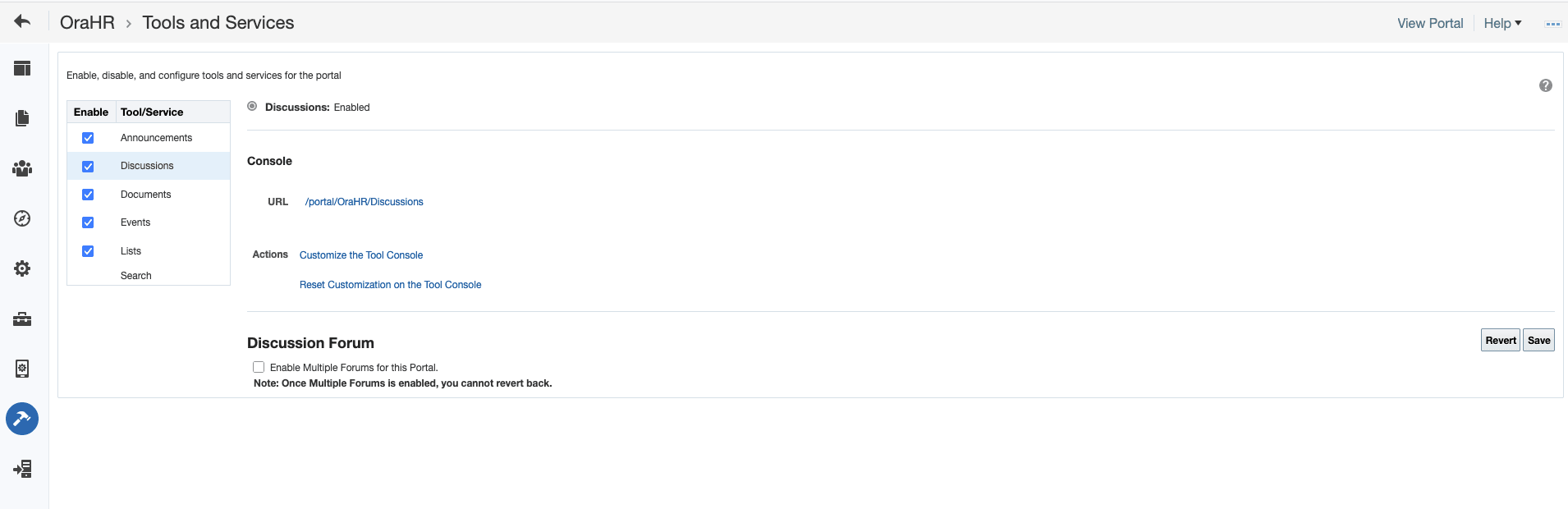
On the Tools and Services page (see Accessing Tools and Services Administration for a Portal), select Discussions (Figure 45-13).
Figure 45-13 Portal Discussion Forum Settings
-
To allocate multiple discussion forums to the portal, select Enable Multiple Forums for this Portal..
Note:
The Watched Topics and Recent Topics task flows on the Home page of a Discussions portal template are set to display data from a single forum, which is the default configuration. If you are specifying that your portal use multiple forums, the Watched Topics and Recent Topics task flows must be edited to remove the task flow parameters from the Portal ID field. See ["Portal ID"] in Discussions Task Flow Parameters.
-
Click Save.
Adding a Discussions Page to a Portal
To provide navigation to the Discussions page in a portal, you can add a page link to the portal navigation, as described in Adding an Existing Page to the Portal Navigation.
Adding a Discussions Task Flow to a Page {#WCPAA-GUID-A98117B1-0622-4934-A827-9ABFDDF4AA8E .sect3}
Task flows expose all of the functionality available for discussions. Discussion Forums is the most feature-rich task flow, providing controls for creating and managing discussion forums and posting and managing discussion topics and replies. The other task flows are useful windows into discussion forum content. They provide different views of the discussion forums and topics available to a particular portal or all portals.
For the steps to add a discussions task flow to a page, see Adding a Component to a Page.
Tip:
The discussions task flows are included in the default resource catalog (except the Discussion Forums console, which is included by default on the Discussions page) under the Social and Communication folder (Forums, Watched Forums, and Watched Topics) and the Alerts and Updates folder (Popular Topics and Watched Topics).
For more information about the discussions task flows, see About Discussions.
Figure 45-17 shows the Popular Topics task flow.
Figure 45-17 Popular Topics Task Flow
Users with Edit privileges can access the task flow's properties in the page editor. For information about configuring a discussions task flow to display the discussions from a particular portal or from all portals, see Working with Discussions Task Flow Properties.
Working with Discussions Task Flow Properties {#WCPAA-GUID-CE7FA4A3-605B-4DB8-B79C-BDB0C7CACB0D .sect3}
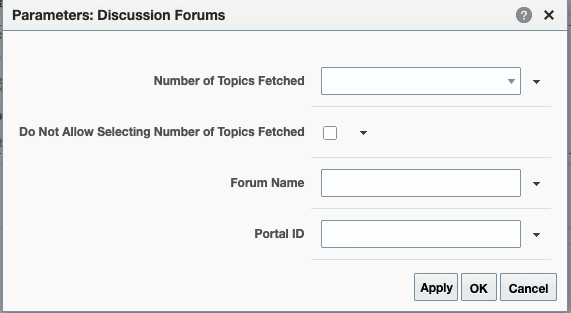
Discussions task flows have associated properties, which users with sufficient privileges can access through the task flows’ View Actions menu. For example, select Parameters to display the Parameters dialog (Figure 45-18).
Figure 45-18 Discussion Task Flow Component Properties
See Also:
The following sections provide information about properties of Discussions task flows and describe the task flow parameters:
Setting Discussions Task Flow Properties
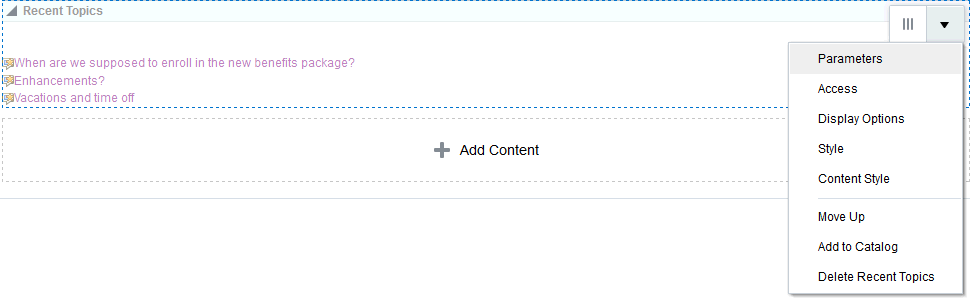
In the page editor, selecting any component exposes a View Actions menu (Figure 45-19), which provides access to the component’s properties: Parameters, Access, Display Options, Style, and Content Style.
Figure 45-19 View Actions Menu on Recent Topics Task Flow
To set Discussions task flow properties:
- Open the page that contains the task flow in the page editor (see Opening a Page in the Page Editor).
-
Select the task flow, then click the View Actions menu and select the properties you want to set:
-
Parameters control the default task flow content. For descriptions of each parameter, see Discussions Task Flow Parameters. Parameters can be wired to events, and can be used facilitate the wiring of the task flow to page parameters and page definition variables. For more information, see Wiring Pages and Components.
-
Access settings show or hide the component to specific roles, users, or groups. For more information, see Setting Component Access.
-
The Display Options, Style, and Content Style properties affect the appearance and behavior of the task flow for all users. These properties are common to all task flows. For more information, see Modifying Component Properties.
The Parameters and Display Options dialogs provide access to an Expression Language (EL) editor, which you can use to select or specify a variable value instead of a constant value. Click the
 icon next to a property, then select Expression Builder to open the editor.
Note:
When you enter EL in the Display Options dialog, the parser reports an error only if it detects invalid syntax, such as a missing closing bracket. Validation is perform only on syntax, not on the expression value. Generic Display Options are those cataloged in Table 10-1.
EL validation is not performed on non-generic display options.
If you need EL assistance, an application developer can provide an EL expression; see Expression Language Expressions in Developing for Oracle WebCenter Portal.
-
- Save your changes.
Discussions Task Flow Parameters
Table 45-1 describes the properties that are unique to the discussions task flows.
Table 45-1 Discussions Task Flow Parameters
| Parameter | Description | Task Flow |
|---|---|---|
|
|
The Internal ID(GUID) of the Portal under which a given set of forums/topics is managed. If this parameter is specified in the Forums task flow, if multiple forums is enabled, the list of forums for the portal will be displayed, else the list of topics for the portal will be displayed. If omitted, the value defaults to the ID associated with the current portal. In the Home portal, "Forum Not Found" message will be displayed. If this parameter is specified in the Popular Topics task flow or Recent Topics task flow or Watched Topics task flow, the topics for the portal will be displayed. If this parameter is specified in the Watched Forums task flow, the forums for the portal will be displayed. If this parameter is set to Home Portal GUID(s8bba98ff_4cbb_40b8_beee_296c916a23ed), then the forums being watched in all the Portals will be displayed. |
|
|
|
The name of the forum If this parameter and the Portal ID parameter is specified in the Forums task flow, then the topics for the Forum in the Portal will be displayed. If this parameter is omitted and the Portal ID parameter is specified in the Forums task flow, then the topics for the Default Forum in the Portal will be displayed. If this parameter and the Portal ID parameter is specified in the Popular Topics task flow or Recent Topics task flow or Watched Topics task flow, then the topics for the Forum in the Portal will be displayed. If this parameter is specified and the Portal ID parameter is omitted in the Popular Topics task flow or Recent Topics task flow or Watched Topics task flow, then the topics for the Forum in the current Portal will be displayed. If this parameter is set to Home Portal GUID(s8bba98ff_4cbb_40b8_beee_296c916a23ed) in Watched Topics task flow, then the topics being watched in all the Portals will be shown and Forum Name will be ignored. |
|
|
|
A means of showing or hiding the task flow personalization feature (see Showing and Hiding Additional Discussion Forum Information in Using Portals in Oracle WebCenter Portal.
|
|
|
|
If selected, then users are not allowed to change the number of visible topics. |
Discussion Forums |
|
|
Sets the number of visible topics. |
|
|
|
Sets the number of visible recent topics. |
Recent Topics |
|
|
Sets the number of visible watched forums. |
Watched Forums |
|
|
Sets the number of visible watched topics. |
Watched Topics |
|
|
If selected, then the More link (to see more topics or forums) is not visible. |
|
Working with Discussions Task Flows
The Discussion Forums task flow is rich, providing controls for creating and managing discussion forums (available to the portal manager only) and posting and managing discussion topics and replies. The other task flows, such as Watched Topics or Watched Forums are useful views into discussion forum content. They provide different views of the discussion forums and topics available to a particular portal or all portals.
Note:
Most of the tasks can be accomplished by portal members with the permissions to
Create and Edit Discussions,Reply To DiscussionsandView Discussions. Tasks such as creating and managing forum topics and replies, watching forums and topics, showing and hiding forum information, sending mail from discussion topics, are described in Viewing and Participating in Discussions in Using Portals in Oracle WebCenter Portal.Only portal managers can or members with the permission to
Create, Edit, and Delete Discussionscan create, edit, and delete discussion forums, described in this section.
This section contains the following subsections:
Creating a Discussion Forum {#WCPAA-GUID-552C4F7D-F495-4550-9BDD-99C019EAA1D6 .sect4}
Create discussion forums on the Discussions page (or console) or with the Discussion Forums task flow.
Note:
A new portal is assigned a single discussion forum by default. Portal managers can allocate multiple forums to a portal if required, as described in Modifying Discussion Forum Settings for a Portal.
To create a discussion forum:
Note:
To create forums, you must be the portal manager, or have permission to
Create, Edit, and Delete Discussions.
-
Go to the Discussions page (console) or the Discussions Forums task flow.
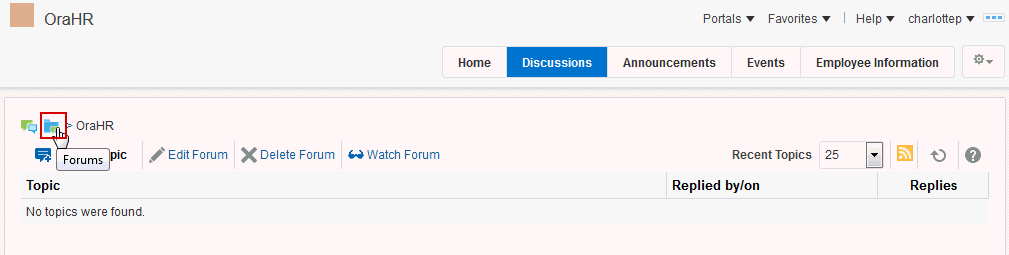
If multiple forums have been enabled, then you see a Forums link pointing to the list of forums (Figure 45-20)
Figure 45-20 Discussions Page with Multiple Forums Enabled
-
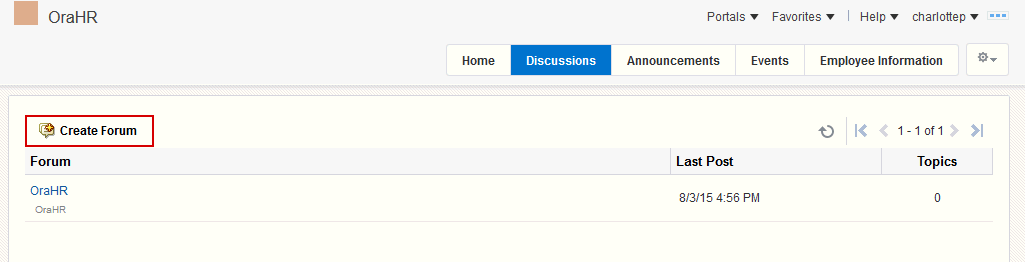
Click the Forums link, and then click Create Forum (Figure 45-21).
Figure 45-21 Create Forum
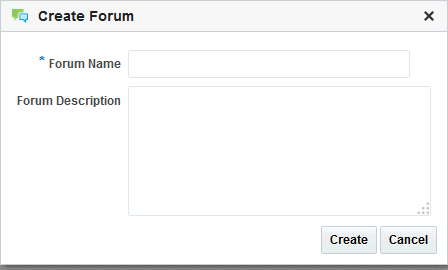
The Create Forum dialog opens (Figure 45-22).
Figure 45-22 Create Forum Dialog
-
In the Forum Name field, enter a name for the discussion forum.
You can enter up to 200 characters.
-
Optionally, in the Forum Description text box, enter a description of the discussion forum.
You can enter up to 4000 characters.
-
Click Create.
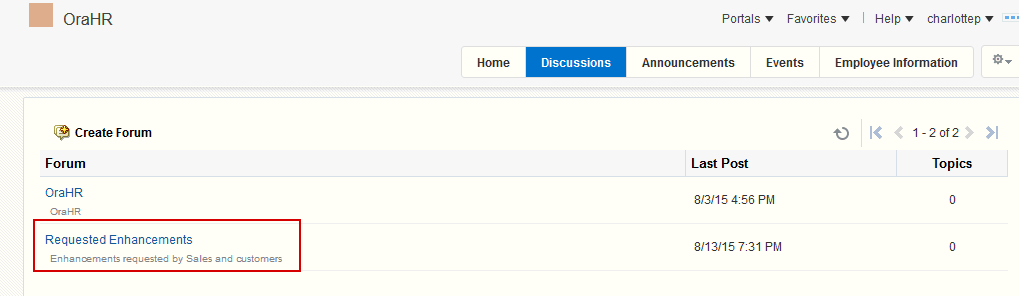
The new forum appears in the list of forums (Figure 45-23). Click a forum name to view forum content.
Figure 45-23 New Discussion Forum (Requested Enhancements)
Editing the Forum Name and Description {#WCPAA-GUID-2E301C45-F201-4DC0-A379-4B343B09086E .sect4}
To rename a discussion forum or revise its description:
Note:
To edit the forum name and description, you must be the portal manager, or have permission to
Create, Edit, and Delete Discussions.
-
Go to the Discussions page (or console) or the Discussions Forums task flow, and click the forum name link you want to edit.
The forum page appears (Figure 45-24).
Figure 45-24 Forum Page with Edit Forum Link

-
Click Edit Forum.
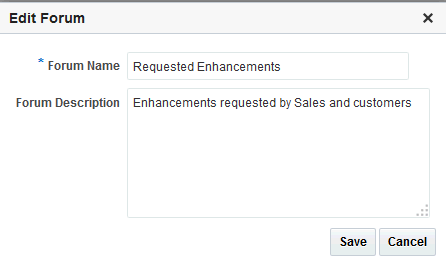
The Edit Forum dialog opens (Figure 45-25).
Figure 45-25 Edit Forum Dialog
-
Optionally, in the Forum Name field enter a new name for the discussion forum.
You can enter up to 200 characters.
-
Optionally, in the Forum Description text box, revise the default description of the discussion forum.
You can enter up to 4000 characters.
-
Click Save.
Deleting a Discussion Forum {#WCPAA-GUID-68706301-D81F-48D5-B039-FF82EFD7643B .sect4}
To delete a discussion forum:
Note:
To delete a discussion forum, you must be the portal manager, or have permission to
Create, Edit, and Delete Discussions.
-
Go to the Discussions page (console) or the Discussions Forums task flow, and click the name link of the forum you want to delete.
The forum page appears (Figure 45-26).
Figure 45-26 Forum Page with Delete Forum Link

-
Click Delete Forum.
-
In the Delete Forum dialog that appears, click Delete to confirm the operation.
The forum and all the topics associated with the forum are deleted.