Publishing a Portal
Make your portal available for others to use. You can choose to make a portal publicly available or restrict it to only portal users.
Permissions: To perform the tasks in this chapter, you need the portal-level permission
Manage Security and ConfigurationorManage Configurationpermission.
Any user who accesses administration settings for a portal and does not have Manage permission (for example, a user with Customize Pages permissions, granted permission to edit a page in the portal) will see only the settings available to their role and permissions.
See About Roles and Permissions for a Portal.
Topics
About Publishing a Portal
Once you have created a portal, you probably want others to be able to use it. As the portal manager, you can determine whether the portal should be discoverable only by other WebCenter Portal users, or publicly available.
If you want to share a portal with others, you can publish a link to the portal that will appear in activity streams of other users. With appropriate permissions, users can directly access a portal by clicking the link that specifies the portal display name.
For information about sharing the link to a portal with others, see Publishing the Link to a Portal in Using Portals in Oracle WebCenter Portal.
Publishing the Link to a Portal
If you want to share a portal with others, you can publish a link to the portal that will appear in activity streams of other users. With appropriate permissions, users can directly access a portal by clicking the link that specifies the portal display name.
For information about sharing the link to a portal with others, see Publishing the Link to a Portal in Using Portals in Oracle WebCenter Portal.
Making a Portal Known (Discoverable)
You can make a portal discoverable by other WebCenter Portal users on their Portals page and in search results to let them know that it exists. Making a portal discoverable does not make its content accessible. Users interested in the portal can request membership through self-service (if enabled) or by mail.
To make a portal discoverable by other WebCenter Portal users:
- Set general access to the portal:
-
If you are creating a new portal, select either Public or Private for the portal access, as described in Creating a New Portal.
-
If the portal is currently Hidden, change the access to Public or Private, as described in Changing the Access to a Portal.
-
- (Optional) To allow users to join the portal, enable self-registration (you can still retain control by requiring approval for any subscription request), as described in Managing Self-Service Membership for a Portal.
- To add or invite specific WebCenter Portal users and groups to the portal, allow WebCenter Portal users to self-subscribe, or invite non-WebCenter Portal users to subscribe to the portal, see Managing Members and Assigning Roles in a Portal.
Granting Users Access to a Portal
After making the portal discoverable, the next step is to assign the permissions that you want different user roles to have in the portal, if the default permissions are not satisfactory.
WebCenter Portal users have the default Authenticated-User role. A portal is not fully accessible until you give the Authenticated-User role permissions to access the pages of the portal:
-
To grant access to the entire portal see Viewing and Editing Permissions of a Portal Role.
-
To grant access to a limited number of individual pages in the portal, see Setting Page Security.
Note:
To use the task pane available through the Microsoft Office shared document management functionality (while editing a Microsoft Word, Excel, or PowerPoint file in a portal) to add members to a portal, see Adding Members to a Portal.
Granting Public Access to a Portal
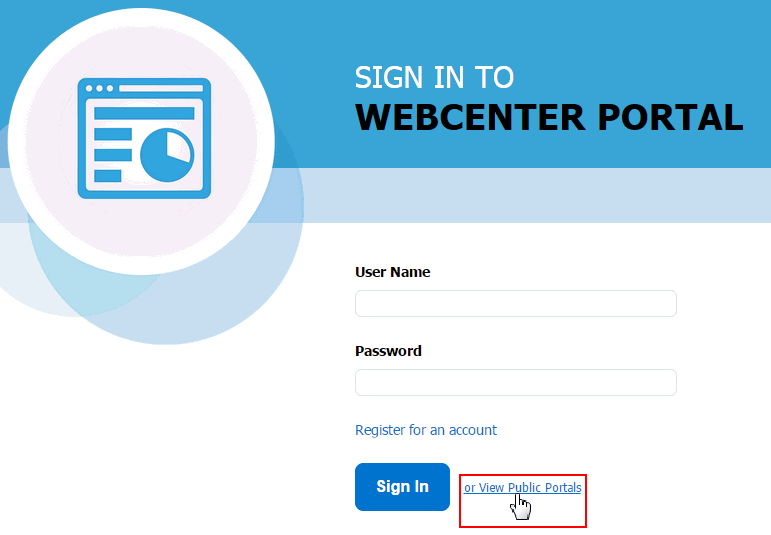
You can make a portal available to anyone who has access to the URL to the portal. Registering for a WebCenter Portal account is not required. The public information provided allows the portal to be shared with non-members and people outside of the WebCenter Portal community.
Public users who are not registered WebCenter Portal users can access public portals in two ways:
-
Directly, using the portal URL provided to them.
-
From the WebCenter Portal Sign In page, if their installation is configured to display this page.
Figure: Public Portals Link on Sign In Page
Description of the illustration wcsug_gs_wel_public.gif
Public users are assigned the Public-User role, which is automatically granted View Pages and Content permission in the portal, which allows public users to view pages, lists, events, links, and notes. To allow public users to view documents, you need to grant these permissions. Public users do not have edit, create, or manage permissions in the portal.
To grant public users access to a portal, including any content and services you want to expose on the public pages:
- Specify the general access settings for the portal:
-
If you are creating a new portal, select Public for the portal access, as described in Creating and Building a New Portal.
-
If the portal is currently Hidden or Private, change the access to Public, as described in Changing the Access to a Portal.
-
-
To see what the public view of a portal will look like, copy the** Portal URL** value from the Overview page in the portal administration (see Accessing the General Settings and Actions for a Portal), log out of WebCenter Portal, and paste the URL into your browser. Because you are logged out of WebCenter Portal, only pages designated as public display.
-
(Optional) To allow public users to join your portal, you may want to enable self-registration too (you can still retain control by requiring approval for any subscription request). See Managing Self-Service Membership for a Portal.
-
Now that you have made the portal public, the next step is to assign additional permissions that you want
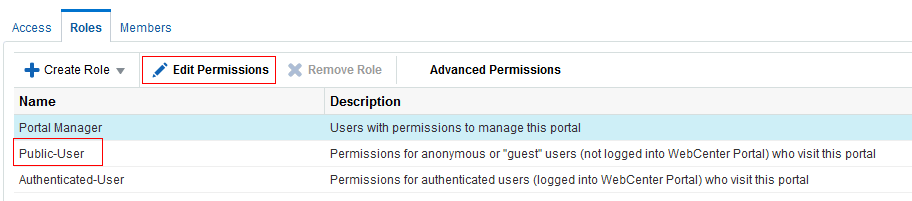
Public-Userrole to have in the portal, if the default read-onlyView Pages and Contentpermission is not sufficient. You can additionally grant public users permissions to view documents (files, folders, wikis, and blogs).On the Roles page in the portal administration, select Public-User, then click Edit Permissions.
Figure: Granting Public User Access to Portal
Description of the illustration wcsug_gs_publicuserrole.gif
-
In the Edit Permissions dialog, select the check boxes for the desired public permissions for the portal. For information about the permissions listed in the Edit Permissions dialog.
The public permissions that you grant here override the public permissions set by the system administrator at the application level.
-
Click Save.
-
If you want to restrict public access to certain pages in the portal, see Setting Page Security.