Adding Announcements to a Portal
Add Announcements to a portal to provide portal members with a quick, convenient way to create and broadcast messages instantly or at a specified future time.
Note:
Oracle WebCenter Portal has deprecated the support for Jive features in 14c (Announcements and Discussions/Discussion Forums). In Oracle WebCenter Portal 14.1.2.0.0, support for Announcements and Discussions has been reintroduced as native product features, eliminating the dependency on Jive. Customers are therefore recommended to upgrade to Oracle WebCenter Portal 14.1.2.0.0.
Permissions: To perform the tasks in this chapter, you must be a portal manager or a portal member with the portal-level permissions
Manage Security and ConfigurationorManage Configuration.At a minimum, you must have the following permissions:
Edit Pages(to add the Announcements task flow to a page)
Edit Task Flows(to modify the task flow, if necessary)One or more of the following advanced permissions:
Create, Edit, and Delete AnnouncementsorCreate and Edit Announcements
Topics:
Prerequisites for Announcements
To make announcements available in a portal, the portal manager or anyone with Manage Security and Configuration or Manage Configuration permission must perform the following tasks:
-
If not already enabled, enable the Announcements tool, as described in Enabling and Disabling Tools and Services Available to a Portal.
-
Provide access for users to announcements in either of the following ways:
-
Provide users with the pretty URL to the Announcements page (see Pretty URLs for Pages in a Specified Portal).
-
Add a page link to the Announcements page in the portal navigation (see Adding an Announcements Page to a Portal).
-
Add the Announcements task flow to a page in the portal (see Adding an Announcements Task Flow to a Page).
-
Note:
For information about the announcements feature and how to use announcements, see Working with the Announcements Task Flow.
About Announcements
WebCenter Portal provides the ability to post announcements about important activities and events to all authenticated users. For example, a portal manager can announce the availability of a new feature or the plan to take a portal offline temporarily for maintenance or the system administrator can announce the plan to shut down portal for maintenance (Figure 1).
Figure 1 Sample Announcement in the Announcements - Quick View Task Flow

Announcements are integrated with many other features, such as Activity Stream, RSS, and presence, and you can link announcements to other tools, such as events and discussions. For example, if your company is announcing a new product, you can link from the announcement directly to a discussion forum, where potential customers can ask other customers about the product, or link to an instant messenger where customers can chat with a customer service representative about the product. Announcement titles and text are searchable with Elasticsearch.
Announcements are limited to the portal where you create them. In the Home Portal, announcements are for WebCenter Portal (or application-wide), and are available to all logged-in (authenticated) users.
The Announcements tool should be enabled in the portal. For information about enabling announcements in a portal, see Enabling and Disabling Tools and Services Available to a Portal. The Announcements task flow must also be in your resource catalog. For information see Adding a Resource to a Resource Catalog.
As the portal manager, you will need to provide users access to the Announcements task flows in one or more of the following ways:
-
By providing users with a pretty URL to access the Announcements page or console. For more information, see Pretty URLs for Pages in a Specified Portal.
-
By creating an Announcements page in the portal, as described in Adding an Announcements Page to a Portal.
-
By adding the task flows to a portal page, as described in Adding an Announcements Task Flow to a Page.
Adding an Announcements Page to a Portal
To provide navigation to the Announcements page in a portal, you can add a page link to the portal navigation, as described in Adding an Existing Page to the Portal Navigation.
Adding an Announcements Task Flow to a Page
For the steps to add an Announcements or Announcements - Quick View task flow to a page, see Adding a Component to a Page.
Note:
The presence or location of the Announcements task flow in the resource catalog depends on how the resource catalog is configured. For example, in the Default Portal Catalog, the Announcements task flow is included under the Alerts and Updates folder.
The Announcements - Quick View task flow is not available in the Default Portal Catalog provided with WebCenter Portal, so you will only see an entry for it if it has been added to a custom resource catalog that has been made available to the page.
For more information, see Adding a Resource from the Resource Registry (in the Add Resource Catalog Item dialog, select Task Flows , then Design Time , then Announcements - Quick View ). To use the custom resource catalog for editing portal pages, make sure it is Available , and set for use by pages in the portal, as described in Changing the Resource Catalogs in a Portal.
Figure 3 shows the Announcements task flow on a page.
Figure 3 Announcements - Quick View Task Flow on a Page

Users with Edit privileges can set the task flow's region parameter to the ID of the Portal under which announcements must be created and stored.
Note:
The Announcements - Quick View task flow opens in a portal, regardless of the Portal ID specified.
For more information about setting task flow properties, see Working with Announcements Task Flow Properties.
Working with Announcements Task Flow Properties
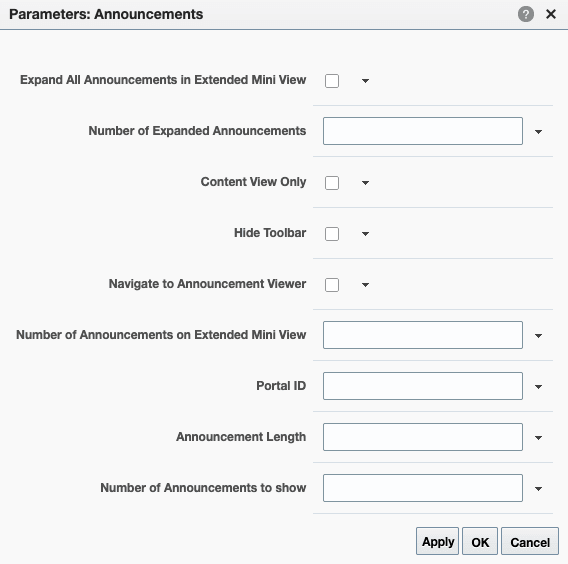
Announcements task flows have associated properties, which users with sufficient privileges can access through the task flows' ViewActions menu. For example, select Parameters to display the Parameters dialog (Figure 4).
Figure 4 Announcements Task Flow Component Properties
See Also:
The following sections provide information about properties of Announcements task flows and describe the task flow parameters.
Setting Announcements Task Flow Properties
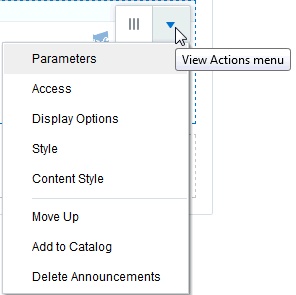
In the page editor, selecting any component exposes a View Actions menu (Figure 5), which provides access to the component’s properties: Parameters, Access, Display Options, Style, and Content Style.
Figure 5 View Actions Menu on an Announcements Task Flow
To set Announcements task flow properties:
- Open the page that contains the task flow in the page editor (see Opening a Page in the Page Editor).
-
Select the task flow, then click the View Actions menu and select the properties you want to set:
-
Parameters control the default task flow content. For description of each parameter, see Announcements Task Flow Parameters. Parameters can be wired to events, and can be used facilitate the wiring of the task flow to page parameters and page definition variables. For more information, see Wiring Pages and Components.
-
Access settings show or hide the component to specific roles, users, or groups. For more information, see Setting Component Access.
-
The Display Options, Style, and Content Style properties affect the appearance and behavior of the task flow for all users. These properties are common to all task flows. For more information, see Modifying Component Properties.
The Parameters and Display Options dialogs provide access to an Expression Language (EL) editor, which you can use to select or specify a variable value instead of a constant value. Click the
 icon next to a property, then select Expression Builder to open the editor.
Note:
When you enter EL in the Display Options dialog, the parser reports an error only if it detects invalid syntax, such as a missing closing bracket. Validation is performed only on syntax, not on the expression value. Generic Display Options are those cataloged in Table 10-1.
EL validation is not performed on non-generic display options.
If you need EL assistance, an application developer can provide an EL expression; see Expression Language Expressions in Developing for Oracle WebCenter Portal.
-
- Save your changes.
Announcements Task Flow Parameters
Table 43-1 describes the parameters that are unique to the Announcements task flows.
Table 43-1 Announcements Task Flow Parameters
| Parameter | Description | Task Flow |
|---|---|---|
|
|
Select to display details for all announcements in the extended quick view. The default value is deselected, in which case announcements display the announcement title only. |
Announcements - Quick View |
|
|
The number of announcements to display announcement details. Announcements exceeding this value display the announcement title only. Use only when Express values using the following formats:
|
Announcements - Quick View |
|
|
Select to remove the announcement title and display just the announcement content. Leave unchecked to render the title. When selected, the values for |
Announcements - Quick View |
|
|
Hides the Announcements toolbar. |
Announcements - Quick View |
|
|
Select to navigate to the announcement resource. Default behavior (deselected) is to launch in a popup window. |
Announcements - Quick View |
|
|
The number of announcements to show in a page on extended mini view. |
Announcements - Quick View |
|
|
The Internal ID(GUID) of the Portal under which announcements are created. If this parameter is specified, all active announcements within the specified portal will be displayed. If omitted, all active announcements for the current portal will be displayed. |
Announcements - Quick View Announcements |
|
|
The number of characters to show in announcement details. Use only when If no value is specified, then WebCenter Portal displays 200 characters. This parameter takes effect with Express values using the following formats:
The value you enter for |
Announcements - Quick View |
|
|
The number of announcements to show on the quick view. |
Announcements - Quick View |
Working with the Announcements Task Flow
Both the Announcements and the Announcements - Quick View task flows display current announcements. The Announcements task flow additionally offers tools for managing announcements within the task flow. With the Announcements - Quick View task flow, you must click the Open Announcement Manager icon to manage announcements.
The Announcements - Quick View task flow includes numerous parameters to customize your view. For example, administrator can remove the link to the Announcement Manager. This lets you present announcements to end users where manage controls are not needed. The task flow lists 10 announcements by default, but you can change this number and change how much of the announcement is displayed. The More Announcements... link opens a popup window containing the complete list of all announcements with pagination behavior. This is called the Extended Quick View (or Extended Mini View).
As the portal manager, you can perform all the tasks with announcements:
-
View announcements in the Announcements task flow—All members with
View Announcementspermissions in Home Portals and portal managers. For more information, see Viewing Announcements in the Announcements Task Flow and Viewing Announcements in the Quick View Task Flow. -
Create announcements—All members with
Create and Edit Announcementspermissions. For more information, see Creating an Announcement in Using Portals in Oracle WebCenter Portal. -
Edit announcements—Creator of the announcement in Home Portals and portal managers. For more information, see Editing Announcements in Using Portals in Oracle WebCenter Portal.
Note:
If members have
Create, Edit, and Delete Announcementspermissions, they can edit any announcement in the portals in which they have access. If they haveCreate and Edit Announcementspermissions, they can edit only those announcements that they created. -
Delete announcements—system administrators in Home Portals and portal managers. For more information, see Deleting an Announcement in Using Portals in Oracle WebCenter Portal.
Note:
If members have
Create, Edit, and Delete Announcementspermissions, they can delete any announcement in the portals in which they have access. If they haveCreate and Edit Announcementspermissions, they can delete only those announcements that they created. -
Send mail—All members. For more information, see Sending Mail from an Announcement in Using Portals in Oracle WebCenter Portal.
-
Find or create links—All members. For more information, see Linking Announcements in Using Portals in Oracle WebCenter Portal.
This section includes the following topics:
Viewing Announcements in the Announcements Task Flow
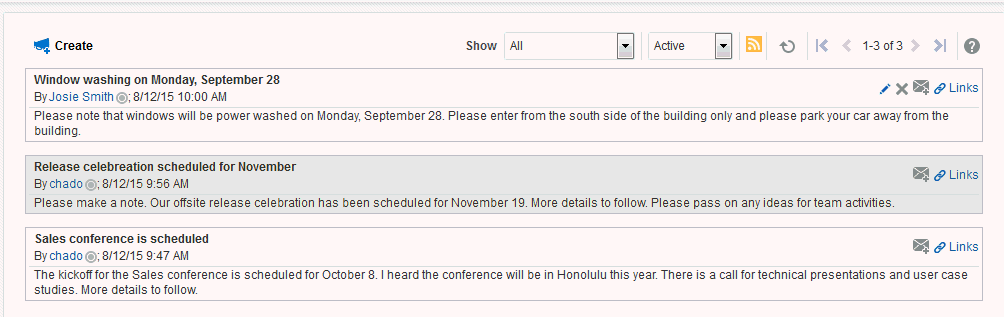
The Announcements task flow not only provides the tools to create, edit, and delete announcements, it also provides controls for determining when an announcement is published and when it expires and is consequently removed from the task flow. It provides Show lists for personalizing your view of announcements. After you create an announcement, you are offered the option to mail or link the announcement.
Depending on the privileges you have on the page and whether the required services are configured in WebCenter Portal, you may see only a subset of these options in the Announcement Manager. For example, the Delete icon is displayed only to users with manage privilege.
Server administrators in Home portals and portal managers can access the Announcements task flow.
To view announcements in the Announcements task flow, either select the Announcements task flow on a page, or select the Announcements page.
Figure 6 shows some announcements in the Announcements task flow.
Figure 43-6 Announcements in the Announcements Task Flow
Tip:
The way you access this page depends on the page template in use. For example, in a side navigation template, you may access it through a Manage menu.
You can also navigate to this page using the direct URL provided in WebCenter Portal Pretty URLs.
Working with the Announcements - Quick View Task Flow
The Announcements - Quick View task flow is essentially a viewer for convenient access to current announcements. More robust features, for such actions as creating and editing announcements, are offered in the Announcements task flow.
By default, announcements in the Announcements - Quick View task flow show announcement titles as links. But you can configure the task flow to display only announcement titles, titles with some amount of content, or only content.
See Also:
This section contains the following subsections:
Viewing Announcements in the Quick View Task Flow
The Announcements - Quick View task flow provides a read-only view of the announcement title.
To view announcements in an Announcements - Quick View task flow:
-
In the Announcements - Quick View task flow, click the announcement you want to view (Figure 7).
Figure 7 Announcements - Quick View Task Flow
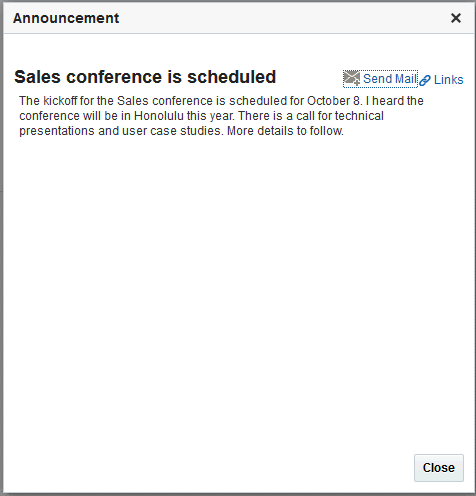
The announcement details display in the Announcement dialog (Figure 8). Similar to the announcement content displayed in the Announcements task flow, this dialog displays content with all the formatting that was applied to it.
Figure 8 Announcement Accessed from Quick View Task Flow
-
Click Close to exit the dialog.
Managing Announcements in the Quick View Task Flow {#WCPAA-GUID-ADDCD8E9-872B-474F-821B-88219198DF53 .sect5}
You can manage announcements in the Announcements - Quick View task flow with the Announcement Manager. The Announcement Manager provides the functionality to create an announcement or from existing announcements the ability to edit, delete (if users have the permission to do so), send mail, and create links in the Announcements task flow.
Administrators can remove the link to the Announcement Manager. If your administrator allows this functionality, then you see the Open Announcement Manager icon (Figure 43-9).
The Announcement Manager allows users to create new announcements, edit existing announcements, delete (if users have the permission to do so) announcements, send mail to portal members (showing the content and a link to the announcement), and link announcements with other assets.
Figure 43-9 Open Announcement Manager Icon
