Working with Resource Catalogs
Resource catalogs are portal assets that expose components and connections that you can add to a portal. Use a resource catalog to populate pages, page templates, page styles, and task flows.
Permissions: To perform the tasks in this chapter on shared resource catalogs, you must have the application-level
Create, Edit, and Delete Resource Catalogspermission. Users with theApplication Specialistrole have this permission by default. For more information about application-level permissions, see About Application Roles and Permissions in Administering Oracle WebCenter Portal.
To perform the tasks in this chapter, you need one of the following portal-level permissions:
-
Assets: Create, Edit, and Delete AssetsorCreate AssetsandEdit Assets(standard permissions) -
Resource Catalogs: Create, Edit, and Delete Resource CatalogsorCreate Resource CatalogsandEdit Resource Catalogs(advanced permissions)
See About Roles and Permissions for a Portal.
Topics
About Resource Catalogs
On the Assets and Shared Assets pages, WebCenter Portal provides three built-in resource catalogs:
-
Default Portal Catalog, assigned to portal pages by default, contains resources to add to pages and task flow assets in a portal.
-
Default Home Portal Catalog, assigned to pages in the Home portal by default, contains resources to add to a personal or business role page.
-
Default Page Template Catalog, assigned to page templates and page styles by default, contains a Navigations folder and a Portal Components folder, which provide access to resources specifically used in page templates and page styles. Note that all pages in a portal use the same page template, though there may be several page templates available as portal assets.
Alternatively, portal designers can develop custom resource catalogs. Within a portal, you can create a new resource catalog from scratch or copy an existing resource catalog into a new resource catalog. If a resource catalog is a shared asset (available to all portals), it is shown on the Assets page of all portals along with portal-specific resource catalogs.
Resource catalogs are portal assets that expose components and connections that you can add to a portal. You can use a resource catalog to populate pages, page templates, page styles, and task flows. The items listed in a resource catalog are collectively referred to as resources.
The resource catalog available to you as you edit a page, page template, page style, or task flow is established by the portal administration settings, and may be a built-in resource catalog or a custom resource catalog.
Displaying and Using a Resource Catalog
When you edit a page, page template, page style, or task flow, the resource catalog is shown when you click Add Content in any region, or when you click the Show Catalog icon. A resource catalog is organized into folders and subfolders to categorize resources. You can click a folder to expand the resource category, then select the resource that you want to add.
You can navigate back through the resource catalog hierarchy using the icons in the resource catalog menu bar. Use the Search field to locate resources by name or description. Click the Refresh icon to update the resource catalog with newly added resources.
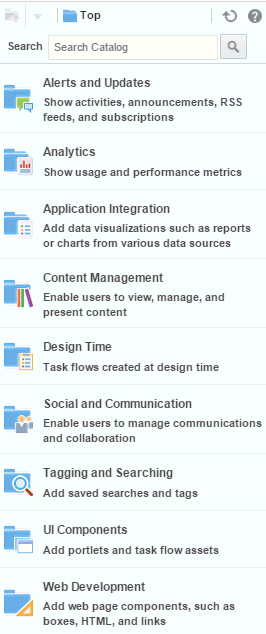
Figure 16-1 shows the Default Portal Catalog, one of the built-in resource catalogs described in About the Built-In Resource Catalogs.
Figure: Default Portal Catalog
About the Built-In Resource Catalogs
WebCenter Portal includes three built-in resource catalogs:
-
Default Portal Catalog
-
Default Home Portal Catalog
-
Default Page Template Catalog
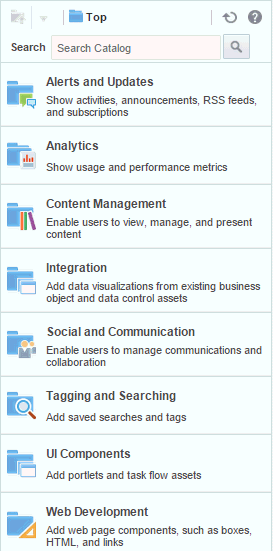
Table 16-1 describes and contrasts the three built-in resource catalogs.
Note:
You can create also a custom resource catalog specific to your needs that include a subset of these categories and resources, or add more resources from the resource registry, then make it available to pages and page templates. See Creating a Resource Catalog and Setting the Default Resource Catalogs.
Table 16-1 Built-in Resource Catalogs
| Default Portal Catalog | Default Home Portal Catalog | Default Page Template Catalog |
|---|---|---|
|
The Default Portal Catalog is assigned to portal pages by default. It contains resources to add to pages and task flow assets in a portal. |
The Default Home Portal Catalog is assigned to pages in the Home portal by default. It contains resources to add to a personal or business role page. For more information about the Home portal, see Exploring WebCenter Portal in Using Portals in Oracle WebCenter Portal. |
The Default Page Template Catalog is assigned to page templates and page styles by default. It contains a Navigations folder and a Portal Components folder, which provide access to resources specifically used in page templates and page styles. For more information about page templates and page styles, see Working with Page Templates and Working with Page Styles. |
 The Integration category is available in the Default Portal Catalog only when one or more business objects and/or data controls have been created. |
 |
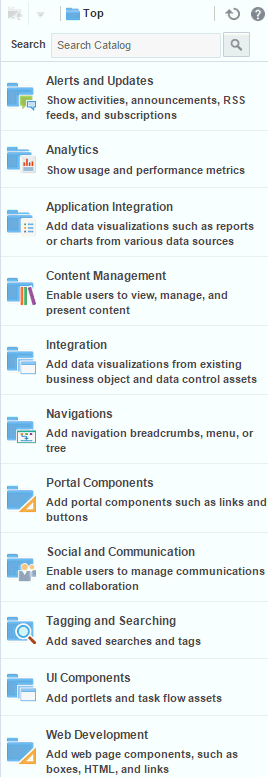 |
Table 16-2 provides a description of each category in the default resource catalogs.
Table 16-2 Resources in the Built-In Resource Catalogs
| Folder | Description |
|---|---|
|
Alerts and Updates |
Includes task flows to track alerts and notifications:
|
|
Analytics |
Includes task flows to help to track and display different metrics, such as response times and usage behavior.
For more information, see Adding Analytics to a Portal. |
|
Application Integration This category is not available in the Default Page Template Catalog. |
Includes the Data Presenter Visualization component, which is the default starting point for an empty data visualization.
For more information, see Working with Data Visualizations. |
|
Content Management |
Includes task flows to access, add, and manage folders and files, or display content in a predefined template:
For more information, see Working with Content in a Portal. |
|
Integration This category is available in the Default Portal Catalog only when one or more business objects and/or data controls have been created. |
Includes business objects and data controls created as portal assets:
|
|
Navigation This category is available only in the Default Page Template Catalog. |
Includes built-in navigation task flows that you can add to page templates:
For more information, see Adding Navigation to a Page Template. |
|
Portal Components This category is available only in the Default Page Template Catalog. |
Includes portal components that are available to add to portal pages, page templates, and page styles. For more information and descriptions of all available portal components, see Portal Components. |
|
Social and Communication |
Includes resources to enable social networking and communication among users:
|
|
Tagging and Searching |
Includes task flows to enable effective searching of WebCenter Portal and other sources:
|
|
UI Components |
Includes the following resources:
|
|
Web Development |
Includes components that add dynamic content to a page, such as images, HTML, and links, as well as components that end users can modify at runtime, such as language selection and areas to add their own content:
For more information about these components, see Working with Web Development Components on a Page. |
About the Resource Registry
The Resource Registry is a central repository of all the resources available to WebCenter Portal. It contains all the resources that you can add to custom resource catalogs. In addition to including the built-in resources, the Resource Registry is also updated dynamically to include new resources, such as task flows, application integration components and portlets when they are created in WebCenter Portal or deployed as shared libraries from Oracle JDeveloper. As a result, a resource that is created and published in WebCenter Portal is available for consumption right away.
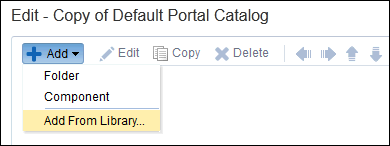
In the Edit dialog for a custom resource catalog (Figure 16-2), click the Add menu and select Add From Library to open the Resource Registry (Figure 16-3).
Figure: Add From Library Option to Access the Resource Registry
Description of the illustration wcsug_rescat_res_lib_opt.gif
Figure: Add Resource Catalog Item Dialog (Resource Registry)
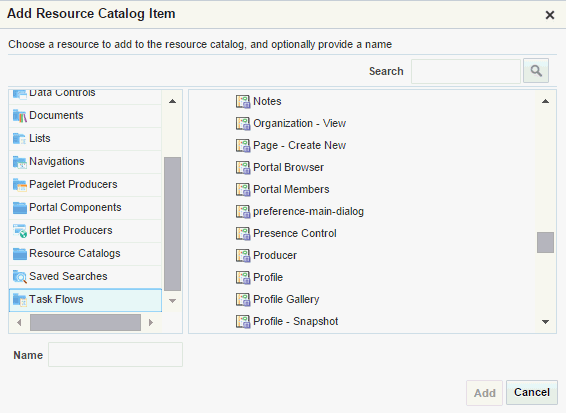
Description of the illustration wcsug_rescat_res_lib.gif
Table 16-3 describes the folders in the Resource Registry.
Table 16-3 Folders in the Resource Registry
| Resource Folder | Description |
|---|---|
|
Analytics |
Displays all the Analytics task flows. These task flows help to track and display different metrics, such as response times and usage behavior, for WebCenter Portal. For more information, see Adding Analytics to a Portal. |
|
Components |
Lists a selection of components that can be used to design pages, page templates, page styles, and task flows. For more information, see Working with Web Development Components on a Page. |
|
Connections |
Lists all available repository connections. Many resources, such as portlets, external applications, and some WebCenter Portal tools and services, require a connection to a database schema where relevant information is stored. The chapters describing the various resources provide information about whether a connection is required for that resource. |
|
Data Controls |
Lists all data controls available in WebCenter Portal. This includes data controls created at runtime and data controls deployed from JDeveloper.
|
|
Documents |
Lists all documents to which the current user has access. For more information, see Working with Content in a Portal |
|
Lists |
Displays all available lists. For more information, see Adding Lists to a Portal. |
|
Navigations |
Lists all available navigation models. These resources are available in the Default Page Template Catalog. For more information, see Adding a Built-in Navigation Task Flow to a Page Template. |
|
Portal Components |
Lists components, such as menus, links, copyright message, and so on, that are typically used in page templates. These resources are available in the Default Page Template Catalog, in a folder named Template Development. For more information, see Portal Components. |
|
Portlet Producers |
Lists all registered portlet producers. |
|
Resource Catalogs |
Lists all available resource catalogs. You can embed multiple resource catalogs inside a catalog. |
|
Saved Searches |
Displays all saved searches. For more information, see Configuring Elasticsearch in a Portal. |
|
Task Flows |
Lists all task flows available in WebCenter Portal. This includes task flows created at runtime and data controls deployed from JDeveloper.
|
Setting the Default Resource Catalogs
When a user creates a new page, page template, page style, or task flow asset, the default resource catalogs determine what can be added to it.
This section includes the following topics:
Setting the Default Resource Catalogs for a Portal
Permissions: To perform this task, you must be a portal manager or member with
Administration: Manage Security and ConfigurationorAdministration: Manage Configurationpermission in the portal.
For more information about permissions, see About Roles and Permissions for a Portal.
Every portal has a set of default assets, including default resource catalogs. When you create a portal, it initially inherits the application-level default resource catalog settings.
If you create a custom resource catalog for your portal, you can set it to be the default resource catalog available to pages, page templates, page styles, and task flows assets in the portal. For more information, see Changing the Resource Catalogs in a Portal.
Setting the Default Resource Catalog for All Portals
Note:
To perform this task, you must be a system administrator (have the
Administratorrole, or thePortal Server: Manage AllorPortal Server: Manage Configurationpermission).
Default resource catalogs can be set at the application level for the following:
-
Pages in all portals
-
Pages in the Home portal
-
Business role pages
-
Page templates in all portals
-
Page templates in the Home portal
System administrators can change the application-level default resource catalog settings, as described in Choosing Default Resource Catalogs in Administering Oracle WebCenter Portal.
Creating a Resource Catalog
If the built-in resource catalogs do not meet your requirements, you can create your own. When you create a resource catalog, you can build it from scratch or extend an existing resource catalog.
You can create resource catalogs at the application level or at the portal level. Application-level resource catalogs are available for use in all portals, unless the portal has been specifically excluded. Portal-level resource catalogs are available for use only in the portal in which they are created.
To create a resource catalog:
- Navigate to one of the following:
-
To create an application-level resource catalog, go to the Shared Assets page. For more information, see Accessing Shared Assets.
-
To create a portal-level resource catalog, go to the Assets page for the portal in which you want to create it. For more information, see Accessing Portal Assets.
-
-
In the left panel, under Structure, click Resource Catalogs.
-
In the toolbar, click Create to open the Create New Resource Catalog dialog.
Figure: Creating a Resource Catalog
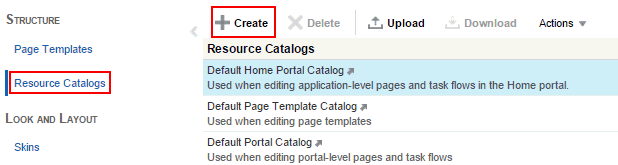
Description of the illustration wcpaa_rescat_crtnew.gif
-
In the Name field, enter a name for the resource catalog.
The name is displayed in the Assets or Shared Assets page and in lists when selecting a resource catalog. You should make the name as descriptive as possible.
Figure: The Create New Resource Catalog Dialog
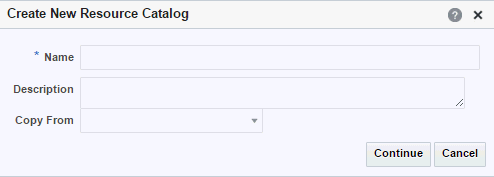
Description of the illustration wcpaa_rescat_createdlg.gif
-
In the Description field, enter a description for the resource catalog.
The description is displayed below the name in the Assets or Shared Assets page and as a tool tip when selecting a resource catalog. You should ensure that the description helps users determine if they want to use this particular resource catalog.
-
From the Copy From list, select an existing resource catalog to use as the starting point for your new resource catalog, if desired. Leave blank to create a new empty resource catalog.
Tip: You can also create a copy of an existing resource catalog as described in Copying an Asset.
-
Click Continue.
The newly created resource catalog is listed on the Assets or Shared Assets page.
The empty check box in the Available column indicates that it is not yet published and hence is not available to other users. To publish the resource catalog, click the check box.
After initial creation, the new resource catalog is either empty or identical to the resource catalog selected from the Copy From list. The next step in creating a resource catalog is to edit it to meet your requirements.
-
To use the new resource catalog to add components to the pages, page templates, page styles, or task flow assets in your portal, see Setting the Default Resource Catalogs.
Editing a Resource Catalog
You cannot edit the built-in resource catalogs, but you can create a custom resource catalog and define its structure and content as needed. The resources that you include in the resource catalog determine what users can include in their pages and page templates.
This section includes the following topics:
Adding a Resource to a Resource Catalog
You can add different types of resources to a resource catalog as described in the following sections:
Saving a Task Flow to a Resource Catalog
To save a customized task flow to a resource catalog while editing a page, see Saving a Customized Task Flow to a Resource Catalog.
Adding a Resource from the Resource Registry
You can add different types of resources to a custom resource catalog from the Resource Registry.
To add a resource from the Resource Registry to a custom resource catalog:
Creating a Custom Component
The Resource Registry in WebCenter Portal provides a large repository of components that you can add to a resource catalog. However, if this is not sufficient and your business requires you to add other components, such as ADF Facelets components, custom JSF, or raw HTML, you can create a custom component and specify the XML code for the component. Using a custom component is the only way to make such components available to a page in the page editor.
You may want to create a custom component to:
To create a custom component:
-
On the Parameters tab, enter values for any parameters supported by the component.
You can also add custom parameters.
- Click OK.
- Click Save and Close.
Creating a Folder
To organize your catalog better, you can group similar resources together. For example, group all components together, or all resources from a particular tool or service.
To create a folder:
Setting Properties on a Resource
You can edit properties on a resource to set the resource name and description, the icon to be associated with the resource, and to add new properties.
To set properties on a resource:
-
On the Options tab, set display options:
| Option | Description |
|---|---|
|
attr.ATTRIBUTE_NAME |
For each attribute, enter an initial value for the attribute. These are attributes defined against portlets or task flows at design time. When the task flow or portlet is consumed on a page, the attribute is exposed along with the enclosing chrome's attributes; for example, |
|
parameter.PARAMETER_NAME |
For each parameter, enter an enter initial value for the parameter. These are parameters defined against portlets or task flows at design time. When the task flow or portlet is consumed on a page, the parameter is exposed along with the enclosing |
|
Large Icon URI |
Enter the path of an icon to display next to the resource in the catalog. The icon should preferably be 32 x 32 pixels in size. |
|
Small Icon URI |
Enter the path of an icon to display next to the resource when it appears in the Up menu in the catalog. The icon should preferably be 16 x 16 pixels in size. |
|
Tool Tip |
Enter the text to display when users hover the mouse over the resource in the catalog. |
| New Attribute Name |
Enter the name of an attribute that has been defined for the resource but is not exposed in the dialog. You can also select an attribute from the drop-down list. |
|
New Attribute Value |
Enter a value for the attribute specified in the New Attribute Name field, and click Add. Tip: You can click Add even without specifying a value for the attribute. You can specify the value once the field is displayed in the dialog along with the other display options. |
- Click the Parameters tab and define parameter values for resources that support wiring (for example, portlets and task flows). For details about supported parameters for a resource, refer to the documentation for that resource.
- Click OK.
- Click Save and Close.
Rearranging Resources
To move a resource within a folder, select the resource and click the Move Up or Move Down icons as many times as necessary until the resource is in the desired location.
To indent a resource under another, move the child resource so that it is immediately below the parent resource and click the Indent icon.
To move an indented resource so that it is no longer indented below another resource, select the indented resource and click the Outdent icon.
Copying a Resource
You can create a copy of an existing resource by selecting it in the catalog and clicking Copy. A copy of the resource is placed just below it in the resource hierarchy. You can select the copy and alter its attributes and parameters as described in Setting Properties on a Resource.
Deleting a Resource
You can delete resources from a resource catalog by selecting it in the catalog and clicking Delete. In the Delete dialog, click Delete to confirm that you want to delete the resource from the catalog.
Previewing a Resource Catalog
Click the Preview tab in the Edit dialog to see how the resource catalog appears to users. The preview shows the order in which the resources are displayed. It also shows how dynamic folders are executed.
Managing a Resource Catalog
The following options are available on the Assets or Shared Assets page to enable you to manage resource catalogs:
See Also: Accessing Portal Assets and Accessing Shared Assets
-
Default Portal Catalog, assigned to portal pages by default, contains resources to add to pages and task flow assets in a portal.
-
Default Home Portal Catalog, assigned to pages in the Home portal by default, contains resources to add to a personal or business role page.
-
Default Page Template Catalog, assigned to page templates and page styles by default, contains a Navigations folder and a Portal Components folder, which provide access to resources specifically used in page templates and page styles. Note that all pages in a portal use the same page template, though there may be several page templates available as portal assets.1