Working with Page Styles
A page style defines the initial layout for a newly created page, and may also dictate the type of content that the page supports. WebCenter Portal provides several built-in page styles, and you can create new custom page styles to meet specific requirements.
Permissions: To perform all of the tasks in this chapter on shared page styles, you must have the application-level
Create, Edit, and Delete Page Stylespermission. Users with theApplication SpecialistandPortal Creatorroles have this permission by default. For more information about application-level permissions, see About Application Roles and Permissions in Administering Oracle WebCenter Portal.
To perform the tasks in this chapter, you need one of the following portal-level permissions:
-
Assets: Create, Edit, and Delete AssetsorCreate AssetsandEdit Assets(standard permissions) -
Page Styles: Create, Edit, and Delete Page StylesorCreate Page StylesandEdit Page Styles(advanced permissions)
See About Roles and Permissions for a Portal.
At both the application level and portal level, the Create Page Styles and Edit Page Styles permissions allow you to perform a subset of the tasks in this chapter.
Topics
About Page Styles
On the Assets and Shared Assets pages, WebCenter Portal provides several built-in page styles, and you can create new custom page styles. If a page style is a shared asset (available to all portals), it is shown on the Assets page of all portals along with portal-specific page styles.
Note:
Creating and editing a page style is a fairly complex task. While you can develop page styles in WebCenter Portal, the editing capabilities are limited. Oracle recommends that developers use JDeveloper to develop page styles for portals. When fully developed, the developer can publish page styles directly to WebCenter Portal (the portal server) or to a specific portal for immediate use or for testing. Alternatively, the developer can export the page styles to a file and upload the page template to WebCenter Portal later.
For more information, see Developing Page Styles in Developing for Oracle WebCenter Portal.
A page style defines the initial layout of the main content area of a newly created page, and may also dictate the type of content that the page supports. For example, the Wiki page style provides an instant wiki; a Blank page style has few restrictions on the types of content users can add to the pages that are based on it.
Figure: Sample Page and Page Style
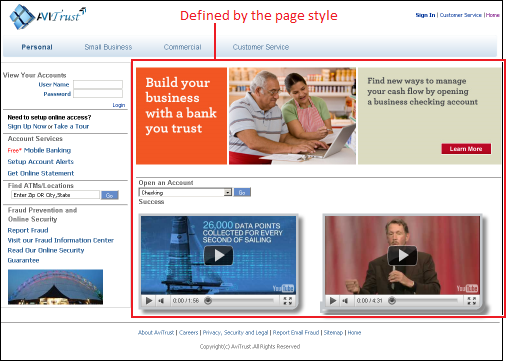
Description of the illustration wcpaa_pgstyl_about.gif
When users create a page, they are provided with selection of page styles to use.
Figure: Selecting a Style for a New Page
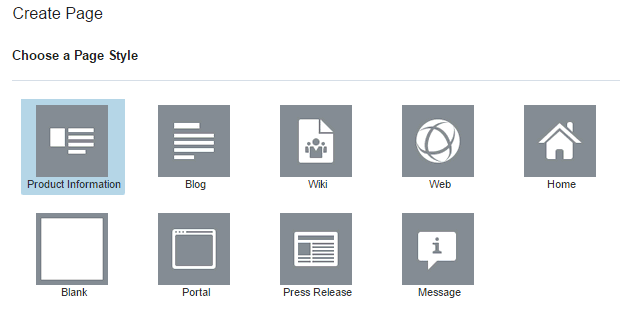
Description of the illustration wcpaa_pgstyle_newpage.gif
Note:
If you create the initial pages for a new portal in the Create Portal wizard, there is no opportunity to select a page style for the pages. If the portal template includes a page style called Default Page Style, then that is the page style used for all pages created in this way. Otherwise, the built-in Blank page style is applied to the pages. It is not possible to change a page style for a page after creating the page.
The initial layout and content are copied from the page style to the main content area of a newly created page.
About the Built-In Page Styles
Table 18-1 lists and describes the built-in page styles provided with WebCenter Portal.
Table 18-1 Built-In Page Styles
| Name | Icon | Description |
|---|---|---|
|
Blank |
 |
A one-column blank page on which you can add vertically stacked content, including additional layout components. To change the page layout in the page editor, see Changing Page Layout. |
|
Blog |
 |
A page preconfigured with areas for a blog header, blog posts, archives, and recent posts. This page style becomes available when the Documents tool is configured and enabled for the portal. Built-in page parameters: Left Width, Center Width, Right Width, Show Header, Show Footer For more information, see Understanding the Blog Page Style in Using Portals in Oracle WebCenter Portal. |
|
Home |
 |
A one-column preseeded home page on which you can add vertically stacked content, including additional layout components. To change the page layout in the page editor, see Changing Page Layout. |
|
Message |
 |
A full page containing a header, a message box to display messages to users, and a background image. To change the page layout in the page editor, see Changing Page Layout. Built-in page parameter: Background Image |
|
Portal |
 |
A page with standard layout typical of a generic portal page with header and footer areas, a wide column, and a narrow column. To change the page layout in the page editor, see Changing Page Layout. |
|
Press Release |
 |
A page for publishing a press release with header, title, and details. |
|
Product Information |
 |
A page with standard layout typical of a generic product information page with product overview and details. To change the page layout in the page editor, see Changing Page Layout. |
|
Web |
 |
A page with a built-in page parameter for a URL, enabling you to expose inline web pages and external applications in your portal. Built-in page parameter: Web Page URL |
|
Wiki |
 |
A page preconfigured for a default wiki document with in-place editing controls. This page style becomes available when the Documents tool is configured and enabled for the portal. For more information, see About Wikis in Using Portals in Oracle WebCenter Portal. |
You cannot directly edit any of the built-in page styles. If you want to use a different layout for your pages, you can either:
-
Save a page as a new page style, creating a new page style or replacing an existing custom page style.
-
Copy an existing page style and then edit the source code.
For more information, see Creating a Page Style.
Applying a Page Style to aPortalPage
When you create a new page, the first page of the wizard enables you to apply a page style to the page (Figure 18-3).
See Also: Creating Pages or Subpages in a Portal
Figure: Selecting a Style for a New Page
Description of the illustration wcpaa_pgstyle_newpage.gif
The page styles offered depend on which styles have been made available to the portal in which you are creating the page. The portal manager determines which page styles are available to a portal through the following considerations:
-
Should the page style be shown or hidden to the portal?
For more information, see Showing and Hiding Assets.
-
Should the page style be configured to appear only in selected portals (custom shared page styles only)?
For more information, see Setting Properties on an Asset.
-
Should the page style be configured to appear only to selected users or roles (custom page styles only)?
For more information, see Setting Security for an Asset.
Note:
You cannot apply a different page style to a page after the page has been created. However, if you update a page style, you can apply those updates to pages that already use the page style (see Refreshing a Page with Page Style Updates).
Creating a Page Style
If none of the available page styles meet your requirements, you can create your a new custom page style.
Note:
Creating and editing a page style is a fairly complex task. While you can develop page styles in WebCenter Portal, the editing capabilities are limited. Oracle recommends that developers use JDeveloper to develop page styles for portals. When fully developed, the developer can publish page styles directly to WebCenter Portal (the portal server) or to a specific portal for immediate use or for testing. Alternatively, the developer can export a page style to a file and upload it to WebCenter Portal later.
For more information, see Developing Page Styles in Developing for Oracle WebCenter Portal.
There are two ways to create a page style in WebCenter Portal:
-
Copy an existing page style (see Copying an Asset), then edit it to create a new page style (see Editing a Page Style).
-
Save a page as a new page style (see Saving a Page As a Page Style).
Creating custom page styles enables you to:
-
Create well formed and controlled layouts
Using layout components, you can create fixed and reliable layouts where the geometry is predictable.
See Also: Working with Layout Components
-
Seed parameters
If you seed parameters in the page style, then on page creation the user creating the page is prompted for values.
For example, when users create a page using the built-in Blog page style, they can change parameters for the page on the Page Settings page in the Create Page wizard (Figure 18-4).
Figure: Settings Page in Create Page Wizard
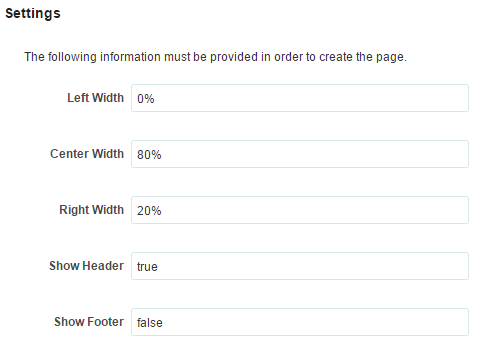
Description of the illustration wcpaa_pgstyle_params.gif
-
Create common areas, logos, images, or links
If you want all the pages in your portal to include certain elements, such as logos or links, you can create those in your page style. Adding a task flow, that holds images or links, to the top of a page style means that all pages created from that page style will have a common area where, if you edit the task flow, you can update in all those pages in one step.
See Also: Working with Resource Catalog Components on a Page
Saving a Page As a Page Style
You can create a new page style or replace an existing custom page style by saving a page as a page style.
Permissions: To perform this task in a portal, you must have the additional portal-level
Pages: Edit Page Access, Structure, and Contentpermission. Users with theApplication SpecialistandPortal Creatorroles have this permission by default.
For more information about portal-level permissions, see About Roles and Permissions for a Portal.
Note:
The most recently published version of the page is used to create the page style. If there are any changes pending in a draft of the page, those changes will not be available in the page style.
To save a page as a page style:
-
Open the page in the page editor.
-
Click the page Actions icon (page menu icon) and select Page Information.
-
Beneath the page title, click Save As Page Style. Figure: Saving a Page As a Page Style
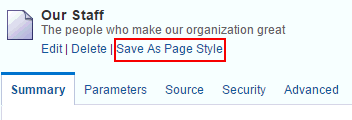
Description of the illustration wcpaa_save_pgstyl.gif
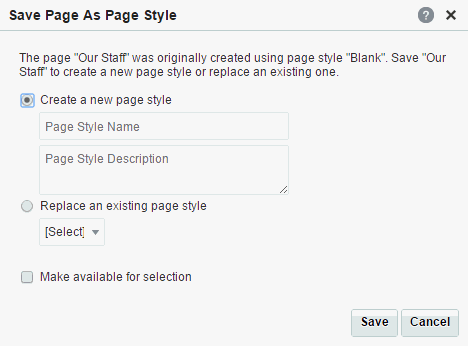
- In the Save Page As Page Style dialog, select either:
-
Create a new page style, then enter a name and description for the new page style.
-
Replace an existing page style, then select an existing custom page style from the drop-down list.
Figure: Save Page As Page Style Dialog
-
Description of the illustration wcpaa_pgstyle_sav2.gif
-
To show the new page style for selection when creating a new page, select Make available for selection.
You can later change this setting on the Assets page in portal administration.
-
Click Save.
To work with the new page style, see Creating, Editing, and Managing Portal Assets.
Editing a Page Style
In a portal, you can edit a page style using the page editor to meet your requirements. Note that you can not edit built-in page styles; you can copy a built-in page style to create a new custom page style for a portal, then edit that copy (see Copying an Asset).
Note:
Creating and editing a page style is a fairly complex task. While you can develop page styles in WebCenter Portal, the editing capabilities are limited. Oracle recommends that developers use JDeveloper to develop page styles for portals. When fully developed, the developer can publish page styles directly to WebCenter Portal (the portal server) or to a specific portal for immediate use or for testing. Alternatively, the developer can export the page styles to a file and upload the page template to WebCenter Portal later.
For more information, see Developing Page Styles in Developing for Oracle WebCenter Portal.
In WebCenter Portal, you can edit a page style to change the appearance and content to match your requirements in the following ways:
Note:
Users with sufficient privileges to edit page styles may see the message
The page style cannot be edited, when attempting to edit the custom page styles based on Wiki and/or Blog. This message appears when the Documents tool is not enabled.
Enable the Documents tool and try editing the page style based on the Blog or Wiki . For more information, see Enabling and Disabling Tools and Services Available to a Portal.
Editing a Page Style in the Page Editor
Page styles contain seeded content, which is copied when a new page is created using a particular page style. You can use the page editor to easily edit a page style to modify its seeded components. For example, you can edit a user-created page style in the page editor to seed it with newer lightweight content components that offer simplified customization and faster performance. Note that you cannot edit a built-in page style but you can create a copy of the built-in page style and edit the page style.
If a page style is based on the built-in Blog or Wiki page styles, then the Documents tool must be enabled in order to edit it.
Tip: If you prefer, you can edit the source code of the page style directly. For more information, see Editing the Source Code of a Page Style.
To edit a page style using the page editor:
- Navigate to one of the following:
-
To edit an application-level page style, go to the Shared Assets page. For more information, see Accessing Shared Assets.
-
To edit a portal-level page style, go to the Assets page for the portal that owns it. For more information, see Accessing Portal Assets.
-
-
In the left panel, under Look and Layout, click Page Styles.
-
Click the Edit quick link in the row for the page style that you want to edit.
-
In the page editor, edit the content of the page style as desired. The resource catalog used for editing page styles is the resource catalog for page templates, as set in the application-level or portal-level administration settings (see Changing the Resource Catalogs in a Portal).
Editing the content of a page style is the same as editing the content of a page. For more information, see:
-
To change the page style layout, click Change Layout and select one of the available layouts. The selections show both built-in and custom layouts that are listed on the Assets page for the portal, and the application-level Shared Assets page.
- Click Save to save your changes.
Editing the Source Code of a Page Style
Note:
Although you can edit the source code of a page style in WebCenter Portal using the Edit Source dialog, it is recommended that you download the page style and edit it in JDeveloper to take advantage of the richer editing experience.
Editing a page style is a fairly complex task. As such, page style editing should be completed by an experienced Web Developer.
There are several scenarios for working with page style source code in WebCenter Portal:
In the Edit Source dialog, the page style source is presented on two tabs: Page and Page Definition. The code in the Page tab defines the page layout, content, and style. The code in the Page Definition tab holds parameter definitions and task flow and data control bindings. Each represents the underlying JSF page and page definition file that comprise the page style.
For the steps to access the Edit Source dialog, see Editing the Source Code of an Asset.
h b
Copying a Page Style as a Shared Asset
Note:
To perform this task, you must have the application-level
Create, Edit, and Delete Page Stylespermission.
You can copy a custom page style to the application-level Shared Assets, so that it can be used by pages in other portals. The original page style remains in the portal-level Assets, while a copy is created in the application-level Shared Assets. Any change to the shared page style is reflected by portals referencing the shared page style.
To copy a page style as a shared asset:
Managing a Page Style
The following options are available on the Assets or Shared Assets page to enable you to manage page styles:
See Also: Accessing Portal Assets and Accessing Shared Assets