Working with thePortalMembers Task Flow
Add the Portal Members task flow to a portal page to allow portal users to view and add new members, send mail messages to all members, filter the list by role, and search for members.
Permissions: To perform the tasks in this chapter, you need the
PortalManagerrole or a custom role that includes the portal-levelManage Membershippermission. Users with this permission can manage portal members and their role assignments.
See About Roles and Permissions for a Portal.
Topics
About the Portal Members Task Flow
WebCenter Portal provides two portal task flows that you can add to a page:
-
Portal Browser task flow: Adds an area that operates identically to the Portals page (portal browser) in the Home portal. For more information about this task flow, see Working with the Portal Browser Task Flow.
-
Portal Members task flow (Figure 30-1): Shows the portal members and provides controls to add new members, send a mail message to all members, filter the list by role, and search for members. It also provides a quick way of getting to the portal administration Members page where you can manage portal membership, if you have the appropriate permissions. Figure: PortalMembers Task Flow
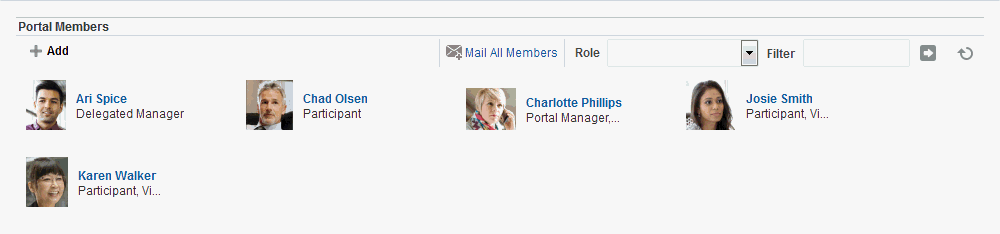
Description of the illustration wcsug_gs_memtf.gif
Adding aPortalMembers Task Flow to a Page
Adding a Portal Members task flow to a page is the same as adding any other component to a page. See Adding a Component to a Page.
Note:
The Portal Members task flow is not available in the Default Portal Catalog provided with WebCenter Portal, so you will only see an entry for it if it has been added to a custom resource catalog that has been made available to the page.
For more information, see Adding a Resource from the Resource Registry (in the Add Resource Catalog Item dialog, select Task Flows, then Design Time, then Portal Members). To use the custom resource catalog for editing portal pages, make sure it is Available, and set for use by pages in the portal, as described in Changing the Resource Catalogs in a Portal.
Managing Portal Membership Through the Portal Members Task Flow
Portal managers can quickly access the tools for managing portal membership from the Portal Members task flow.
To manage portal membership:
-
In the Portal Members task flow, click the Add icon (Figure 30-2).
The Add icon displays only to portal managers or members with
Manage Membershippermission in the portal.Figure: The Add Icon in the Portal Members Task Flow
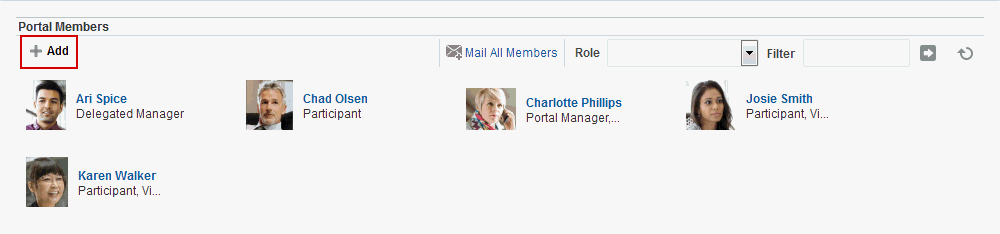
Description of the illustration wcsug_gs_mtf_add.gif
-
On the Security page, click the Members tab (Figure 30-3), where you can add members as described in Adding Registered Users and Groups. Figure: PortalAdministration: Members Page
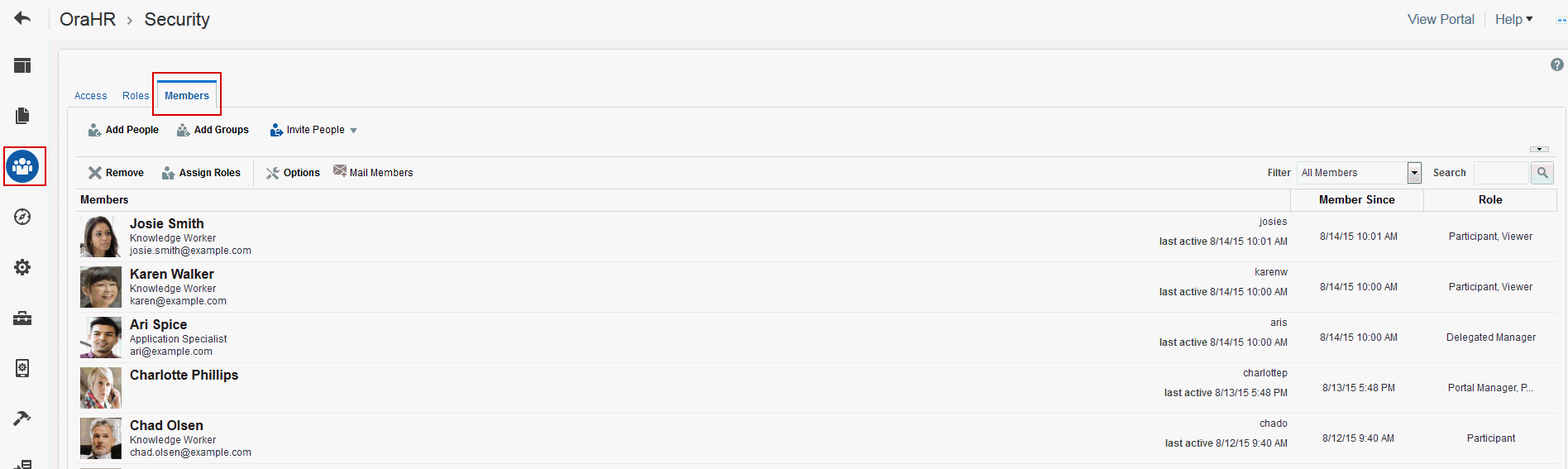
Description of the illustration wcpaa_memtf_memtab.gif
-
On the Members tab, you can also remove members, invite users to join the portal, and edit exiting member roles.
For more information, see Managing Members and Assigning Roles in a Portal.
Contacting All Portal Members
From the Portal Members task flow, you can send a message to allportal members.
To contact all portal members:
-
In the Portal Members task flow, click Mail All Members in the toolbar (Figure 30-4).
If you are presented with a login window, enter your user name and password for your mail application. If your preferences are set up to deliver your login credentials automatically, then you can start your message right away. For more information about login credentials and preferences, see Setting Your Personal Preferences in Using Portals in Oracle WebCenter Portal.
Figure: Mail All Members Icon in thePortalMembers Task Flow
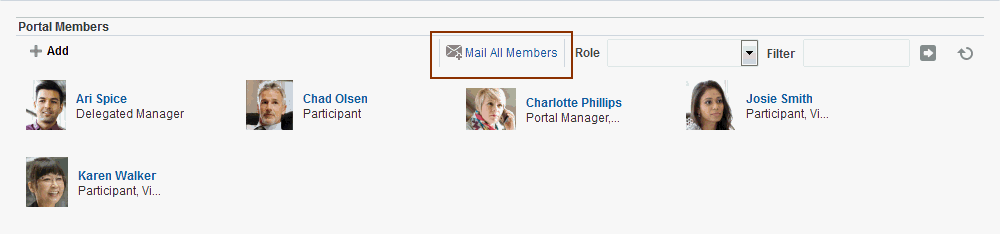
Description of the illustration wcsug_gs_mtf_contact.gif
- Compose your message and click Send.
Contacting Individual Members of aPortal
It’s easy to contact a portal member from the Portal Members task flow:
To contact a member:
-
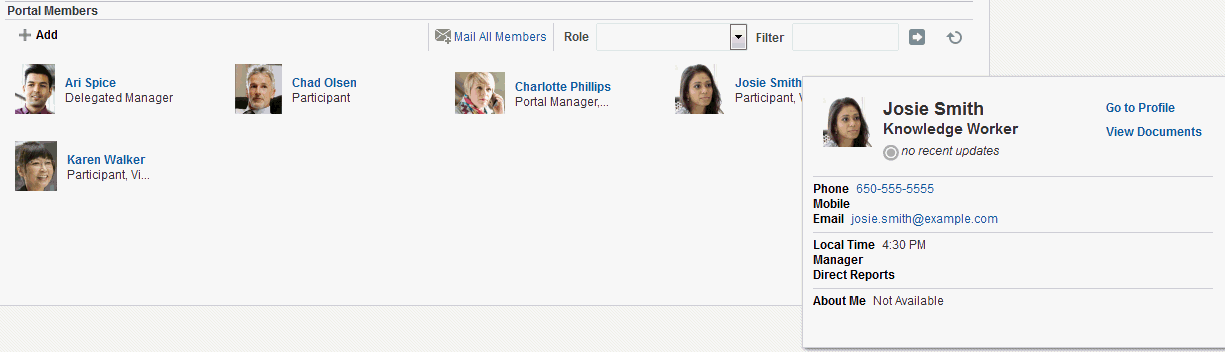
In the Portal Members task flow, click the name of the member you want to contact (Figure 30-5).
Figure: Contacting a Member Using thePortalMembers Task Flow
Description of the illustration wcsug_gs_mtf_contact1.gif
By default, when you click a member's name their profile summary displays. From here, you can contact the member by mail and so on. For more information, see Viewing a Profile in Using Portals in Oracle WebCenter Portal.
The profile does not display if the Profile Launched on Selection parameter is disabled, for details see Portal Members Task Flow Parameter.
SortingPortalMembers
You can sort the list of members by name or by recent activity.
To sort portal members:
- Use the Sort Criteria parameter described in Portal Members Task Flow Parameter.
Filtering Portal Members
Use filtering to help find a particular member in the Portal Members task flow.
To filter the list of members:
-
In the Portal Members task flow, enter a full or partial name in the Filter **field (Figure 30-6), and then click the Filter arrow icon to the right of the field. **Figure: Filter Field in thePortalMembers task flow

-
The list of members refreshes, displaying only those members that match the search term.
Filtering searches against a listed member's user name. For example, if your search criteria is "c", the search results might include members named "chris", "vicki", or "monica".
-
To return the list of members to its default display, click the Clear Filter icon (Figure 30-7). Figure: Clear Search Icon in thePortalMembers task flow

-
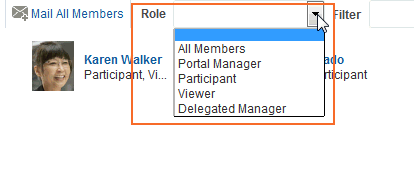
Alternatively, filter the members by role by selecting a Role from the drop-down list (Figure 30-8).
Figure: Filtering Options in thePortalMembers Task Flow
Description of the illustration wcsug_gs_mtf_find.gif
To return the list of members to its default display, select **All Members** from the **Role** dropdown list.
Working with Portal Members Task Flow Properties
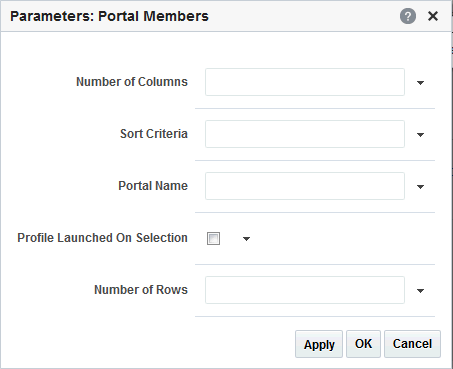
The Portal Members task flow has associated properties, which users with sufficient privileges can access through the task flow’s View Actions menu. For example, select Parameters to display the Parameters dialog (Figure 30-9).
Figure: PortalMembers Task Flow Component Properties
Description of the illustration wcsug_gs_props_sm.gif
See Also: Setting Properties on a Component
The following sections provide information about properties of the Portal Members task flow and describe the task flow parameter:
Setting Portal Members Task Flow Properties
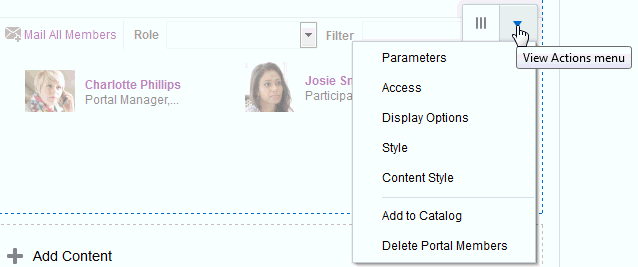
The View Actions menu in the toolbar of the Portal Members task flow in the page editor provides access to the properties dialogs: Parameters, Access, Display Options, Style, and Content Style.
Figure: Portal Members Task Flow View Actions Menu
To set Portal Members task flow component properties:
-
Open the page in the page editor (see Opening a Page in the Page Editor).
-
In the component toolbar, click the View Actions menu and select the properties you want to set:
-
Parameters control the default task flow content. For descriptions of each parameter, see Portal Members Task Flow Parameter Parameters can be wired to events, and can be used facilitate the wiring of the task flow to page parameters and page definition variables. For more information, see Wiring Pages and Components.
-
Access settings show or hide the component to specific roles, users, or groups. For more information, see Setting Component Access.
-
The Display Options, Style, and Content Style properties affect the appearance and behavior of the task flow for all users. These properties are common to all task flows. For more information, see Modifying Component Properties.
The Parameters and Display Options dialogs provide access to an Expression Language (EL) editor, which you can use to select or specify a variable value instead of a constant value. Click the Expression Editor icon icon next to a property, then select Expression Builder to open the editor.
Note:
When you enter EL in the Display Options dialog, the parser reports an error only if it detects invalid syntax, such as a missing closing bracket. Validation is performed only on syntax, not on the expression value. Generic Display Options are those cataloged in Table 10-1.
EL validation is not performed on non-generic display options.
If you need EL assistance, an application developer can provide an EL expression; see Expression Language Expressions in Developing for Oracle WebCenter Portal.
-
-
Save your changes.
PortalMembers Task Flow Parameter
Table 30-1 describes the parameters that are unique to the Portal Members task flow.
Table 30-1 Portal Members Task Flow Parameters
| Parameter | Description |
|---|---|
|
|
The number of columns used to display members. The default is null which means 'no limit' and in this case member details wrap to fill the entire width of the task flow. To fix the number of members displayed in each row, enter the number of 'columns' you require. Horizontal scroll bars display if there is not enough space to display the number of members specified here. Express values using the following formats:
|
|
|
The number of rows used to display members. The default is null which means that member details wrap to fill the space available. Vertical scroll bars display if there is not enough space to display all the members. To fix the maximum number of rows displayed, enter the number of 'rows' you require. Previous and Next buttons automatically display if more member details are available. Express values using the following formats:
|
|
|
Determines whether to launch a profile popup when you select a member's name. Deselect this option if you do not want to launch profile details. |
|
|
The order in which to sort the members. Specify |
|
|
The name of the portal for which to display members. The default value is the current portal. Use this parameter to display member details for a different portal. You can obtain a portal's name from its About this Portal dialog. Express values using the following formats:
|