Release 9.0.2
Part Number A95995-01
 Contents |
 Index |
| Oracle Internet File System Setup and Administration Guide Release 9.0.2 Part Number A95995-01 |
|
Administration of a runtime instance of Oracle 9iFS requires starting the domain and nodes and monitoring the performance of the domain. This chapter describes the components of the domain and use of the Oracle Enterprise Manager for Oracle9i Application Server. Topics include:
The basic administrative unit of Oracle 9iFS is the domain. A domain is a single Oracle 9iFS instance. Oracle 9iFS domains consist of several elements, running either on a single computer or spread across a set of interconnected computers (see Figure 2-1, "An Internet File System Domain").

The principal elements of an Oracle 9iFS domain are:
Because the HTTP Server runs as part of a Jserv or OC4J process and is controlled outside of Oracle 9iFS, the HTTP Server runs in its own node. Typically, each Oracle 9iFS node will have an associated HTTP node.
The domain controller, nodes, and repository comprise the logical elements of an Oracle 9iFS domain. However, a domain's physical configuration may be quite different than its logical configuration. There is no requirement that any element of the domain be on the same host as any other, or that any of element be on a different host than another. For small installations, the repository, nodes, and domain controller may all reside on a single host (Figure 2-1, "An Internet File System Domain"). Larger installations may use separate hosts for each element (Figure 2-2, "A More Complex Domain").

You can use the Oracle9iAS Home Page to manage the domain (see Figure 2-3, "The Oracle9iAS Home Page".)
You can also use the Oracle Enterprise Manager Java Console to manage one or multiple domains.
Determining the logical and physical configurations of the Oracle 9iFS domain based on proposed use and expected load is a pre-installation step. You can change the domain's logical and physical configurations over time in response to changing requirements.

Oracle9iAS Containers for J2EE (OC4J) are fast, lightweight, and scalable J2EE containers that are written in Java and execute on a standard Java Virtual Machine (JVM). J2EE applications are modularized for reuse of application components, such as the user interfaces, which can be composed of Java Server Pages (JSP pages), dynamic HTML, and so on, as well as the business logic, which is usually contained in an Enterprise JavaBean (EJB). The J2EE containers also perform services for the application components, such as providing access to the APIs and lifecycle management.
Domain controllers and nodes are identified by locators. A locator is a Uniform Resource Locator (URL) that specifies the host on which the domain controller or node is running and its port number. The locator name appears as the node name.
For example, the locator of the domain controller in Figure 2-4, "iFS Top-level Page" is:
ifs_socket://samman-sun:53140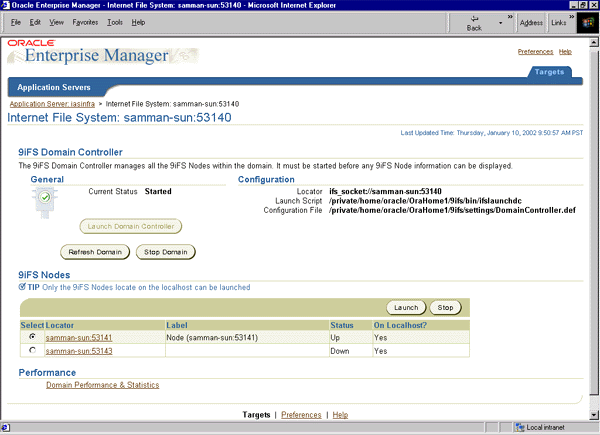
Each node has a node guardian that monitors the node, detects error conditions, and attempts to recover from them. The node guardian runs in a separate process. Guarded nodes offer better fault recovery because the guardian can terminate and restart the node's process if necessary. Nodes are guarded by default. The node guardian is turned on and off in the node's configuration file. See Appendix D, "Process Configuration Files" for more information.
If a guarded node process fails, it is automatically re-launched by its node guardian, and is then automatically restarted by the domain controller. If an unguarded node fails, the failure is detected by the domain controller and the node remains unavailable until it is re-launched. The same is true if the node guardian process fails.
Individual nodes can by dynamically brought online and off-line by the administrator.
The Oracle HTTP Server provides a number of components, including an Apache web server instance that works with OC4J. After installation, when you run ifssetup, you configure the Oracle 9iFS DAV servlet to work with the Oracle HTTP Server. (In fact, the WebDAV server is the same server as HTTP, since WebDAV uses HTTP as its underlying protocol. )
To use the web server, you need to start the web server after startup of your domain and launching of the HTTP node.
The special HTTP node gets started and you can access the Oracle 9iFS file system through the URL: <servername>:7777/ifs/files.
Oracle 9iFS provides HTTP and WebDAV support using a Java servlet running in the Oracle HTTP Server. By default, this servlet is loaded when the OC4J process is started. Once loaded, the servlet creates a node (the "HTTP node") in the Java VM of the servlet. The HTTP node has an Oracle 9iFS service which manages user sessions and provides access to the domain's repository, and an Oracle 9iFS server which provides HTTP and WebDAV protocol support.
Because its process is owned by the Oracle HTTP Server, an HTTP node is always unguarded.
Each Oracle 9iFS node can have one or more services and one or more servers (see Figure 2-5). These services and servers are started automatically when you start the domain, unless you specify otherwise.

Once a server is running, it publishes a subset of the parameters and any other runtime information specific to the server. These are called dynamic properties. Some dynamic properties are published as soon as the servers are loaded, but not running. A subset of the properties may be changed, but only for that server, within that node, within that domain. Agents are writeable only when stopped.
Since service and server parameters are stored in Oracle 9iFS along with your files and data as objects, you can use the Oracle 9iFS Node page to manage these parameters (see Figure 2-6, "Managing Services and Servers on the Node Page").
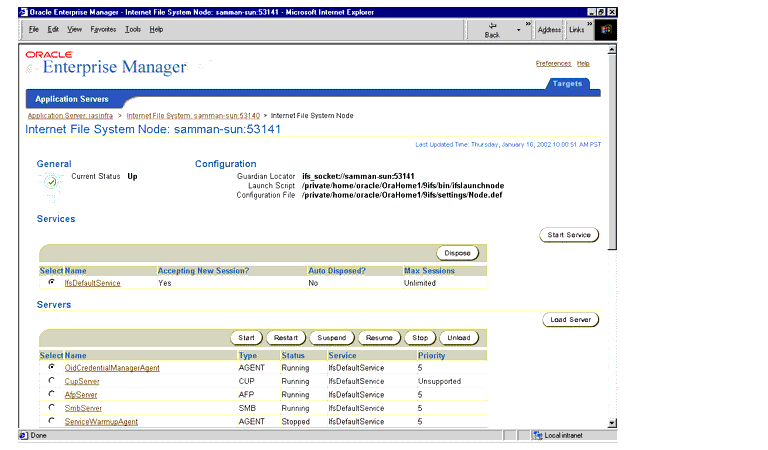
To change the dynamic properties of a server, first select the server on the Node page by clicking its name (see Figure 2-7, "Changing FTP Server Properties") to display its properties.
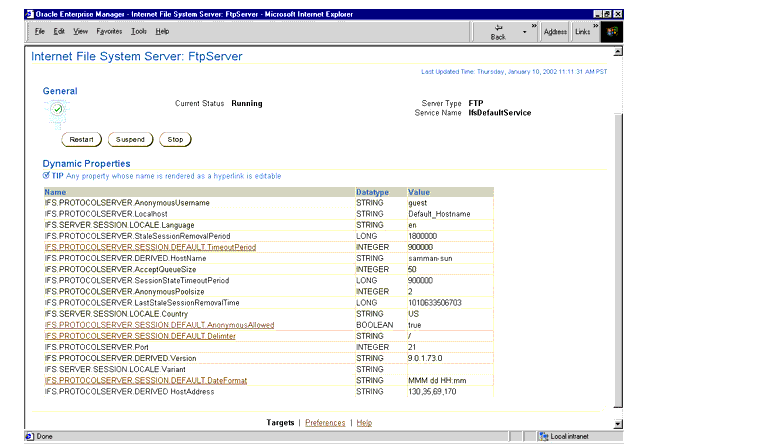
Only those properties that appear as links may be changed. For example, clicking the property:
IFS.PROTOCOLSERVERS.SESSION.DEFAULT.Delimiterdisplays a page on which you can change the default value.
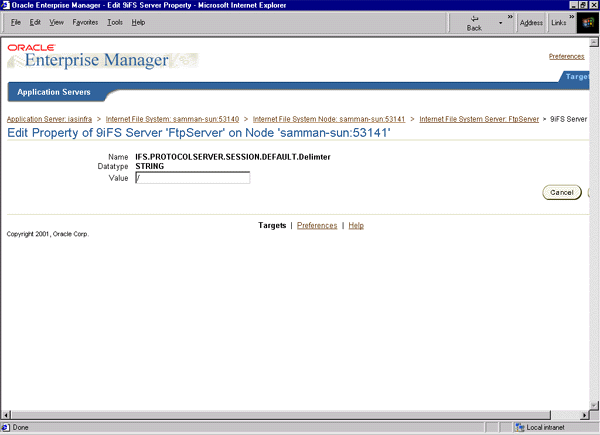
For more information on service and server configuration, see Chapter 5, "Service and Server Configuration".
There are a number of different ways you can start Oracle 9iFS. Which way you choose depends on how you want to monitor or manage the Oracle 9iFS domain.
The Enterprise Manager Console for Oracle9i Application Server (Oracle9iAS) provides access to basic Oracle 9iFS domain and node functions, such as starting and stopping the domain, nodes, services, and servers. It also allows administrators to monitor and dynamically tune the domain's nodes, services, and servers.
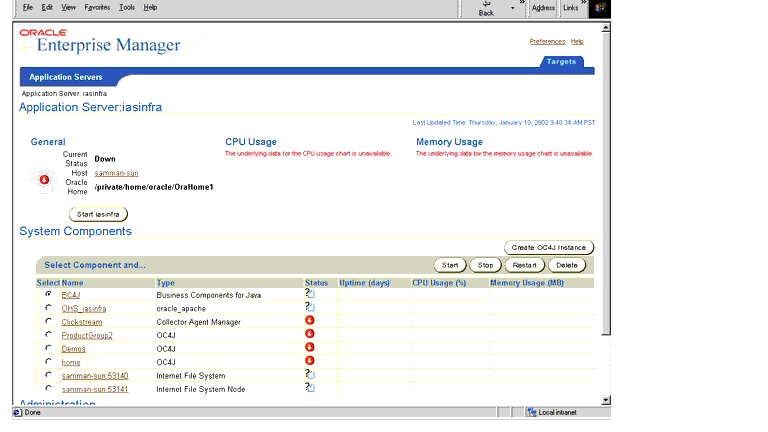
emctl start script to start the Enterprise Manager Console for Oracle9iAS. At the command line, enter:
$oracle_home/bin/emctl start
http://hostname:1810/emd/console/targets
The Oracle9iAS Home page lists all of the Oracle9iAS components or targets configured on the local host. Among these components, you'll find the Oracle 9iFS Domain targets and the Oracle 9iFS Node targets with type Internet File System Node.
The status changes to "Launched."
The status changes to "Started."
Nodes usually come in sets: an instance of Oracle 9iFS and its corresponding HTTP node. You can only launch nodes on your local machine; the domain, however, can contain nodes on multiple middle-tier machines.
To launch the node on a local host (see Figure 2-10):
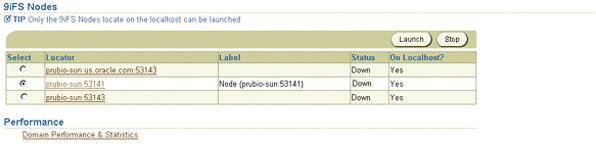
When you stop an Oracle 9iFS domain, you have a choice of stopping both the domain and the nodes or just the domain controller.
The domain status now says "Down." If you shut down the nodes, they no longer appear in the Nodes table because the domain controller is down.
Refreshing a domain causes the domain controller to synchronize to the latest configuration of the nodes in the domain. This is useful if you add or remove nodes in the domain using Oracle 9iFS Configuration Assistant or Oracle 9iFS Manager or have launched additional nodes.
The domain status now says "Started." Any nodes you launched prior to refreshing are now started.
You can stop a node from the Oracle 9iFS Top-level page. To permanently delete the node from the domain, however, you need to use Oracle 9iFS Manager to delete the Node Configuration object for that Oracle 9iFS node.
The node is removed from the Nodes page. If you click the Refresh Domain button, the node is added to the Nodes page, and its status changes to "Down."
To start Oracle 9iFS from the command line, use these scripts:
ifslaunchdc to bring up the domain controller process.
ifslaunchnode to bring up the node process
ifsstartdomain to activate the domain controller and nodes. This script requires the following parameters as input:
These scripts have been provided to start and stop the entire domain from the command line, without having to launch the Oracle Enterprise Manager Java Console.
The ifsstopdomain script, used to stop the domain, requires the same three parameters as the ifsstartdomain script .
To get an overall picture of the domain's performance or to continuously monitor the domain, use the Enterprise Manager Console for Oracle9i Application Server.
On the Oracle 9iFS Node page, click the Node Performance & Statistics link.
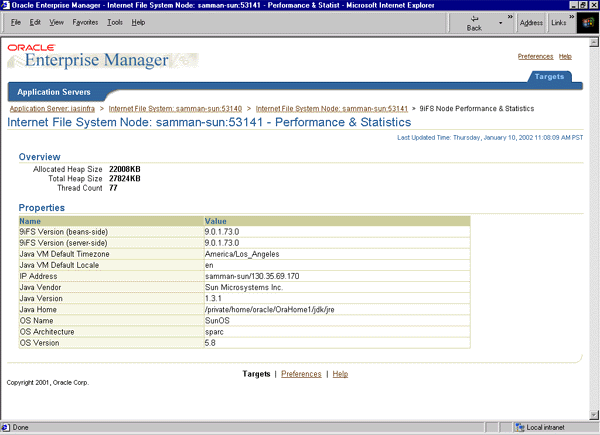
If you are running multiple nodes, you may prefer to use the monitoring tools built into the Oracle Enterprise Manager Console (see Appendix H, "Domain Administration with the Java-based Oracle Enterprise Manager Console").
To get a snapshot of domain performance or to monitor the domain, a set of pages graphically depicts domain performance. The display is dynamic; that is, the data is updated as time passes, so you should refresh the pages often.
The General subtab monitors the Oracle 9iFS repository and its documents and users (see Figure 2-12). It provides general information and information about document storage, including:
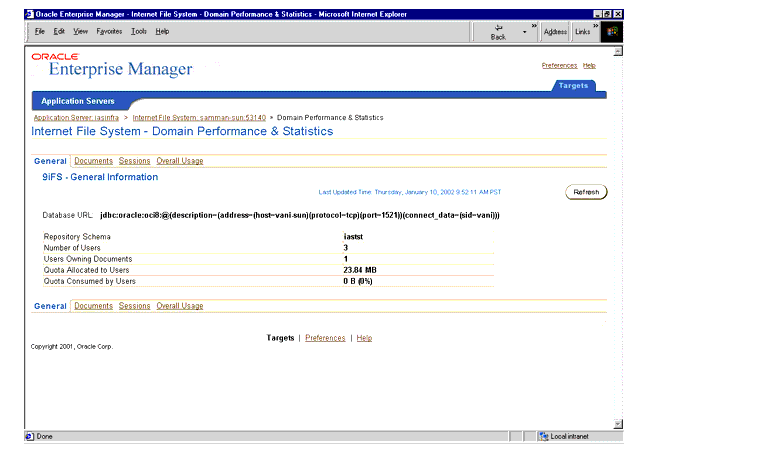
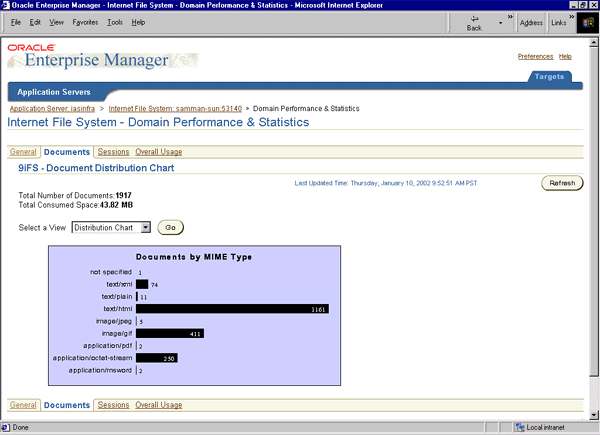
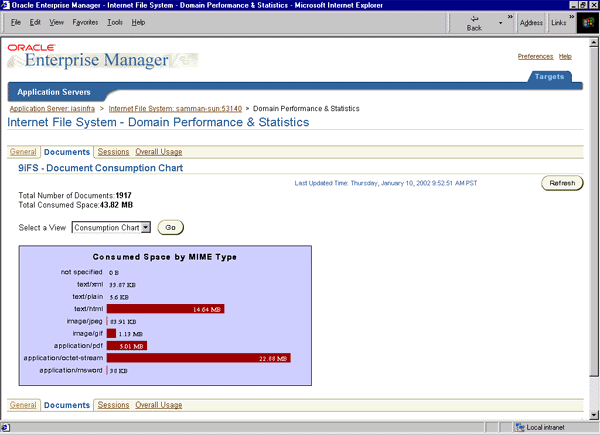
The Documents subtab gives you access to three displays:
To navigate between pages, make a selection from the Select a View drop-down list and click the Go button.
This table (Figure 2-13) combines the information in both chart views and allows you to compare the number and consumed space of the various document types in Oracle 9iFS. MIME type is used because it is more descriptive than three-character extensions.

The Document Distribution Chart (Figure 2-14) presents a graphical view of the number of each document type in Oracle 9iFS.
The Document Consumption Chart (Figure 2-15) shows the space consumed by document type.
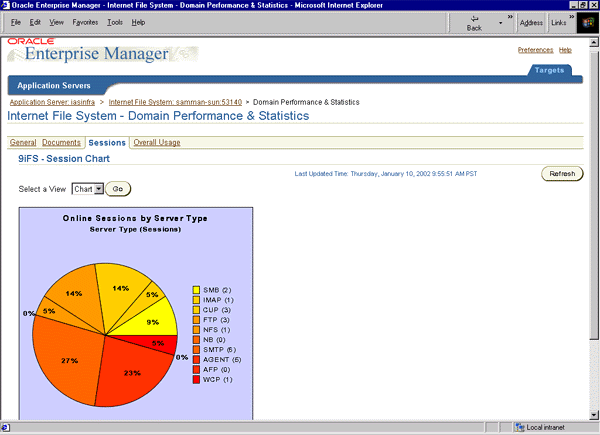
The Sessions subtab displays the Session Table, listing the connected sessions by server type and the number of sessions running on each, and the Session Chart, depicting online sessions by server type. To navigate between pages, make a selection from the Select a View drop-down list and click the Go button.
The Session Table (Figure 2-16) shows the total number of connected sessions associated with each server.

The Session Chart is a pie chart comparing the total number of connected sessions for each server type.
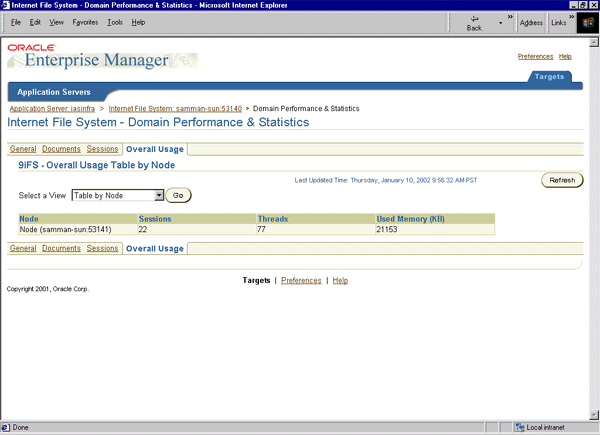
The Overall Usage subtab displays Session charts by node and by host depicting the number of sessions and threads, Memory charts by node and by host showing current memory use in kilobytes, and a combined table view by node and by host summarizing the number of sessions and threads in use by each node. To navigate between pages, make a selection from the Select a View drop-down list and click the Go button.
If you have developed a custom application, and your Thread Count continues to increase over time and never decreases, then you may have a thread leak in your software. In particular, check that you are calling LibrarySession.disconnect() whenever a user disconnects or is timed out.
For each node, the Overall Usage Table by Node (Figure 2-18) presents the total number of connected sessions, the total number of threads, and the total memory consumed by each node.
For each host, the Overall Usage Table by Host (Figure 2-19) presents the total number of connected sessions, the total number of threads, and the total memory consumed by each host.

For each node, the Overall Session Usage Table by Node (Figure 2-20) presents a bar graph showing the total number of connected sessions and consumed threads by each node.

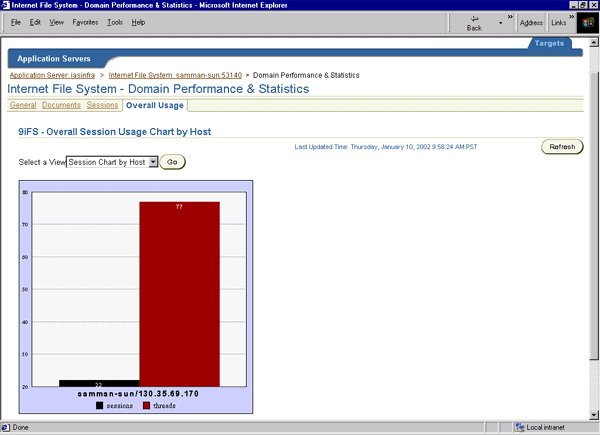
For each host, the Overall Session Usage Table by Host (Figure 2-21) presents a bar graph showing the total number of connected sessions and consumed threads by each host.
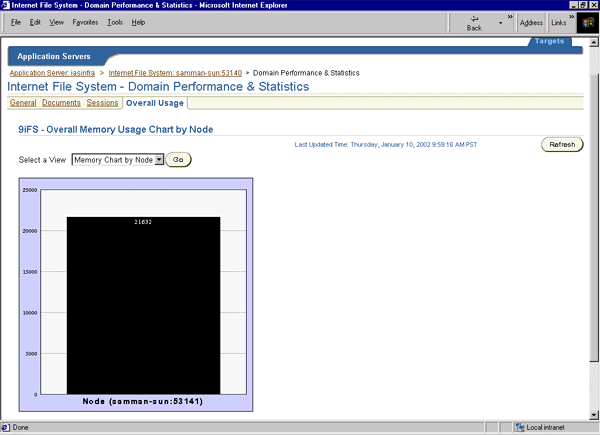
For each node, the Overall Memory Usage Table by Node (Figure 2-22) presents a bar graph showing the total amount of memory consumed by each node. Multiple data points will be illustrated if present.
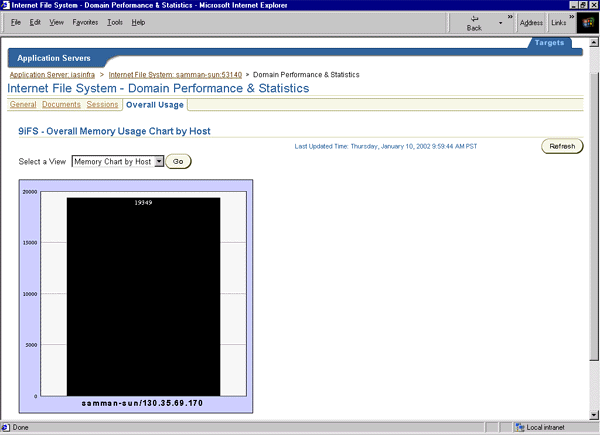
For each host, the Overall Memory Usage Table by Host (Figure 2-23) presents a bar graph showing the total amount of memory consumed by each host. Multiple data points will be illustrated if present.
You can also view the properties of a particular Oracle 9iFS node.
On the Oracle 9iFS Node page, click the Node Performance & Statistics link.
Log files are generated by the domain controller and each node.
DomainController.log) records major state transitions of its nodes; for example, started, failed, or restarted, and provides centralized data on overall domain health.
Node.log) records the same type of information for the nodes. All errors are logged with stack traces. Log files are located in:
$ORACLE_HOME/9ifs/log
You can set various options for these log files; for example, whether to overwrite the log each time the domain is started. These options are set in the DomainController.def and Node.def files, described in Appendix D, "Process Configuration Files".
Log files are also generated for the Oracle Enterprise Manager Java Console, the Oracle 9iFS Manager, and the dashboard.
$ORACLE_HOME/9ifs/log/ifsmgr.log contains information for both Oracle Enterprise Manager Java Console and Oracle 9iFS Manager. You can set options for the ifsmgr.log file in:
$ORACLE_HOME/9ifs/settings/IfsManager.def
$ORACLE_HOME/9ifs/log/dashboard.log contains information from the dashboard. No settings for the dashboard log may be modified.
Log files for the Oracle Enterprise Manager Console for Oracle9iAS are located under $ORACLE_HOME/sysman/log and include:
You can set options for those log files by changing $ORACLE_HOME/sysman/config/logging.properties. For example, if you want to view detailed Oracle 9iFS exception stack trace in emd.log, you insert the following lines:
log4j.category.oracle.ifs.clients.webadmin=DEBUG, emdAppender
log4j.additivity.oracle.ifs.clients.webadmin=false
into the section started with:
# category properties for logging by class name.
|
 Copyright © 1999, 2002 Oracle Corporation. All Rights Reserved. |
|

