
Setting Up a Work Order Business Unit
To set up a work order business unit use the Work Order Definition (BUS_UNIT_TBL_WM) component.
This section provides an overview of work order business unit setup and discusses how to:
Define the work order business unit.
Set up integration parameters for a work order business unit.
Enter preventive maintenance parameters for a work order business unit.
Pages Used to Set Up a Work Order Business Unit
|
Page Name |
Definition Name |
Navigation |
Usage |
|---|---|---|---|
|
Work Order - Definition |
BUS_UNIT_TBL_WM1 |
|
Enables users to define a work order business unit as a work center for an organization, set up accounting parameters including integration with the GL business unit, identify specific PeopleSoft Maintenance Management setup options, establish default values for the work order and work order task, and set up auto-numbering of work orders. |
|
Warranty Claim Information |
WM_BU_CLAIM_SEC |
Click the Warranty Claim Information link on the Work Order Definition page. |
Enter the contact information required to file a warranty claim for work orders associated with this business unit. |
|
Integration |
BUS_UNIT_TBL_WM2 |
Select the Integration tab. |
Identify Project Costing, Inventory, and PeopleSoft Purchasing integration parameters. |
|
PM Options |
BUS_UNIT_TBL_WM3 |
Select the PM Options tab. |
Identify parameters specific to Preventative Maintenance Work Orders. |
Understanding Work Order Business Unit Setup
Work order business units are synonymous with work centers. You can set up as many work order business units as necessary to support your business requirements. The business unit represents the highest level of the default hierarchy within PeopleSoft Maintenance Management, which means that the values specified in a work order business unit are used as default values and controls throughout PeopleSoft Maintenance Management.
The work order business unit consists of three parts, which include:
The Definition page in which you define information unique to this business unit, set up work order workflow approval and work order access security, select specific set up options and warranty claim information, define default values and default hierarchies, specify work order numbering characteristics, and track last Warranty Claim and Failure Tracking IDs.
The required fields on this page are Location, GL Business Unit, Base Currency, Rate Type, Service Group, and Accounting Default Order.
The Integration page in which you identify specific options that enable a business unit to integrate with Project Costing, PeopleSoft Inventory, PeopleSoft Purchasing, and PeopleSoft eProcurement, define default labor rates for resources, and enable mobile integration.
The Project Costing Business Unit is a required field.
Note: The Inventory business unit and commit rule are only required if you plan to integrate and use PeopleSoft Inventory with PeopleSoft Maintenance Management.
The PM Options page defines specific options that enable you to use this business unit to enter and process preventive maintenance work orders.
The required fields on this page are Priority Code, Work Order Type, and Task Status.
GL Business Unit
You must identify a GL business unit for each work order business unit that you set up. This GL business unit serves as the default GL business unit in each of the distribution templates that you set up (Project Costing, PeopleSoft Expenses, PeopleSoft Inventory, and PeopleSoft Purchasing). However, the default GL business unit value only appears in the PeopleSoft Purchasing distribution template, because PeopleSoft Purchasing is the only product in which you can override this value.
To process labor costs, you must set up a GL business unit in PeopleSoft Expenses that matches the GL business unit that you specify in the work order business unit.
To process inventory costs, you must set up a GL business unit in PeopleSoft Inventory that matches the GL business unit that you specify in the work order business unit.
Currency Conversion
You must set up a base currency in each work order business unit, which establishes the base currency in the work order. You cannot override this value in the work order. When you create and schedule resources for a work order, the transactions generated in the subsystems based on the work order for PeopleSoft Inventory, PeopleSoft Purchasing, PeopleSoft eProcurement, PeopleSoft Payables, PeopleSoft Expenses, PeopleSoft Time and Labor, PeopleSoft Payroll, and PeopleSoft Asset Management (based on tool rates defined at the shop level) can undergo currency conversions if the base currency in the subsystem differs from the base currency in the work order business unit. When a user closes a work order task or runs the Cost Summarization process in PeopleSoft Maintenance Management to return the actual costs from Project Costing to PeopleSoft Maintenance Management, the costs are converted back to the base currency in the work order.
Note: Currency conversions do not apply to labor costs.
This section discusses:
Currency conversion for labor costs.
Currency conversion for inventory costs.
Currency conversion for purchasing/on-hand costs.
Currency conversion for tool costs.
Currency Conversion for Labor Costs
You enter time entries for employees based on labor rates set up in PeopleSoft Maintenance Management. These entries use the base currency in the work order. No currency conversion is performed for work order time recorded. Only the hours and labor rates are provided to Project Costing's cost collection process for the calculation of labor cost.
You enter time for personal time entries and you set up PeopleSoft Time and Labor and PeopleSoft Payroll, the system uses the currency code set up in PeopleSoft Time and Labor to calculate estimated payable time. PeopleSoft Payroll has currency codes set up to calculate the actual payable time and sends this actual payable time back to update PeopleSoft Time and Labor.
See documentation PeopleSoft Time and Labor : "Publishing Estimated and Actual Payable Time"
Currency Conversion for Inventory Costs
When you enter or select an inventory item in the Inventory Requirements and/or Inventory Schedules grids of a work order, PeopleSoft Inventory returns the cost of the item using the base currency in the Inventory business unit. If the base currency for the work order differs from the Inventory base currency, PeopleSoft Maintenance Management converts the cost of the item to the base currency in the work order. When the transactions are sent to PeopleSoft Inventory for processing, they are converted back to the Inventory base currency, which sends them to Project Costing. After Project Costing processes the actual costs and chargebacks in the Inventory base currency, then it sends the actual costs back to the work order, where the PeopleSoft Maintenance Management Cost Summarization process converts the currency back to the base currency in the work order business unit.
For example:
Work Order Business Unit base currency = EUR
Inventory Business Unit base currency = USD
|
Work Order Task Inventory Scenario |
Conversion Activity |
|---|---|
|
1. Schedule Inventory for Work Order Task |
|
Currency Conversion for Purchasing/On-Hand Costs
There are several ways to capture purchase/on-hand costs in PeopleSoft Maintenance Management. The currency conversions are based on whether the work order task transaction uses a purchase order or a requisition in Purchasing, eProcurement, or whether the work order transaction came from PeopleSoft Payables.
An example of currency conversions based on Purchasing:
Work Order Business Unit base currency = EUR
Purchasing base currency = USD
|
Work Order Task Purchasing Scenarios |
Conversion Activities |
|---|---|
|
Scenario #1 : You create a Purchase Order or Requisition from the Purchase On-hand/Scheduling grid in the work order. The work order currency = EUR. |
|
|
Scenario #2: You create either a purchase order, requisition, or procurement card directly in PeopleSoft Purchasing and link it to a scheduling row in the work order task. The transaction initiated in PeopleSoft Purchasing uses the base currency for PeopleSoft Purchasing of USD. However, PeopleSoft Maintenance Management converts the costs from the PeopleSoft Purchasing base currency (USD) to the work order base currency (EUR) to display in the row in the work order task schedule. |
|
An example of PeopleSoft Payables currency conversions:
Work Order Business Unit base currency = EUR
PeopleSoft Purchasing base currency = USD
PeopleSoft Payables base currency = AUD
|
Work Order Task/PeopleSoft Payables Scenarios |
Conversion Activities |
|---|---|
|
Scenario #1: You copy a purchase order associated with a work order to a voucher in PeopleSoft Payables. |
|
|
Scenario #2: You copy a requisition or purchase order associated with a work order to a quick invoice in PeopleSoft Payables. |
|
|
Scenario #3: Manually associate a voucher or a quick invoice in PeopleSoft Payables to a work order where the PeopleSoft Payables base currency is AUD and the work order base currency is EUR. |
|
Currency Conversion for Tool Costs
Tools are set up as assets in PeopleSoft Asset Management's asset repository and normally have a cost rate assigned to them indirectly through the asset type/subtype association. A default currency is set up in the Asset Management business unit. However, you can also specify a default currency, as well as a cost and billing rate for an asset subtype. The default values for currency, cost rate, and billing rate that appear in the work order task schedule line, depend on your selection. When you schedule a tool for a work order task, the system converts the base currency for the asset to the base currency for the work order, which is established in the work order business unit. When a user enters tool usages in the technician workbench, PeopleSoft Maintenance Management calculates the cost of the tools and updates the total actual costs in the Costs page of the work order using the base currency in the work order. Because these costs do not update PeopleSoft Asset Management or Project Costing, they are not converted back to the base currency in PeopleSoft Asset Management.
Business Unit Setup Options
When you select the check box associated with each of the options listed in the work order business unit, you can:
Use multiple assets when you create a work order with this business unit.
Generate chargebacks when you set up the Task Accounting for a work order associated with this business unit.
Edit ChartFields enables ChartField combination editing in the Inventory, PeopleSoft Purchasing/On-Hand, and Tools distribution rows for each work order task.
Enter labor requirements, inventory requirements, and tool usage requirements on the Requirements page of a work order.
Schedule labor, inventory, and tools for a work order.
Record Actuals tool usage costs, which display in the Cost page of the work order.
Update assigned tasks in an employee's resource calendar and assigned tools in the tools calendar to enable a scheduler to determine if either type of resource may be available for another assignment.
Work Order Approval
You determine whether a work order requires approval or is pre-approved in the work order business unit. You can override this selection for a specific shop or for a work order type. If you indicate that you want work orders set up with this business unit approved, then you must first perform the setup described in the Configuring Work Order Approval Workflow topics. Once you have set up work order approval, refer to the Approving Work Orders topics for details on how to approve each work order.
Warranty Claim Information
You can generate warranty claims in PeopleSoft Maintenance Management based on assets that are selected for repair or maintenance in a work order. You can identify the contact information that will appear on warranty claims generated based on assets identified in work orders that are created with this business unit.
See Understanding Warranty Claim Management in PeopleSoft Maintenance Management.
Technician WO Security
Select one of these options to apply work order access security to any work orders created with this business unit. Work order access security restricts access for users with the Apply WO Access Security check box selected on the User Preferences – Maintenance Management page to a work order, work order tasks, and an express work order created with this business unit depending on which of these options you select.
Full Access
When you select the Full Access option in the work order business unit, any PeopleSoft Maintenance Management resource can access any work order and work order task on the Work Order, Technician Workbench, and the Express Work Order components created with this business unit, depending on the user's PeopleSoft Security setup for these components.
Shop
Selecting this option enables a user with the Allow Access to WO Security check box selected on the User Preferences – Maintenance Management page to click the Technician Work Order Access link on the Work Order component's Miscellaneous page of any work order created with this business unit and access the Work Order Access page.
The Work Order Access page lists, at a minimum, the shop used to create the work order. If a resource is selected for a work order task and is assigned to a shop that is different from the shop used to create the work order (cross-shop), then this shop is automatically added to the list on the Work Order Access page. The authorized user can add or remove any shops to and from this list except for the shop that was used to create the work order.
Resources, who have Apply WO Access Security selected on the User Preferences – Maintenance Management page and are assigned to one of the shops listed on the Work Order Access page can access the work order and work order tasks from the Work Order, Technician Workbench, and the Express Work Order components.
Note: Shop security applies to work order-managed work orders and Project Costing-managed work orders.
Resource Pool
Resource pools are set up in PeopleSoft Resource Management for use in PeopleSoft Program Management and Project Costing. A resource pool consists of a specific group of resources that you can assign to a project from PeopleSoft Program Management. If you select this option and create a work order using this business unit and a project and activity that is associated with a resource pool, then only the members of that resource pool, who have the Apply WO Access Security check box selected in the User Preferences – Maintenance Management page, can access the work order and work order tasks created with this business unit and the project and activity associated with the resource pool on the Work Order, Technician Workbench, and Express Work Order components.
For example, you set up a resource pool (Pool A with the resources John Jones, Earl Green, Regina Smith, and Eric Lasser) and assign the pool to a project (MM001) and activity (0001) in PeopleSoft Program Management. You select the Apply WO Access Security check box on the User Preferences – Maintenance Management page for each of the resources in the pool. You select the Resource Pool option for work order business unit US001. You create five work orders using work order business unit US001. Each work order has 3 tasks associated with Project MM001 and activity 0001. Only resources John Jones, Earl Green, Regina Smith, and Eric Lasser can access the five work orders and their associated tasks that were created with this work order business unit, project, and activity in the Work Order, Express Work Order, and Technician Workbench components.
Note: You can assign generic resources to resource pools in PeopleSoft Resource Management. Generic resources are resources that do not have an employee ID associated with them. Generic resources serve as role-oriented placeholder descriptions for resources during the project planning phase. Typically, in the planning stage, project managers use generic resources instead of named resources. After the project is approved, project managers create resource requests and replace generic resources with the specific available resources.
Important! The resource pools associated with projects and activities must be up to date in order to use resource pool security in PeopleSoft Maintenance Management. You typically set up projects and activities associated with Project Costing-managed work orders ahead of time, which remain stable over the life of the associated work orders. The pool cache table stores data at the project, activity, and resource level. However, since the activities for work orders associated with work order-managed projects are created when the work order task is created, the pool cache table will not reflect the latest valid combinations of resource, project, and activity unless you run the pool cache Refresh process using the process to enable resource pool security.
Shop and Resource Pool
Selecting this option enables only authorized users to access work orders and work order tasks in the Work Order, Express Work Order, and Technician Workbench components who are assigned to one of the shops listed on the Work Order Access page of a work order created with this business unit, or who are assigned to a resource pool set up for the project and activity that is associated with this work order and work order tasks created with this business unit.
See Establishing Resource Pool Security.
See User Preferences - Maintenance Management Page.
See PeopleSoft Maintenance Management Integration with PeopleSoft Project Costing.
Work Order Business Unit Defaults and Default Hierarchies
You can set up specific values in the work order business unit that you want to display as default values in the work order. You can also set up different default hierarchies that use a weighting formula (algorithm) to determine which setup data to use as default data in the work order.
Work Order Business Unit Default Values
You can enter the default field values in the work order business unit that you want to display in fields in the work order. These fields include:
Service Group
When you create a work order using this business unit, the service group value that you enter in the work order business unit becomes the default value for the service group field in the work order header.
You can override this value in the work order.
Shop
When you create a work order using this business unit, the shop value that you enter in the work order business unit becomes the default value for the shop field in the work order header.
You can override this value in the work order.
Important! When you add a new work order business unit you have not set up your shop(s) for that business unit. Therefore, you bypass this field when creating a new business unit and return to it after creating the shops that you want to associate with this business unit.
Close Days
When you complete a work order task in a work order that was created with this business unit, the system uses the default value that you enter here in the work order business unit to determine the number of days between the completion and the close of a work order task.
You can override this value for a specific work order type.
Asset Lookup Field
When you create a work order with this business unit, the lookup field value (Asset ID, Serial ID, Tag Number, or Vehicle ID Number) that you select for this business unit displays as part of the asset specifications on the work order and work order tasks.
Maintenance Type
This value displays in the Maintenance Type field on the Miscellaneous page of the work order. You can override this value in the work order. If you use this business unit to create preventive maintenance work orders, you must specify a maintenance type in the work order in order to close the work order. Entering a default value in this field for the business unit helps prevent any problems at closing.
See Setting Up PeopleSoft Maintenance Management Work Order Parameters.
Work Order Business Unit Default Hierarchies
You can also set up default hierarchies in a work order business unit to determine the various types of data that you want to display in a work order. The default hierarchies include:
Control Default Order
Project Default Order
Accounting Default Order
Control Default Order
Control Default Order is used to determine the default data that you want to use for work order control procedures such as work order close and work order approvals. You can choose from two different default hierarchies:
Unit, WO Type, Shop.
In this hierarchy, the system checks the default values for a work order created with this business unit based on the following order:
Shop.
Work order type.
WO business unit.
Unit, Shop, WO Type.
In this hierarchy, the system checks the default values for a work order created with this business unit based on the following order:
Work order type.
Shop.
WO business unit.
Important! There must be a specified value in a level for one level to override another level. For example, if you specified at the shop level that you want the work order approved, and you either do not specify a value or select default for the work order type, the system ignores the work order type and looks at the default value specified in the work order business unit. If the value specified in the work order business unit is Pre-Approved, since the shop's value takes precedence over the value in the business unit based on the default hierarchy, then the system applies the shop's value, which requires work order approval to any work order created with the specific business unit and shop.
Project Default Order
Project Default Order is used to determine the default project to use in a work order created with this business unit using values specified in the Associate Projects component, as well as values specified in the Project Costing ChartField distribution template. Both the Associate Projects component and the Default PC ChartFields component are set up based on the value specified for the business unit, service group, and work order type. In this case, a formula is applied to these values to determine the default level. You can choose from two different hierarchies:
Unit, Service Group, Type.
Unit, Type, Service Group.
You can set up the Default PC ChartFields component based on various combinations of service group and work order type. For example, you could set up the Default PC ChartFields component with these values:
WO BU 01, Service Group %, Work Order Type %
WO BU 01, Service Group MAINT, Work Order Type %
WO BU 01, Service Group MAINT, Work Order Type CAPT
Since there can be numerous combinations, the system needs some method to determine which Project Costing ChartFields to use as default values in the work order. It determines the default values based on the following formula and based on the combination that you select in the work order business unit. This is also the way the default project is determined based on the setup of the Associate Projects component.
The formula to determine the default project ID in the work order is:
1x1 +2x2 = Default Row Value
Where:
For: x1 If value is % (wildcard) then x1 = 0 Or: If value is not % (wildcard) then x1 = 1
Where:
For 2x2 If value is % (wildcard) then x2 = 0 or If value is not % (wildcard) then x2 = 1
For example, if you select the Project Default Order in the work order business unit as Unit, Service Group, Type, and the rows that you set up in Associate Projects contain the information in the following table. Based on your selection in the work order business unit, the Service Group value is 1x1 and the Work Order Type value is 2x2 in the formula. When the system applies the formula, the default Project ID in the work order would be PC002, because the sum of the values in Row #2 = 2, which is greater than the sum in Row #1 (0) or Row #3 (1).
|
Row # |
WO BU |
WO Type Value for 2x2 |
Service Group Value for1x1 |
Default Project ID Specified in Associate Projects |
|---|---|---|---|---|
|
1 |
WO BU1 |
% = 0 2 x 0= 0 |
% = 0 1 x 0= 0 |
PC001 Formula applied: 0 + 0 = 0 SUM = 0 |
|
2 |
WO BU1 |
ADHOC = 1 2 x 1= 2 |
% = 0 1 x 0= 0 |
PC002 Formula applied: 2 + 0 = 2 SUM = 2 |
|
3 |
WO BU1 |
% =0 2 x 0= 0 |
Maintenance = 1 1 x 1= 1 |
PC003 Formula applies: 0 + 1 = 1 SUM = 1 |
If you select the Project Default Order as Unit, Type, Service Group, then the Service Group = 2x2 and the Work Order Type = 1x1 , then when you apply the formula to the same rows, then Row #1 = 0, Row #2 = 1, and Row #3 = 2.
Therefore, the default Project ID based on Unit, Type, Service Group in the work order is PC003 in Row #3, which is the row with the greatest value.
Once the default Project ID is selected, the system uses the Project Default Order that you select in the work order business unit and applies the formula again to the PC Default ChartFields component to determine which row containing default Project Costing ChartField values for the default project ID has the highest calculated value. This row contains the defaulting Project Costing ChartField values that display in the work order task when you click the Distribution link for a work order task.
See Understanding Project Defaulting and Capitalization Rules in PeopleSoft Maintenance Management.
SeeSetting Up Rules and Data Related to PeopleSoft Project Costing .
Accounting Default Order
Accounting Default Order is used to determine the default ChartField distribution template to use in the work order based on the values set up in the Distribution Template Rules component. There are seven values to which you can assign default attribute levels from 1 to 7, where 1 is the lowest and 7 is the highest. These default attributes include:
Service Group.
Work Order Type.
Asset Type.
Asset Subtype.
Asset Location.
Asset ID.
Asset Unit.
Important! You must assign a numeric value to each of the seven attributes, with no duplicate values allowed. For example, you cannot assign a numerical value of 2 to Asset Type and Asset Location. The values must each be different. You cannot save the work order business unit unless you assign these values.
The formula to determine the default ChartField Distribution Template in a work order works basically the same way as the Project Order Default.
The formula to apply to the default values for the Accounting Default Order is:
1x1 +2x2 +3x3 +4x4 +5x5 +6x6 +7x7 = Default Row Value
1x1 +2x2 = Default Row Value
Where:
For x1: If value is % (wildcard) then x1 = 0 Or:If value is not % then x1 = 1
Where:
For x2: If value is % (wildcard) then x2 = 0 Or: If value is not % then x1 = 1
Where:
For x3: If value is % (wildcard) then x3 = 0 Or: If value is not % then x1 = 1
Where:
For x4: If value is % (wildcard) then x4 = 0 Or: If value is not % then x1 = 1
Where:
For x5: If value is % (wildcard) then x5 = 0 Or: If value is not % then x1 = 1
Where:
For x6: If value is % (wildcard) then x6 = 0 Or: If value is not % then x1 = 1
Where:
For x7: If value is % (wildcard) then x7 = 0 Or: If value is not % then x1 = 1
For example, if you set up the values in the work order business unit and sequence them in the following order:
Service Group =
x1
Work Order Type =
x2
Asset ID =
x3
Asset Subtype =
x4
Asset Type =
x5
Asset Location.
x6
Asset Unit =
x7
The rows that you set up in the Distribution Template Rules contain the following values and the formula calculated for each value. In this example the default Distribution Template in the work order would be FLEET because the sum of the values = 13.
|
Serv Grp x 1 |
WO Type x2 |
Asset Type X5 |
Asset Subtype x4 |
AM BU x7 |
Asset ID.x3 |
Loc. x6 |
Dist. Temp. |
|---|---|---|---|---|---|---|---|
|
% 1 x 0= 0 |
% 2 x 0= 0 |
% 5 x 0= 0 |
0 |
% 7 x 0=0 |
% 3 x 0= 0 |
% 6 x 0 = 0 |
MAIN SUM = 0 |
|
MAINT 1 x 1 = 1 |
% 2 x 0= 0 |
Fleet 5 x 1= 5 |
0 |
% 7 x 1= 7 |
% 3 x 0 = 0 |
% 6 x 0 = 0 |
FLEET SUM = 13 |
|
% 1 x 0 = 1 |
CAPT 2 x 0= 0 |
IT HW 5 x 1= 5 |
0 |
% 7 x 0 = 0 |
% 3 x 0 = 0 |
% 6 x 0 = 0 |
ITAM SUM = 6 |
See Understanding ChartField Distribution Setup in PeopleSoft Maintenance Management.
Work Order Business Unit Integration Options
You set up specific options in the Integration page of the work order business unit for Project Costing, PeopleSoft Inventory, and PeopleSoft Purchasing.
You can also set up labor cost and bill rates that serve as default values in the labor requirements or labor schedule for a work order created with this business unit. You can override these labor rates in the shop.
Work Order Business Unit and Project Costing Integration Options
You must indicate the Project Costing business unit that will be used to create both work order managed and project costing projects in Project Costing. This business unit serves as the default value in the work order, the Associate Projects component, and the Work Order Task Accounting page.
You also indicate whether you plan to use a rate plan or rate sets for calculating chargebacks and other costs.
Rate sets enable you to create transaction rows for use in costing, billing, revenue recognition, or reporting, from incoming or existing transactions in the Project Transaction table. Rate sets have two parts: The source criteria that the Pricing process uses to compare against cost transactions coming in from feeder systems. The target definition of the cost, billing, or revenue recognition row that the Pricing process creates. When an incoming cost transaction matches the source criteria, the Pricing process creates a new transaction row for every target row on the rate set. You can assign the same rate set to multiple rate plans.
A rate plan is a collection of rate sets that the system executes in a specified order. Use rate plans to link rate sets so that priced rows from one rate set are used to create additional priced rows from the next rate set. For example, you can add additional expenses, such as administrative costs or overhead, to cost transactions before they are priced for billing or revenue. The Pricing process uses the rate plan to determine which rate sets to run and in what sequence to run them. When setting up the rate plan, you can assign rate sets in any combination of rate definition types—cost, billing, and revenue.
You select the analysis group from PeopleSoft Project Costing that is used by the Cost Collection process in PeopleSoft Maintenance Management to gather costs from PeopleSoft Project Costing into PeopleSoft Maintenance Management. The analysis group delivered for Maintenance Management in the Project Costing sample data is MMCST.
Work Order Business Unit and PeopleSoft Inventory Integration Options
You set up the Inventory business unit, the Inventory Commit rule, and the Work Order Reservation rule in the Integration page of the work order business unit.
The Inventory business unit serves as the default value when you select an item in the Inventory Requirements and Inventory Schedules grids. The SetID associated with the Inventory business unit must match the SetID associated with this work order business unit.
You specify a Commit rule to determine the point when you want to commit (recognize work order demand) the selected items to PeopleSoft Inventory, which means the point at which you want PeopleSoft Inventory to recognize the work order task demand for the item. Commit rules can be set up at the business unit level, the shop level, and the shop/work order type level within a shop. The rule you select applies to all work orders created with this business unit, shop, or shop/type. You can select one of the following Commitment rules, which include:
Commit at Reserve
Selecting this Commit rule enables you to defer committing the item(s) to PeopleSoft Inventory until the time you choose to reserve the item(s).
Parts List
The addition of an inventory item to the parts list, which means that Items are committed when they have been added to the Inventory Schedules grid and a save has been issued. Each subsequent part that is added and saved on the work order task will commit the item to PeopleSoft Inventory.
Picking Plan
Items are committed when a Picking Plan is created. A picking plan consists of the parts or inventory items that are added to a list, which direct inventory personnel to the storage locations for the items that they need to pick for the work order task. This option delays committing of the inventory items until you are ready to have them picked and available to begin working the work order.
Work Order Status Change
Items are committed when the work order task status is changed to an internal status of Awaiting Schedule, Scheduled, or Work in Progress.
You can also reserve inventory items, which are selected for a work order task, based upon your selection of a Work Order Reservation rule, which works in combination with the selected Commit rule. Work Order Reservation rules can be set up at the business unit level, the shop level, and the shop/work order type within the shop level. Inventory items must be committed before or at the same as they are reserved. The system will verify the valid combinations that can be set up for the commit and reservation rules that are chosen. The available values to select from for both commit and reservation rules will be filtered down to the applicable/acceptable valid values to ensure that you cannot establish invalid combinations of commit and reservation rules. The Work Order Reservation rules include:
Batch Reserve Only
When the batch process is run, the rows will be reserved.
Parts List Creation
When the parts (items) in the work order task are saved, the parts (items) are reserved.
Pick Plan Creation
When the picking plan is created, the part (item) is reserved.
Work Order Status Change
When the status of the work order task is changed to Awaiting Schedule, Scheduled, or Work in Progress, the parts (items) are reserved.
You also specify a priority number between 1 and 999 for work order reservations. PeopleSoft Inventory uses this number to sort demand and prioritize it accordingly, with 1 being the highest or most important priority and 999 being the lowest or least important priority. This number displays as a default value in the Inventory Schedules grid.
The selected Commit rule and the Work Order Reservation rule combination must be valid.
The values that display on the Reserve Rule/Status dropdown list depend on the value(s) that you selected for the Commit Rule/Status. If you change the Commit Rule/Status or change the default flag from Specify to Default on the shop header or shop/type pages and the current Reserve Rule/Status becomes invalid, the Reserve Rule/Status field is blanked out and a message is issued instructing you to specify a new Reserve Rule/Status from the updated list of valid choices.
Note: Depending on the changes you make, other restrictions may apply to limit work order business unit rule/status values from invalidating a lower-level shop header or shop/type definition that depend on the current work order business unit values.
Valid edit combinations are:
Commit rule = Parts List
Reservation rule = Parts List.
Commit rule = Parts List
Reservation rule = Status Change = any 3 statuses
Reservation rule = Pick Plan
Reservation rule = Batch Only
Commit rule = Status Change = Awaiting Schedule
Reservation rule = Awaiting Schedule or Scheduled or Work in Progress
Reservation rule = Pick Plan
Reservation rule = Batch Only
Commit rule = Status Change = Scheduled
Reservation rule = Scheduled, Work in Progress
Reservation rule = Pick Plan
Reservation rule = Batch Only
Commit rule = Status Change = Work in Progress
Reservation rule = Work in Progress
Reservation rule = Pick Plan
Reservation rule = Batch Only
Commit rule = Pick Plan
Reservation rule = Pick Plan
Commit rule = Commit at Reserve
Reservation rule = All rules
then this indicates that there is at least one lower-level Shop or Shop/Type definition associated with (keyed by) this WO BU that depends on the current WO BU rule settings. The User may have to first reset the dependent Shop-level definition(s), before making the desired rule change to the WO BU.
Important! The edit ensures that the commit of items occurs prior to or at the same time as execution of the reservation rule. If the WO Status Change option is selected for both the commit and the reserve rule, then the reserve rule's internal status must be later than or the same as the commit rule's internal status.
If fewer values appear than usual on the commit rule dropdown list (less than 3 for commit rule, 4 for internal status), or the reserve rule dropdown list (fewer internal statuses based on Important rule above), then at least one shop or shop/type level setting depends on the current work order business unit setting. You may need to reset Inventory/Commit Rule Reservation at the shop or shop/type level before you can make changes to the rules at the work order business unit level.
Note: The batch reservation process will only reserve committed work order rows. If a reservation rule implies on-line reserve and the row(s) could not be reserved, a status TBD (to be determined) by Inventory will dictate if the batch reservation process will pick up the row(s).
Work Order Business Unit and Work Order Procurement Integration Options
You determine in the work order business unit whether you want to use purchase orders to purchase labor, non-inventory and open description materials, and tools for a work order, or whether you want to use Purchasing or eProcurement requisitions. When you set up requirements and scheduling for a work order created with this business unit, you can purchase items based only on the option you choose for this business unit.
If you do not want to use purchase orders or requisitions, you can select the blank space to leave the field blank or select None. Selecting this option hides the Load Purchase Order/Load Requisition button on Purchase/On-hand Schedules section of the Schedules page.
See PeopleSoft Maintenance Management Integration with PeopleSoft Purchasing and PeopleSoft Payables.
GIS Integration
If you indicate that you want to use ESRI GIS maps in the installation options for PeopleSoft Maintenance Management, a check box appears on the Integration page of the work order business unit. You select this check box if you want to enable the Map It buttons in the work order, Work Order Workbench, and Technician Workbench. Clicking one of these buttons enables you to view the asset associated with a work order task on an ESRI map. The check box is disabled if the GIS integration has not been setup and enabled by the system administrator.
Mobile Integration
If you are planning to integrate a mobile device supplied by a third party organization with PeopleSoft Maintenance Management Mobile Web Services, you must enable this Mobile Integration option for the Mobile Tasks Updated Pending links to appear on the Work Order, Express Work Order or Work Order Completion components, and the Mobile Public link to appear on the Task Search page associated with the Technician Workbench.
Work Order - Definition Page
Use the Work Order - Definition page (BUS_UNIT_TBL_WM1) to enables users to define a work order business unit as a work center for an organization, set up accounting parameters including integration with the GL business unit, identify specific PeopleSoft Maintenance Management setup options, establish default values for the work order and work order task, and set up auto-numbering of work orders.
Image: Work Order - Definition page (1 of 2)
This example illustrates the fields and controls on the Work Order - Definition page (1 of 2). You can find definitions for the fields and controls later on this page.
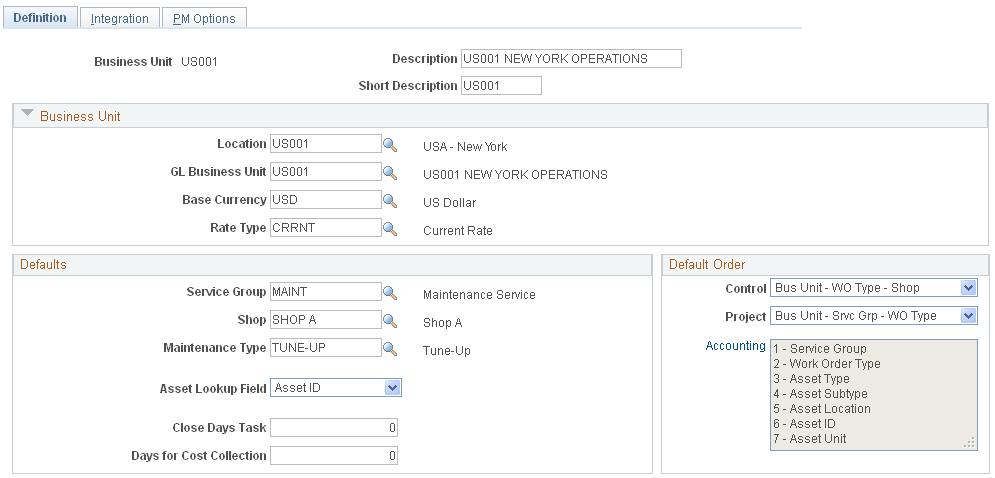
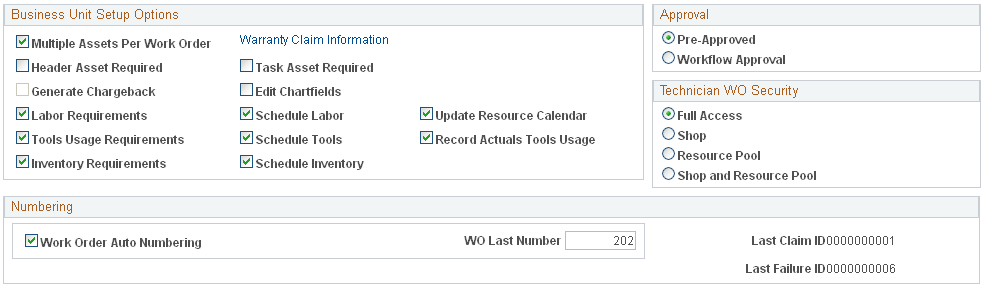
Image: Work Order - Definition page (2 of 2)
This example illustrates the fields and controls on the Work Order - Definition page (2 of 2). You can find definitions for the fields and controls later on this page.
When you set up a new work order business unit, you enter the new business unit number in the Add a New Value page and, when you access the Definition page, you describe this new business unit, associate a SetID, and create the business unit.
Business Unit
See Currency Conversion.
See Understanding Overall System Setup Parameters for PeopleSoft Maintenance Management.
Business Unit Setup Options
Select the options that you want to apply to your work order transactions.
| Multiple Assets Per Work Order |
Select this check box to enable you to enter a different asset from task to task. If you leave this check box blank, you can only enter an asset identification value at the work order header level. The fields for asset identification, Asset Management business unit, location, and others will not appear on the tasks. The system applies the asset defined in the work order header to each work order task. In you intend to create work orders to perform the changeout of an asset's component, then you must select this check box. This is because you must identify more than one asset to perform a component changeout. Important! This rule concerning multiple assets per work order does not apply to preventive maintenance work orders. You can create a preventive maintenance work order for a loop composed of multiple assets regardless of whether or not this check box is selected. See Component Changeout in PeopleSoft Maintenance Management. |
| Header Asset Required |
Select this check box to define the asset as a required entry when creating or updating a Work Order. |
| Task Asset Required |
Select this check box to define the asset as a required entry when creating or updating a Work Order Task. |
| Generate Chargeback |
Select this option to enable chargebacks, which is the recovery of costs from another organization, such as the business unit, operating unit, department, fund, and more, for any work orders associated with this business unit. Selecting this option enables the chargeback check box on the Task Accounting page. Note: To activate the chargeback check box on the Work Order Task Accounting page, you must select this option and select the Organization option in the Installation Options component. Note: You can override this specification for a shop at the shop level and for a work order type at the work order type level. |
| Edit ChartFields |
Select this check box to enable users to edit ChartField distribution values in the work order task. |
| Labor Requirements |
Select this check box to enable users to access the Labor Requirements grid in a work order that you created using this business unit, and calculate the estimated costs for the Labor resource requirements for each work order task. If you deselect the check box, you cannot access the Labor Requirements grid in the Work Order component. Note: You can override this field at the shop level. See Labor Requirements. |
| Inventory Requirements |
Select this check box to enable users to access the Inventory Requirements grid in the work order created using this business unit and calculate the estimated costs for the inventory resource requirements for each work order task. If you deselect the check box, you cannot access the Inventory Requirements grid in the Work Order component. Note: You can override this field at the shop level. |
| Tools Usage Requirements |
Select this check box to enable users to access the Tool Requirements grid in the work order created using this business unit and calculate the estimated costs for the Tool resource requirements for each work order task. If you deselect the check box, you cannot access the Tool Requirements grid in the Work Order component. Note: You can override this field at the shop level. |
| Schedule Labor, Schedule Inventory, and Schedule Tools |
Select the applicable check boxes based on your business needs to enable a scheduler to schedule the various resources for labor, inventory, and tool transactions in the Schedules page of the Work Order component. Note: You can override these selections at the shop level. |
| Record Actuals Tools Usage |
Select this option to process actual tools usage costs for any work orders using this business unit. These actual costs are generated in PeopleSoft Project Costing and display in the Cost page of the work order Note: The requirement for recording tools actuals is optional because some organizations do not record the use of tools that are involved in repairing an asset. However, all labor and material actuals are always recorded if used for a work order task. You can override this selection for a shop at the shop level. See Tool Usage. |
| Update Resource Calendar |
Select this option to enable a user to update the employee and tool resource calendars to free resources to perform other work if they have completed these work assignments earlier than scheduled. Note: This option is only available for selection if the Schedule Labor and Schedule Tools check boxes above are selected. You can override this selection for a shop at the shop level. |
| Approval |
Select:
|
| Technician WO Security (technician work order security) |
Select one of the following options to enable resources to have access to express work orders and work orders in the Technician Workbench:
|
| Warranty Claim Information |
Click this link to access the Warranty Claim Information page, where you can identify the business unit's contact information that will appear on warranty claims generated from work orders created with this business unit. See Understanding Warranty Claim Management in PeopleSoft Maintenance Management. |
Defaults
Define each of these fields to use as default fields on a work order associated with this business unit. You can override these values when you enter a work order.
| Service Group |
Select the service group that you want to appear as the default value in any work order associated with this business unit. This is the only level in which you can set up Service Group as a default value. You can use the service group value to set up your own supplemental data that further describes the service group. For example, if you select ITAM as the default service group value, you can create additional supplemental data fields related to peripheral devices that accompany a computer such as an external hard drive, mouse, and keyboard. When you select the ITAM service group to create a work order, then these supplemental fields will also display in the work order. This is a required field to enable a service group default value to appear in a preventive maintenance work order. |
| Shop |
Select the shop value that you want to display as the default value on the search page when you create a work order. You can override this value in the work order. Note: You must set up the business unit first and then set up shops using this business unit. Once your shops are set up, you should return to the business unit and enter a default shop value. See Understanding Shifts, Schedule Patterns and Periods, Shops, and Crews. |
| Close Days Task |
Enter the interim number of days between the completion of a work order task and the automatic closure of the task. Note: You can override this value at the Work Order Type level. In addition, you can manually close a work order task before this time interval expires. See Setting Up PeopleSoft Maintenance Management Work Order Parameters. |
| Asset Lookup Field |
Select one of the values listed below for this field. The selected value displays as the field name from which you select an asset's specific value in the Asset Information section of the work order header and the work order task for any work order associated with this business unit.
|
| Control Default Order |
Select the order in which the system checks for specified data.
|
| Project Default Order |
Select the order in which the system checks for ChartField distribution and project ID default values. The changes in this hierarchy are based on the order of the service group and the work order type:
|
| Days for Cost Collection |
Enter the number of days that you want the collection of costs to continue after the work order is closed. |
| Maintenance Type |
Select a default maintenance type value to display in the Maintenance Type field on the Miscellaneous page of the Work Order component. If you generate preventive maintenance work orders, a maintenance type is required on the work order in order to close the work order. |
| Accounting Default Order |
Select a sequence number for each of the values listed to establish the default order for each value, which includes:
|
See Work Order Business Unit Defaults and Default Hierarchies.
Numbering
Work Order - Integration Page
Use the Integration page (BUS_UNIT_TBL_WM2) to identify Project Costing, Inventory, and PeopleSoft Purchasing integration parameters.
Image: Work Order - Integration page
This example illustrates the fields and controls on the Work Order - Integration page. You can find definitions for the fields and controls later on this page.
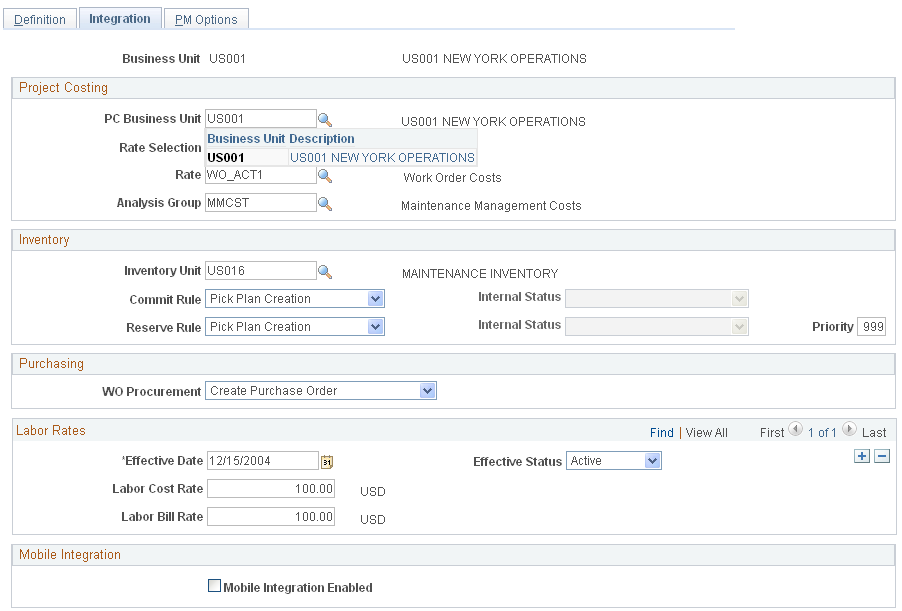
Project Costing
This section links any work order associated with this business unit to PeopleSoft Project Costing so that PeopleSoft Project Costing can serve as the cost repository for all work order costs, which includes the calculation and capitalization costs of assets. PeopleSoft Project Costing also calculates chargebacks and sends them to the appropriate GL business unit.
See Analysis Groups.
Inventory
These fields only display if Inventory is installed.
Purchasing
PeopleSoft Maintenance Management requires the installation of PeopleSoft Purchasing to enable users to obtain materials, tools, labor, and other goods and services by creating either a requisition or a purchase order directly from the work order or work order workbench. You can also create a requisition or purchase order in PeopleSoft Purchasing and link it to a work order. If you prefer to use PeopleSoft eProcurement, you can create a requisition directly in PeopleSoft eProcurement from the work order or you can load and stage scheduled rows and create requisitions, which can be accessed in PeopleSoft eProcurement.
Labor Rates
Note: You can override these rates for a specific shop at the shop level, as well as associate specific crafts and craft labor rates with a shop.
GIS Integration
Mobile Integration
PM Options Page
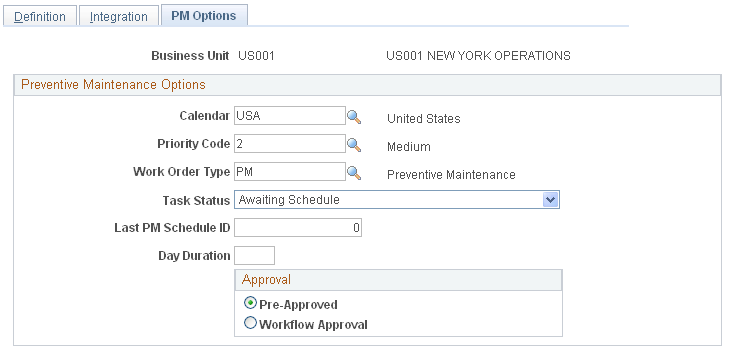
Use the PM Options page (BUS_UNIT_TBL_WM3) to identify parameters specific to Preventative Maintenance Work Orders.
Image: PM Options Page
This example illustrates the fields and controls on the PM Options Page. You can find definitions for the fields and controls later on this page.
| Calendar |
Select a business calendar to use in determining valid business days for preventive maintenance work orders that are generated for this business unit. Selecting this option enables you to avoid scheduling preventive maintenance work orders on holidays or weekends. |
| Priority Code |
Select H (High), M (Medium), or L (Low) to appear as the default priority in any preventive maintenance work order that the application automatically creates for this business unit. This is a required field. Important! This default value appears for all work orders except for work orders that you create for a project for a Project Costing-managed project. See Setup and Processing of Preventive Maintenance Work Orders. |
| Work Order Type |
Select the work order type that you want to use as the default value in any preventive maintenance work orders that the application generates for this business unit. This is a required field. |
| Task Status |
Select the work order task status for a work order task that you want to appear as the default value for any preventive maintenance work orders created during Preventive Maintenance processing that are associated with this business unit. You can select any user-defined work order task status except for those that you defined for the internal statuses of complete, closed, and canceled. This is a required field. |
| Last PM Schedule ID |
This identifies the last number used to create a preventive maintenance schedule and automatically increments each time a new preventive maintenance schedule is created. See Setup and Processing of Preventive Maintenance Work Orders. |
| Day Duration |
Enter a duration value in hours. This value should not be greater than twenty four. For example, if the day duration is eight hours, the PM work order duration is forty eight hours, and if the start date is 04/05/2012, the period is calculated as forty eight divided by eight, which is six. Hence, end date would be 04/11/2012. |
| Enable Workflow Approval |
Click the Workflow Approval radio button to enable the workflow approval process. |