This section provides supporting information for the Oracle Insurance Accounting Analyzer Installation Guide.
You can find the latest copy of this document in the OHC Documentation Library which includes all the recent additions or revisions (if any) done to date.
Before you begin the installation, ensure that you have access to My Oracle Support with the required login credentials to quickly notify us of any issues at any stage.
Topics:
The Oracle Insurance Accounting Analyzer Installation Guide is intended for administrators, business users, strategists, data analysts, and implementation consultants who handle installing and maintaining the application pack components.
This document assumes that you have experience installing enterprise components and basic knowledge of the following:
· Oracle Insurance Accounting Analyzer Components
· OFSAA Architecture
· UNIX Commands
· Database Concepts
· The Web Server or Web Application Server
We strive to keep this document and all other related documents updated regularly. Visit the OHC Documentation Library to download the latest version available. The list of related documents is provided here:
· OHC Documentation Library for Oracle Insurance Accounting Analyzer:
· For existing customers of Oracle Insurance Accounting Analyzer (IAA):
§ OFS Insurance Accounting Analyzer 8.1.1.2.0 Installation Guide
§ OFS Insurance Accounting Analyzer 8.1.1.2.0 User Guide
· For new customers of Oracle Insurance Accounting Analyzer (IIA):
OFS Insurance Accounting Analyzer 8.1.1.2.0 Release Notes
§ OFS Insurance Accounting Analyzer 8.1.1.2.0 Installation Guide
§ OFS Insurance Accounting Analyzer 8.1.1.2.0 User Guide
· OHC Documentation Library for OFS AAAI Application Pack:
§ OFS Advanced Analytical Applications Infrastructure (OFS AAAI) Application Pack Installation and Configuration Guide
§ OFS Analytical Applications Infrastructure User Guide
§ OFS Analytical Applications Infrastructure Administration Guide
§ Oracle Financial Services Analytical Applications Infrastructure Environment Check Utility Guide
Additional Reference Documents:
OFSAA Licensing User Manual, Release 8.1.1.0.0
OFS Analytical Applications 8.1.1.0.0 Technology Matrix
OFS Analytical Applications Infrastructure Security Guide
Oracle Insurance Accounting Analyzer Security Guides Release 8.1.x
Oracle Financial Services Analytical Applications Infrastructure Cloning Guide
Oracle Insurance Accounting Analyzer Cloning Guide release 8.0.x
Oracle Insurance Accounting Analyzer Cloning Guide Release 8.1.x
Oracle Financial Services Data Foundation Technical Documents (MOS Doc ID: 2450653.1). See the relevant version of the metadata sheet available in the MOS document (For CAS, see T2T Metadata Staging, and for SCD components, see SCD Metadata sheet).
The following text conventions are used in this document.
|
Convention |
Description |
|---|---|
|
boldface |
Boldface type indicates graphical user interface elements associated with an action or terms defined in text or the glossary. |
|
italic |
Italic type indicates book titles, emphasis, or placeholder variables for which you need to update specific values. |
|
monospace |
Monospace type indicates commands within a paragraph, URLs, code in examples, file names, text that appears on the screen, or text that you enter. |
|
Hyperlink |
Hyperlink type indicates links to external websites and internal document links. |
The following table lists the abbreviations used in this document.
|
Abbreviation |
Meaning |
|---|---|
|
DBA |
Database Administrator |
|
DDL |
Data Definition Language |
|
DEFQ |
Data Entry Forms and Queries |
|
DML |
Data Manipulation Language |
|
EAR |
Enterprise Archive |
|
EJB |
Enterprise JavaBean |
|
ERM |
Enterprise Resource Management |
|
FTP |
File Transfer Protocol |
|
HDFS |
Hadoop Distributed File System |
|
HTTPS |
Hypertext Transfer Protocol Secure |
|
J2C |
J2EE Connector |
|
J2EE |
Java 2 Enterprise Edition |
|
JCE |
Java Cryptography Extension |
|
JDBC |
Java Database Connectivity |
|
JDK |
Java Development Kit |
|
JNDI |
Java Naming and Directory Interface |
|
JRE |
Java Runtime Environment |
|
JVM |
Java Virtual Machine |
|
LDAP |
Lightweight Directory Access Protocol |
|
LHS |
Left Hand Side |
|
MFA |
Multi-Factor Authentication |
|
MOS |
My Oracle Support |
|
OFSAA |
Oracle Financial Services Analytical Applications |
|
OFSAAI |
Oracle Financial Services Analytical Application Infrastructure |
|
OFSAAAI |
Oracle Financial Services Advanced Analytical Applications Infrastructure Application Pack |
|
OFS IIA |
Oracle Financial Services Insurance Accounting Analyzer |
|
OHC |
Oracle Help Center |
|
OLAP |
On-Line Analytical Processing |
|
OLH |
Oracle Loader for Hadoop |
|
ORAAH |
Oracle R Advanced Analytics for Hadoop |
|
OS |
Operating System |
|
RAM |
Random Access Memory |
|
RDBMS |
Relational Database Management System |
|
RHEL |
Red Hat Enterprise Linux |
|
SFTP |
Secure File Transfer Protocol |
|
SID |
System Identifier |
|
SSL |
Secure Sockets Layer |
|
TNS |
Transparent Network Substrate |
|
URL |
Uniform Resource Locator |
|
VM |
Virtual Machine |
|
WAR |
Web Archive |
|
XML |
Extensible Markup Language |
IFRS17 is an international norm that supersedes the current reporting standards, IFRS 4. The new standards provide the users of financial statements with a new perspective with financial accounts of insurance companies.
· Overview
· Why Oracle Insurance Accounting Analyzer
Insurance companies need to identify the risks that arise from the insurance contracts along with the calculation of assets and liabilities. IFRS 4 was introduced in March 2004 and was intended to provide limited improvements to accounting for insurance contracts. IFRS 4 permitted companies to continue previous accounting practices for insurance contracts but did enhance the disclosure requirements.
IFRS17 standards, released in May 2017, supersedes the current reporting standards IFRS 4 on accounting for insurance contracts and has an effective date of 1 January 2021. The new standards provide users of financial statements with a new perspective of the financial accounts of insurance companies. IFRS 17 introduces an approach that tackles some challenges in accounting for insurance contracts currently addressed inconsistently when a company applies IFRS 4.
IFRS 17 provides updated information about the obligations, risks, and performance of insurance contracts.
Increases transparency in financial information reported by insurance companies, which will give investors and analysts more confidence in understanding the insurance industry.
Introduces consistent accounting for all insurance contracts based on a Current Measurement Model.
Oracle Insurance Accounting Analyzer application follows the Accounting standards diligently and enables insurance companies to adhere to the disclosure requirements as proposed under Accounting, along with an ability to compute Contractual Service Margin and Net Liabilities.
IFRS 17 requires Insurance companies to have consistent accounting standards for the Insurance contracts which ensure timely recognition of losses in the book of accounts. Insurance companies are required to identify and report the Fulfillment Cash Flows and Contractual Service Margin at every reporting date, based on the current market conditions. Oracle Insurance Accounting Analyzer Application helps the organizations in arriving at the insurance obligations (Insurance Contract liabilities reported on the balance sheet), using different methodologies for a set of portfolios, by assessing the net liability for every insurance contract.
Oracle Insurance Accounting Analyzer v8.1.1.2.0 Maintenance Level (ML) release includes all the bug fixes and minor enhancements since the previous release v8.1.1.1.0.
· Pre-Installation Requirements
· Installing this Maintenance Level Release
The prerequisites are as follows:
· The minimum patch set level must be 8.1.1.0.0 or 8.1.1.1.0.
· AAI 8111 ML patch number 32487622
· Execute below query in the Config Schema:
update AAI_APP_B set V_VERSION='8.1.1.0.0' where V_APP_ID='OFS_IIA';
See the OFS Analytical Applications Technology Matrix, for hardware and software requirements.
For more information on the OFS AAI requirements, see OFS Advanced Analytical Applications Infrastructure Application Pack 8.1.1.0.0 Release Notes in OHC Documentation Library.
To install this ML release, follow these steps:
1. Login to My Oracle Support and search for 33300674 under the Patches & Updates tab.
2. Download the Erwin data model patch 33319558.
3. Download the OFSAA 8.1.1.2.0 IAA archive file and copy it to your OFSAA server in Binary mode.
NOTE:
There are different archive files for different operating systems such as Solaris, and RHEL/OEL.
4. Stop all the OFSAAI services. For more information, see the Start/Stop Infrastructure Services section in Oracle Insurance IFRS 17 Pack Installation Guide Release 8.1.1.0.0.
5. Login to the OFSAA server as a non-root user and navigate to the $FIC_HOME folder.
6. If you have to Unzip utility, skip to the next step or download the Unzip utility (OS-specific) and copy it in Binary mode to the directory that is included in your PATH variable, typically $HOME path or directory in which you have copied the 8.1.1.2.0 ML.
· Unzip installer file using the command:
unzip -a<installation name>.zip
NOTE:
If you notice an error message "uncompress: not found [No such file or directory]" when the package is not installed, contact your UNIX administrator.
7. Give EXECUTE permission to the utility by using the command:
chmod -R 751 <installer name>
8. Update the configuration file params.conf file present in the OFS_IIA_PACK/appsLibConfig/conf folder before triggering the installation. The update instructions are present in this file itself.
In case of customized Data Model upload, then update the params.conf file present in the OFS_IIA_PACK/appsLibConfig/conf folder accordingly.
9. Give EXECUTE permission to the ML patch installer script. Navigate to the OFS_ AAI directory and execute the command:
chmod 755 OFSAAIUpdate.sh
10. Execute the following command:
./OFSAAIUpdate.sh
11. Verify if the ML is applied successfully by checking the log files generated in OFS_IIA_ PACK/OFS_IIA/logs and OFS_IIA_PACK/logs directories. You can ignore ORA-00001 and ORA-02292 in the log file. In case of any other errors, contact My Oracle Support.
12. After successful installation of the ML, perform the following steps:
· Clear the application cache. Navigate to the following path depending on the configured web application server and delete the files.
§ Tomcat: <Tomcat installation folder>/work/Catalina/localhost/<Application name>/org/apache/jsp
§ Weblogic: <Weblogic installation location>/domains/<Domain name>/servers/<Server name>/tmp/_WL_user/<Application name>
§ Websphere: <Websphere installation directory>/AppServer/profiles/<Profile name>/temp/<Node name>/server1/<Application name>/<.war file name>
13. Delete the existing EAR/WAR file available in the folder $FIC_HOME/ficweb.
14. Generate the application EAR/WAR file and redeploy the application onto your configured web application server. For more information on generating and deploying the EAR/ WAR file, see Create and Deploy the EAR or WAR Files in OFS AAI Release 8.1.1.0.0 Installation and Configuration Guide.
15. Restart all the OFSAAI services. For more information, refer to the Start/Stop Infrastructure Services section in OFS AAI Release 8.1.1.0.0 Installation and Configuration Guide.
16. This step is applicable only if you are upgrading from release v8.1.1.0.0. After installing 8.1.1.2.0, all the custom calculation preference templates that were created prior to Release 8.1.1.2.0 will be in the Draft status. Make the required changes to the expressions and resubmit the templates for approval.
This section provides information on the post-installation configurations:
· Editing Global Variables for OBIEE or OAS
· Deploying the Webserver using Tomcat
· Customize the Repline Formula
Post-Installation Configurations if Upgrading from v8.1.1.0.0
· Replacing Column Names in the Templates
· Create the Business Unit Hierarchy
You must download and install the mandatory patch 33663417. Ensure that whenever any installation or upgrade or an incremental patch is applied, the mandatory patch 33663417 for Log4J must be reapplied. For more information, see the MOS Doc ID 2827801.1.
Install and apply the mandatory OFS IAA 33373646 patch.
Download and apply the AAI mandatory One-off Patches 33995565 and 34058716.
To edit the global variables for OBIEE, in this release of the Oracle Insurance Accounting Analyzer application, follow these steps:
1. Deploy the RPD. For more information, see the OBIEE Configuration - Deploy OFS IIA Analytics section in the Release 8.1.1.0.0 Oracle Insurance Accounting Analyzer Installation Guide.
2. Host the RPD in the server where you have configured OBIEE or OAS and Catalog for the Oracle Insurance Accounting Analyzer application as part of this release.
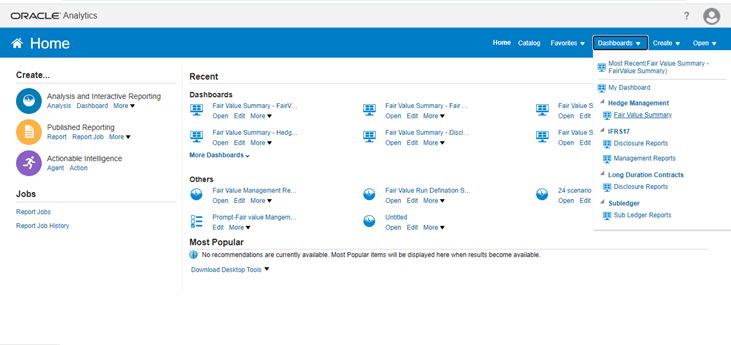
3. Log in to OBIEE or OAS by using the URL format (http://<ipaddress>:<port>/analytics) to open the home page.
Figure 1: The Analytics Home Page
4. In the Dashboards drop-down list, click Disclosure Reports to open the dashboard.
5. Click Edit on any of the reports to open the settings window.
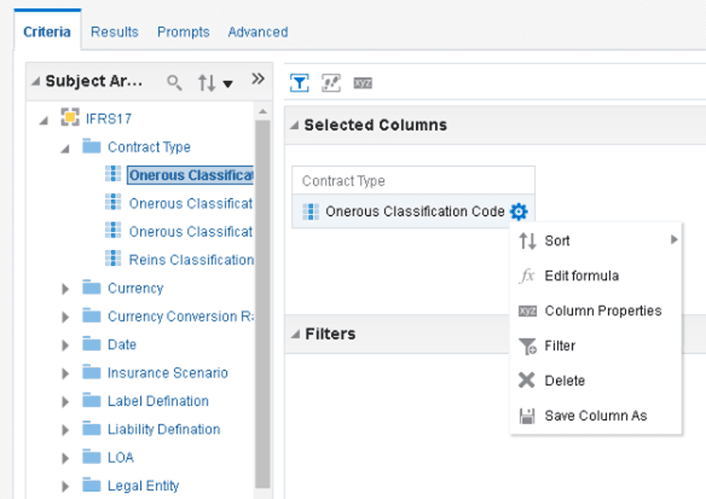
In the Criteria tab, in the Selected Columns pane, click the Onerous Classification Code.
6. Click Settings to open the settings submenu.
Figure 2: The Settings icon adjacent to Onerous Classification Code
7. Click Edit formula to open the Edit Column Formula window.
Figure 3: The Edit Column Formula
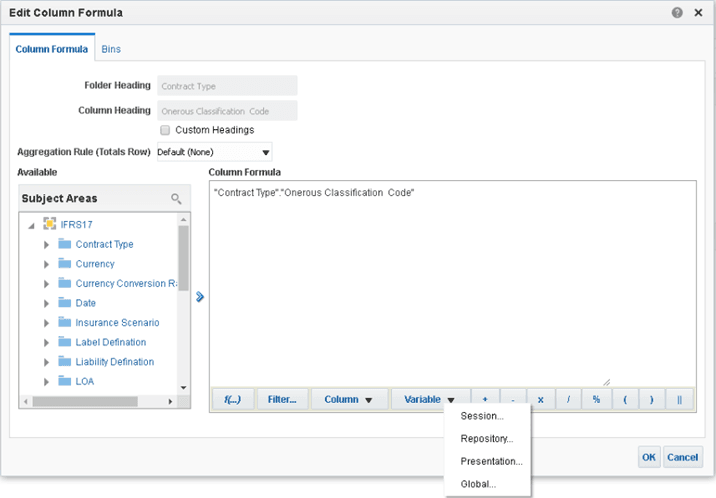
8. In the Variables drop-down list, select Global… to open the Insert Global Variable window.
9. Select the Global Variable that you want to edit, and then click Edit Global Variable.
10. Edit a global variable with the following details:
|
Field |
Value to be added |
|---|---|
|
Name |
denomination |
|
Type |
Text |
|
Value |
case when '@{denomination}{In Thousand}' = 'In Thousand' then 1000 when '@{denomination}{In Thousand}' = 'In Million' then 1000000 else 1 end |
This variable is used to divide all amount values by thousand or million, depending on the selected criteria.
11. Click OK, and then click OK again to save.
If you need to create a custom formula for a Repline where you are using both Input and Output Variables in the formula, perform the below steps:
1. In the DIM_INS_ACST_REP_LINE table, create a separate row with the same Output Variable display name and use the Input Variable in the formula.
2. In the Repline name, column update the "MI" for the newly created row.
3. Make sure that the Reporting Flag is set to Y for this row and the variable sequence is the same as the Output Variable Repline Row.
If you have created Custom Direct Insurance and Reinsurance variables from the Variable Maintenance screen, then you must add the corresponding direct and Reinsurance variable columns in the following tables in the Erwin Data Model:
1. For Direct Insurance Variables, add the corresponding variable column into the following tables:
FSI_INS_CONTRACT_INPUT_DETAIL
FSI_INS_GROUP_INPUT_DETAIL
2. For Reinsurance Input Variables, add the corresponding variable column into the following tables:
FSI_RI_CONTRACT_INPUT_DETAIL
FSI_RI_GROUP_INPUT_DETAIL
Upload the Erwin Data Model.
Preform the following steps to deploy the Webserver by using Tomcat:
1. Configure the Apache Tomcat Server. For more information, see the Configure the Apache Tomcat Server section in OFS Analytical Applications Infrastructure Installation and Configuration Guide.
2. After configuring the Apache Tomcat Server, create the Data Source. For more information, see the Create Data Source section in OFS Analytical Applications Infrastructure Installation and Configuration Guide.
To access the respective Business Intelligence Analytics Application, you must update the OBIEE URL in the AAI_MENU_B table after the OBIEE environment is up and running. Use the following command:
UPDATE AAI_MENU_B
SET V_MENU_URL = '&obieeURL'
WHERE V_MENU_ID IN ('OFS_IIA_ANALYTICS')
/
COMMIT
/
If any Level of Aggregation (LOA) is defined by enabling the Business Unit Dimension, then it is mandatory to create a Business Unit Hierarchy where all the business units that are selected in the LOAs are at the leaf level. In Dimension Management, in the Hierarchy Maintenance section, create a hierarchy for the Business Unit Dimension. For more information on creating a hierarchy, see the Hierarchy Maintenance section in the Oracle Financial Services Analytical Applications Infrastructure User Guide.
After the hierarchy is created, the below SQL statement must be executed in the atomic schema:
INSERT INTO FSI_M_IIA_AGGR_DIMENSION_DTLS (LEVEL_OF_AGGR_ID, DIMENSION_ID, HIERARCHY_ID, DIM_MEMBER_ID)
SELECT DIM_MAP.LEVEL_OF_AGGR_ID, DIM_MAP.DIMENSION_ID, DIM_MAP.HIERARCHY_ID, DIM_MAP.DIM_MEMBER_ID
FROM ( SELECT DISTINCT DM.LEVEL_OF_AGGR_ID, (SELECT DIMENSION_ID FROM REV_DIMENSIONS_B WHERE MEMBER_B_TABLE_NAME = 'DIM_BUSINESS_UNIT_B' AND MEMBER_COL='BUSINESS_UNIT_ID') DIMENSION_ID, &HIERARCHY_ID HIERARCHY_ID, DBUB.BUSINESS_UNIT_ID DIM_MEMBER_ID
FROM FSI_IIA_AGGR_NON_HIER_DIM_MAP DM
INNER JOIN DIM_BUSINESS_UNIT DBU ON DBU.N_BUSINESS_UNIT_SKEY = DM.DIM_CD AND DM.DYNA_NAME = 'BIUT'
INNER JOIN DIM_BUSINESS_UNIT_B DBUB ON DBUB.BUSINESS_UNIT_CODE = DBU.V_BUSINESS_UNIT_CODE) DIM_MAP
WHERE NOT EXISTS (SELECT IAD.LEVEL_OF_AGGR_ID FROM FSI_M_IIA_AGGR_DIMENSION_DTLS IAD WHERE IAD.LEVEL_OF_AGGR_ID = DIM_MAP.LEVEL_OF_AGGR_ID AND IAD.DIMENSION_ID = DIM_MAP.DIMENSION_ID AND IAD.DIM_MEMBER_ID = DIM_MAP.DIM_MEMBER_ID)
/
When prompted for the HIERARCHY_ID value, enter the ID of the Business Unit Hierarchy.
For the column names in the templates to be replaced It is mandatory to execute the below file in the atomic schema and commit the changes:
<< installer directory>>/OFS_IIA_PACK/OFS_IIA/bin/scripts/atomic/insert/iia_assumption_formula_migration.sql
Frequently Asked Questions (FAQs) and Error Dictionary
For General FAQs and installation error-related information, see the following sections:
Frequently Asked Questions (FAQs) and Error Dictionary in the OFS AAAI Installation and Configuration Guide.
Oracle Insurance Accounting Analyzer FAQ
How do I upgrade the Java version to JDK 11?
See the Update the OFSAA 8.1.1.x Java 8 Instance to Java 11 section in the OFS AAAI Installation and Configuration Guide.