Business Process Instance Page
Use the Business Process Instance page (BPW_PROC_INST) to review and control the execution of business processes.
Navigation:
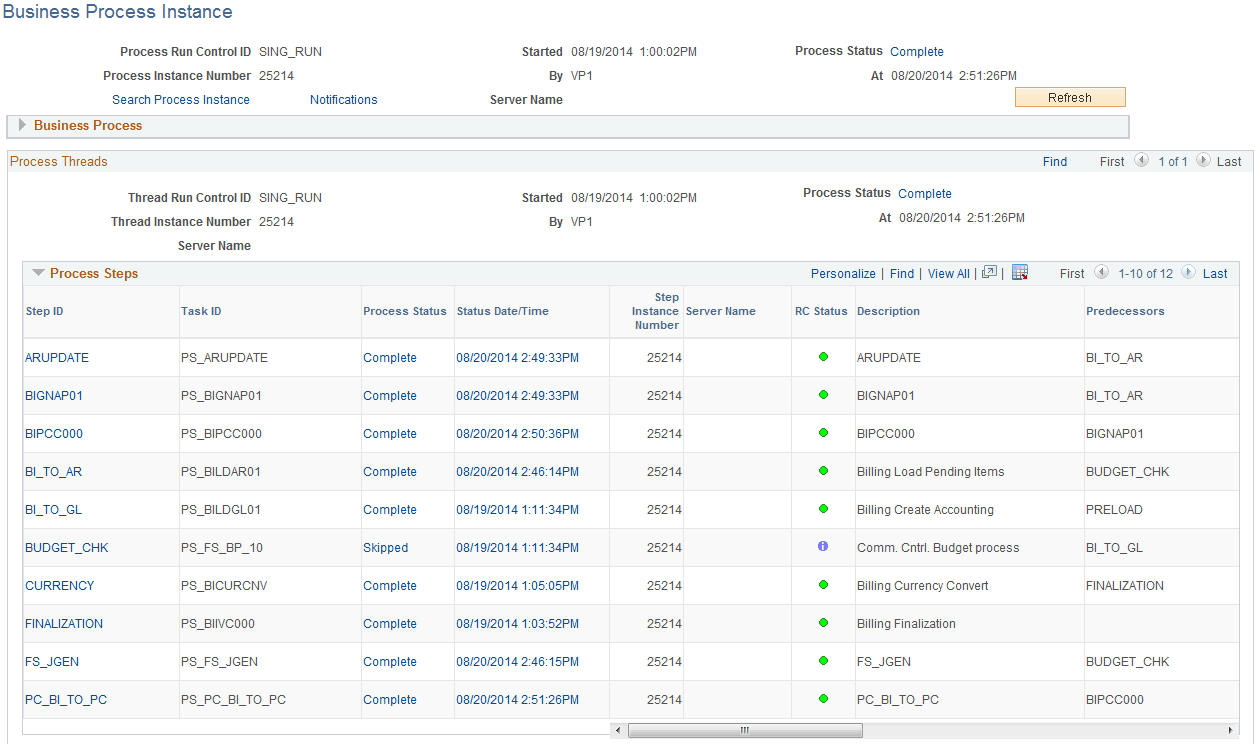
This example illustrates the fields and controls on the Business Process Instance page (1 of 2). You can find definitions for the fields and controls later on this page.
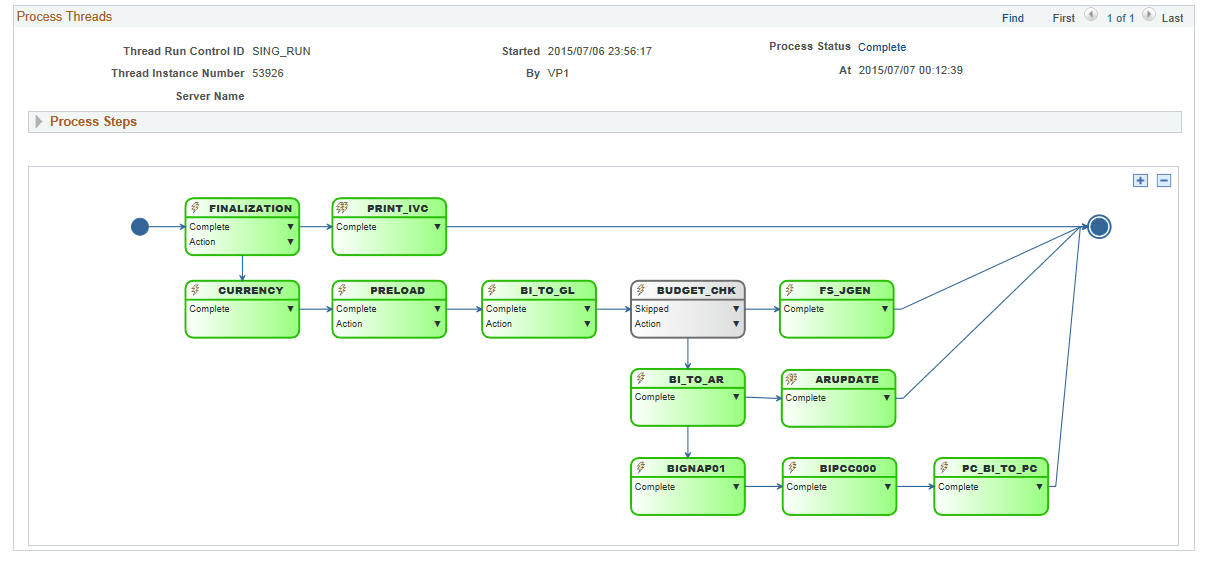
This example illustrates the fields and controls on the Business Process Instance page (2 of 2). You can find definitions for the fields and controls later on this page.
| Field or Control | Description |
|---|---|
|
Search Process Instance |
Click this link to access the Business Process Instance Search page. |
|
Notifications |
Click this link to view the notifications for this Run Control ID. The Business Process Instance Notifications secondary page provides display-only notification details. Notification links received by email or worklist direct the user to the Business Process Instance page. See Setting Up and Using Business Process Notifications for more information. |
|
Process Action |
Select a valid action from the drop-down list to apply the action to the whole business process. |
|
Refresh |
Click this button to refresh the data on the page. |
| Field or Control | Description |
|---|---|
|
Started / By |
Displays the date and time that the business process instance was started and the User ID that initiated the process. |
|
Process Status / At |
Displays the Process Status of the business process instance and the date and time when it was last updated. You can click the Process Status link to open the Process Log secondary page, which shows the log entries for the entire business process. |
|
Process Instance Number |
Displays the instance number that is assigned to the business process instance when it was started. |
Business Process
This section provides information from the Business Process Run Control.
Process Threads
| Field or Control | Description |
|---|---|
|
Started / By |
Displays the date and time that the business process instance was started and the User ID that initiated the process thread. |
|
Process Status / At |
Displays the Process Status of the process thread and the date and time when it was last updated. You can click the Process Status link to open the Process Log secondary page, which shows the log entries for the process thread. |
|
Thread Instance Number |
Displays the instance number that is assigned to the process thread. |
Process Steps
| Field or Control | Description |
|---|---|
|
Action |
Select a valid action from the drop-down menu to apply the action to the step. Valid actions are determined by the status and whether the user is the user who set up the run control or whether the user is a process scheduler administrator. |
|
Step ID |
Click this link to open the Step Threads for the step. |
|
Process Status |
Indicates the process status of the step. Click the link to open the Process Log secondary page, which shows the log entries only for the step. |
|
Status Date/Time |
The date/time the process status is updated. It is a link that users can click to open the Message Log secondary page, which shows the log entries for the step. |
|
Step Instance Number |
The instance number assigned to the step by BPW. |
Graph
The Process Graph shows the flow of the process and the process status for each step. It is displayed by process thread.
-
Each node shows the Step ID and its process status and valid actions. You can hover over the Step ID to see the description and task ID for the step. If an icon is associated with the task, it will appear at the top-left of the node
-
Click on the process status to open a pop-up menu to drill down to the Process Log, Message Log, and Step Threads secondary pages, similar to using the Process Status, Status Date/Time, and Step ID links in the Process Steps section. From the pop-up menu, you can also open the Reports and Log/Trace page to review the reports, the logs/trace, or both as generated from the process. For batch, this capability enables you to review the reports and logs/trace without navigating to the Report Manager or Process Monitor.
-
An alert icon can appear in front of the process status to indicate whether an error, warning, or information message is available in the Process log, Message log, or both that you should review.
-
If valid actions exist, you can click Action to open a pop-up menu with a list of the valid actions for the step and select the action to apply to the step, similar to using the Step Action drop-down menu in the Process Steps section. If related actions are associated with the task, then the related actions will also appear in the pop-up menu. The related actions are created and performed by the event handler associated with the step.
-
The graph is copied from the business process definition. Since it has been set up in the Business Process Definition page, users are not able to move and rearrange the nodes. However, you can use the zoom in and zoom out icons, as you do on the Business Process Definition Page.