Business Process Run Control Page
Use the Business Process Run Control page (BPW_PROC_RUN) to set up run controls for the business process. It provides data parameters to execute the tasks.
Navigation:
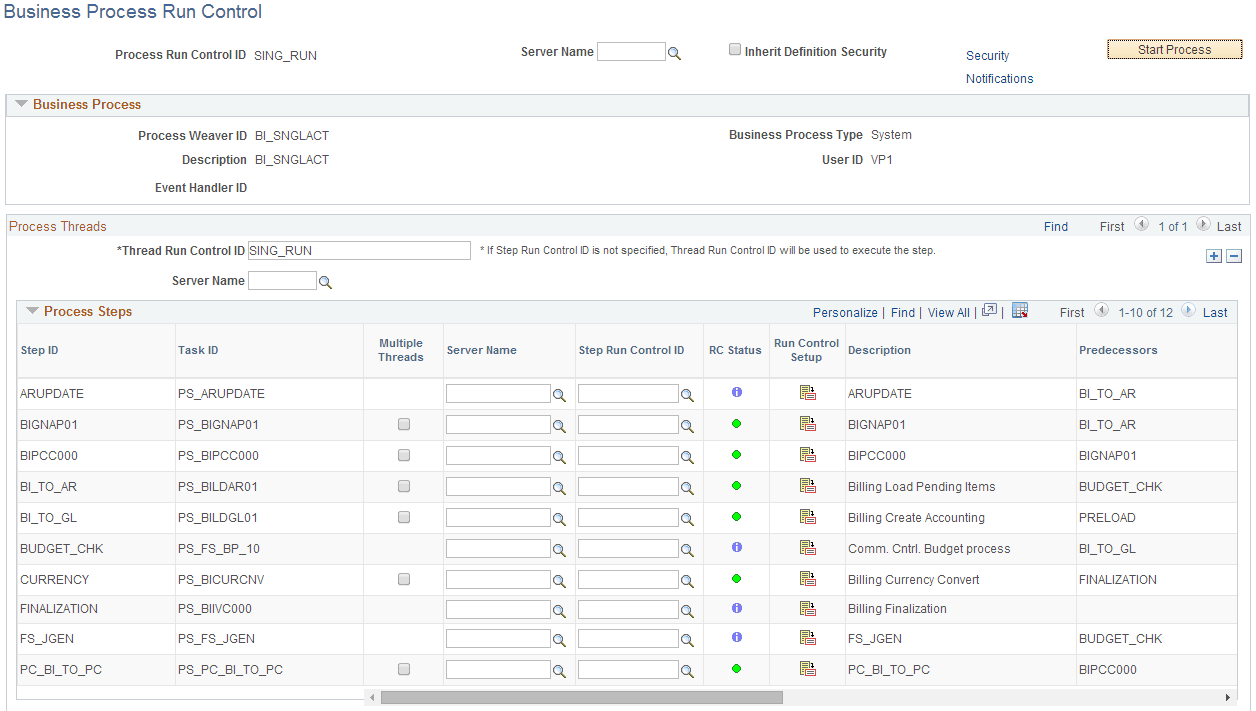
This example illustrates the fields and controls on the Business Process Run Control page (1 of 2).
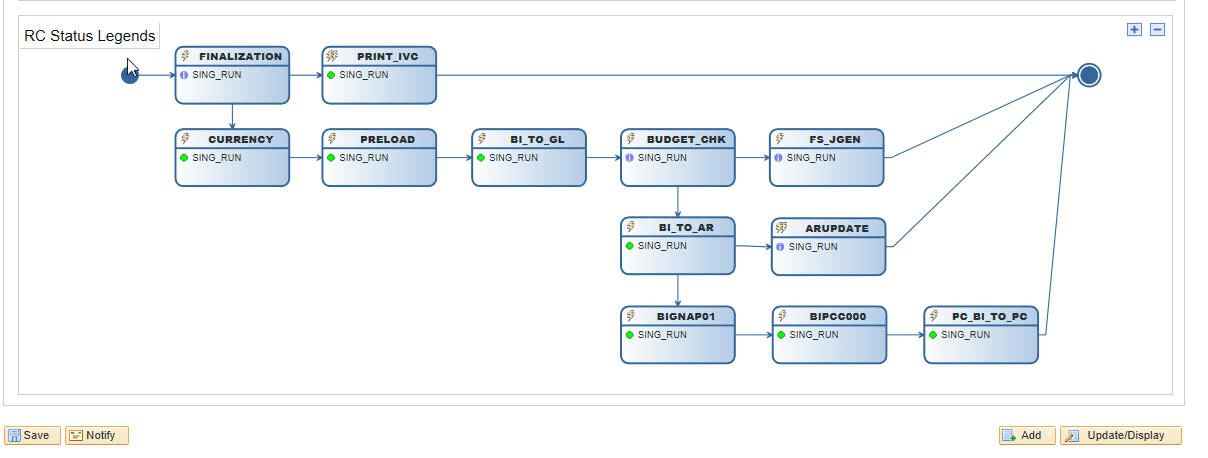
This example illustrates the fields and controls on the Business Process Run Control page (2 of 2).
Note:
The system disables the Start Process button on the Business Process Weaver Run Control page when a user does not have access to the first step in the Business Process Weaver definition. A user must have access to both the first step in the definition and the first step in the run control security data.
| Field or Control | Description |
|---|---|
|
Inherit Definition Security |
Select to copy and use security defined on the Business Process Security page. At least one security row must be defined on the process definition to inherit security. If security has not been defined, the system hides the Inherit Definition Security check box. See Defining Business Process Weaver Security Options for more information. |
|
Security |
Click the Security link to define security by role or user and override security set up on the process definition. See Defining Business Process Weaver Security Options for more information. |
|
Inherit Notifications |
Select to copy and use notifications defined on the Business Process Definition Notifications page. At least one notification must be active on the process definition to inherit notifications. If none of the notifications are active or defined, the system hides the Inherit Notifications check box. When you select the Inherit Notifications check box, the system hides the Notifications link. See Setting Up and Using Business Process Notifications for more information. |
|
Notifications |
Click the Notifications link to select and override notifications set up on the process definition. See Setting Up and Using Business Process Notifications for more information. Note that the Notifications setup from the Run Control page is the same as the setup from the Business Process Definition. |
Many of the fields are copied from the Business Process Definition page. See Defining Business Processes.
Run Control IDs
Run controls identify the data (parameters) that are the inputs to the processes/programs. Each run control is identified by a Run Control ID. Four levels of Run Control IDs are available. A lower level ID is generally provided by default from a higher level if a value is not provided. For example, the Thread Run Control ID is used for a step if the Step Run Control ID is not provided. Step Thread Run Control ID is the lowest level, and it is the Run Control ID that is passed to the Task (for example, batch process/job) when the task is executed.
From high (parent) to low (child):
-
Process Run Control ID – This ID identifies the business process run control. It is unique per user and per business process.
-
Thread Run Control ID – This ID identifies a process thread inside the business process. Each process thread should have a different Thread Run Control ID.
-
Step Run Control ID – This Run Control ID is associated with the step. It is used to create a step thread if no step threads were created explicitly. If an event handler is associated with the step to create step thread run controls dynamically, then this value can be used to pass the “master” run control to the event handler to partition data and create step thread run controls. If the prompt record is set up in the Task Registry for the step’s task, then a user can select existing Run Control IDs from the prompt table. However, regardless of whether a prompt table is set up, users can enter any desired value as the Step Run Control ID.
-
Step Thread Run Control ID – This Run Control ID is associated with the step thread and is the run control passed to the task for execution. At least one step thread is created for each step. If a prompt record is set up in the Task Registry for the task of the parent step, then a user can select existing Run Control IDs from the prompt table. However, regardless of whether a prompt table is set up, users can enter any desired value as the Step Thread Run Control ID.
Header
-
Server Name – Optionally, you can specify the Process Scheduler Server to run the process.
-
Start Process – After the run control is set up, you click on the Start Process button to start running the business process. You are automatically transferred to the Business Process Instance page with the created business process instance opened.
-
Refresh from Definition – When a business process run control is created, the business process definition selected is copied. This action will ensure the integrity of the run control. If after the run control is created the definition is changed, then this message and the Refresh button will be available for users to sync with the definition manually. The business process run control will be recreated with the same process thread/step/step thread run controls (if the step is not deleted).
Process Threads/Steps
The Process Threads section allows you to create multiple process threads. The Process Steps section allows you to associate run controls to each step.
-
Multiple Threads– In the Business Process Run Control page, users can create multiple step threads to manually partition the data and create multiple parallel executions. When users select this check box, the Step Threads button will be available to allow users to enter multiple step thread run controls, and the Step Run Control ID will be hidden. If a value is already entered in Step Run Control ID, then it will be used as the first Step Thread Run Control ID. This check box is disabled if multiple Step Thread Run Control IDs are already entered.
-
Step Threads – When Multiple Threads is selected, this button is available for users to open a secondary page to enter the Step Thread Run Controls.
-
RC Status – This value indicates the Run Control Status. Business Process Weaver (BPW) checks and displays the RC Status, depending on the value entered and the task setup and whether event handler will create dynamic run controls. The status icons are described below. You can hover over the icon to see a description, and click the icon to open a pop-up menu that provides more details. The RC Status field can have the following values:
Field or Control Description  Run Control
Setup Exists
Run Control
Setup ExistsRun control prompt record is set up in the associated task and the run control entered exists in the record.
 Run Control
Setup Missing
Run Control
Setup MissingRun control prompt record is set up in the associated task and the run control entered does not exist in the record.
 Run Control
Not Required
Run Control
Not RequiredRun control prompt record is set up in the associated task and the run control entered does not exist in the record. However, the task registry indicates the run control is not required to execute the task.
 Run Control
Setup Unknown
Run Control
Setup UnknownRun control prompt record is not set up in the associated task and it is not possible to check whether the run control exists.
 Dynamic
Run Control
Dynamic
Run Control The step is associated with an event handler, which indicates that dynamic run controls will be created.
-
Run Control Setup – If the associated task is set up to have a Run Control Prompt Table and a Run Control Setup page in the Task Registry, then this button will be available to allow users to open the Run Control Setup page directly from the Business Process Run Control page. If the Run Control ID exists, then that run control is opened automatically. If the Run Control ID does not exist, a new run control is created and opened directly. In both cases, users must save (click OK or Apply) on the Run Control Setup page to save the updated or new run control. After returning from the Run Control Setup page, the RC Status will be refreshed.
Graph
The Process Graph shows the flow of the process and the run controls for each step. It is displayed by the process thread.
-
Each node shows the Step ID and its Run Control ID with RC Status for a step. You can hover over Step ID to see the step description and the task ID for the step. If an icon is associated with the task, it will appear at the top-left of the node.
-
If Run Control Setup page is set up (for example, a Run Control Setup button is available in the Process Steps section), you can click the Run Control ID to open the run control setup page. Whether this is available is shown by hovering over the Run Control ID to see if the Run Control ID is highlighted.
-
If the step has multiple step threads, then the Run Control ID appears as “(Multiple),” and you click it to display a pop-up menu for the list of the step thread run control IDs.
In addition, a count bubble is displayed at the top-right of the node.
-
You can click RC Status Legends to toggle the display of the RS Status Legends.
-
The graph is copied from the business process definition.
Since it has been set up in the Business Process Definition page, you are not able to move and rearrange the nodes. However, you can use the zoom in and zoom out icons, as you do on the Business Process Definition Page.