Applying Cash Advances to Expense Reports using PeopleSoft Fluid
This topic discusses how to apply cash advances to expense reports and how to require an employee to use outstanding cash advances.
Setting Up Cash Advance Enforcement
When an employee has an outstanding cash advance and does not apply it to an expense report, you can configure the system to display a warning message that reminds the employee that they have the outstanding cash advance and asks whether the employee wishes to apply the outstanding cash advance to the expense report. If the employee chooses not to apply the cash advance, the system requires them to enter a reason. This reason is displayed on the Exception Comments and Risks window for the approver.
Follow these steps to configure your system to use the Cash Advance Requirement feature:
-
Use the Application Fundamentals: Installation Options - Expenses Page to select the “Enforce Cash Advance” option to require the application or justification of an outstanding cash advance to an expense report.
-
Use the Summary Approval Options Page to select the “Cash Advance Not Applied” option in the Alert Approvers and the Disallow Summary Approvals sections if you want approvers alerted when outstanding cash advances are not applied to expense reports.
-
Use the Approval Risk Template Page to select the “Cash Advance Not Applied” option to indicate that cash advances that are not applied to expense reports should appear as a risk on the Expense Report - Exception Comments and Risks page.
Understanding the Enforce Cash Advance Process
When an employee has outstanding cash advances, creates an expense report, and Submits the expense report without applying a cash advance, the system displays this message:
This example illustrates the system message displayed when an outstanding cash advance exists but is not applied to an expense report.
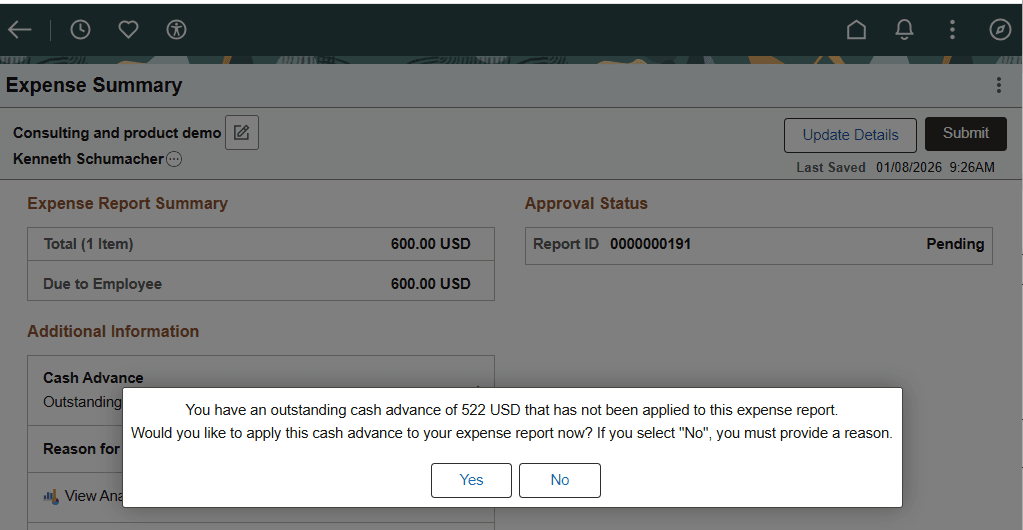
The employee only has one of two options:
-
They can select the Yes button:
-
If there is only one outstanding cash advance, the system automatically applies the amount.
-
If there is more than one outstanding cash advance, the system takes the employee to the Apply Cash Advance Page.
-
-
They can select the No button, which returns them to the Expense Summary page.
The employee then selects the Reason for Not Applying Cash Advance option and enters a justification for not using the cash advance in the Reason for Not Applying Cash Advance Page. After selecting the Done button, they can submit the expense report.
If your organization uses expense report approvals, the expense report is routed to the approver who can see the justification on the Expense Report - Exception Comments and Risks page. The approver then decides what action to take against the expense report.
Pages Used to Apply Cash Advances to Expense Reports using PeopleSoft Fluid
| Page Name | Definition Name | Usage |
|---|---|---|
|
EX_APPL_ADV_FL |
Apply an outstanding cash advance to an existing expense report. |
|
|
EX_RSNADV_ADD_SCF |
Enter a reason why you are not applying an outstanding cash advance to the expense report. |
Apply Cash Advance Page
Use the Apply Cash Advance page (EX_APPL_ADV_FL) to apply outstanding cash advance to an existing expense report.
Navigation:
. Select
This example illustrates the fields and controls on the Apply Cash Advance page.
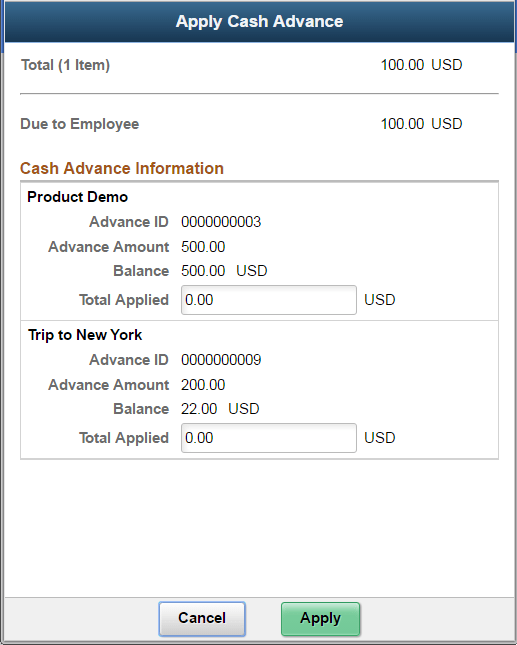
From the Expense Summary page, the Additional Information section displays the Cash Advance sub-section if there is an outstanding cash advance on the expense report. If there are no outstanding cash advances, this Cash Advance section is hidden.
The Additional Information section displays if the expense report has one of these conditions:
-
Outstanding Cash Advance: The expense report has amount to be reimbursed to employee (Due to Employee > 0) and the employee has outstanding cash advances that can be applied to the expense report (Cash Advance Outstanding > 0).
You can drill into the Cash Advance section to view and apply the cash advance. Enter a cash advance amount, and the select the Apply button to apply Cash Advance to the current expense report.
-
Adjustment Cash Advance: Employee has a credit amount that needs to be returned to the company (Due to Company > 0).
You need to create an adjustment cash advance to submit the expense report. PeopleSoft Fluid Expenses does not support creating and adjustment cash advance. Drill down on the Cash Advance section takes you to the Classic PeopleSoft Expense Report page where you can create an Adjustment Cash Advance.
To remove a previously applied cash advance, enter zero in the applied amount on the Apply Cash Advance page. The system automatically updates the Cash Advance Balance amount.
Related Topics
Reason for Not Applying Cash Advance Page
Use the Reason for Not Applying Cash Advance page (EX_RSNADV_ADD_SCF) to enter a reason why you are not applying an outstanding cash advance to the expense report. This information is displayed on the Exception Comments and Risks page for the approver.
Navigation:
From the Expense Report Summary page, in the Additional Information section, select Reason for Not applying Cash Advance option.
This example illustrates the fields and controls on the Reason for Not Applying Cash Advance page.
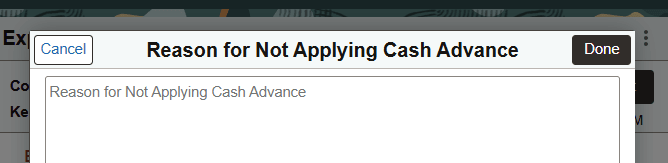
The information entered into this page appears on the Expense Report - Exception Comments and Risks page for the approver to see.