PeopleSoft Landing Page - Continue With Section
Use the Continue With section (EOHP_CONTINUEWITH_SCTN_LP template) to identify and access transactions where you still have work to do because you did not complete it, saved it for later, or you have left it in draft status.
Note:
Tiles that appear in this section are dynamic notification tiles.
Navigation:
The Continue With section is part of the PeopleSoft (My Home) Landing Page.
This example illustrates the fields and controls on the Continue With section.
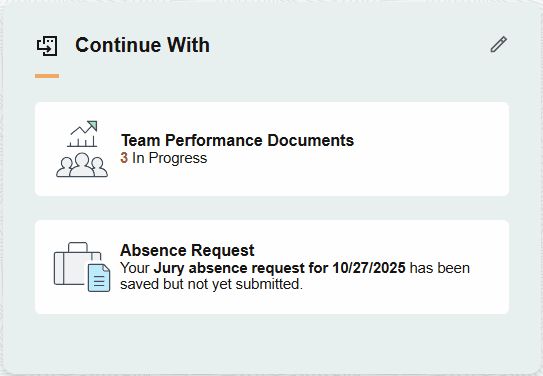
This section provides quick navigation back to unfinished transactions.
Once the task is submitted or completed, the task is removed from the Continue With section and the section displays the text "All caught up!".
Tiles that appear in this section may come from starting tasks that appeared in the Suggestions tile or from starting other transactions that you did not complete. When the number of tiles exceed those that fit in the section tile, the section displays the View All link. The number of tiles that appear in the section is controlled by CSS styles for the section template and the device's form factor.
For a list of delivered notifications that call the tiles that appear in this section, see Delivered HCM Notifications and Tiles for Continue With Section.
| Field or Control | Description |
|---|---|
|
|
Select this icon to access the View All Continue With page (see View All <Suggestions, Continue With, or Announcements> Page) to view a list of all the items in the Continue With section, and dismiss tiles, where applicable. |
|
View All link |
This option appears when the number of tiles exceed those that fit in the section. Select this link to access the View All Continue With page and review the full list of ongoing items. |
 (Edit Continue With) icon
Note:
Notifications shown in this section do not require separate security for the tiles.
Viewing Aggregate Results
When aggregate results is enabled for a notification, the system consolidates multiple transactions of the same notification type onto one tile with a count of the number of transactions. Select the tile to view a list of all transactions for this notification. For more information on configuring notifications with aggregate results, see Enterprise Components: Creating and Managing Notifications with Notification Composer.