Maintain Data Privacy Settings Page
Use the Maintain Data Privacy Settings (EODP_RECFLD_MNT_FL) page to:
-
View delivered Record Fields and their Data Privacy Attributes.
-
Modify Data Privacy Attributes for existing Record Field information.
-
Add new Record Field Information and map Data Privacy Attributes.
Data Privacy Attributes are mapped to Records and Fields in Maintain Data Privacy Settings Page. System data is delivered for Record Fields and their Data Privacy Attributes. You can modify Delivered information, but delete is disabled for such rows. You can add new Records and Fields to the configuration, and map data privacy attributes to it.
You can delete rows which are not System data.
Navigation:
This example illustrates the fields and controls on the Maintain Data Privacy Settings page.
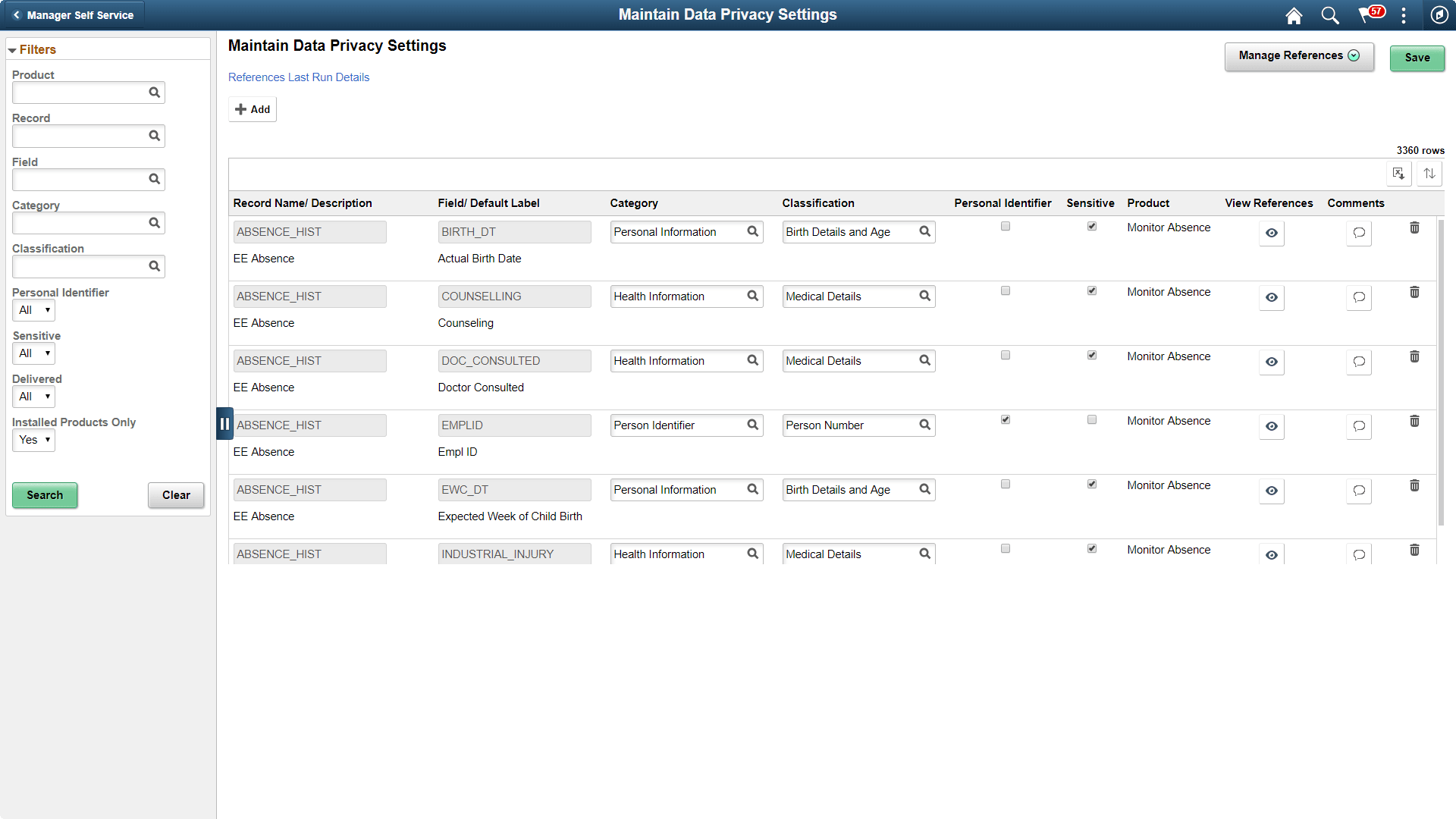
The left pane lists different filters available for Data Privacy Settings maintenance page. Available filters are:
-
Product
-
Record
-
Field
-
Category
-
Classification
-
Personal Identifier
-
Sensitive
-
Delivered
-
Installed Products Only
Note:
By default, all Record Fields and their references are displayed in Data Privacy framework. A filter Installed Products Only is added to Maintain Data Privacy settings page and View References pages all tabs to display information on installed products alone. The products to be displayed are selected from the Products page (Set Up HCM, Install, Installation Table, Products). By default the option for Installed Products Only will be selected as No.
This example illustrates the references actions from Maintain Data Privacy Settings page.
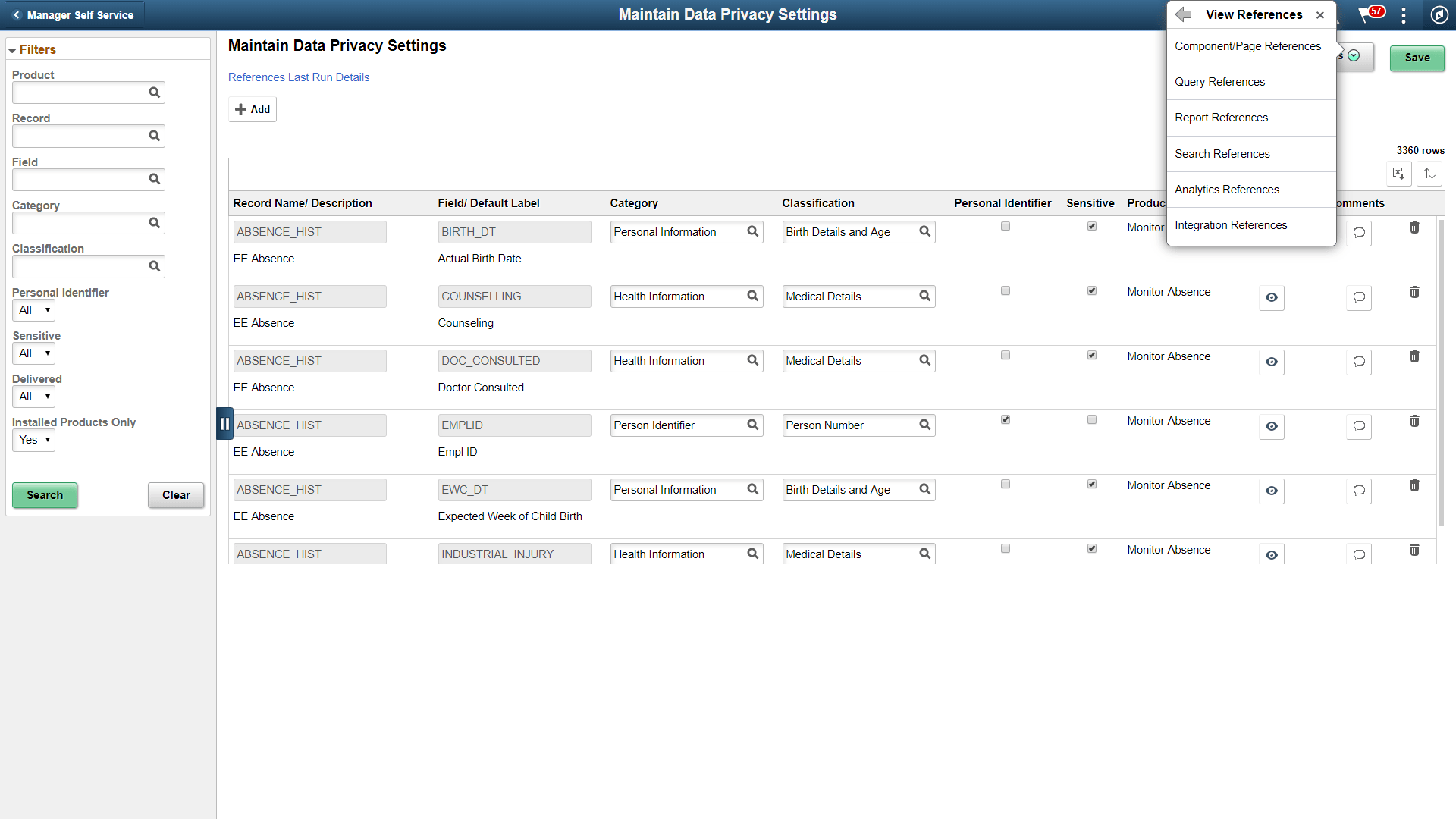
The search results based on the filtered criteria are displayed on the right pane.
| Field or Control | Description |
|---|---|
|
|
Add Record Fields and map Data Privacy Attributes to it. Note: The Personal Identifier and Sensitive flags will be defaulted depending on the category and classification. |
|
|
Select to view the options of View References, Update References and Process Monitor. On selecting View References, you can navigate to other pages listed below: Select Reference Type Page to update or refresh a reference type. |
|
References Last Run Details |
View last run times of each reference type. This References Last Run Page also displays when Record Field information was last updated. |
|
|
Select to download the filtered Record Field Information. |
|
|
Select to view reference for the Record Field combination. |
|
|
Select to open Comments Modal Window to enter, review or update the comments for a Record. |



Note:
To view the status of the process run for the selected references, see Viewing the Status of Process under Process Scheduler.