Defining Activity Guide Template Properties
Use the Template Properties: Properties page to define the properties for an activity guide template.
Navigation:
-
On the Manage Activity Guide Templates page, click the Properties link to modify an existing template.
Note:
In addition, on the Manage Activity Guide Instances page, click the Properties link for an existing instance.
-
In the Setup Activity Guide WorkCenter, click the Template Properties task.
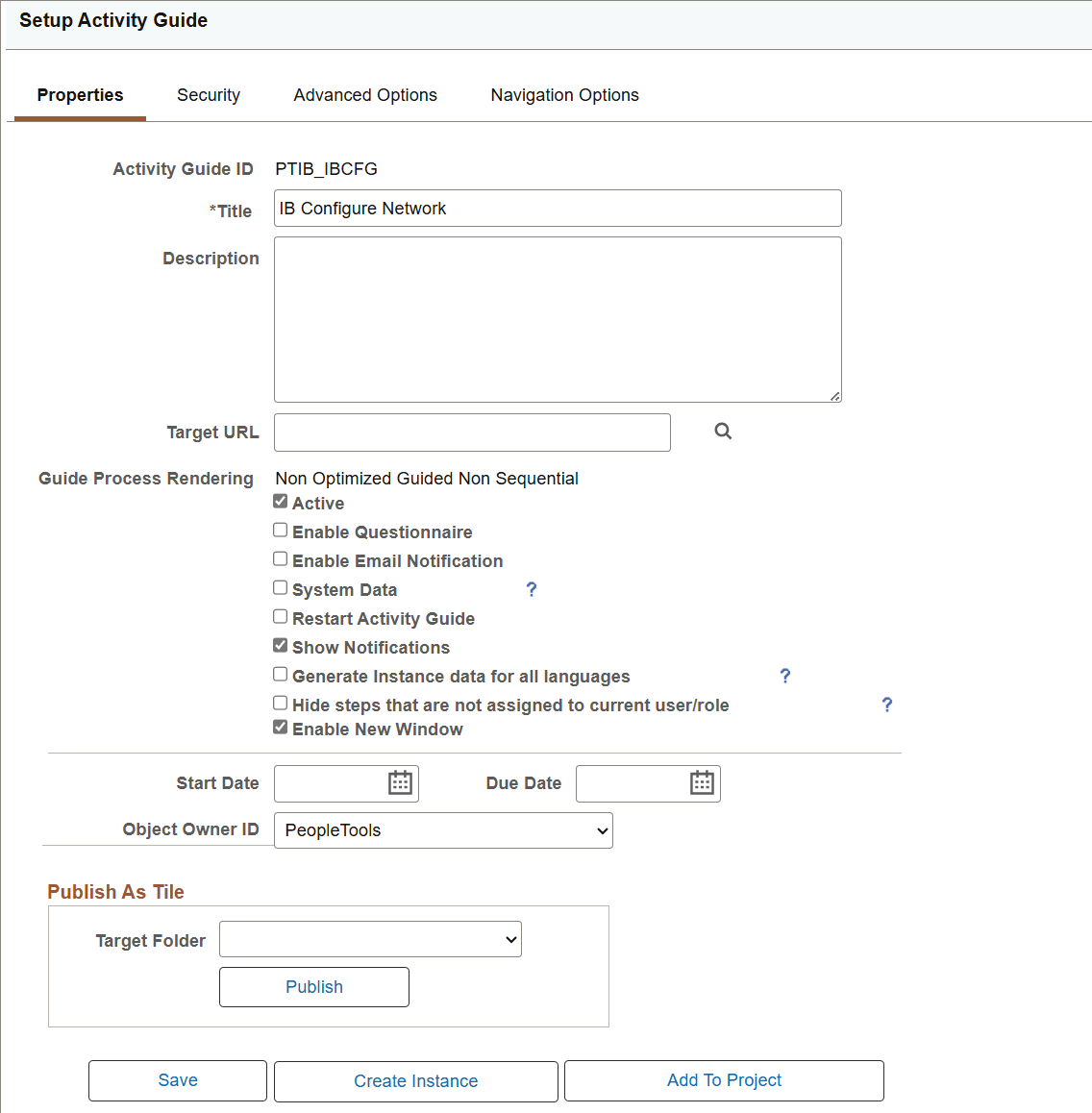
This example illustrates the fields and controls on the Template Properties: Properties page. You can find definitions for the fields and controls later on this page.
| Field or Control | Description |
|---|---|
|
Activity Guide ID |
Enter up to 10 characters as an identifier for the template. When you save the template, the system will fill characters up to the 10-character maximum. Important: You must ensure that each template ID is unique. |
|
Title |
Enter a name for the template. |
|
Description |
Enter a description for the template. |
|
Target URL |
For classic activity guides only, select the URL for the WorkCenter that provides access to this activity guide. Defining the URL here provides access from the Activity Guides - In Progress homepage pagelet to the WorkCenter. Important: To ensure that the URL is valid, select the URL from the lookup list, rather than typing or pasting a URL. |
|
Active |
Select this option to make the template active. If this option is cleared, the template definition remains in the system, but is not available to be used to create new activity guide instances. |
|
Enable Questionnaire |
Select this option to enable a questionnaire for this template. Note: The Questionnaire page tab will be displayed after you save the template definition. |
|
Enable Email Notification |
Select this option to enable email notifications to the users assigned to action items of type Process. Note: Email messages are sent when the process has completed successfully or if it has terminated with an error. |
|
Restart Activity Guide |
Select this option to have the activity guide instance deleted and restarted if the user exits without completing the activity guide. If this option is not selected, the default is to return to and display the current step whenever the user exits and returns to the activity guide. Note: SUOW and single component activity guides that have not been submitted as complete always restart at the first step, similar to selecting this option. This is because the old instance is deleted and a new instance is generated whenever the user re-enters the activity guide. Important: Do not set restart on multi-user activity guides. Note the following important considerations for single user and multi-user activity guides:
|
|
System Data |
Select this option to lock the activity guide definition including all template properties and action item definitions. Important: Once you select this option, you will be unable to make any modifications to the template definition. Do not select this option before you have completed specified all template properties, defined all action items, and generated and tested activity guide instances. |
|
Single Unit of Work |
Select this option to enable this activity guide as a single unit of work. This option is available for two activity guide template types:
Note: SUOW and single component activity guides that have not been submitted as complete always restart at the first step, similar to selecting the restart option. This is because the old instance is deleted and a new instance is generated whenever the user re-enters the activity guide. Important: Do not set SUOW on multi-user activity guides. Note the following important considerations for single user and multi-user activity guides:
|
|
Single Component |
Select this option to enable this activity guide as a single component. This option is available for three activity guide template types:
Note: SUOW and single component activity guides that have not been submitted as complete always restart at the first step, similar to selecting the restart option. This is because the old instance is deleted and a new instance is generated whenever the user re-enters the activity guide. Important: Do not set single component on multi-user activity guides. Note the following important considerations for single user and multi-user activity guides:
|
|
Show Notifications |
Select this option to display the Notification icon in the fluid banner. This option is available for the five guided activity guide template types:
|
|
Side panel fixed |
Select this option to fix the left panel, which disables the users’ ability to hide the left panel on any device except for small form factor devices. This option is available for the three vertical optimized activity guide template types:
Note: On small form factor devices or when the browser width is too narrow, this option is ignored and the left panel becomes collapsible and expandable. |
|
Generate Instance data for all languages |
Select this option to indicate that multi-language data present in the template is to be copied when creating a new instance from the template. Changing this option in an already created instance has no effect since the translation data can only be copied from the template at instance creation. However, any instance-specific action items added programmatically using the InstanceCreation method will not have translations in the generated instance unless the application code also adds the translation data. In addition, other programmatic updates handled during instance creation may have translation impacts. For example, if the title of the activity guide is changed to reflect the specific instance, then the application code should also update the title in all languages supported by the template. Important: For performance reasons during instance creation, enable this setting only on templates that require it. |
|
Hide steps that are not assigned to current user/role |
Select this option to indicate that steps that are not assigned to the current user are hidden and not displayed to that user. This setting can be changed dynamically or manually in instances created from any activity guide template. This option can be used on non-sequential activity guides without dependencies among steps. Use care if the non-sequential activity guide has dependencies among steps to ensure that each contributor user is able to access at least one step in the activity guide when they access the instance. Otherwise, an error will occur. Note: This option is not available for sequential activity guides, single component activity guides, or single unit of work activity guides, or for activity guides that have restart enabled. |
|
Enable New Window |
Select this option to configure the New Window option for Activity Guides. By default, this option is selected. The New Window option is available as an item in the Actions Menu. When you select the New Window item, the system either
|
|
Start Date |
Select a start date. |
|
Due Date |
Select a due date. Note: The start and due dates specified at the template level do not have any effect on start and due dates at the action item level. |
|
Object Owner ID |
Select the object owner ID. |
|
Create Instance |
Use the Create Instance button to create an activity guide instance from this template. |
|
Add To Project |
Click the Add To Project button to access the Add To Project page to insert this activity guide template definition into an ADS project. See Lifecycle Management Guide: Adding Data Set Instances from Object Designer Pages for more information. |
Publish As Tile
Use the Publish As Tile group box to publish a tile definition that opens the My Activity Guide Instances page for this activity guide template. This tile definition will include the template ID only, and no context data or instance IDs. Therefore, users who use this tile will be redirected to the My Activity Guide Instances page, on which they can select from a list of existing activity guides instances generated from the template for which they have contributor privileges.
Important:
The published tile cannot be used as a general deployment mechanism or to generate new activity guide instances. See Deploying Optimized and Non-Optimized Fluid Activity Guides for information on how to deploy fluid activity guides.
| Field or Control | Description |
|---|---|
|
Target Folder |
Select the tile repository folder in which you want to create the tile definition. |
|
Publish |
Click the Publish button to publish the tile definition. |
|
Edit Tile Properties |
Click this link to open and edit the content reference definition for the tile within the portal registry. |