Building Search Indexes
A run control ID is bound to both, a search definition and a search instance.
Access the Build Search Index page by selecting .
This example illustrates the fields and controls on the Build Search Index page. You can find definitions for the fields and controls later on this page.
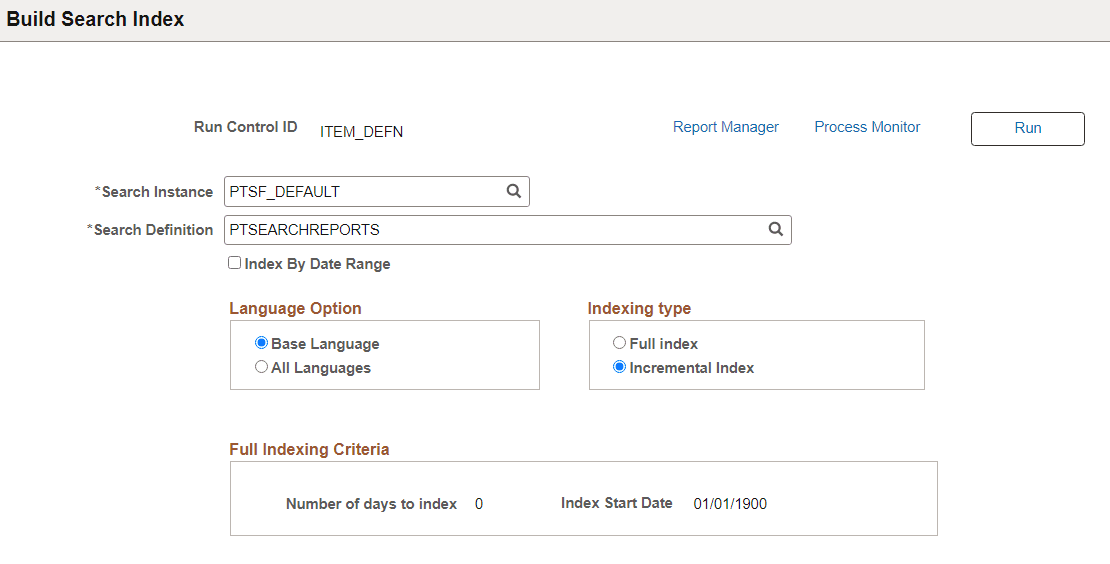
To build a Search Framework search index:
-
Select .
-
Enter a run control ID.
-
On the Build Search Index page, select the appropriate options.
Field or Control Description Search Instance
Select the search instance in which you want to build the search index.
Search Definition
Select the search definition for which you are building the search index.
Note: Once the Run Control is executed, the page becomes read-only. To change any parameters of the page, you need to create a new run control.
Index By Date Range
Select the Index By Date Range check box if you want to index data based on date range. The date range option enables you to partition the search data and run parallel indexing processes.
Note:This property is not available if the Search Definition is configured with a data partition. Instead, Index By Data Partition is used.
For more information on the date range option, see Partitioning Application Data in the Search Index Build Process.
Index By Data Partition
Select the Index By Data Partition option to index the data in parallel using data partition.
For more information on the data partition option, see Partitioning Application Data in the Search Index Build Process Using Data Partition.
Language Option
Select one of the following:
-
All Languages. Builds an index for each language enabled on the database.
-
Base Language. Builds an index only for the base language defined for the database.
Your selection depends on the languages enabled for your database and the languages through which you anticipate end users using to perform searches.
Indexing Type
Select one of the following:
-
Full index. Crawls all transactional data specified by the query criteria and rebuilds the entire index. This option requires the most time. This option must be selected the first time an index is built.
-
Incremental index. Updates the existing index and adds only documents associated with rows that have been added or updated since the last index build or update. The system determines the required updates based on a comparison between the timestamp of the index and the “last updated” field for the data row.
Items are also removed from the index as designated by the delete query on the search definition.
Search Framework provides an automated way to schedule the incremental indexing. For more information, see Automating Incremental Indexing.
Note:You must create one run control for incremental indexing, scheduled to run very frequently, and create another run control for full index rebuilding set to run less frequently. For example, incremental indexing might run daily, where a full index rebuild may be set to run every six months.
Full indexing Criteria
Applies only to full index builds. Displays the span of time in which the system will retrieve and index application data for this search definition. The date span is defined on the Advanced Settings tab for the search definition. This enables you to limit index processing for data that could potentially generate very large indexes, if needed.
For more information on this option see, Working With Advanced Settings.
If you plan to use the partitioning option through the Date Range grid, you must note that the indexing date span is overridden by the date span entered in the Date Range grid. For more information, see Partitioning Application Data in the Search Index Build Process.
-
-
Select Run.
-
Use Process Monitor to verify program completion and success.
Note:
Once the Run Control is executed, the page becomes read-only. To change any parameters of the page, you need to create a new run control.