Prerequisites for Creating a Connection
These are the prerequisites for creating a connection with the Oracle Fusion Field Service Adapter.
Manage Permissions and Restrictions for the Selected User Types
You must manage permissions and restrictions for the selected Oracle Fusion Field Service user types.
Create an Application
If you want to call REST or SOAP APIs from a third-party application, you must register the third-party application in Oracle Field Service. You can also select the authentication service to use to authenticate the application and the specific APIs for your application to use.
Note:
This information only applies to Oracle Field Service environments. You can verify whether you have Oracle Field Service or Oracle Fusion Field Service, by signing in and checking the About page.See Create an Application in Administering Oracle Fusion Field Service.
Add and Manage an Oracle Integration Application
You must add an Oracle Integration application to integrate Oracle Fusion Field Service with other applications. Once completed, you can perform management tasks on the Oracle Integration application.
| To... | See... |
|---|---|
| Add an Oracle Integration application | Add an Oracle Integration Application |
| Modify existing endpoint configurations in an Oracle Integration application | Modify an Oracle Integration Application |
| Delete an Oracle Integration application | Delete an Oracle Integration Application |
| View an Oracle Integration application details, such as its status and the data transfer success rate | View an Oracle Integration Application Details |
Perform Prerequisites to Use the OAuth Authorization Code Security Policy
You must perform prerequisites in Oracle Fusion Field Service and the Oracle Cloud Console to use the OAuth Authorization Code security policy with the Oracle Fusion Field Service Adapter.
Configure Oracle Fusion Field Service
You must configure Oracle Fusion Field Service to use the OAuth Authorization Code security policy with the Oracle Fusion Field Service Adapter.
- Synchronize the users from the external identity storage to Oracle Fusion Field Service.
- In the Field Service Manage interface, click Configuration and select Applications.
- In the left pane, select the application to configure the token service.
- Under General info, ensure that the Active checkbox is selected.
- From the Token service list, select External.
- Under Authentication Settings, select the Authentication using external access token checkbox.
- Click Upload and upload your external token service's signing key certificate.
- Authenticate the REST API with the external token service.
Configure Oracle Cloud Infrastructure Identity and Access Management
You must create two confidential applications in Oracle Cloud Infrastructure Identity and Access Management to use the OAuth Authorization Code security policy with the Oracle Fusion Field Service Adapter.
Create a Resource Server Confidential Application
- Sign in to the Oracle Cloud Console.
- In the navigation pane, click Identity & Security.
- Click Domains.
- Select your compartment.
- Click the identity domain.
- In the menu bar, click Integrated applications.
- Click Add application.
- Select Confidential Application, then click Launch workflow.
- Enter a name (for example,
OFS Resource Server
                    App
). - Enter a description (for example,
OFS Resource Server
                        App
). - Click Submit.
- Click the OAuth configuration tab, then the Edit OAuth configuration subtab.
- In the Resource server configuration section, select Configure this application as a resource server now.
- In the Configure application APIs that need to be OAuth protected section, select 86400 from the Access token expiration (seconds) list.
- Click the Allow token refresh toggle.
- In the Refresh token expiration (seconds) list, select 604800.
- In the Primary audience field, enter the Oracle Fusion Field Service instance name.
- Click the Add scope toggle, then click Add.
- Provide the scope value as
follows:
/REST_application_id_For_IAMYou get this value when you define the REST application ID for the new application. See Configure Oracle Fusion Field Service.
- Provide a display name and description, then click Add.
- Click Submit.
Create an Oracle Fusion Field Service API Client Confidential Application
- Click Add application.
- Select Confidential Application, then click Launch workflow.
- Enter a name (for example,
OFS API Client) and description. - Click Submit.
- Click the OAuth configuration tab, then the Edit OAuth configuration subtab.
- In the Client configuration panel, select Configure this application as a client now.
- Select Refresh token and Authorization code in the Allowed grant types section.
- In the Redirect URL field, enter the URL for
post-authentication
redirection.
https://OIC_URL/icsapis/agent/oauth/callback - For Client type, ensure that Confidential is selected.
- Scroll down to the Token issuance policy section.
- Select Confidential in the Authorized resources section.
- Click the Add Resources toggle.
- Click Add scope, then click Add.
- Provide the scope value as
follows:
OFS_Instance_Name/REST_application_ID_For_IDCS - Provide a display name and description, then click Add.
- Click Submit.
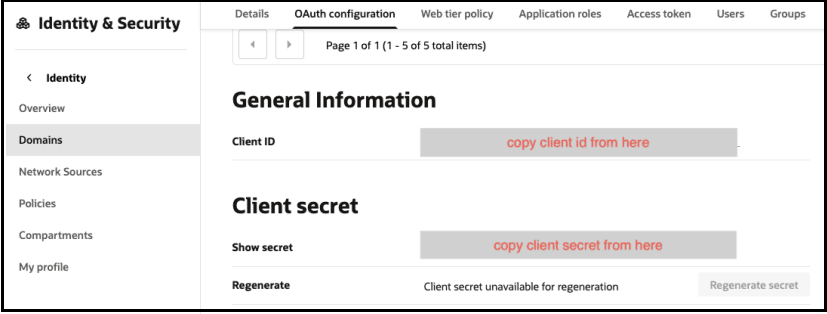
- In the General Information section, note the client ID and client secret values. These values are required for the third-party application that is communicating with the identity domain.
Create an Oracle Fusion Field Service Adapter Connection with the OAuth Authorization Code Security Policy
After creating the two confidential applications in the Oracle Cloud Console and configuring Oracle Fusion Field Service, you can create an Oracle Fusion Field Service Adapter connection with the OAuth Authorization Code security policy.
Perform Prerequisites to Use the OAuth Client Credentials Security Policy
You must perform prerequisites in the Oracle Cloud Console to use the OAuth Client Credentials security policy with the Oracle Fusion Field Service Adapter.
- Log in to the Oracle Cloud Console with your identity domain administrator credentials.
- In the navigation pane, click Identity & Security.
- Click Domains.
- Select your compartment.
- Select the identity domain.
- In the menu bar, click Oracle cloud
services.

- Select Field Service from the list.
- Select OAuth Configuration and scroll down to the General Information section.
- Copy the Client ID and Client
secret values.
You specify these values when you configure the OAuth Client Credentials security policy on the Connections page.