Overview of Console Page
The Console menu link directs you to the Console page. The following shows the Console page layouts in two scenarios:
Layout of the Console page when Spatial Studio is attached to the compute environment while logged in as a Spatial Studio ADMIN user
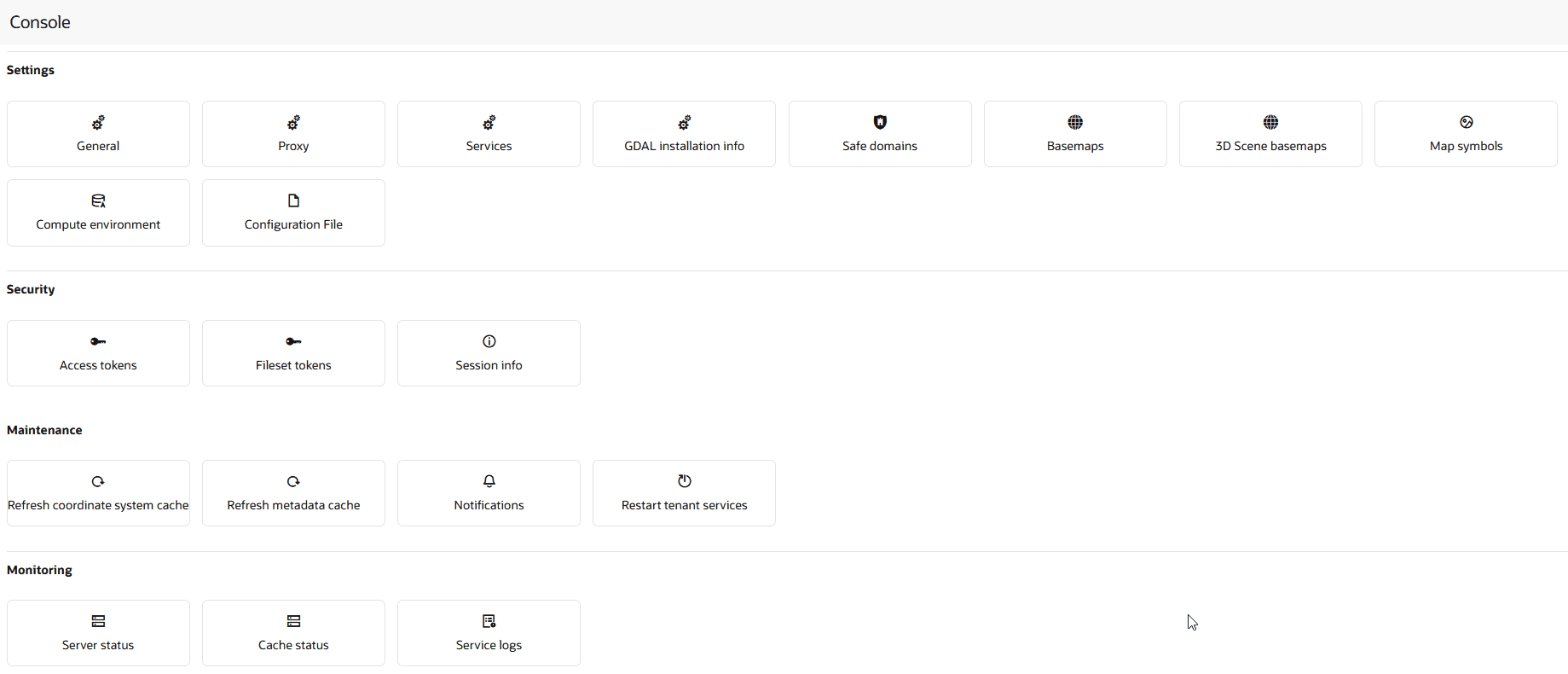
Description of the illustration console_page.png
Layout of the Console page when Spatial Studio is not attached to the compute environment while logged in as a Spatial Studio ADMIN user
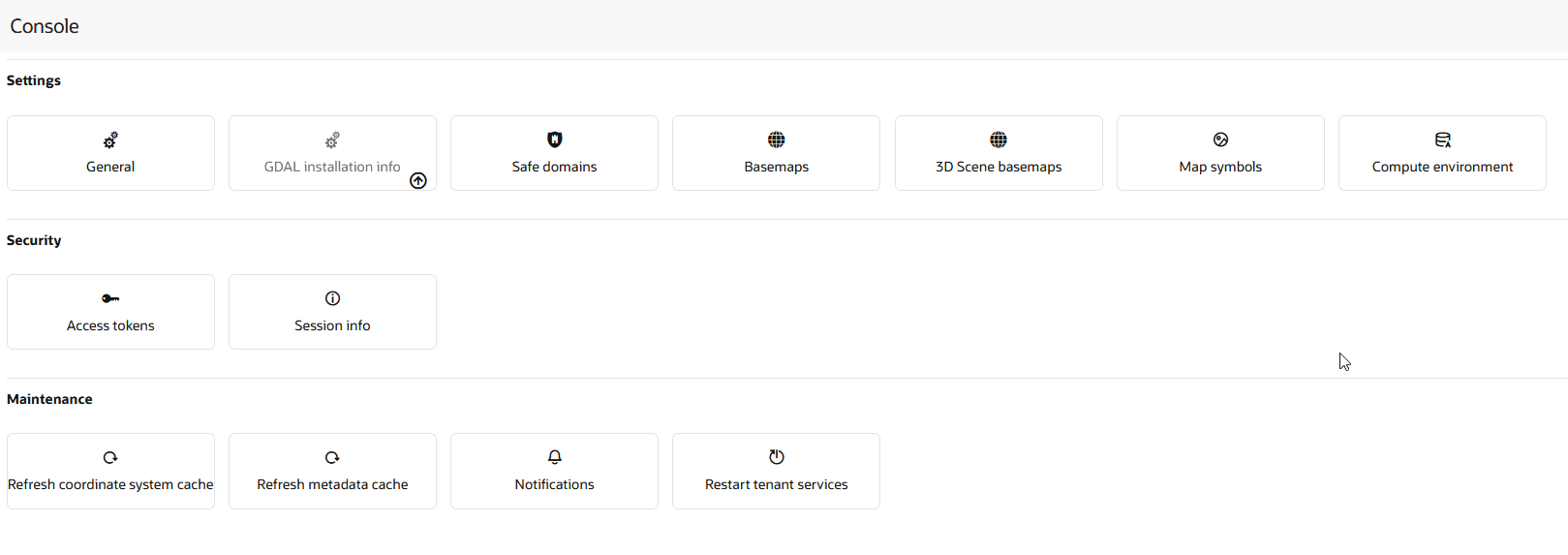
Description of the illustration console_page_without_compute.png
As seen in the preceding figure, the Console menu options are limited when working in Spatial Studio without a compute environment.
Note: If you are logged in as an administrator of Spatial Studio, then you can access all the supported Console menu options. Otherwise, you can access only the Map symbols and My compute environment options (under Settings), and Access Tokens and Session info (under Security).
The following sections describe the supported Console menu options under different categories:
Settings
- General: This slider allows changing the GeoCoding service URL, the geocoding batch size, and the web proxy used by the Studio server. It also allows you to customize the front end branding area of the application.
- GDAL Installation Info: This slider allows you to verify the GDAL SDK and Oracle Instant Client installations and to view the location path on the server for these installations.
- Safe Domains: This slider allows the administrator to manage the white listing of the domains (host names or IP addresses) that are considered safe for loading various types of the resources from the Studio application. See Manage Safe Domains for more information.
- Basemaps: This slider allows a quick view of the existing custom basemaps, and in adding or editing custom basemaps. Custom basemaps can be made of either raster or vector tiles, typically hosted on a third party tile server. Additionally, you can also create a custom basemap using a WMS OGC web service.
- 3D Scene Basemaps: This slider gives you a quick view of the existing custom basemaps used exclusively for the 3D scene visualization. It also allows you to add new basemaps to be used by the 3D Map visualizations.
- Map symbols: This slider allows you to upload custom map symbols in Spatial Studio. This option is available for both Spatial Studio administrators and regular users.
- My compute environment: This slider enables you to create a new dedicated compute environment to meet your task requirements when working with Spatial Studio. See About the Compute Environment in Spatial Studio for more information.
- Configuration File: This slider allows you to configure the cache size and maximum dataset size for upload. See Set Cache and Dataset Files Upload Size Limits for more information.
Note: Each listed host entry for Basemaps and 3D Scene basemaps must be present as one of the entries in the Safe Domains list. If the host basemap comes from a domain that is not present in the Safe Domains list, then the basemap may not render correctly when visualizing the map.
Security
-
Access Tokens: This slider allows you to create different types of access tokens. This option is available for both Spatial Studio administrators and regular users.
See Create and Manage Tokens for more information.
-
Session info: View session details such as User Id, User name, Tenant, Database, Cloud Database (Spatial Studio endpoint URL), and the Role assigned to the current user.
Maintenance
- Refresh Coordinate System cache: Use this only when needed to rebuild the text index of the repository database schema’s supported Spatial Reference Well Known Text (WKText) definitions. For the shapefile upload, this WKText index is used to automatically match the best SRID.
- Refresh Metadata Cache: Spatial Studio typically caches all of the frequently used metadata such as the definitions of Datasets, Connections, and Projects. Sometimes it is required to refresh the whole cache in case some cached metadata becomes stale or out of sync in rare events.
- Notifications: You can use this option to set up one or more system notifications. These notifications are displayed across the top of the Spatial Studio application once a user logs in.
- Restart tenant services: You can click this button to perform a soft reboot of the Spatial Studio application without using command lines at the terminal. This action will internally restart all components of the system. It can be helpful in resolving issues such as problems with database connections due to extended network outages, jobs that appear to be stuck, or when the system is not functioning properly. Note that this process may take a few seconds to complete.
Monitoring
- Server Status: This section provides read-only information about the general health and system status of the Spatial Studio server.
- Cache Status: This section provides the details of the cache maintained by Spatial Studio.
- Service Logs: This section allows loading and viewing a desired number of server-side logs. To reduce the clutter, you can filter the result using the desired logging level. It also allows the administrator to change the logging level. See View and Manage Server Logs for more information.