Manage Project Users and Groups
After creating a project, you’ll probably want to add team members to collaborate with. You may also want to allow or limit their access to project data or actions they can perform on the project.
You must have the Project Owner project membership to add and manage project users (team members) and groups from the Project Home page’s Team tab. If you’re a team member with read/write permissions (a Project Owner, Developer, or Developer Limited member), you can:
-
Export (download or copy to the clipboard) a CSV-, JSON-, and plain text-formatted users list that includes all the project’s members, even those in groups.
-
Create a local VB Studio group from the Organization page. See Manage Local VB Studio Groups for more information.
You can add users who are assigned the DEVELOPER_ADMINISTRATOR (Developer Service Administrator) or the DEVELOPER_USER (Developer Service User) identity domain role to your project. If your organization administrator has already created VB Studio user groups or imported Oracle Identity Cloud Service (IDCS) groups to VB Studio, you can add them too.
Note that you can’t add or remove users from the imported IDCS group. Only your organization administrator can, from the IDCS Console. After users have been added to or removed from that IDCS group, you should be able to see the changes after the imported IDCS group syncs with VB Studio, which happens about every five minutes.
You’ll also have to contact your organization administrator to add a user who doesn’t have the required identity domain role. To find your organization administrator, click Contacts under your user profile. Your administrator, or a list of administrators, will be displayed.
When you add a user or a group, you assign one of these membership types:
- Project Owner
- Developer
- Developer Limited
- Contributor
Project users and groups are managed from the Project page’s Team tab by performing these administrative tasks:
| If you want to: | Do this: |
|---|---|
|
Add a user to the project |
|
| Add a group to a project |
|
|
Add multiple users or groups to the project |
|
|
Change a user’s or a group's project membership |
To change a user’s or a group's project membership, click the Change Membership icon |
|
Remove a user or a group from the project |
Before removing a user, change the ownership of any assigned issues and merge requests to another user. Select the user or group you want to remove, then click Remove Note that you can't remove a user from a group. To do that, you need to contact your organization administrator. |

 . From the dropdown, select a new project membership (Contributor, Developer, Developer Limited, or Project Owner).
 .
.Manage Local VB Studio Groups
Any user in the organization, even one who doesn’t have organization administrator rights, can create a local VB Studio group. However, only an organization administrator with the DEVELOPER_ADMINISTRATOR VB Studio role can create an IDCS group and import it into VB Studio. So, any user with the DEVELOPER_USER VB Studio role (any user with a Project Owner, Developer, Developer Limited, or Contributor project membership) can create a local VB Studio group.
After you create a local VB Studio local group, you can add more members to or remove members from it, add the local group to projects, and delete local groups you’ve created. You can’t modify or delete a local group you didn’t create. When you add a local VB Studio group to a project, you can assign a common membership type to all of that group’s users.
Email notifications are sent to users in a particular user group when that group is added to or removed from a project, or when that group’s membership privileges are changed.
You can use the groups you define to:
-
Restrict build access (see Configure Job Protection Settings)
-
Restrict pipeline access (see Protect Your Pipeline: Restrict Who Can Start It Manually or Edit Its Configuration)
-
Protect Git branches (see Protect a Branch)
-
Select reviewers to review source code changes in merge requests (see Create a Merge Request and Add or Remove Reviewers)
This table describes the actions you can perform to create and manage local VB Studio groups.
| Action | How To |
|---|---|
|
Create a VB Studio local group |
|
| See a local group's members |
|
| Add members to an existing VB Studio local group you've created |
|
| Remove members from a VB Studio local group |
|
| Add a local group to a project |
|
| Remove a local group from a project |
|
| See the projects a local group is added to |
|
| Edit a local group's name or description |
|
| Delete a local group you've created |
|

 .
.
 and select
 Export the Users List
All users can export the project’s users list, but project owners and administrators will use it the most. These lists can be used in compliance reports to show what the users’ roles are (who has access to source code), their email addresses are, and so forth. This feature also comes in handy when customers want to migrate to another VB Studio instance in a different data center. Administrators can use generate these lists to and use them to easily set up the users in the new instance.
To export the project’s list of users:
-
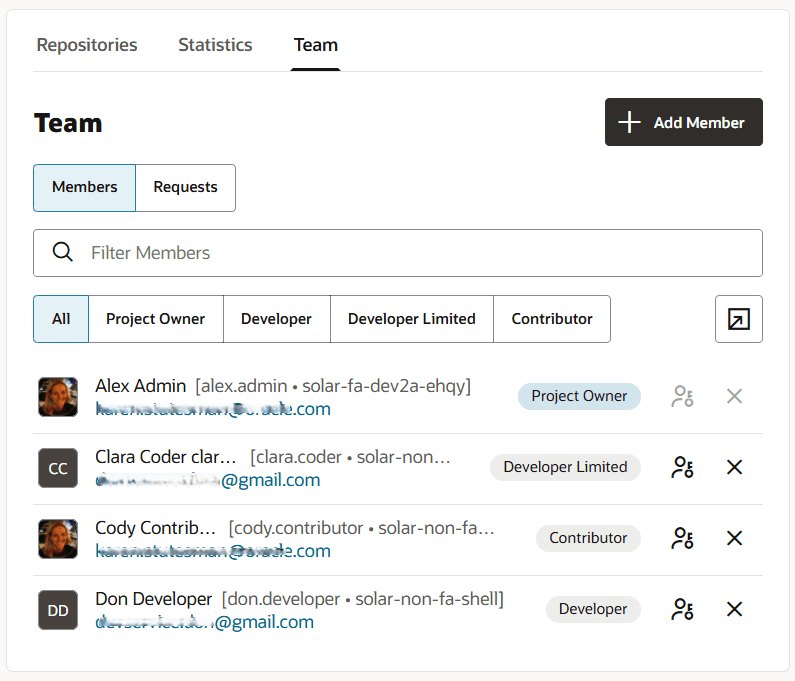
From the Project Home page, choose a project and then select the Team tab.
The Team panel displays.
-
Click Generate a list of current project members
 .
.The Member List panel displays.
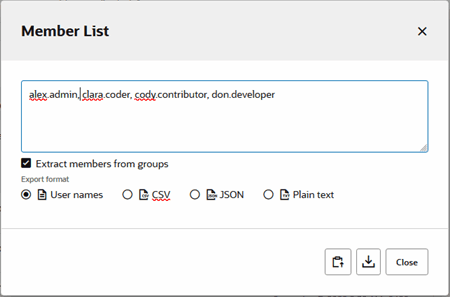
- Select the Extract members from groups checkbox (default) to extract individual members from groups or show the groups only.
- Under Export format, select one of the following:
 User names shows a list of users by “Username”.
-
 CSV (Comma-Separated Values) shows a comma-separated list of users using the “Username”,”Name”,”Email”,”Gravatar hash”,”Project membership”,”Member type” format, including the header row as the first line:
"Username","Name","Email","Gravatar hash","Project membership","Member type" "alex.admin","Alex Admin","alex.admin@example.com","f16503adcb57babf7af69512d650748e","Project Owner","user" "mary.jane","Mary Jane","mary.jane@example.com","834a227063b4c50c5b0af3564ba9b2d5","Project Owner","user" "clara.coder","Clara Coder","clara.coder@example.com","a8b5f1d293f46f48d7011c7612072917","Developer Limited Access","user" "cody.contributor","Cody Contributor","cody.contributor@example.com","277b45bbea3341d3de14dfeb19f6b8d7","Contributor","user" "don.developer","Don Developer","don.developer@example.com","5e99c123bab8c0b3e8a529a76ff71d3a","Developer Full Access","user"The Gravatar hashes have been anonymized, by replacing a single random alphanumeric character in the hash with a random alphanumeric character (0-9 or a-f) so the hashes presented here don’t represent hashes that can be reconstructed.
-
 JSON (JavaScript Object Notation) shows the users list in the following format (line breaks added for readability):
[{"username":"alex.admin","fullname":"Alex Admin","email":"alex.admin@example.com", "gravatar":"f16503adcb57bab87af69512d650748e","membership":["Project Owner"],"type":"user"}, {"username":"mary.jane","fullname":"Mary Jane","email":"mary.jane@example.com", "gravatar":"834a227063b4c50c5b0af3564b99b2d5","membership":["Project Owner"],"type":"user"}, {"username":"clara.coder","fullname":"Clara Coder","email":"clara.coder@example.com", "gravatar":"a8b5f1d293f46f48d7011c76120a2917","membership":["Developer Limited Access"],"type":"user"}, {"username":"cody.contributor","fullname":"Cody Contributor","email":"cody.contributor@example.com", "gravatar":"277b45bbeaa341d3de14dfeb19f6b8d7","membership":["Contributor"],"type":"user"}, {"username":"don.developer","fullname":"Don Developer","email":"don.developer@example.com", "gravatar":"5e99c123ba18c0b3e8a529a76ff71d3a","membership":["Developer Full Access"],"type":"user"}]
 Plain text shows the list of users in the “Name”,”Username”,”Email”format.
-
Click Copy to clipboard
 to copy the list of users to the clipboard.
 -
Click Download file
 to download the file locally.
 -
Click Close when you’re done.