Navigation Bar
At the top of Intelligent Advisor Hub there is a navigation bar.

On the left hand side of the navigation bar is a navigation icon that is used to show and hide the left hand Navigation Pane.
Next to this is the Oracle logo which provides a link back to the dashboard page from anywhere in the Hub.
On the right hand side of the navigation bar is the user menu icon.
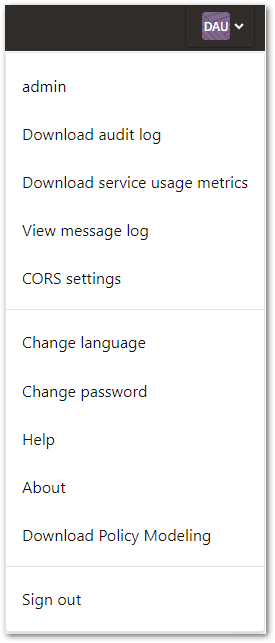
From this menu you can:
- see the username of the logged in user (for example, admin)
- select Download audit log (if logged in as a Permissions administrator) to download audit log entries
- select Download service usage metrics (if logged in as a Connections administrator to a Hub that is not a test-type Hub) to download billable usage volumes
- select View message log (if logged in as a Connections administrator) to open the message log which shows a list of errors from interviews and connections, Determinations API calls, and Oracle Policy Modeling communications
- select CORS settings (if logged in as a Connections administrator) to configure browser access for embedded interviews, Assessment APIs, or Hub REST APIs
- select Change language to select a different language for Intelligent Advisor Hub
- select Change password to Change Your Own Password
- select Help to open the Intelligent Advisor Documentation Library in a new browser window
- select About to check the version of Intelligent Advisor Hub. The About window also provides:
- a link to download Oracle Policy Modeling
- a link to see what's new in the latest release
- a link to access further assistance
- links to download different versions of Policy Modeling (if available)
- select Sign out to log out of Intelligent Advisor Hub