Extend a Visual Builder Application with Intelligent Advisor Interviews
Intelligent Advisor interviews can be embedded within applications developed using the Oracle Visual Builder. This is done by adding the Intelligent Advisor Interview component (oj-opa-interview), which is a JET-based web component, to a page within a Visual Builder application.
Some of the configuration properties for the Intelligent Advisor Interview component have default values that reference auto-wired variables. These auto-wired variables make it easier to build applications containing multiple instances of the Intelligent Advisor Interview component.
To embed an Intelligent Advisor interview in a Visual Builder application:
- Ensure that the Prerequisites for Embedding an Intelligent Advisor Interview In a Visual Builder Application have been met.
- In Visual Builder, open your application.
- Install the Intelligent Advisor Interview component. To do this:
- Open the Components tab in the Navigator.
- Type "interview" in the search field. The Intelligent Advisor Interview component should be listed.
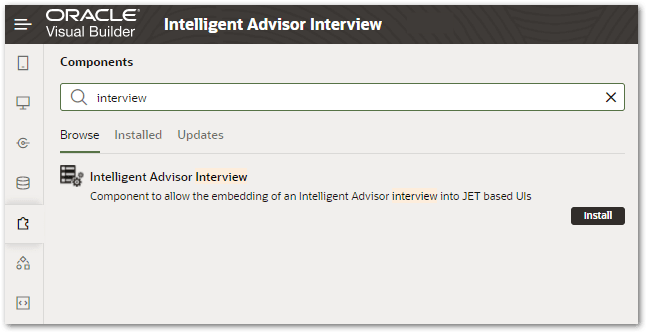
- Click the Install button for the Intelligent Advisor Interview component. For more information, see Get Components From the Component Exchange.
- Add the Intelligent Advisor Interview component to the page where you would like to embed the Intelligent Advisor interview. To do this:
- Open the Web Applications tab in the Navigator.
- In the Web Apps pane, select the page (for example, main-interview) to open it in the Page Designer.
- In the Components palette, locate the Intelligent Advisor Interview component.
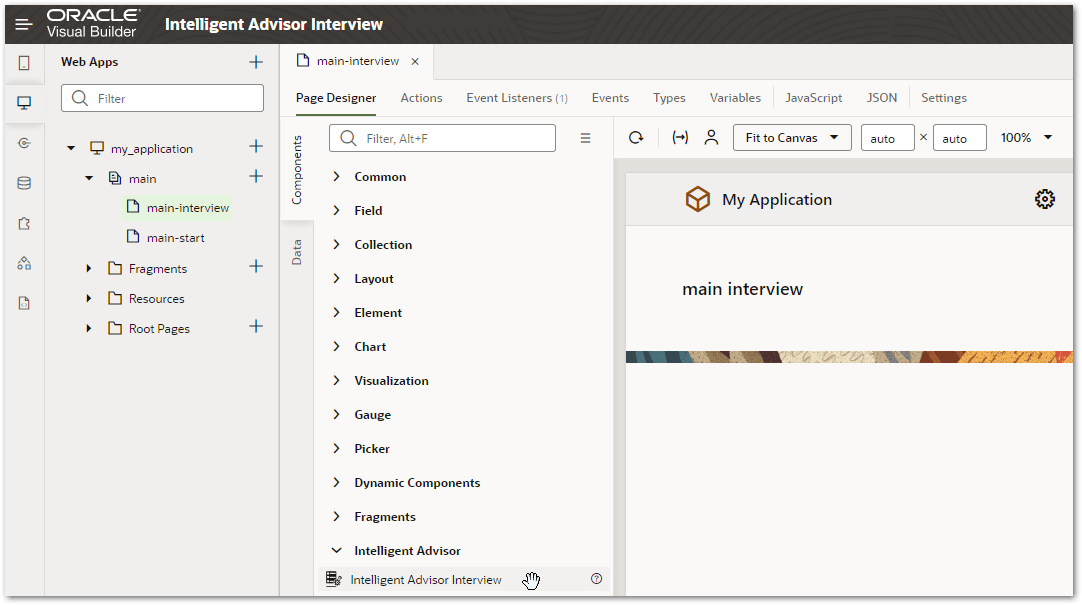
- Drag and drop it into position on the canvas or in the Page Structure view.
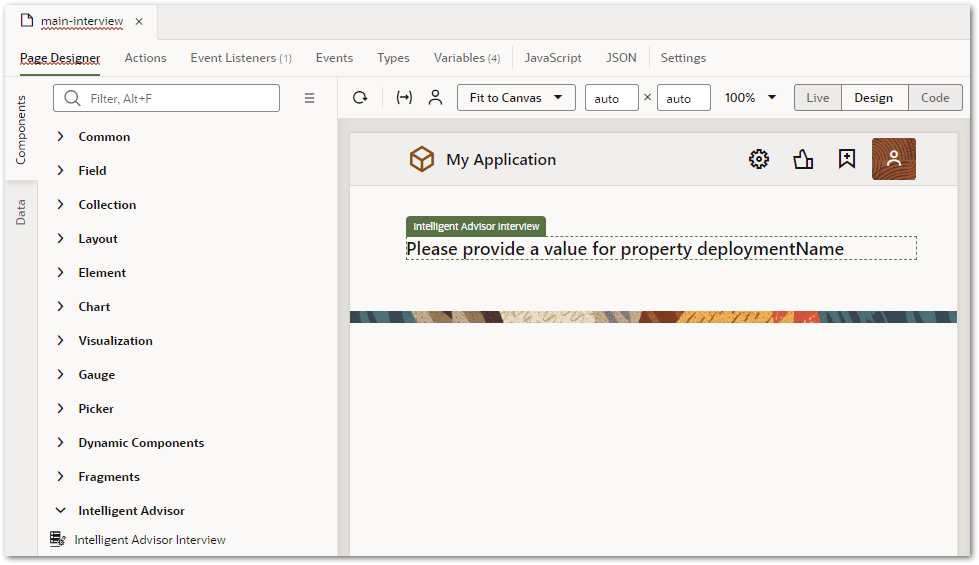
For more information, see Add Components to Pages.
- Specify the deployment for the Intelligent Advisor Interview component. To do this:
- On the canvas or in the Page Structure view, select the Intelligent Advisor Interview component.
- In the right-hand Properties pane, select the General tab.
- Enter the name of the interview in the Deployment Name field.
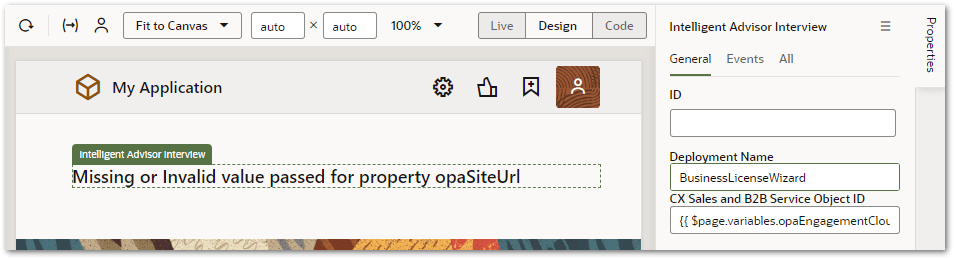
For more information, see The Properties Pane.
- Specify the Intelligent Advisor Hub for the interview. To do this:
- Select the application node (for example, my_application) in the Web Apps pane to open the application in the designer.
- Open the Variables tab.
- Select the opaSiteURL variable.
- In the right-hand Properties pane, enter the Intelligent Advisor Hub URL in the Default Value field. Note that only the server is required and not the opa-hub name. (For example, https://myserver.com.)
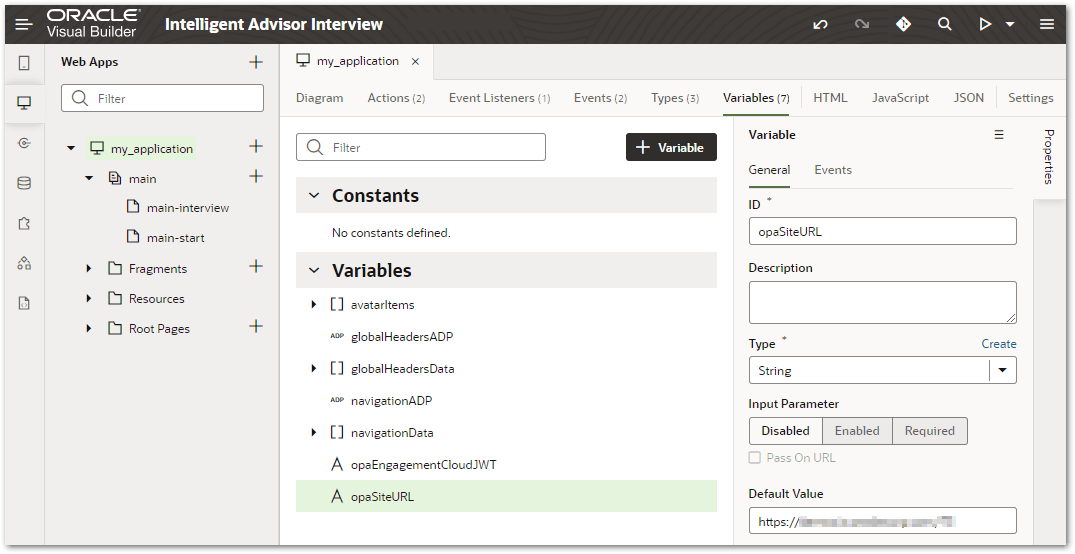
For more information, see What are Variables and Types?.
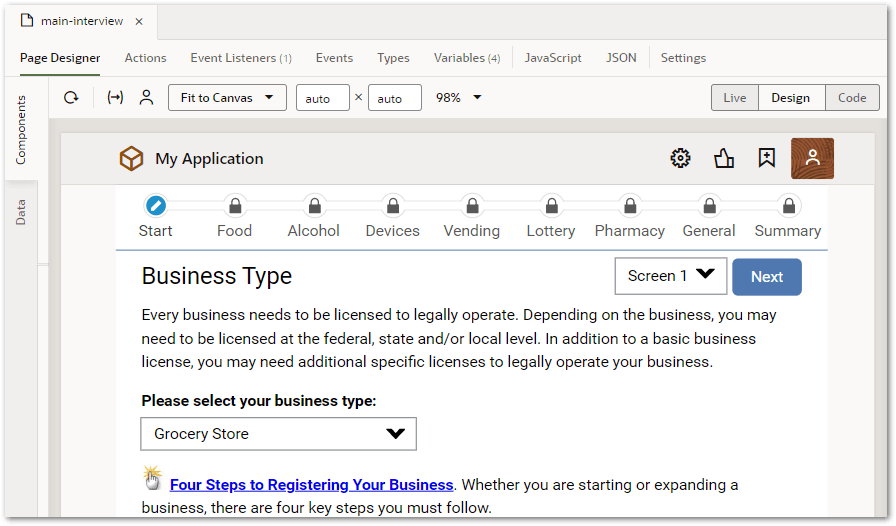
If you now return to the page where you added the Intelligent Advisor Interview component, you should see the first screen in the Intelligent Advisor interview displayed. (Note that if you are embedding an interview for logged-in users in Oracle Fusion, you will not see the Intelligent Advisor interview here yet. See Add an Interview to Digital Customer Service for the extra steps required.)
- Configure the Intelligent Advisor Interview component to handle checkpoints. (This is required if the interview sets checkpoints and the deployment uses a connection that supports checkpoints. Note that B2C Service checkpoints are not supported in the component.) To do this:
- In the Web Apps pane, select the page that contains the Intelligent Advisor interview component.
- On the canvas or in the Page Structure view, select the Intelligent Advisor Interview component.
- In the right-hand Properties pane, select the All tab.
- In the Launch operation drop-down menu, select the desired operation:
- start - used to start a new interview
- resume - used to resume an interview from a checkpoint
- resumeCheckpointOrStartNew - (Latest Version interviews only) used to resume an interview if a checkpoint is returned or start a new interview otherwise
- Open the Variables tab for the page.
- Select the opaConnectorParams variable.
- Add a field for each key/value pair that needs to be passed to the connector for use in saving/loading checkpoints. Note that if you are integrating with Oracle Fusion, the connector parameters required are ObjectName and PolicyModel. (For more information, see Configure Checkpoints for Oracle Fusion.) To add these fields:
- Click Add Field.
- In the pop-up, in the ID field, enter the key. (For example, ObjectName.)
- In the Type field, select the type of field. (For example, String.)
- Click Create.
- In the Properties pane for the new field, add the value in the Default Value field. (For example, Opportunity.)

- (Optional) Add any of the predefined Intelligent Advisor events that you want the Intelligent Advisor Interview component to fire. To do this:
- On the canvas or in the Page Structure view, select the Intelligent Advisor Interview component.
- In the right-hand Properties pane, select the Events tab.
- Click the + New Event button and in the drop-down menu, select one of the predefined Intelligent Advisor events.
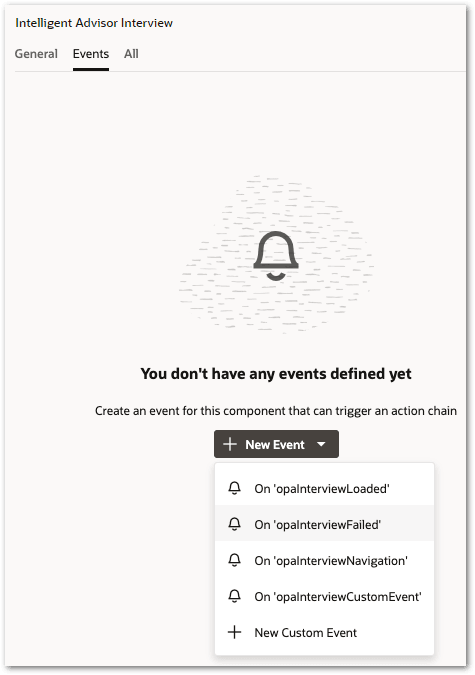
The options are:- On 'opaInterviewLoaded' - Triggered when an interview is successfully loaded. The name of the deployment is passed in the event detail.
On 'opaInterviewFailed' - Triggered when an interview fails to load. Note that the opaInterviewFailed event will not fire as a result of a Cross-Origin Resource Sharing (CORS) error when the Visual Builder site has not been added to the list of accepted CORS hosts in Intelligent Advisor Hub. This is expected behavior due to the way that browsers handle HTTP requests that fail due to CORS errors.
- On 'opaInterviewNavigation' - Triggered when an interview is completed and suggests a navigation target. The URL for the navigation target is passed in the event detail.
- On 'opaInterviewCustomEvent' - Triggered when a custom event is raised in an interview extension.
The Actions editor is displayed for the new action.
- Drag the desired actions from the Actions palette into the action chain. For more information, see Create an Action Chain.
- Make any further configurations to the Intelligent Advisor Interview component as required. See Table 1 below for details.
- Test the Intelligent Advisor interview in the Visual Builder application.
The following table summarizes all of the configuration properties for the Intelligent Advisor Interview component.
|
Property |
Property description |
Type |
Example |
Value required in Visual Builder? |
|---|---|---|---|---|
|
Page properties (configured in the Properties pane for the Intelligent Advisor Interview component) |
||||
|
Deployment Name/Interview |
The interview to run. See step 5 above. |
String |
BusinessLicenseWizard |
Yes |
| Disable Enforced Styling | Determines if the embedded interview can use CSS styling. A value of "true" means the styling in the custom stylesheet will be applied. "false" means it will not be. | Boolean | false | Yes (defaults to false) |
| Launch operation | The operation to be performed when launching the interview. Options are "start", "resume" and "resumeCheckpointOrStartNew". See step 7 above. | String | resumeCheckpointOrStartNew |
Yes, if the interview has checkpoints. No, otherwise. |
|
Locale |
The locale to start the interview in, in language-country format. If not specified, the default locale for the policy model will be used. For more information, see Locale codes. |
String |
en-AU |
No |
| Variables properties (configured in the Variables Properties pane for the page containing the Intelligent Advisor Interview component) | ||||
|
opaConnectorParams |
The parameters to pass to the data connector. JSON object containing a set of key/value pairs. See step 7 above. Functionally equivalent to the params parameter for the OraclePolicyAutomationInterview object used to embed interviews. |
Object |
{"ObjectName":"Opportunity"} |
Yes, if the interview has checkpoints. For checkpoint-enabled interviews in Oracle Fusion, the connector parameters required are ObjectName and PolicyModel. No, otherwise. |
|
opaEngagementCloudObjId |
The context information to pass to Oracle Fusion connector. For more information, see step 2 in Load and submit data for a particular object from Oracle Fusion into the Intelligent Advisor interview in the Visual Builder application. |
String |
31 |
Yes, if the interview is being used with Oracle Fusion. No, otherwise. |
|
opaInterviewSeedData |
The seed data with which to pre-populate the Intelligent Advisor interview. Must be a JSON object with key-value pairs that correspond to seed data URL parameters defined for the policy model. Functionally equivalent to the seedData parameter for the OraclePolicyAutomationInterview object used to embed interviews. |
Object |
{"contact_first_name":"Intelli","contact_last_name":"SeedTest", "contact_email":"seedtest@test.com","contact_title":"Prof","contact_age":50} |
No |
| opaUser | The authorized user that is interacting with the interview. Used for billing on a per-user basis. Functionally equivalent to the opauniqueuser parameter. For more information, see Manage User-Based License Compliance. | String | jane.doe | No |
| Application properties (configured in the Variables Properties pane for the application containing the Intelligent Advisor interview) | ||||
|
opaEngagementCloudJwt |
The JSON Web Token used for authentication with Oracle Fusion connector. For more information, see Authenticate the User In a Visual Builder Application. |
String |
eyJjdHkiOiJKV1QiLCJlbmMiOiJB |
Yes, if the interview is being used with Oracle Fusion. No, otherwise. |
|
opaSiteUrl |
The endpoint URL for your Intelligent Advisor site. See step 6 above. |
String |
http://custhelp.com |
Yes |