Configure the Restart and Exit Buttons
Note: This feature is only available in Latest Version Interviews.
The restart and exit buttons can be configured to change their style. The restart and exit buttons can also been hidden completely. The background where the restart and exit buttons are located on the screen can also be changed. Note that changing the position of the back and next buttons to the navigation strip, will also move the restart and exit buttons to the navigation strip (except when the navigation strip is shown in the left menu).
Add or remove the restart and exit buttons
To add the restart button to an interview, see Allow an Interview to Be Restarted.
To add the exit button to an interview, see Allow an Interview to Be Exited.
To remove the restart or exit buttons from an interview:
- On the Interview tab, click the Styles button.
- In the Styles dialog box, select the Styling tab.
- In the Restart/Exit section:
- For restart buttons, click the Restart button. In the pop-up window, deselect the Include restart button check box to remove the restart button from interview screens.
- For exit buttons, click the Exit button. In the pop-up window, deselect the Include exit button check box to remove the exit button from interview screens.
- Click OK.
The restart and exit buttons can be removed on a per-screen basis. To do this:
- On the Interview tab in Policy Modeling, select the screen in the screen list.
- In the screen layout view, select the restart or exit button.
- On the command bar, click the None button.
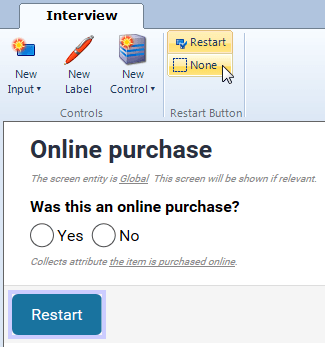
The screen layout view is updated to show that there is no button on that screen.
Tip: To re-instate a removed restart or exit button on a screen, select the button placeholder (that is, the No Restart Button or No Exit Button) and click Restart or Exit on the command bar.
Change the style of the restart and exit buttons
You can change the styles used for the restart and exit buttons. To do this:
- On the Interview tab, click the Styles button.
- In the Styles dialog box, select the Styling tab.
- In the Restart/Exit section, click on the Restart or Exit button as appropriate.
- In the pop-up window, change the style settings as required. The following button style changes are supported:
- Font (family)
- Font size (note that in the font Size field you can type in a specific font point size, for example, 15px)
- Bold text
- Italic text
- Text color
- Button size (small or large)
- Border color
- Gradient
- Background color (for non-gradient buttons)
- Start Color (for gradient buttons)
- End Color (for gradient buttons)
- Active color (the color the button changes to while clicked)
- Shadowed
- Rounded
- Click OK.
Tip: You can also change the text of the restart and exit buttons.
Change the background of the restart and exit button area on the screen
You can change the fill used in the area behind the restart and exit buttons, as well as the line at the top of this area on the screen. To do this:
- On the Interview tab, click the Styles button.
- In the Styles dialog box, select the Styling tab.
-
In the Restart/Exit section, click on the text Restart/Exit. In the pop-up window:
- To change the fill:
- click in the left hand side of the Fill field and enter a new hex color code, or
- click in the right hand side of the Fill field and in the Color dialog select a new color. Click OK.
- To change the top line color:
- click in the left hand side of the Top Color field and enter a new hex color code, or
- click in the right hand side of the Top Color field and in the Color dialog select a new color. Click OK.
- To change the fill:
- Click OK.