Setting Up Your SuiteScript Development Environment
After configuring your NetSuite account for SuiteScript, you also need to set up your SuiteScript development environment. The following topics describe how to set up your development environment:
-
Installing and Setting Up SuiteCloud Extension for Visual Studio Code
-
SuiteCloud IDE Plug-in for WebStorm Installation and Setup Overview
Working with IDEs Other Than SuiteCloud IDEs
SuiteCloud IDEs are preferred, but you can develop SuiteScript files in any editor. If you work outside the SuiteCloud IDEs, you must manually upload the script files to the NetSuite File Cabinet.
When working with unsupported IDEs, see the following topics:
Adding the SuiteScript Library File to Your IDE
If you're using a non-SuiteCloud IDE, add the SuiteScript library file to your local project folder to enable features like code completion. Only roles with SuiteScript access can download the file. For more details, see Setting Roles and Permissions for SuiteScript.
To add the SuiteScript library file:
-
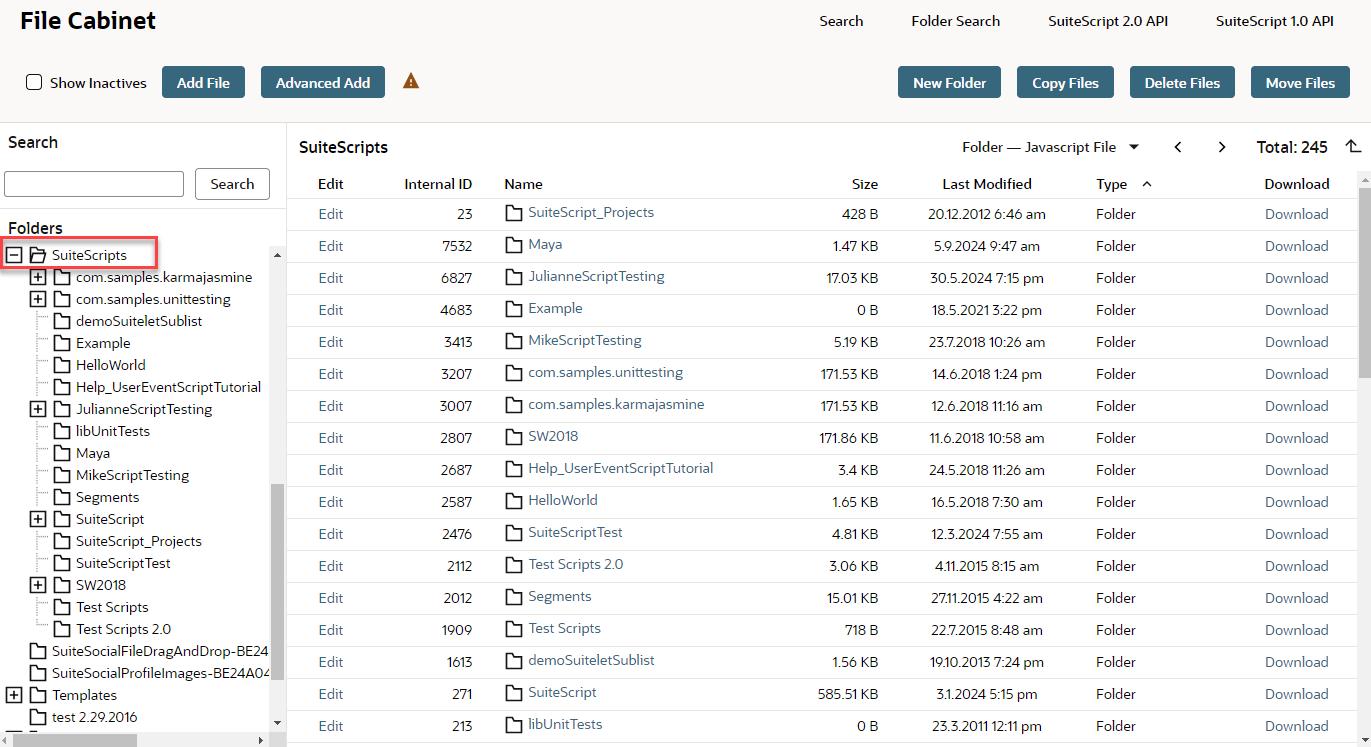
In NetSuite, go to Documents > Files > File Cabinet.
-
Click the SuiteScript 2.1 API link. NetSuite downloads the file to your browser's default Downloads folder.
-
Extract the files, then follow your IDE's defined steps to add them in your project.
Uploading Scripts to the File Cabinet Without SuiteCloud IDEs
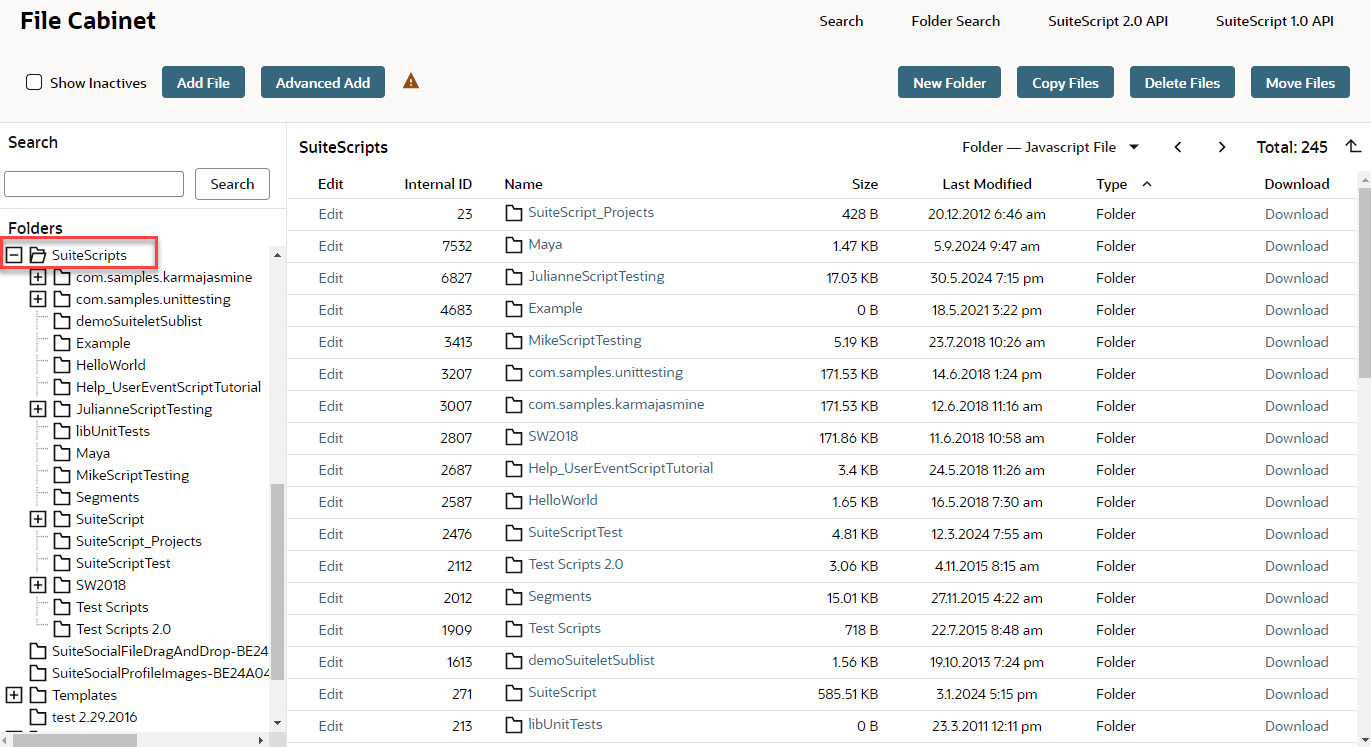
When you enable SuiteScript, NetSuite creates a SuiteScripts folder in the File Cabinet. You can save your scripts there for easier organization, but it's optional. Scripts run from any folder in the File Cabinet.
Keep the following guidelines in mind:
-
Only scripts in the File Cabinet can run in your account.
-
To run a script in the Customer, Vendor, Partner, or Employee Center, choose the matching role on the Audience subtab of the deployment record.
-
Make sure the script file-and any files it references-has Company-Wide Usage or Available Without Login enabled on its File Cabinet record. For more details, see Permissions and File Cabinet Files.
To upload SuiteScript scripts to the File Cabinet:
-
Go to Documents > Files > SuiteScripts.
-
Click Add File.

-
In the popup window that appears, select the file you want to upload and click Open.
After you edit a SuiteScript file in the File Cabinet, repeat steps 1-3 to upload it again. Then click OK to overwrite the file and apply your changes.