FAQ: SuiteCloud Developer Assistant
See the questions and answers below for more information about using SuiteCloud Developer Assistant Tool.
How do I interact with SuiteCloud Developer Assistant in VS Code?
To interact with SuiteCloud Developer Assistant in Visual Studio Code (VS Code), open VS Code and the Cline extension in the sidebar. Next, enter your natural language prompts or code requests in the chat box. The assistant generates code, XML objects, explanations, documentation, or debugging suggestions as requested.
Can I set up SuiteCloud Developer Assistant for a non-SDF project?
The assistant is designed for SuiteCloud Development Framework (SDF) projects.
How do I provide feedback on SuiteCloud Developer Assistant?
Use the Give Feedback button in the welcome message. Your input helps improve and refine the tool.
What is the API key used for in SuiteCloud Developer Assistant?
The API key is a unique identifier that grants secure access to SuiteCloud Developer Assistant service. It ensures that only authorized users can connect and use the service features in VS Code.
How can I regenerate the API key?
If you need to regenerate the API key for any reason, follow these steps:
-
In VS Code, open the activity bar and click the Cline extension.
-
At the top of the Cline panel, click the gear icon to open the provider and model configuration.
-
In the OpenAI Compatible API Key field, enter an invalid or placeholder value (for example:
test). -
In the Cline chat box, enter any question and submit it.
You will get the following error message in Cline: "Unauthorized: Missing or invalid API key".
-
When this error appears, a VS Code popup window prompts you to generate a new API key.
-
Click Generate New API Key in the popup window.
-
Copy the generated key and paste it into the OpenAI Compatible Key field.
For more information, see Setting Up SuiteCloud Developer Assistant Using Cline in SuiteCloud Extension for VS Code.
I get an 'Unauthorized: Missing or invalid API key' error. What should I do?
You may not have entered your API key in the e OpenAI Compatible Key field in the Cline configuration, or the API key you provided may be incorrect. When you see this error message, a VS Code popup window appears with an option to generate a new API key. Click Generate New API Key in the popup window and paste it in the OpenAI Compatible Key field. For more information, see Setting Up SuiteCloud Developer Assistant Using Cline in SuiteCloud Extension for VS Code.
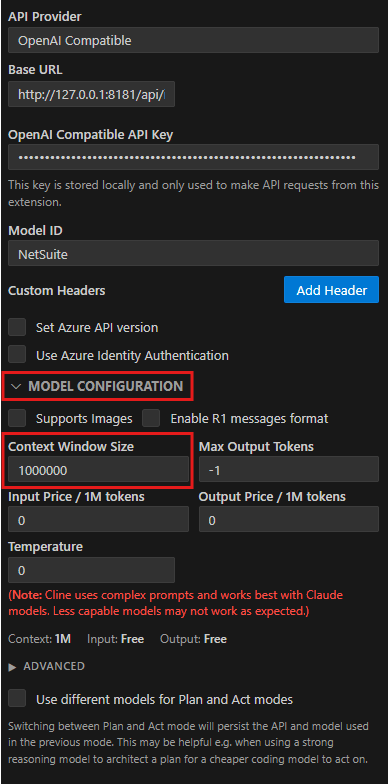
How can I configure Cline to use the full 1,000,000-token context window?
SuiteCloud Developer Assistant uses Cline as the interface to interact with large language models capable of supporting a 1,000,000-token context window. However, Cline defaults to a 128,000 token (128k) context window for OpenAI-compatible providers. This can significantly limit the assistant's capabilities and may cause context truncation or compaction issues. You can manually configure Cline to use the full 1,000,000-token context window for better results. To do this, follow these steps:
-
In VS Code, open the activity bar and click the Cline extension.
-
At the top of the Cline panel, click the gear icon to open the provider and model configuration.
-
In the Model Configuration section, locate the Model Context Window or Context Window Size setting.
-
Change the value from
128000(128k) to1000000(1M). -
Click Done to save the changes.
For more information, see Setting Up SuiteCloud Developer Assistant Using Cline in SuiteCloud Extension for VS Code.
I get an 'Auth ID is not available' error. What should I do?
You can run SuiteCloud: Manage Accounts to see the available account or create a new authentication ID (auth ID) as described in Setting Up SuiteCloud Developer Assistant Using Cline in SuiteCloud Extension for VS Code. Then, ensure you set the exact auth ID in SuiteCloud > Developer Assistant: Auth ID field. For more information, see Setting Up NetSuite Accounts in SuiteCloud Extension for Visual Studio Code.
Why do I see 'Developer Assistant has stopped' in the status bar?
Click the status bar message to see more details. Make sure your auth ID resolves correctly and the required port isn't blocked or unavailable.
I see 'Port [port] is already being used'. What should I do?
Change the Developer Assistant: Local Port field (for example, to 8182), and try again.
To check which ports are already in use, you can run the following commands in your terminal or command prompt. This step can help you identify an available port, especially if you have trouble finding one that's free:
Windows:
Get-NetTCPConnection -State Listen | Select-Object -ExpandProperty LocalPort
macOS and Linux:
lsof -nP -iTCP -sTCP:LISTEN | awk '{print $9}' | sed 's/.*://'
I get an 'Account unreachable' error. What should I do?
Check the following:
-
VPN connection is active (if it's required)
-
Host and port are correct
-
Firewall is not blocking the connection
-
SuiteCloud Developer Assistant service is running
I get a 'PROXY ERROR'. What should I do?
If you're on a VPN and encounter proxy errors, your proxy configuration may require updating. Sometimes, a new or different proxy server must be used when connected to the VPN.
Check the following:
-
Refresh your
http_proxyenvironment variable to ensure it points to the correct proxy for your VPN (for example, http://tw-proxy-lhr.oracle.com:80). -
Test the connection outside the VPN to isolate whether the issue is related to your VPN or proxy.
-
If Cline works with other providers but not SuiteCloud, double-check your configuration specifically for SuiteCloud.
I get an 'ERR_INVALID_URL' error. What should I do?
Make sure the base URL entered in the Cline settings is valid. If not, copy it from the SuiteCloud output panel. It's also listed in the popup window you see when you start SuiteCloud Developer Assistant service.
Related Topics
- SuiteCloud Developer Assistant Guide
- Capabilities and Supported Tasks
- Cline and SuiteCloud Developer Assistant
- Setting Up SuiteCloud Developer Assistant Using Cline in SuiteCloud Extension for VS Code
- Providing Feedback
- Setting Up SuiteCloud Developer Assistant with Other Third-Party Tools and AI Coding Assistants
- Using SuiteCloud Developer Assistant
- Best Practices for SuiteCloud Developer Assistant