Using SuiteCloud Developer Assistant
Use SuiteCloud Developer Assistant to help create SuiteCloud projects from a prompt. By providing a description of what you want your project to do, the assistant can generate boilerplate code that aligns with NetSuite development best practices.
SuiteCloud Developer Assistant is optimized to assist with JavaScript and TypeScript in SuiteScript files, and it works seamlessly with XML and JSON formats. To maintain a secure and focused development environment, the assistant guides you toward these supported technologies and provides a notification when a requested technology isn't supported.
Accessing SuiteCloud Developer Assistant
Before you begin using SuiteCloud Developer Assistant, ensure you have completed the setup steps. For more information, see Setting Up SuiteCloud Developer Assistant Using Cline in SuiteCloud Extension for VS Code.
The first time you use the assistant, it asks for permission to add new files to your workspace. You can also use the Auto-approve settings to change how actions are handled when working with the assistant.
SuiteCloud Developer Assistant is integrated with Cline, enabling you to create customizations with a simple prompt. To access the assistant:
-
Open Visual Studio Code.
-
Create a new SuiteCloud project. For more information, see Creating a SuiteCloud Project in SuiteCloud Extension for Visual Studio Code.
-
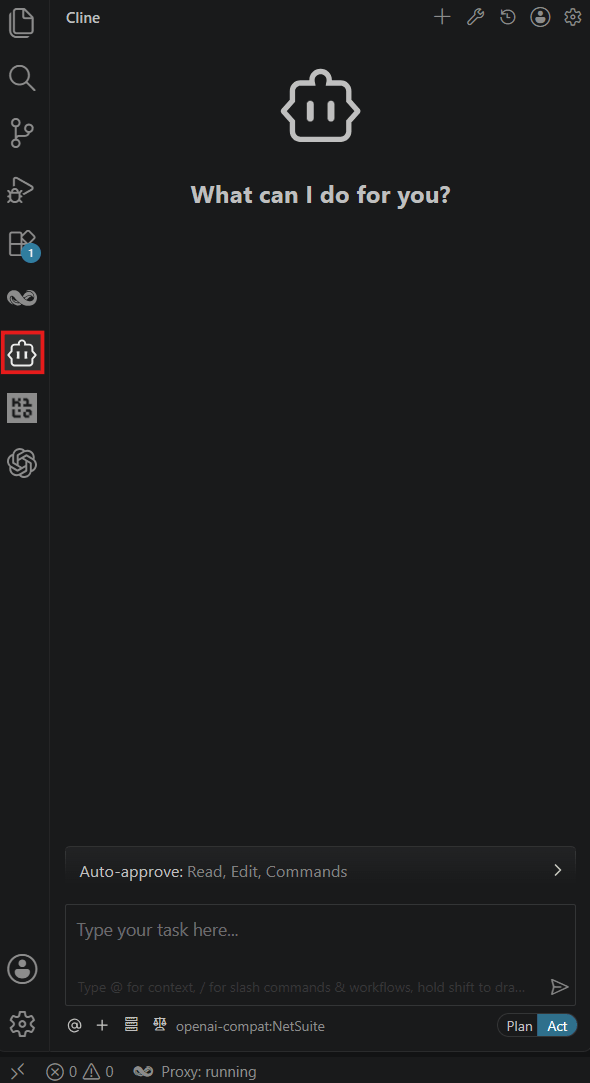
Go to the Cline extension located in the primary sidebar of the editor.
-
In the Cline extension, use the chat box to enter your prompts.
Defining Prompts for SuiteCloud Developer Assistant
To get the best functionality out of SuiteCloud Developer Assistant, it's important to clearly define what your customization should achieve. The following tips can help you achieve your desired outcome:
-
Identify the goal that the assistant should accomplish.
-
List specific customizations the assistant should handle (for example, whether the project should include any custom fields or records).
-
Clearly define inputs and outputs.
-
Establish success criteria.
-
Review and update the criteria based on results.
The following prompt asks Cline to create a script that analyzes item records in your inventory to help determine best pricing options. The prompt also tracks competitor pricing and historical sales data:
-
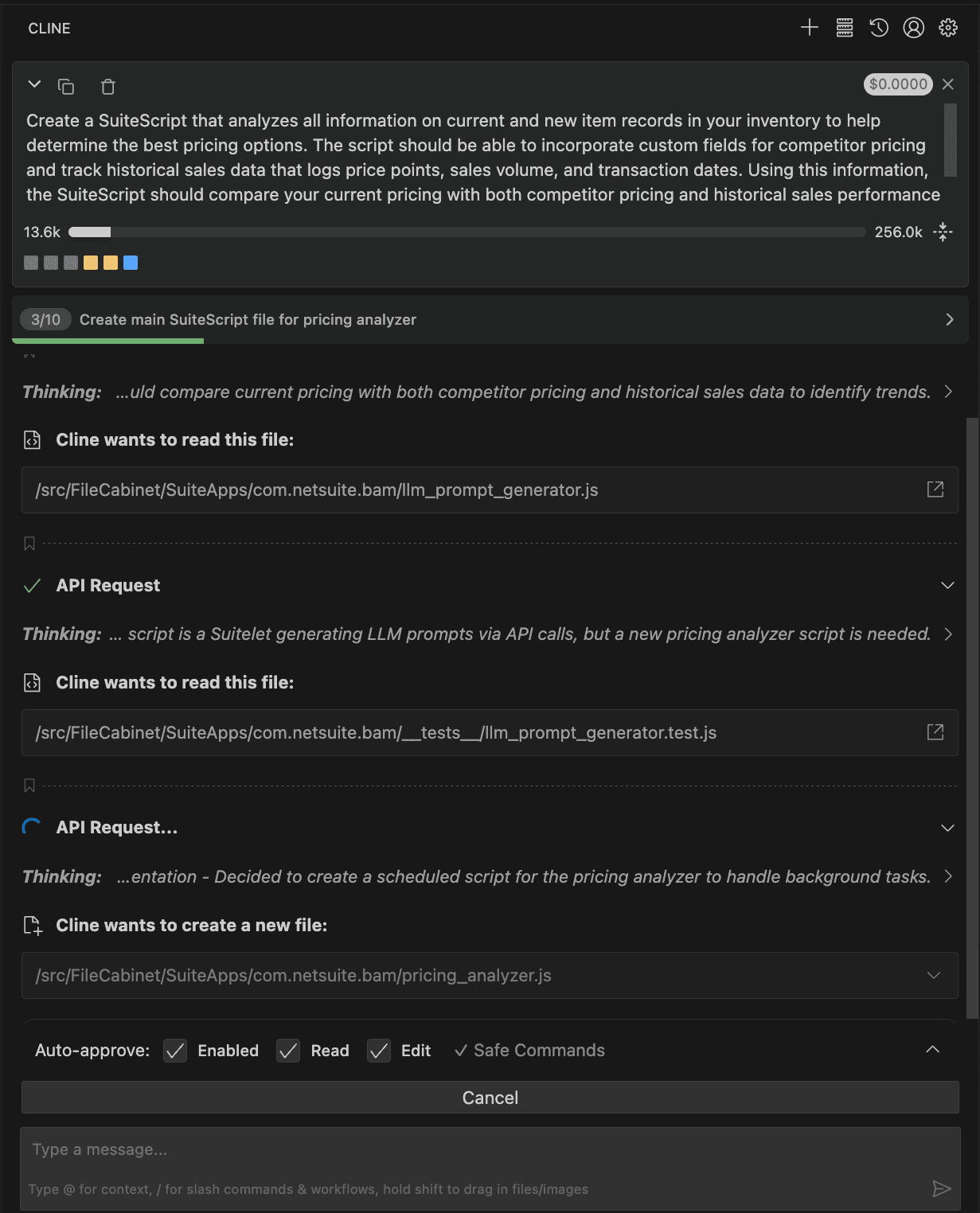
Create a SuiteScript script that analyzes all information about current and new item records in my inventory to help determine the best pricing options. The script should be able to incorporate custom fields for competitor pricing and track historical sales data that logs price points, sales volume, and transaction dates. Using this information, the SuiteScript script should compare my current pricing with both competitor pricing and historical sales performance to suggest optimal pricing strategies for each inventory item. The aim is for the script to generate automated, data-driven pricing recommendations that can help my business stay competitive and maximize revenue.
After you enter the prompt, Cline begins processing the request. The following screenshot shows Cline proposing to create a SuiteScript file for the inventory-pricing task:
For more information about generating prompts in SuiteCloud Developer Assistant, see Prompt Examples.
Managing SuiteCloud Developer Assistant Responses and Output
Depending on your prompt, the assistant may provide some of the following:
-
New SuiteScript files
-
Unit test files
-
Custom object recommendations
-
Additional details about how the customization works
-
Recommendations for next steps
-
Setup requirements
Review all changes implemented by the assistant before deploying to your account.
After the assistant generates code, review the output to ensure it meets your requirements. If you want to make changes or update the code, you can either manually edit each file or ask the assistant to make updates for you. To use the assistant for updates, create a new prompt with specific instructions about the changes you want. If you don't start a new task, you can continue making updates to the current project.
The following screenshot shows Cline's response to a prompt to generate a SuiteScript for inventory pricing.

The response summarizes the script's capabilities and lists custom fields to create before deployment. This process can reduce the amount of manual coding required to implement a customization. Review and test every generated change before deployment.
You can continue to iterate with the assistant as needed.
Don't enter sensitive, production, or personal data. For more information, see Best Practices for SuiteCloud Developer Assistant.
Related Topics
- SuiteCloud Developer Assistant
- Capabilities and Supported Tasks
- Cline and SuiteCloud Developer Assistant
- Setting Up SuiteCloud Developer Assistant Using Cline in SuiteCloud Extension for VS Code
- Providing Feedback About SuiteCloud Developer Assistant
- Setting Up SuiteCloud Developer Assistant with Other Third-Party Tools and AI Coding Assistants
- Best Practices for SuiteCloud Developer Assistant
- FAQ: SuiteCloud Developer Assistant