Setting Up SuiteCloud Developer Assistant Using Cline in SuiteCloud Extension for VS Code
Before you install and use SuiteCloud Developer Assistant using Cline in SuiteCloud Extension for Visual Studio Code (VS Code), verify the following prerequisites:
-
Install or update SuiteCloud Extension for VS Code that includes SuiteCloud Developer Assistant. For more information, see Installing and Setting Up SuiteCloud Extension for Visual Studio Code.
-
Install Cline version 4.0.0 or later from the Visual Studio Marketplace. For more information, see Visual Studio Marketplace.
-
Create a SuiteCloud project. For more information, see Creating a SuiteCloud Project in SuiteCloud Extension for Visual Studio Code.
-
Set up an authentication ID (auth ID). For more information, see Setting Up NetSuite Accounts in SuiteCloud Extension for Visual Studio Code.
To unlock the full capabilities of SuiteCloud Developer Assistant, install SuiteCloud CLI for Node.js. The CLI provides a secure authentication proxy for a seamless SuiteCloud Developer Assistant experience. For more information, see SuiteCloud CLI for Node.js Guide.
To set up SuiteCloud Developer Assistant:
-
Open Visual Studio Code with the SuiteCloud Extension installed and click the SuiteCloud Developer Assistant welcome message to go to the extension settings.
 Tip:
Tip:Return to the extension settings anytime by using Ctrl+, for Windows and Linux, or Cmd+, for macOS.
-
In Workspace > Extensions > SuiteCloud, configure the fields as follows:
-
Developer Assistant: Auth ID: Enter the auth ID you want to use for the SuiteCloud Developer Assistant service. For more information, see Setting Up NetSuite Accounts in SuiteCloud Extension for Visual Studio Code.
-
Developer Assistant: Local Port: Autopopulated by default. Change it if you prefer a different port or if the default port is already in use.
-
Developer Assistant: Enable: Check the Enable box.
The SuiteCloud Developer Assistant service isn't enabled automatically, so you need to check the box to start using the feature.
Note:By enabling the SuiteCloud Developer Assistant service, you acknowledge that you have read and understood the disclaimer provided on the extension Settings page.
During the initial setup, when you enable the SuiteCloud Developer Assistant service, a popup window appears displaying an API key. Copy it and follow the instructions provided.
Note:Refer to the success popup message or the SuiteCloud output to see the Base URL. You'll need it later.
-
-
In the activity bar, go to the Cline extension and click the provider and model configuration. Next, click Edit in settings.
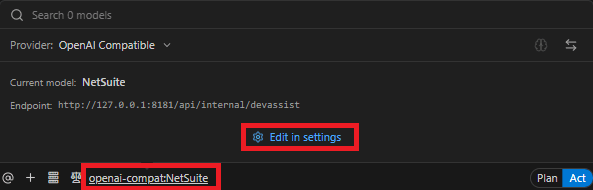
Configure the provider and model configuration fields as follows:
-
API Provider: Select OpenAI Compatible.
-
OpenAI Compatible API Key: Paste the generated API key.
-
Base URL: Enter the URL provided by SuiteCloud Extension for VS Code during SuiteCloud Developer Assistant configuration. To see it again, refer to the SuiteCloud output panel.
-
Model ID: If this isn't autopopulated, enter NetSuite.
-
In Model Configuration:
-
Clear the Supports Images box.
-
Set the Context Window Size to 1,000,000.
-
-
Refer to the provider status bar to see the status of SuiteCloud Developer Assistant. Clicking it opens the SuiteCloud Extension for VS Code settings.

For more information, watch the following help video:
For more information, see Installing and Setting Up SuiteCloud Extension for Visual Studio Code.
To use SuiteCloud Developer Assistant with other tools (IDEs and CLIs) and AI Coding Assistants, see Setting Up SuiteCloud Developer Assistant with Other Third-Party Tools and AI Coding Assistants.
Related Topics
- SuiteCloud Developer Assistant Guide
- Capabilities and Supported Tasks
- Cline and SuiteCloud Developer Assistant
- Providing Feedback
- Setting Up SuiteCloud Developer Assistant with Other Third-Party Tools and AI Coding Assistants
- Using SuiteCloud Developer Assistant
- Best Practices for SuiteCloud Developer Assistant
- FAQ: SuiteCloud Developer Assistant