Account Type Mapping in Profitability and Cost Management Sync
You can map any account type from your NetSuite account to any account type in your Profitability and Cost Management.
To create the mapping:
-
In NetSuite, go to NetSuite EPM > Profitability and Cost Management > Configuration Checklist.
You'll see a list of features that you can set up for Profitability and Cost Management in your NetSuite account.
-
For The Account Type Mapping is set for NSPC, click View, and then do one of the following:
-
To update an existing account type mapping, click Edit next to the mapping.
-
To create a new account type mapping, click Add Account Type Mapping.
-
-
From the Source Account Type list, select the NetSuite account type you want to map to Profitability and Cost Management.
-
(Optional) To map to a specific parent account member in Profitability and Cost Management, enter the relevant account number in the Source Account Number field.
If you use this option, you can expect the following behavior:
-
Adding a unique account number lets you map the same NetSuite account type to different Profitability and Cost Management account types.
Note:You can find the account number at Lists > Accounting > Accounts.
-
When you set an account number in the account type mapping, it takes priority and is used instead of the source account type. If no account number is defined, the existing logic based on account type is used.
Read these guidelines for using account numbers when mapping the same NetSuite account type to different Profitability and Cost Management account types:
-
Don't add account numbers to existing mapping records. Always create a separate record with the account number, and place it after the existing record. Make sure you use a different target account type.
-
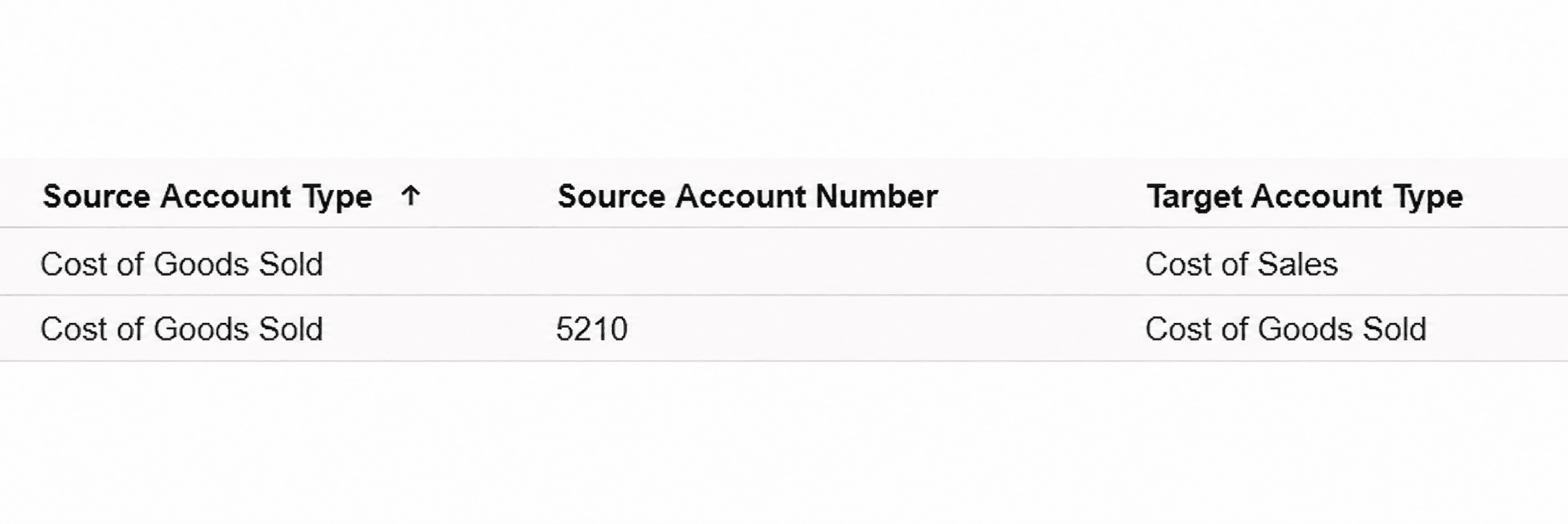
If you want to map only a specific account number, first create a record for the same NetSuite account type and leave the account number field empty. Then, create the record with the account number.
Important:The record with the specific account number must be placed after the record with an empty account number.
The following screenshot shows the correct mapping:
-
Use the account number only one time for each NetSuite account type. If you use it a second time, the record is considered a duplicate, and only the earlier record appears in the generated saved search result.
In the following screenshot, the second record is a duplicate and won't appear in the saved search result:

-
-
In the Target Account Type field, enter the name of the Profitability and Cost Management account type you want to map to.
-
Click Save.
If you want to successfully load Accounts metadata into your Financial Consolidation and Close, see Accounts Metadata in Profitability and Cost Management Sync.
Related Topics
- Metadata Export to Profitability and Cost Management
- Supported Metadata Saved Searches in Profitability and Cost Management Sync
- Accounts Metadata in Profitability and Cost Management Sync
- Class Metadata in Profitability and Cost Management Sync
- Customer Metadata in Profitability and Cost Management Sync
- Customer Project Metadata in Profitability and Cost Management Sync
- Department Metadata in Profitability and Cost Management Sync
- Employee Metadata in Profitability and Cost Management Sync
- Item Metadata in Profitability and Cost Management Sync
- Location Metadata in Profitability and Cost Management Sync
- Project Metadata in Profitability and Cost Management Sync
- Subsidiary Metadata in Profitability and Cost Management Sync
- Vendor Metadata in Profitability and Cost Management Sync
- Creating the Hierarchy of Metadata in Profitability and Cost Management Sync
- Optimal Number of Metadata Records to Import to Profitability and Cost Management
- Returning Metadata Hierarchy Based Only on Cloned Saved Search in Profitability and Cost Management Sync
- Item Type Mapping in Profitability and Cost Management Sync