Editing Items Assigned to a Category or Subcategory
You can reorder, remove, or add items in a category or subcategory, either one at a time or for a group of items. Any changes you make are updated on the Items subtab of the commerce category record in NetSuite
When you assign items to a category and save the record, it might take up to 5 minutes for the items to be displayed in the SMT category preview and also in the category item list on the site. This delay is expected behavior and occurs because the search index is rebuilt when you add or change an item category assignment.
After you save, it might take up to 5 minutes for the new or updated item list to show up in SMT or on your site. This is expected, since the search index rebuilds every time you add or change an item category assignment.
After you save, it might take up to 5 minutes for the new or updated item list to show up in SMT or on your site. This is expected, since the search index needs to rebuild after any changes
To manage items in a category or subcategory:
-
Log in to Site Management Tools. For details, see Logging into Site Management Tools.
-
Click the Overview Mode icon
 on the site management toolbar.
 -
In the category list, locate the category or subcategory you want to manage items for and click the icon in the Items column
 . This displays the Category Items list in the side panel.
 -
Click Edit.
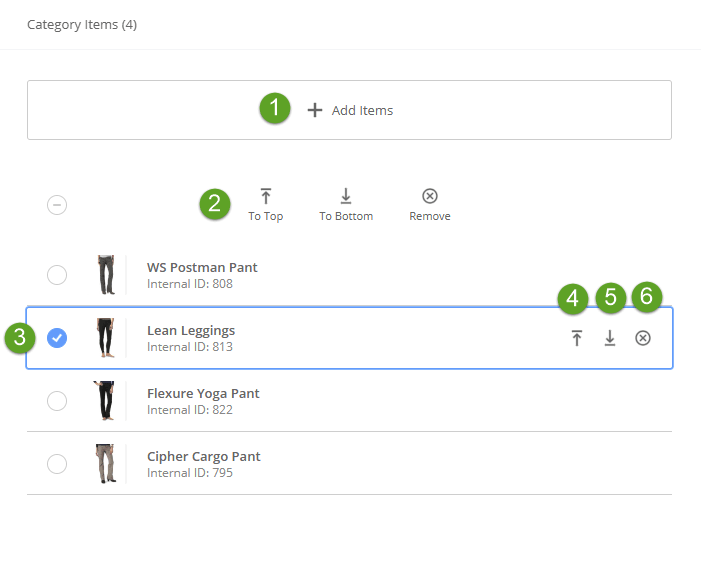
The following screenshot displays the options in the Category Items panel when edit is selected.
Item
Description
1
Click Add Items to add new items to the category.
2
Use these three options to move the selected item to the top or bottom of the list, or to remove it.
3
Click an item to select it. When an item is selected a checkmark is displayed. To clear an item, click it again.
4
Click this button to move the item up one position in the list.
5
Click this button to move the item down one position in the list.
6
Click the button to remove the item from the category.
Tip:In addition to using the move item buttons in the item list, you can also drag and drop items to order them. To move an item, click the item and drag it to the order where you want to place it. The list displays a drop indicator to let you know where the item will be placed.
-
Click Save.