Troubleshooting Category Item Errors
When working with categories and item assignments in Site Management Tools (SMT), you might run into errors or warnings about unavailable items. Here are some common reasons for these errors, plus tips on how to troubleshoot and fix them.
Commerce Categories Item Data Was Not Found Warning
Sometimes, when working with category items in Site Management Tools, you'll see a placeholder that says Item Data was not found.
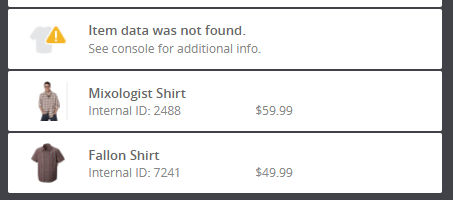
This usually happens if something about the item changed after it was first added to the category. Two common examples are:
You can view the browser console for additional information about the missing item. For details, see Resolve an Unavailable Category Item.
Item Set to Not Display in Web Store
The website setup record controls whether an item shows up in the web store. If you clear the Display in Web Store box after adding an item to a category, you'll get the Item data was not found warning in that category. You have two options for correcting this:
-
If the item is still valid and should be displayed in the web store, edit the item record and select the Display in Web Store box on the Web Store subtab. For details, see Resolve an Unavailable Category Item.
-
If the item shouldn't be displayed in the web store, delete the item from the category.
Item Record in a State that Cannot be Displayed
If the item record is set to display in the web store but you're still seeing Item data was not found, something else might have changed. Try these steps:
-
Review the item record to see if you can find and correct an issue with the record. For details, see Resolve an Unavailable Category Item.
-
Try removing the item from the category and then adding it again.
You can see a history of changes made to an Item Record on the record's System Information subtab.
Resolve an Unavailable Category Item
If you receive the Item data was not found warning, you can find more information about the item and the warning in the browser console. In the following example from a console log, you see the message that The specified items are not currently set to Display in Store. The items array in this message lists the internal ID of three items that cannot be displayed in the store.

In this example, the Internal IDs are 2466, 2431, and 2599. After you know the item's Internal ID, you can do an advanced search against the item records and filter for the internal IDs. You can then inspect the item record to determine the problem and take corrective action.