Grant Management Preferences
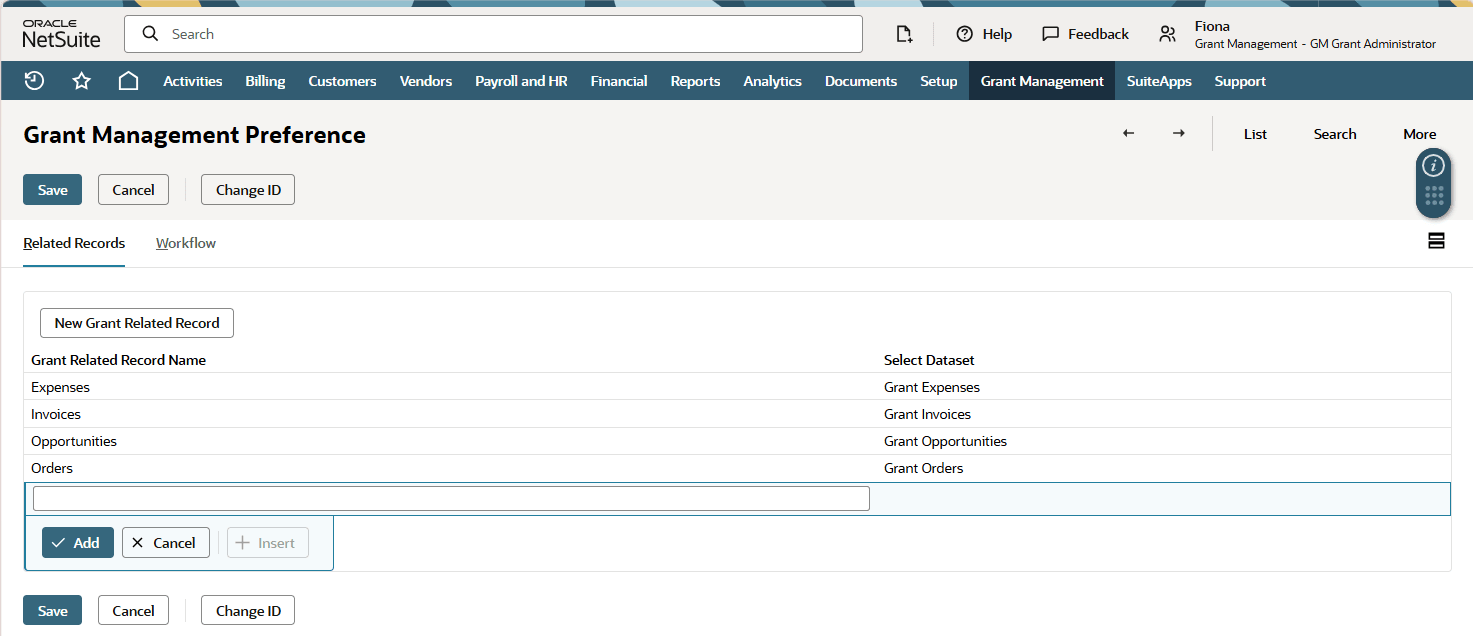
In the Grant Management Preferences page, you can customize the grant related records shown for each grant.
The following screenshot shows the Grant Management Preferences page:
Grant Related Records
Grant related records are custom records based on datasets. The following table shows the four related records provided by the SuiteApp:
|
Grant Related Record Name |
Dataset |
Description |
|---|---|---|
|
Opportunities |
Grant Opportunities |
This dataset displays a list of the grant's related grant opportunities that use the current Grant in the record. |
|
Orders |
Grant Orders |
This dataset displays a list of sales orders (with GL impact) that use the current Grant in the record. |
|
Invoices |
Grant Invoices |
This dataset displays a list of sales transactions (with GL impact) that use the current Grant in the record. |
|
Expenses |
Grant Expenses |
This dataset displays a list of expense transactions (with GL impact) that use the current Grant in the record. |
Creating a New Grant Related Record
By default, the Grant Management SuiteApp provides four grant related records, but you can create more.
To create a new grant related record:
-
Go to Grant Management > Grant Management Preference > Setup Related Records.
-
In the Grant Related Record Name column, enter a unique grant related record name.
-
In the Select Dataset field corresponding to the new grant related record name, select the dataset where the grant related record will be based on.
Note:Before selecting a dataset for the new grant related record, you must ensure that the new dataset where the record or transaction is based from has the grant custom segment applied to it.
-
Click Add.
-
If you want to add another grant related record, repeat steps 2 to 4.
-
Click Save.
Viewing Related Records from a Grant
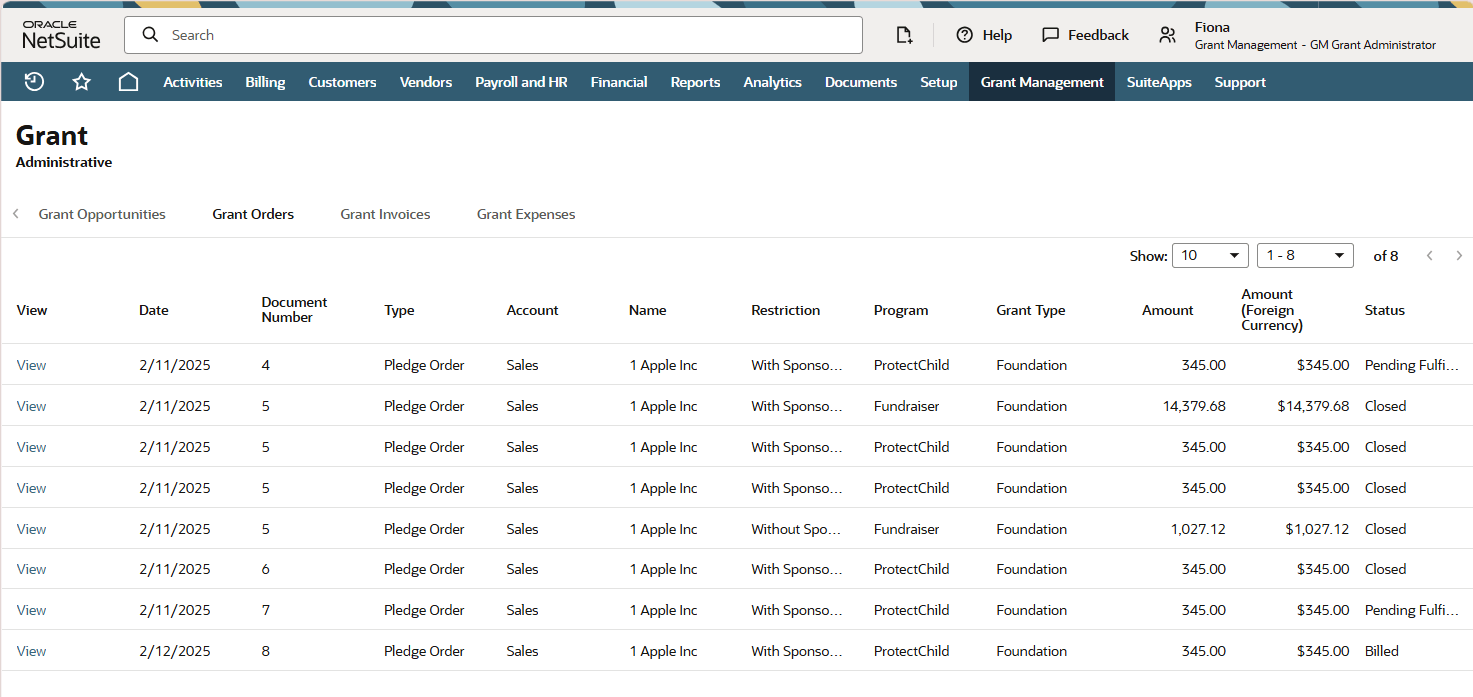
When viewing the related records of a particular grant, each record shows as a subtab.
If you added a related record in the Grant Management Preferences, the record will also be shown as a subtab.
The following screenshot shows the related records shown for a particular grant:
To view the related records from a particular grant:
-
Go to Grant Management > Grant Setup > Grants.
-
From the Grant list, click View next to the grant you want to view.
-
In the Grant page, click the
 icon.
icon.The Grant page shows the grant related records as subtabs. The subtabs are named after the datasets' names set in the Grant Management Preferences page.