Creating a Custom Formula Field in SuiteAnalytics Workbook
In the following example, you'll create a formula field to convert data values to another format. The Formula Field window only shows fields from the root record type and any related fields added to the Data Grid.
To do arithmetic calculations or view totals for fields with values in more than one currency, you must convert or consolidate the values to a specific currency. In the Dataset Builder, you can only do this using custom formula fields. For more information, see Currency Conversion Using Custom Formula Fields.
To create a custom formula field in SuiteAnalytics Workbook:
-
Click Formulas above the Records list on the Dataset Builder.
-
In the Fields list, click New Formula.
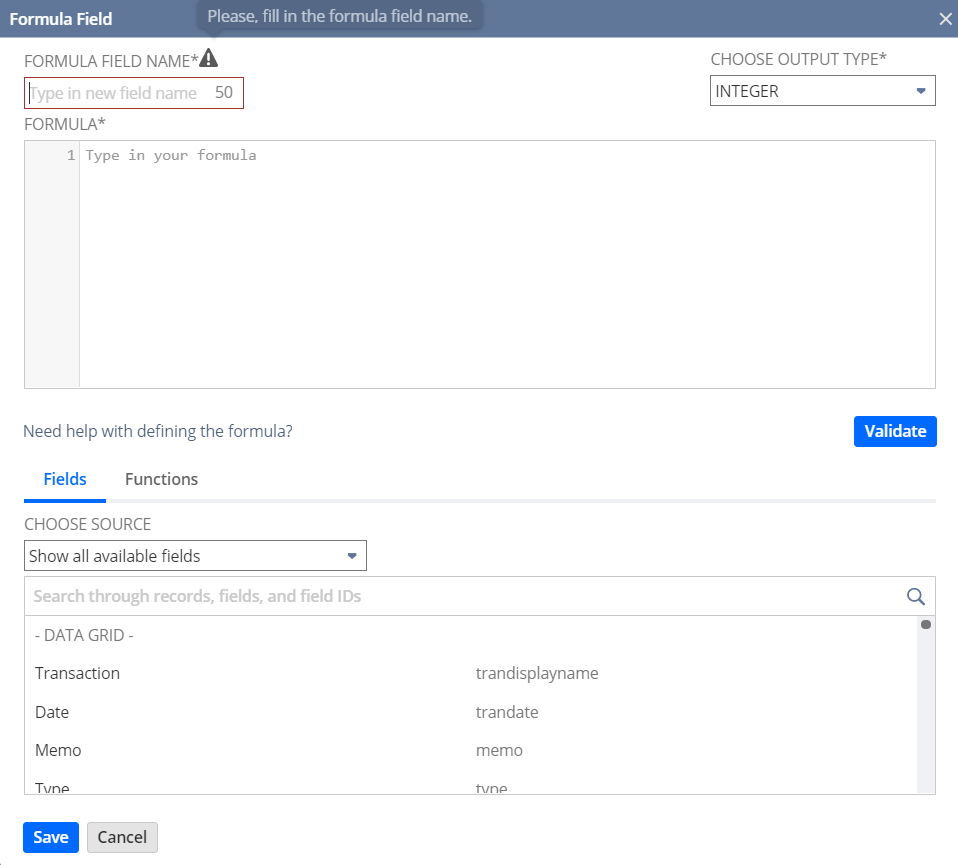
The Formula Field window appears.
-
Enter a Formula Field Name.
For this example, enter Formatted Date.
-
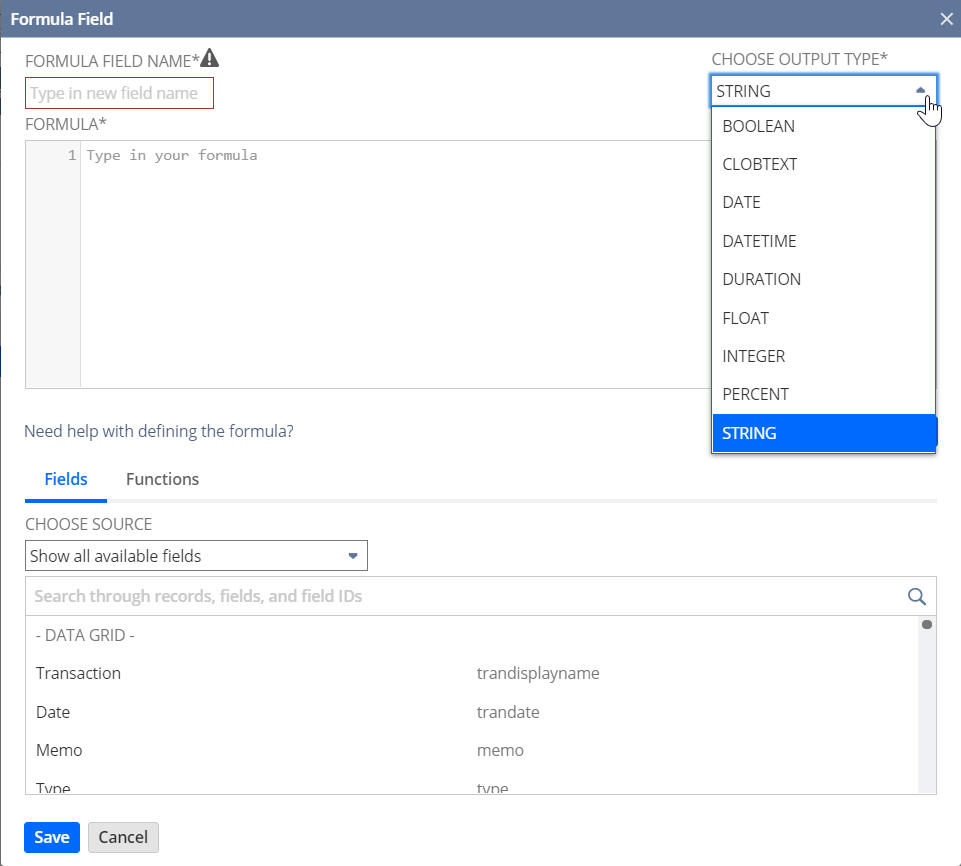
Choose an Output Type for the formula field values.
For this example, select String.
 Note:
Note:Each output type only works with certain fields and formula functions. If you select an incompatible output type for the formula, the formula is invalidated and the Formula Builder highlights the error in the definition. To view details about the validation error and for information about how to correct the definition, click the error icon
 .
. -
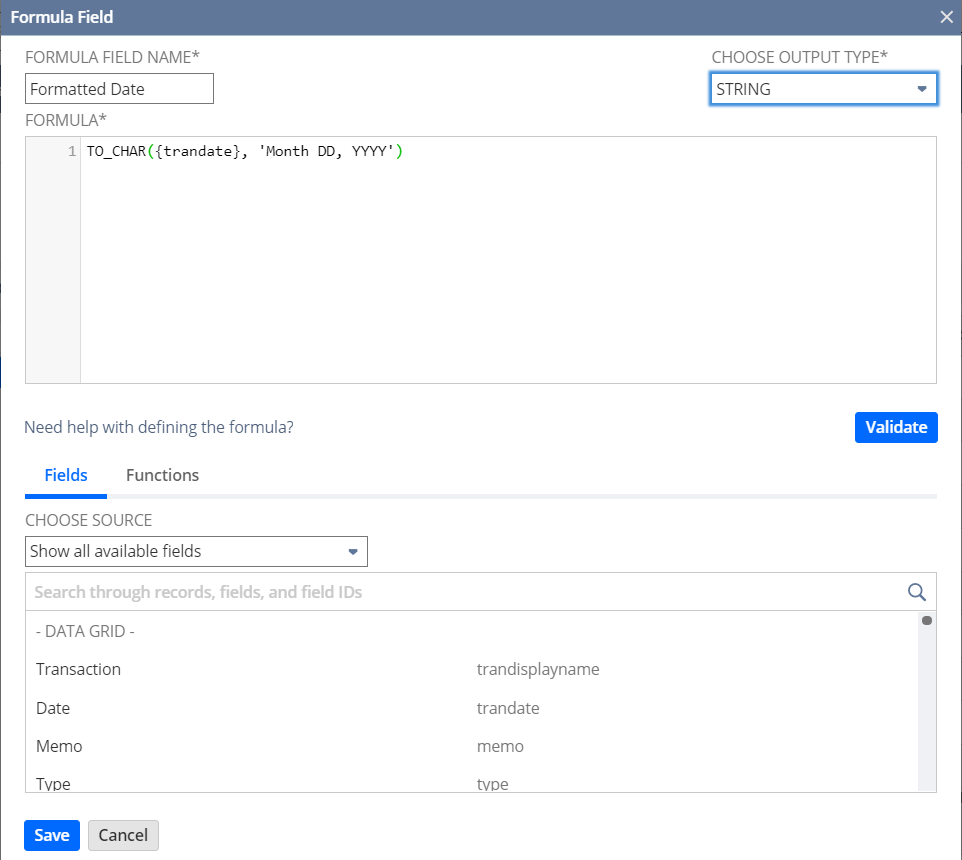
In the Formula field, enter the field IDs and SQL functions you want to use in the formula. You can also double-click field IDs or formula functions from the Functions or Fields tabs to add them.
For this example, select the TO_CHAR and replace the content in the brackets with {trandate}, 'Month DD, YYYY'.
-
To validate the formula, click Validate.
Note:If there are errors with the formula, click the error icon
to view the details. -
Click Apply to add the formula field to your dataset.
The field appears in the Field lists on the Dataset Builder when you click Formulas. If you add the field to the Data Grid, you can use it in any workbook visualizations that use this dataset.