Using Context Values in Formula Fields
You can use different context values in fields to set how values are shown. For example, you can show a field's name instead of its ID.
The following example shows a formula definition where type is the field and display is the context value that defines how results are displayed. Context values are placed after the number sign # within the same parentheses containing the field name in a formula definition.
Example: {type#display}
Before you start working with context values, keep these things in mind:
Supported Context Values
SuiteAnalytics Workbook supports the following context values:
|
Context Value |
Description |
|---|---|
|
|
Shows consolidated currency amounts in the currency of the lowest-level parent subsidiary you can access. The exchange rate for the consolidation is based on the rate in effect when you run the query or visualization. For more information, see Currency in Datasets and Workbooks. Formula example:
|
|
|
Shows converted currency amounts in your account's base currency. The exchange rate for the conversion is based on the rate in effect when you run the query or visualization. For more information, see Currency in Datasets and Workbooks. Formula example:
|
|
|
Shows the currency amounts in the currency ID specified in the brackets [1]. The exchange rate is based on the run date for your query or visualization. For more information, see Currency in Datasets and Workbooks.
Note:
The currency ID 1 corresponds to the base currency. Formula example:
|
|
|
Shows the currency amounts in the currency specified in the brackets [1], using the exchange rate in effect on the date you specify (use YYYY-MM-DD format). By default, the currency ID is set to 1. For more information, see Currency in Datasets and Workbooks.
Note:
The currency ID 1 corresponds to the base currency. Formula example:
|
|
|
Shows field values in a more user-friendly way. For the type field, you'll see labels like bill, cash refund, or inventory adjustment. Formula example:
|
|
|
Shows raw field values, like internal IDs. For the type field, the raw value shows the transaction type ID.
Note:
The ID is a unique identifier that doesn't change. If a field name changes, you can still find it using the ID instead of the name. For example, you'd get CashRfnd instead of cash refund. Formula example:
|
|
|
Shows more user-friendly field values for hierarchical fields. This context value is similar to Formula example:
|
|
|
Shows more user-friendly field values for hierarchical fields. This value is similar to #display but applies to hierarchical fields Formula example:
|
Editing Context Values
In this example, you can change the context value of the type field. By default, the type field displays names, but if you change the context value, it displays the ID instead.
This example is applicable for any record type that includes the type field. The following example is the transaction record type, available in the Transaction Detail dataset template.
To edit the context value in a formula
-
Click Formulas above the Records list on the Dataset Builder.
-
In the Fields list, click New Formula.
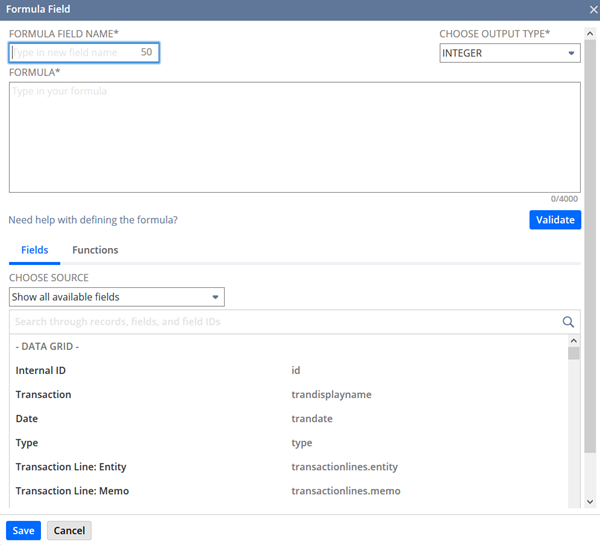
The Formula Field window appears.
-
Enter a Formula Field Name.
For example, enter Type (ID).
-
Choose an Output Type for the formula field values.
For the purposes of this procedure, select String.
-
Double-click fields from the Fields subtab to add them to the FORMULA text box.
For the purposes of this procedure, double-click Type.
The formula will appear in the Formula field. In this example,
{type#display}. -
In the Formula field, replace what's after the # sign with the value you want.
For this example, remove
#displayand enter#raw. -
To validate the formula, click Validate.
Note:If there are errors with the formula, click the error icon (warning) to view the details.
-
Click Apply to add the formula field to the dataset.
The field appears in the Field lists on the Dataset Builder when you click Formulas. If you add it to the Data Grid, you can use it in any workbook visualization based on that dataset. In those visualizations, the type field shows the ID of the values.