Creating a Shortcut to a File Cabinet Folder
In the Shortcuts portlet on your NetSuite Home page, you can add links to the File Cabinet folders you use most often. To create a shortcut for a folder, use the folder's internal ID to create a URL that points to the folder. Next, use the URL to set up a new shortcut in the Shortcuts portlet.
To create a shortcut on your NetSuite Home tab:
-
Click the Documents tab.
-
Find the internal ID for the folder.
-
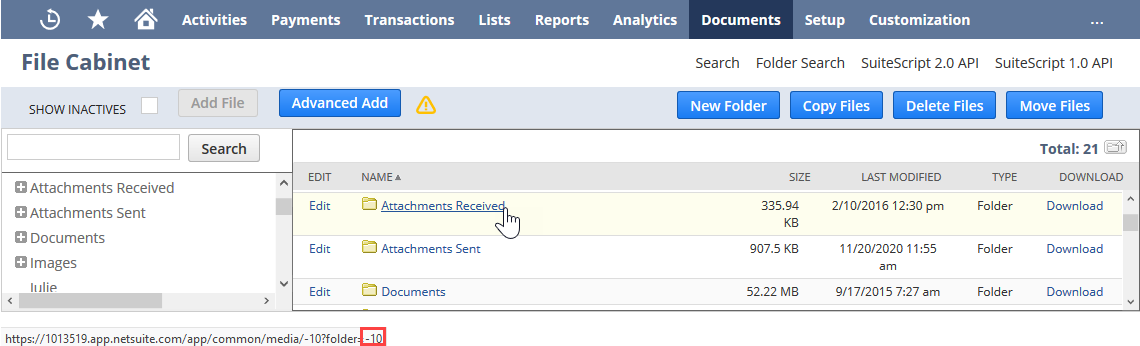
Point to the folder name as shown in the following sample screenshot.
-
Find the internal ID for the folder. The internal ID displays at the bottom left of the browser window. You can also set your personal preferences to display the folder internal IDs on the File Cabinet page. For more information, see General Personal Preferences.
-
-
Click the Home tab.
-
In the Shortcuts portlet, click New Shortcut.
Note:If you don't see the Shortcuts portlet on your Home tab, click Personalize in the upper right, and then select Shortcuts in the Personalize Dashboard area.
-
Add your folder's internal ID to the end of the URL that displays a File Cabinet folder: https://<accountID>.app.netsuite.com/app/common/media/mediaitemfolders.nl?folder=
For example:
https://<accountID>.app.netsuite.com/app/common/media/mediaitemfolders.nl?folder=8For more information, see Shortcuts Portlet.
-
Click Save.
After creating the shortcut, you can go directly to this folder by clicking the link in the Shortcuts portlet on your NetSuite Home page.