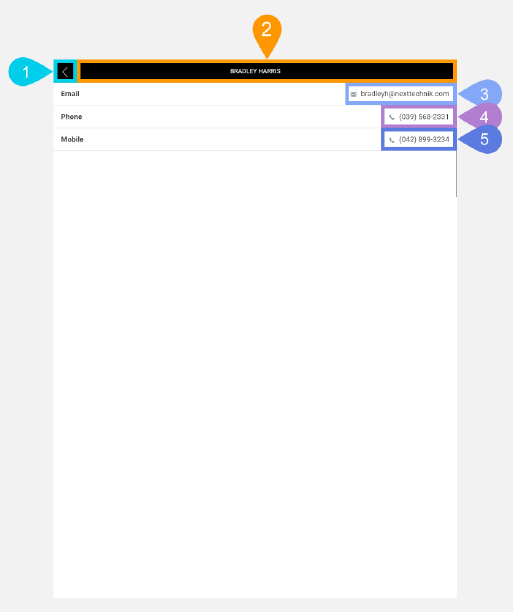
Contact Details Screen in Detail
The Contact Details screen displays more details, like the contact's mobile phone number. You can select a phone number to launch your mobile device's phone dialer app and to automatically dial the number. You can also select the email address to launch your mobile device's default email app and create a new email with the contact's email address automatically filled in.
|
Section |
Task |
Effect |
Availability |
Errors/Alerts Shown |
Highlighted in Screenshot |
|---|---|---|---|---|---|
|
Back button |
Lets you go back to the Contact List screen. |
Shows the Contact List screen. |
Always |
None |
1 |
|
Toggle Selected Task Details Screen Visibility button |
Lets you access functions on the Selected Task Details screen. This button, positioned in the Control Bar, spans the entire width of the screen except where other buttons are placed. The name of the selected contact displays inside this button. |
Shows the Selected Task Details screen. |
Always |
None |
2 |
|
Email text display field |
Displays the email address of the selected contact person. This also functions as a button to let you launch your mobile device's default email app and send an email to the selected contact. |
When you tap anywhere on the displayed email address, your mobile device's default email app is launched and a new email is loaded with the email address of the selected contact in the To field. |
Always |
None |
3 |
|
Phone text display field |
Displays the phone number of the selected contact. This functions as a button to let you launch your mobile device's default phone app to automatically call the selected contact. |
When you tap anywhere on the displayed phone number, the Field Service Mobile app will ask the mobile device to dial the displayed number. Depending on the specific device used, it will ask whether you want to dial the number first. If you agree to making the call, then the number will be dialed. |
Always |
None |
4 |
|
Mobile text display field |
Displays the mobile number of the selected contact. This also functions as a button to let you launch your mobile device's default phone app and automatically dial the selected contact. |
When you tap anywhere on the displayed mobile number, the Field Service Mobile app will ask your mobile device to dial the displayed number. Depending on the specific device used, it will ask whether you want to dial the number first. If you agree to making the call, then the number will be dialed. |
Always |
None |
5 |