Add, Edit, Delete, or View Quote Item Screen
This screen lets you add, edit, delete and view quote items.
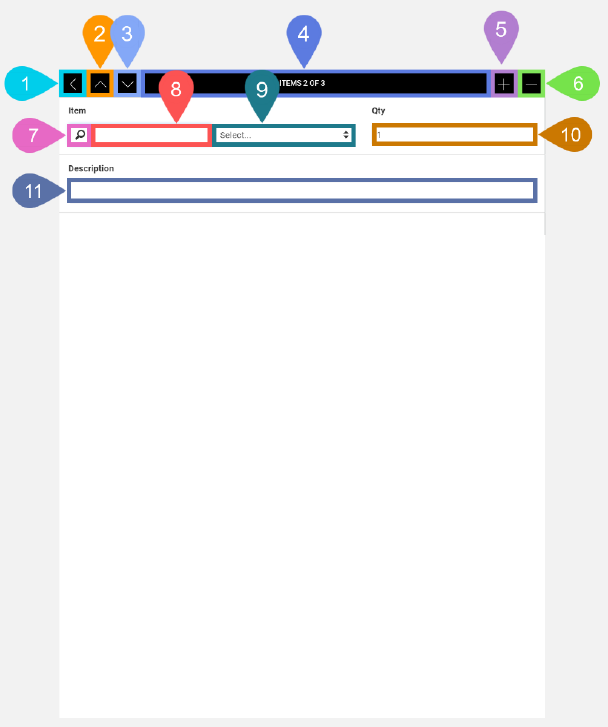
|
Section |
Task |
Effect |
Availability |
Errors/Alerts Shown |
Highlighted in Screenshot |
|---|---|---|---|---|---|
|
Back button |
Lets you go to the Quote Details screen. |
Displays the Quote Details screen. |
Always |
None |
1 |
|
View Previous Quote Item button |
Lets you view the previous quote item. |
Populates the Item dropdown list, Quantity text field and Description text field with the values from the previous quote item. |
When there are two or more quote items entered and Field Service Mobile is not showing the first quote item. |
None |
2 |
|
View Next Quote Item button |
Lets you view the next quote item. |
Populates the Item dropdown list, Quantity text field and Description text field with the values from the next quote item. |
When there are two or more quote items entered and Field Service Mobile is not showing the last quote item. |
None |
3 |
|
Toggle Selected Task Details Screen Visibility button |
Lets you access functions on the Selected Task Details screen. |
Displays the Selected Task Details screen. |
Always |
None |
4 |
|
Add Quote Item button |
Adds a new quote item for the current quote. |
Adds a new quote item for the selected task and populates the Item dropdown list, Quantity text field and Description text field fields with default values. |
If the Status text field of the current quote has a value of Open. |
None |
5 |
|
Delete Current Quote Item button |
Deletes the currently displayed quote item for the current quote. |
Deletes the current sales order item and displays the Quote Details screen. |
If the Status text field of the current quote is Open. |
None |
6 |
|
Item Search button |
Displays the hidden Item Search text box to type in a search query. |
If you tap the Item Search button, then the Item Search text box slides out from the right-hand side of the Item Search button letting you type in a search query. |
If the Status text field of the current quote has a value of Open. If the Status text field of the current quote has a value other than Open, then the Item Search button will be hidden. |
None |
7 |
|
Item Search text field |
Lets you enter a search query to show only matching items in the Item dropdown list making it easier and quicker to find your desired item. |
As you type the search query text in the Item Search text box the Item dropdown list changes to show how many items match your search query. As soon as you've typed the query, you should tap the Item dropdown list to show the matching items. |
If the Item Search button is visible and after you tap the Item Search button but you haven't tapped anywhere on the screen except for the Item Search button or Item Search text box. |
None |
8 |
|
Item dropdown list |
Lets you select from a list of items. The list will be either the full list of all items in the system if you haven't entered a search query using the Item Search text box or a subset of all items in the system matching your search query. |
None |
If the Status text field of the current quote has a value of Open. If the Status text field of the current quote has a value other than Open, then the Item dropdown list will be replaced with an Item text display field. |
None |
9 |
|
Quantity text field |
Lets you add a quantity for the current quote item in the selected task. |
None |
If the Status text field of the current quote has a value of Open. If the Status text field of the current quote has a value other than Open, then the Quantity text field will be replaced with a Quantity text display field. |
None |
10 |
|
Description text field |
Lets you add a description for the current quote item in the selected task. |
None |
If the Status text field of the current quote has a value of Open. If the Status text field of the current quote has a value other than Open, then the Description text field will be replaced with a Description text display field. |
None |
11 |