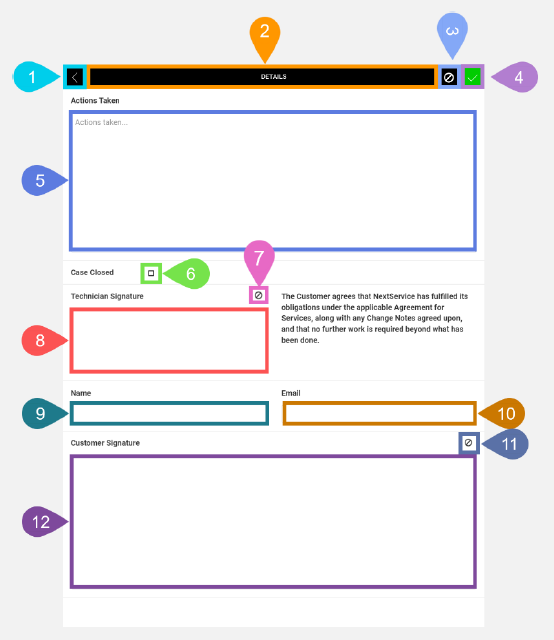
Details Screen in Detail
This screen lets you record information for a selected task. By default, you must enter information in the Details tab. You can't save information in the Details screen until there is data in the Technician Signature drawing box. This means that you should sign on this screen and save the data before setting the Status of the task to Complete.
Optionally, you can also record actions taken, close the entire case of tasks, if necessary, and then add the customer representative's name, email address, and signature.
|
Section |
Task |
Effect |
Availability |
Errors/Alerts Shown |
Highlighted in Screenshot |
|---|---|---|---|---|---|
|
Back button |
Lets you go to the Selected Task Details screen. |
Shows the Selected Task Details screen. |
Always |
None |
1 |
|
Toggle Selected Task Details Screen Visibility button |
Lets you access functions on the Selected Task Details screen. |
Shows the Selected Task Details screen. |
Always |
None |
2 |
|
Discard Changes button |
Lets you clear any changes made in the Details screen. |
Shows the alert below. If you tap OK on the alert, then Field Service Mobile reverts the contents of all data entry fields to the previous values. If no details data has been saved previously for the selected task, then all data entry items are set to default values. If details data has been saved previously for the selected task, then all values revert to their previous values when the details data was last saved. If you tap Cancel on alert, then the alert is hidden, and no changes are made. |
As soon as changes are made to any of the data entry items in the screen. |
Shows the alert 'Are you sure you want to discard your changes?" |
3 |
|
Save button |
Lets you save values for each data entry item. |
Saves the values into a new details record and displays the Saving To Cloud indicator. When the data has been saved, either locally or in the cloud, the Saving To Cloud indicator is hidden. |
When the Actions Taken text box and the Technician Signature drawing box both contain data. |
None |
4 |
|
Actions Taken text box |
Lets you record text comments regarding the task. |
None |
Always |
None |
5 |
|
Case Closed checkbox |
Lets you mark the entire case as closed. If you check this box when the data is saved and the selected task is completed, other tasks for the case are set to Closed. |
None |
Always |
None |
6 |
|
Clear Technician Signature button |
Lets you clear the contents of the Technician Signature drawing box. |
Clears the contents of the Technician Signature drawing box. |
When the Technician Signature drawing box has data in it. |
None |
7 |
|
Technician Signature drawing box |
Lets you sign on your mobile device to indicate completion of the task. |
None |
Always |
None |
8 |
|
Name text field |
Lets you enter the customer's name. |
None |
Always |
None |
9 |
|
Email text field |
Lets you enter the customer's email address. |
None |
Always |
None |
10 |
|
Clear Customer Signature button |
Lets you clear the contents of the Customer Signature drawing box. |
Clears the contents of the Customer Signature drawing box. |
When the Customer Signature drawing box has data in it. |
None |
11 |
|
Customer Signature drawing box |
Lets you sign on your mobile device's screen and accept that the task has been completed. |
None |
Always |
None |
12 |