Ability to Respond to Prompts While Running Books
Book users can now respond to prompts when executing a book in Oracle Smart View for Office (Mac and Browser).
Applies to: Enterprise Profitability and Cost Management, Financial Consolidation and Close, FreeForm, Planning, Tax Reporting
Previously, when working with books in Smart View (Mac and Browser), any reports with prompts within the book needed to have the prompt selection defined by the book designer. Prompts were not answerable by book users in Smart View (Mac and Browser).
In this release, book users in Smart View (Mac and Browser) can respond to prompts when executing a book, as well as have duplicate prompts combined to a single prompt. Designers can still define prompt selections, if needed, for specific prompts if the selection needs to be hardcoded and not selectable by the book user.
In the web business process, when previewing a book and responding to prompts, you can either use:
- Full Mode
- Compact Mode
Full Mode displays all prompts in reports and books inserted separately. In the following illustration, two prompts are defined for the Period dimension, and they are shown on separate rows:
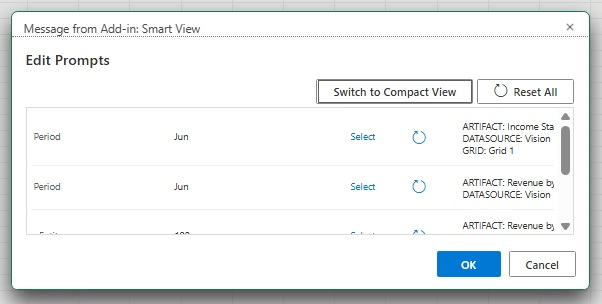
Edit Prompts Dialog in Full Mode, with Show Compact View Button
Compact Mode consolidates duplicate prompts (same dimension, prompt label, choice list, default selection, and "Allow Multiple Selections" setting for the same data source) across reports. In the following illustration, the two prompts for the Period dimension are consolidated into one row:
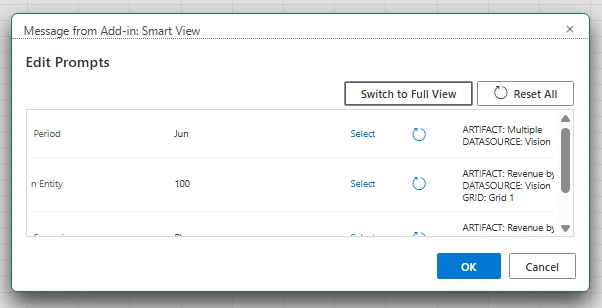
Edit Prompts Dialog in Compact Mode, with Show Full View Button
You respond to prompts by clicking Select for each dimension and selecting members from a predefined choice list, if one is defined for the prompt. If no choice list is defined, then the Member Selector is displayed. After making selections for each prompt, click OK. If you are prompted for the POV, complete those selections, and then the job to import the book is submitted. You can download the book once the job status is complete.
Business Benefit: This feature enhances efficiency by allowing you to respond to prompts when importing a book.
Steps to enable and configure
To use the prompts feature for Books, Service Administrators deploy a new or reuse an existing Smart View (Mac and Browser) manifest file.
To deploy a new or existing manifest file:
- Create a new manifest file or reuse an existing manifest file that has the EPM Books option selected under Available Extensions.
- For a new manifest file, in the Create Manifest File page, ensure that the EPM Books option is selected under Available Extensions, and make any other selections and modifications, as you require.
- Deploy the manifest file to Smart View (Mac and Browser) users.
Key resources
- Working with Oracle Smart View for Office (Mac and Browser)
- Deploying and Administering Oracle Smart View for Office (Mac and Browser)